> ## Documentation Index
> Fetch the complete documentation index at: https://docs.tread.ai/llms.txt
> Use this file to discover all available pages before exploring further.
# Orders & Projects
> The work — from a multi-day Project down to a single daily Order.
Projects represent long standing work for a Customer. Project allows tracking against more than 1 day of work. The Project ends up acting as a template across required objects — Customer, Sites, Materials, rates — and every daily Order with that project selected inherits it.
The Order captures a single day's required trucks or quantity to be dispatched. Orders are utilized on a daily basis, each new day gets a new order.
## What it is
A Project is the long-lived record for the work. It may run for a day or a year, and it holds everything the daily work inherits. An Order is one day of that work — the unit you dispatch. A Job is one truck's assignment on an Order. One Project can hold dozens of Orders; one Order can hold many Jobs.
## How Tread models it
* **Project** — spans the duration of the project, can be many weeks, months, or years. Holds the [Customer](/concepts/connected-ecosystem), the [Sites](/concepts/sites-geofences) (pickup and dropoff), the [Materials](/concepts/materials), the [rates](/workflows/project-rates), and the date range.
* **Order** — single day. Holds the date, shift, [Equipment](/concepts/equipment) requested, Drivers assigned, and the target quantity.
* **Job** — Also referred to as a dispatch, or a TRD. One truck's assignment on an Order. Holds the Driver, the Equipment, and the matched rate. An Order with five trucks has five Jobs.
* **Dispatch board** — lists every Order for a given day. Can be navigated with a calendar like experience. Fully searchable and filterable.
## When to use Projects
Projects can be one of the most powerful, time saving features in Tread. Use a project to create templates for types of work, or to save all information for a customer in a single location. Projects can by duplicated using the Copy & Edit feature. Projects are also the basis for Tread's Quoting features.
All rates can be setup in a Project. This allows the daily Order to inherit all templated data across the full project, making the daily order setup as simple as a few clicks.
## Order setup
There are three ways our customers most typically create Projects and Orders.
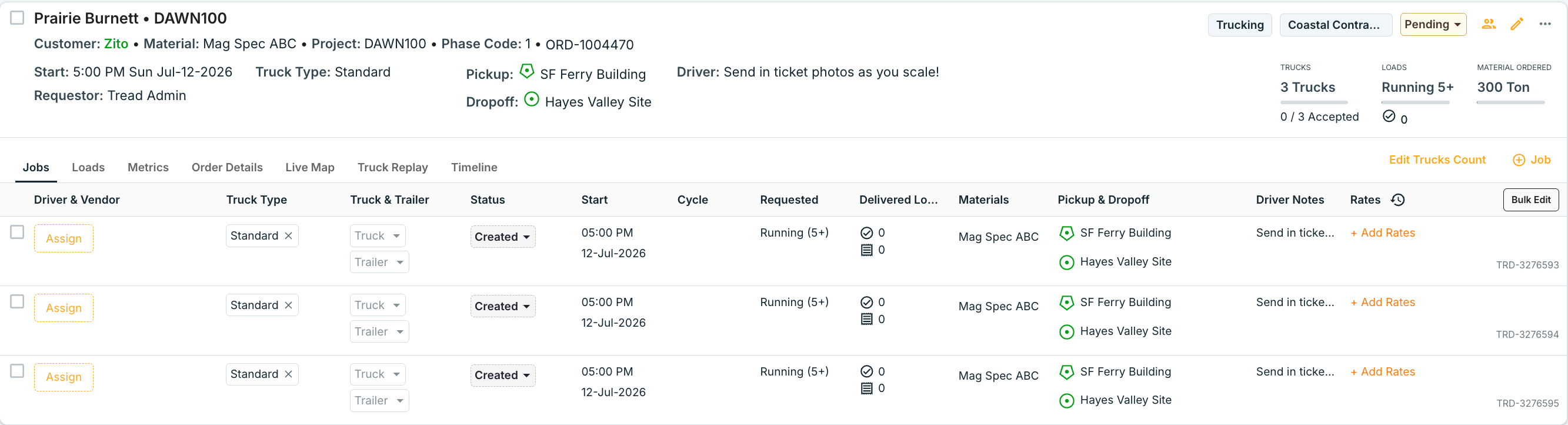
* **Running - example "3 Trucks Running"**
* When there is no max loads - and when a truck is expected to deliver as many loads as possible, select "Load" as Unit of Measure (UoM) and then select the "Running" option
* This allows the drivers to add as many loads as they desire to a given dispatch, and automatically adds another load to the drivers dispatch when they unload their current load
* You can also set a Target # of loads while still "Running" → displays as Running (5)
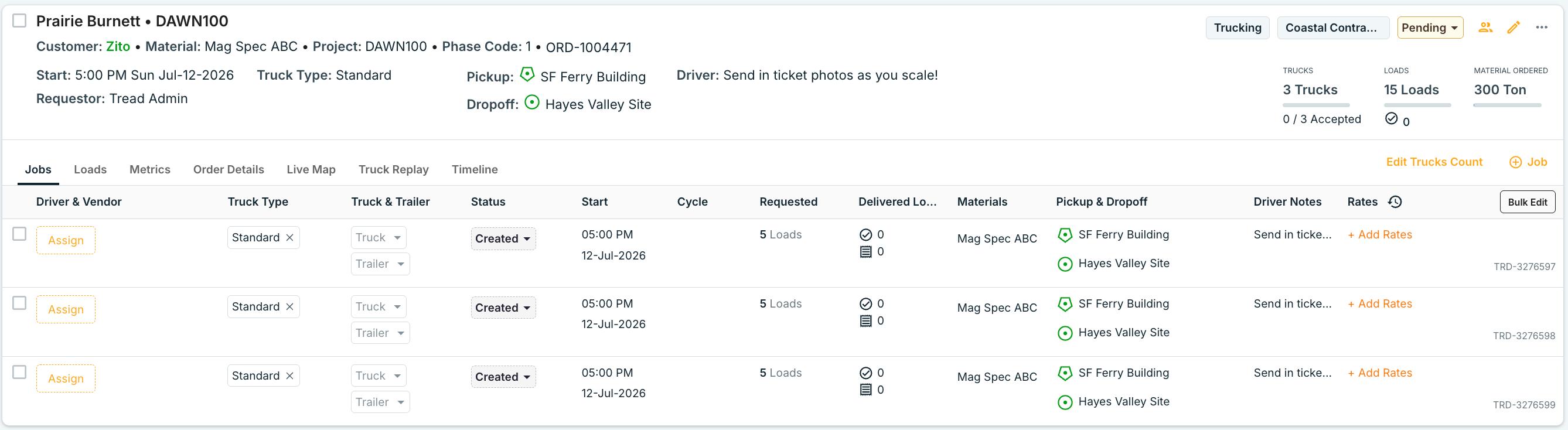
 * **Load Count - example "3 Trucks 5 Loads each"**
* When you are dispatching a specific load count - like 5 loads. The driver will not be able to add more than 5 loads. The mobile app will progress the driver through their 5 loads, and end the job on the 5th load
* The driver can not add more than 5 loads to the dispatch
* **Load Count - example "3 Trucks 5 Loads each"**
* When you are dispatching a specific load count - like 5 loads. The driver will not be able to add more than 5 loads. The mobile app will progress the driver through their 5 loads, and end the job on the 5th load
* The driver can not add more than 5 loads to the dispatch
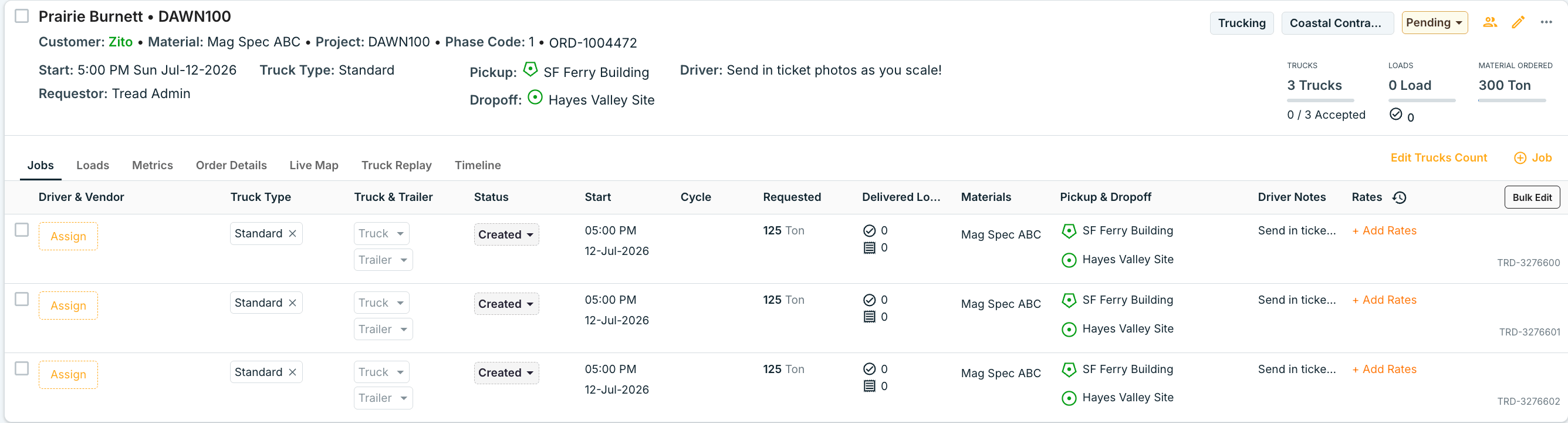
 * **Quantity in a specific Unit of Measure, like Tonnage - example "3 Trucks 125 Tons each"**
* When a specific quantity is set with a Unit of Measure (not load) the dispatch is automatically set as running, as trucks may have unique equipment capacities that are unspecified at the time of dispatch
* The dispatch will automatically end after a single load if the dispatch is calculated as a "partial load" for example 5 Yards, or 12 Tons
* If material tickets are not uploaded, Tread will look to the set equipment capacity on the truck type to automatically track delivered quantities
* **Quantity in a specific Unit of Measure, like Tonnage - example "3 Trucks 125 Tons each"**
* When a specific quantity is set with a Unit of Measure (not load) the dispatch is automatically set as running, as trucks may have unique equipment capacities that are unspecified at the time of dispatch
* The dispatch will automatically end after a single load if the dispatch is calculated as a "partial load" for example 5 Yards, or 12 Tons
* If material tickets are not uploaded, Tread will look to the set equipment capacity on the truck type to automatically track delivered quantities
 Three fields on an Order control how work is measured and when a Job ends:
* **Units** — the unit of measure: Load, Ton, Hour, and others.
* **Quantity** — the target per truck. On a Load Order with Running unchecked, the Job stops when the Driver reaches the target.
* **Running** — the Order keeps adding loads as Drivers complete them, past the target or with no target set.
The standard setups — Running, Running with Target, Loads, and Tonnage — are in [Common Types of Orders](/workflows/order-types).
## Common pitfalls
Reuse a Project for repeat work with the same Customer and Sites. Daily Orders attach underneath. Do not create a new Project per day — reporting will fragment.
## Related
* [Sites & Geofences](/concepts/sites-geofences) — how Sites attach to a Project
* [Materials](/concepts/materials) — how Materials roll up to a Project
* [Tickets & Timesheets](/concepts/tickets-timesheets) — what gets captured per Order
* [Common Types of Orders](/workflows/order-types) — Units, Quantity, and Running setups
* [Workflow: Create Project → Order → Dispatch](/workflows/create-a-project)
Three fields on an Order control how work is measured and when a Job ends:
* **Units** — the unit of measure: Load, Ton, Hour, and others.
* **Quantity** — the target per truck. On a Load Order with Running unchecked, the Job stops when the Driver reaches the target.
* **Running** — the Order keeps adding loads as Drivers complete them, past the target or with no target set.
The standard setups — Running, Running with Target, Loads, and Tonnage — are in [Common Types of Orders](/workflows/order-types).
## Common pitfalls
Reuse a Project for repeat work with the same Customer and Sites. Daily Orders attach underneath. Do not create a new Project per day — reporting will fragment.
## Related
* [Sites & Geofences](/concepts/sites-geofences) — how Sites attach to a Project
* [Materials](/concepts/materials) — how Materials roll up to a Project
* [Tickets & Timesheets](/concepts/tickets-timesheets) — what gets captured per Order
* [Common Types of Orders](/workflows/order-types) — Units, Quantity, and Running setups
* [Workflow: Create Project → Order → Dispatch](/workflows/create-a-project)