> ## Documentation Index
> Fetch the complete documentation index at: https://docs.tread.ai/llms.txt
> Use this file to discover all available pages before exploring further.
# QuickBooks
> Connect QuickBooks, match your records, and export Settlements as invoices and bills.
Export approved [Settlements](/concepts/settlements-driver-pay) straight to QuickBooks as invoices and bills — no re-entry into your accounting system. Works with QuickBooks Online and QuickBooks Desktop.
## Prerequisites
* **Company Admin** access in Tread. If you don't see these options, ask your Tread representative to enable the integration.
* Your QuickBooks administrator sign-in.
* Pop-ups allowed for the Tread app. The connection window opens as a pop-up.
* Tread supports one accounting connection per company.
## Connect your QuickBooks account
One-time setup. Once linked, Tread pulls in your QuickBooks customers, vendors, items, and chart of accounts.
Go to **Settings → Integrations**, under **AI & Integrations**.
On the **Rutter: Accounting Integrations** card, click **Manage**. Rutter is the service Tread uses to connect to QuickBooks.
Click **Link account**. The connection window opens in a pop-up.
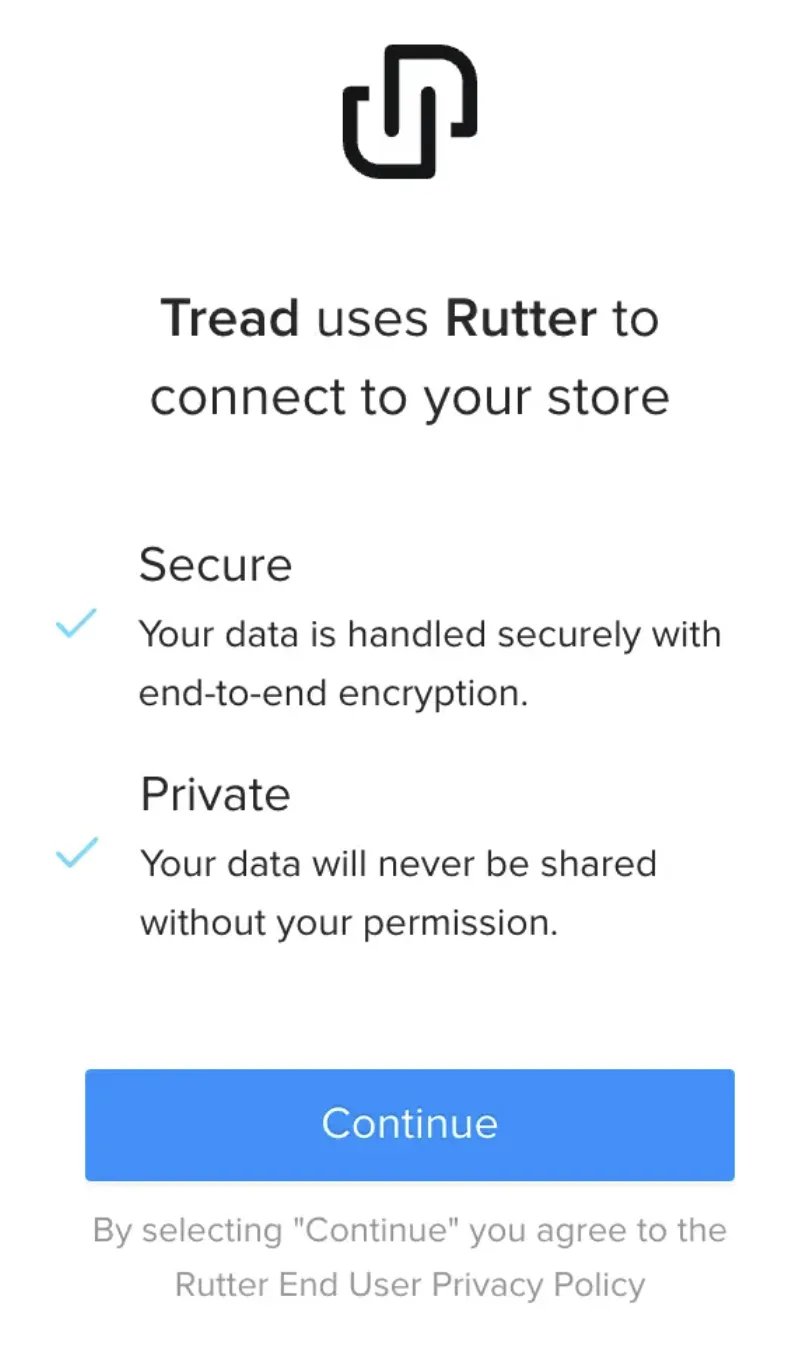 Click **Continue**, choose your QuickBooks product, and sign in with your QuickBooks administrator credentials. Follow the steps in the dialog.
For QuickBooks Desktop, complete these steps on the server or machine where your company file is open.
At "Authentication Complete!", close the pop-up. Your connection appears in the table and the first sync starts automatically.
Click **Continue**, choose your QuickBooks product, and sign in with your QuickBooks administrator credentials. Follow the steps in the dialog.
For QuickBooks Desktop, complete these steps on the server or machine where your company file is open.
At "Authentication Complete!", close the pop-up. Your connection appears in the table and the first sync starts automatically.
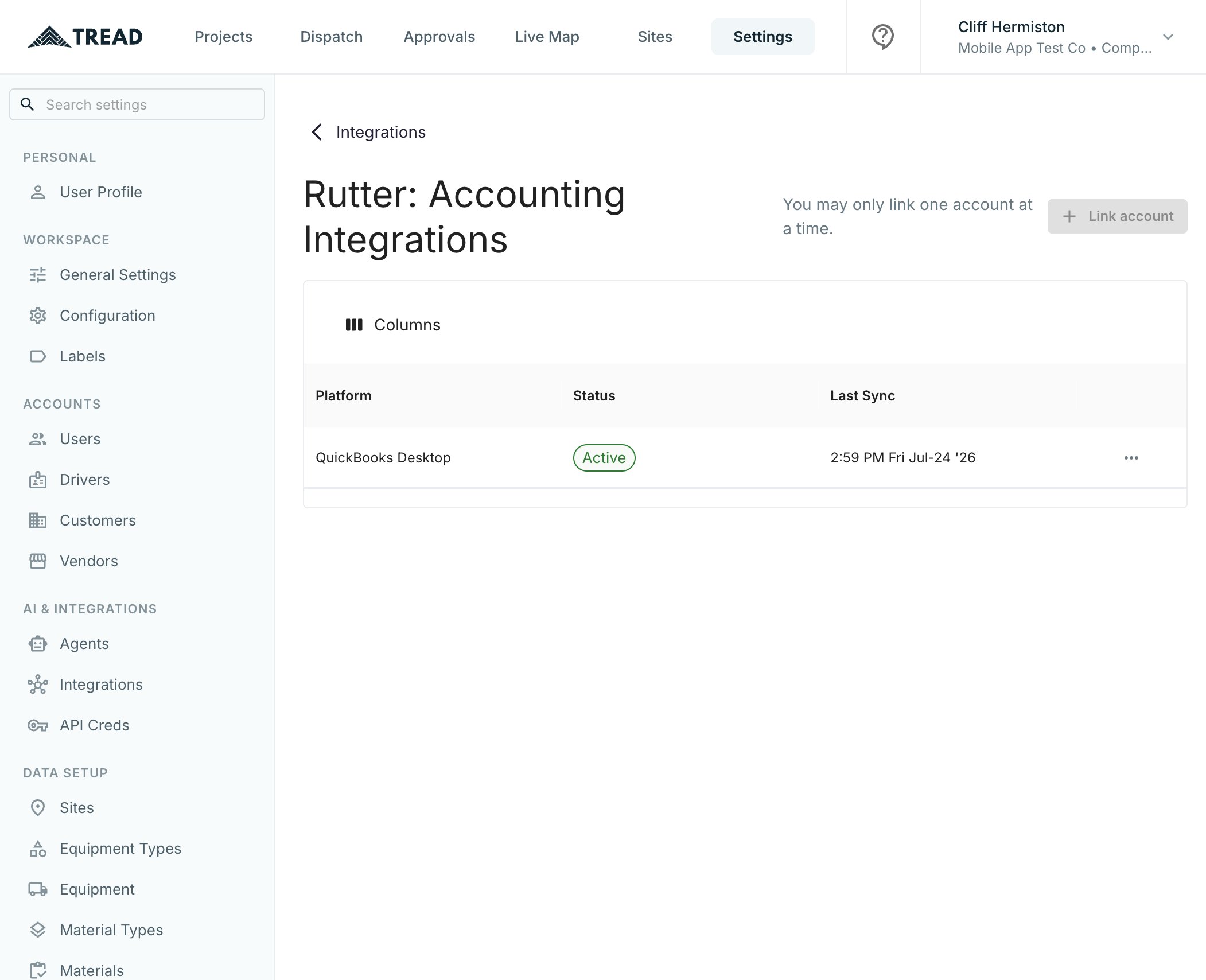 The first sync takes a 15-20 minutes on QuickBooks Online. QuickBooks Desktop syncs when your Web Connector runs — up to a day.
Closed the pop-up too early? The connection row shows *Awaiting authorization* — click the row to reopen the sign-in and finish.
## Match your QuickBooks data
Match each imported QuickBooks record to its Tread counterpart so exported invoices and bills land on the right records in QuickBooks.
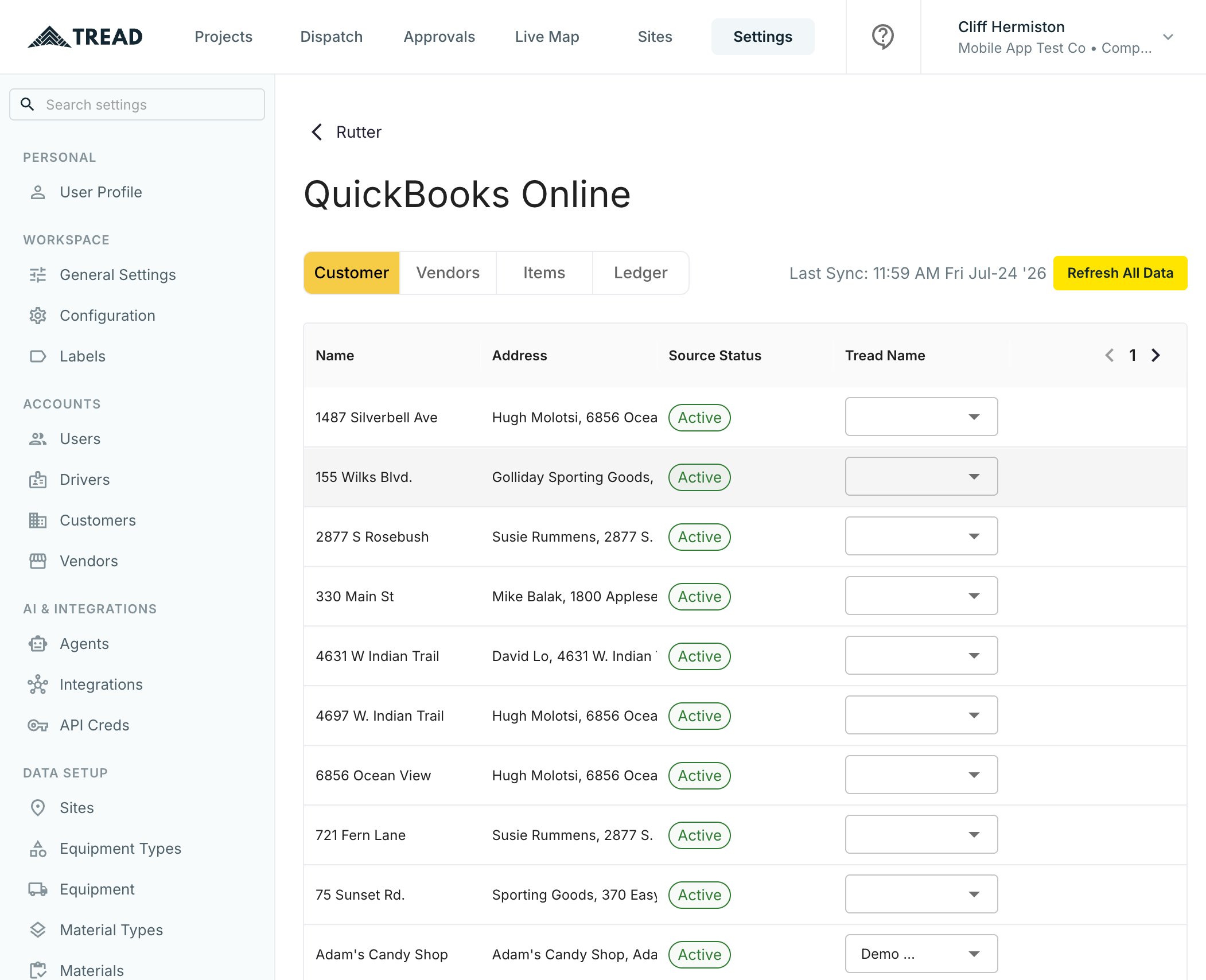
Open **Settings → Integrations → Rutter** and click your connection. You'll see four tabs — **Customer**, **Vendors**, **Items**, **Ledger** — plus **Refresh All Data** to pull the latest records from QuickBooks anytime.
### Customer tab
In the **Tread Name** column, pick the matching Tread customer. The match saves immediately. Use **+ Create Account** if the customer doesn't exist in Tread yet. Each QuickBooks customer matches exactly one Tread customer.
The first sync takes a 15-20 minutes on QuickBooks Online. QuickBooks Desktop syncs when your Web Connector runs — up to a day.
Closed the pop-up too early? The connection row shows *Awaiting authorization* — click the row to reopen the sign-in and finish.
## Match your QuickBooks data
Match each imported QuickBooks record to its Tread counterpart so exported invoices and bills land on the right records in QuickBooks.
Open **Settings → Integrations → Rutter** and click your connection. You'll see four tabs — **Customer**, **Vendors**, **Items**, **Ledger** — plus **Refresh All Data** to pull the latest records from QuickBooks anytime.
### Customer tab
In the **Tread Name** column, pick the matching Tread customer. The match saves immediately. Use **+ Create Account** if the customer doesn't exist in Tread yet. Each QuickBooks customer matches exactly one Tread customer.
 ### Vendors tab
Works the same way: match each QuickBooks vendor in the **Tread Name** column, or use **+ Create Vendor**. A [Vendor](/concepts/dispatching-drivers-vendors) is an account you send dispatches to. Vendor matches let vendor Settlements export as bills.
### Items tab
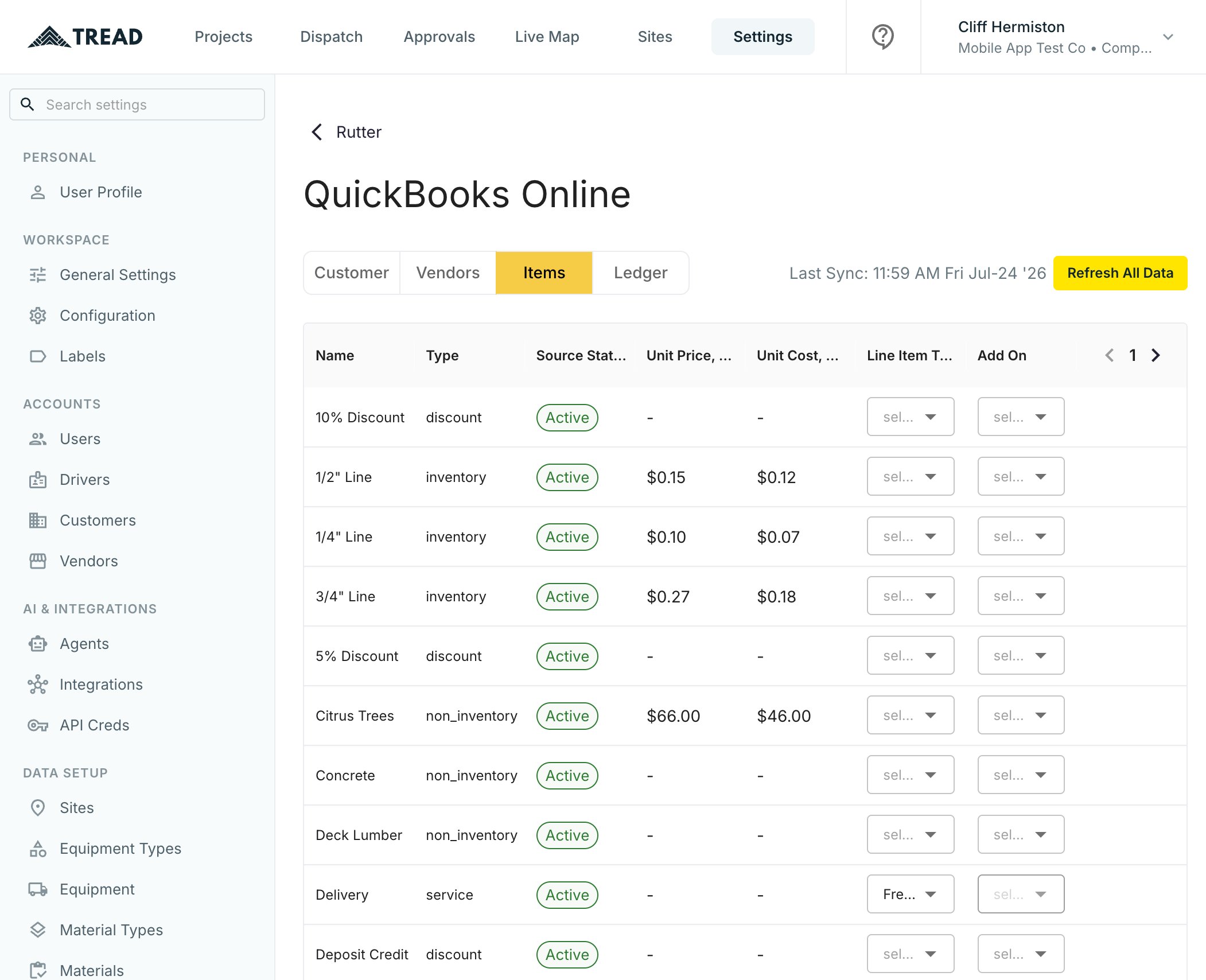
Every charge on a Settlement needs a QuickBooks item to post against. Map each item to **either** a **Line Item Type** (*Freight* or *Material*) **or** an **Add On** (a fuel surcharge, for example) — one or the other, never both.
### Vendors tab
Works the same way: match each QuickBooks vendor in the **Tread Name** column, or use **+ Create Vendor**. A [Vendor](/concepts/dispatching-drivers-vendors) is an account you send dispatches to. Vendor matches let vendor Settlements export as bills.
### Items tab
Every charge on a Settlement needs a QuickBooks item to post against. Map each item to **either** a **Line Item Type** (*Freight* or *Material*) **or** an **Add On** (a fuel surcharge, for example) — one or the other, never both.
 ### Ledger tab
Mark your **Accounts Receivable** account (used by invoices) and **Accounts Payable** account (used by bills). You set exactly one of each — the remaining rows are then disabled.
Added records in QuickBooks? Click **Refresh All Data**, then match the new rows.
Disconnecting deletes every match. After reconnecting you redo all customer, vendor, item, and ledger matching.
## Export Settlements to QuickBooks
Customer Settlements export as **invoices**. Vendor Settlements export as **bills**.
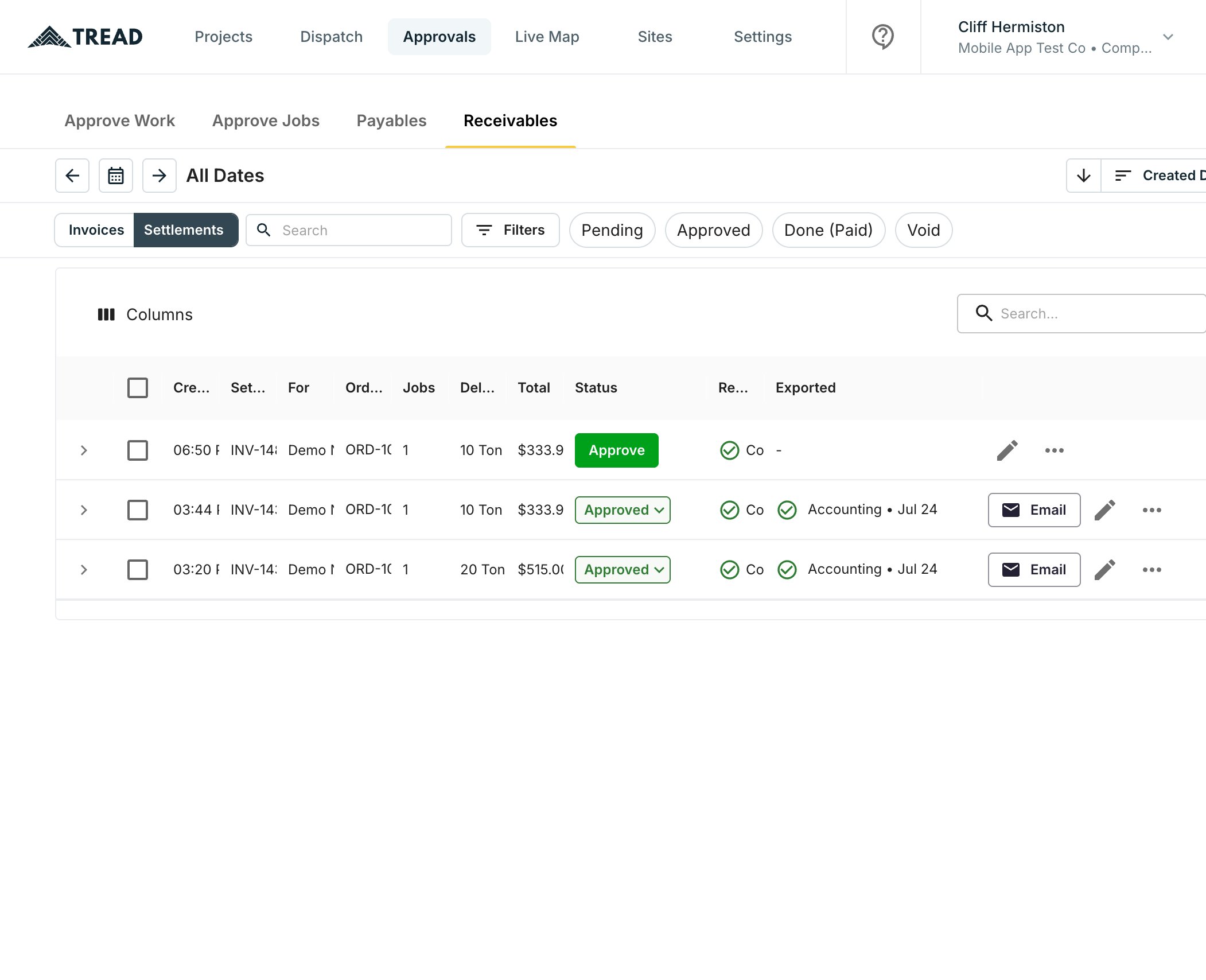
Go to **Approvals → Receivables** (or **Payables**) → **Settlements**.
Pending Settlements can't be exported — approve first.
Click **Export** on the Settlement row.
### Ledger tab
Mark your **Accounts Receivable** account (used by invoices) and **Accounts Payable** account (used by bills). You set exactly one of each — the remaining rows are then disabled.
Added records in QuickBooks? Click **Refresh All Data**, then match the new rows.
Disconnecting deletes every match. After reconnecting you redo all customer, vendor, item, and ledger matching.
## Export Settlements to QuickBooks
Customer Settlements export as **invoices**. Vendor Settlements export as **bills**.
Go to **Approvals → Receivables** (or **Payables**) → **Settlements**.
Pending Settlements can't be exported — approve first.
Click **Export** on the Settlement row.
 Check the Settlement ID, customer, and total in the dialog. A Settlement can only be exported once.
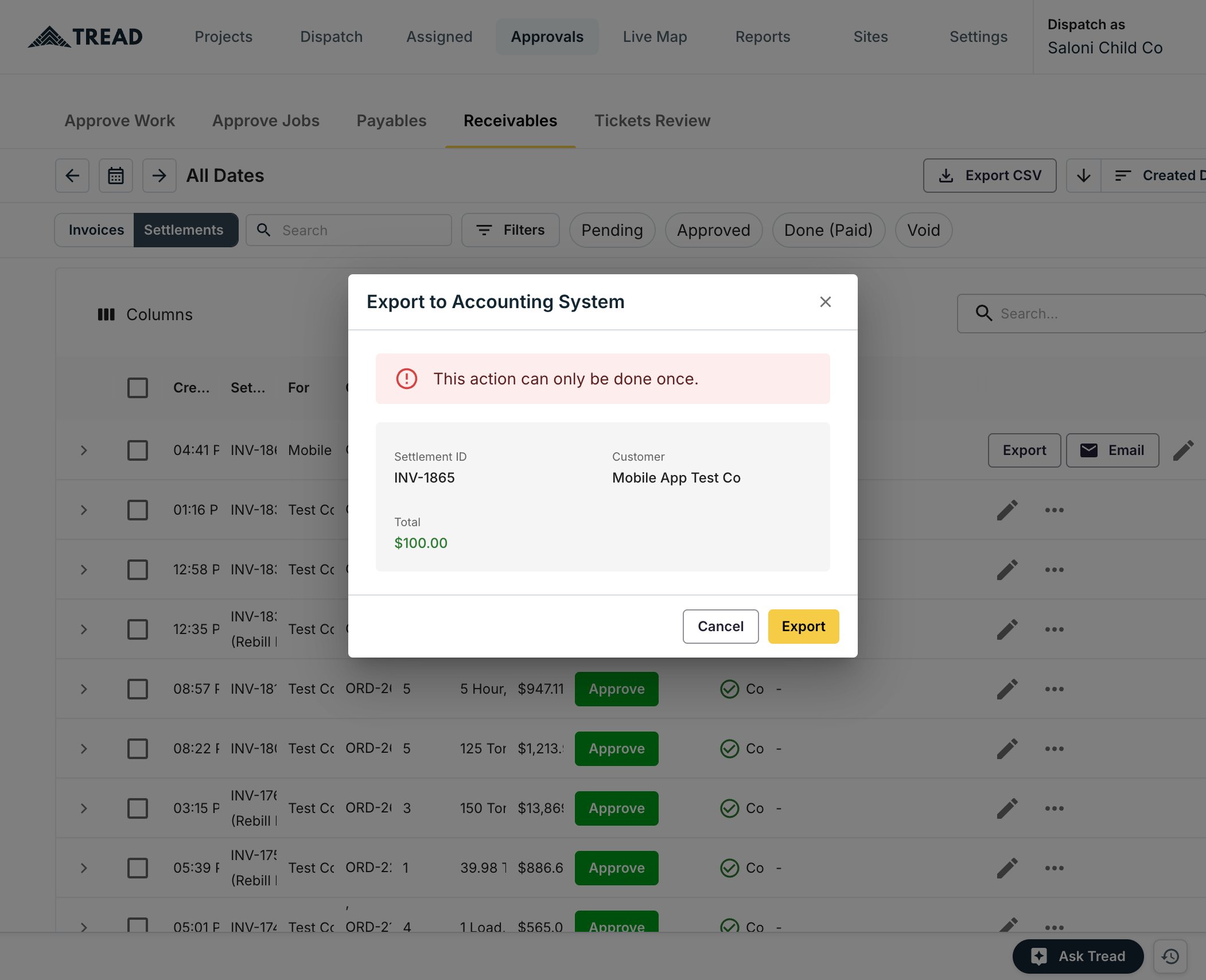 It updates as QuickBooks accepts the document.
### Reading the Exported column
| What you see | What it means |
| ---------------------- | ----------------------------------------------------------------------------------------------- |
| **Accounting pending** | Being delivered to QuickBooks. Desktop exports stay pending until your Web Connector next runs. |
| **Accounting • date** | The invoice or bill was created in QuickBooks on that date. |
| **Accounting failed** | Something blocked the export — see the reasons below, fix it, and export again. |
The document number in QuickBooks is the Settlement ID. Each line carries the job, [Ticket](/concepts/tickets-timesheets), truck, and [Material](/concepts/materials) details, posted against your mapped items.
## Why an export fails
Almost always one of these seven. Fix the cause, then click **Export** again — failed exports can be retried.
1. **The QuickBooks connection hasn't finished syncing to Tread yet.** Check **Settings → Integrations → Rutter** for a Last Sync time.
2. **The Settlement isn't approved yet.** Approve it first, then export.
3. **The Settlement's customer or vendor isn't matched to a QuickBooks customer or vendor yet** (Customer / Vendors tab).
4. **A charge type on the Settlement isn't mapped to a QuickBooks item yet** — freight, material, and every add-on each need one (Items tab).
5. **Your A/R or A/P ledger isn't matched to a QuickBooks chart-of-accounts account yet** (Ledger tab).
6. **The Settlement has already been exported once.** Exports are one-time — QuickBooks never receives a duplicate.
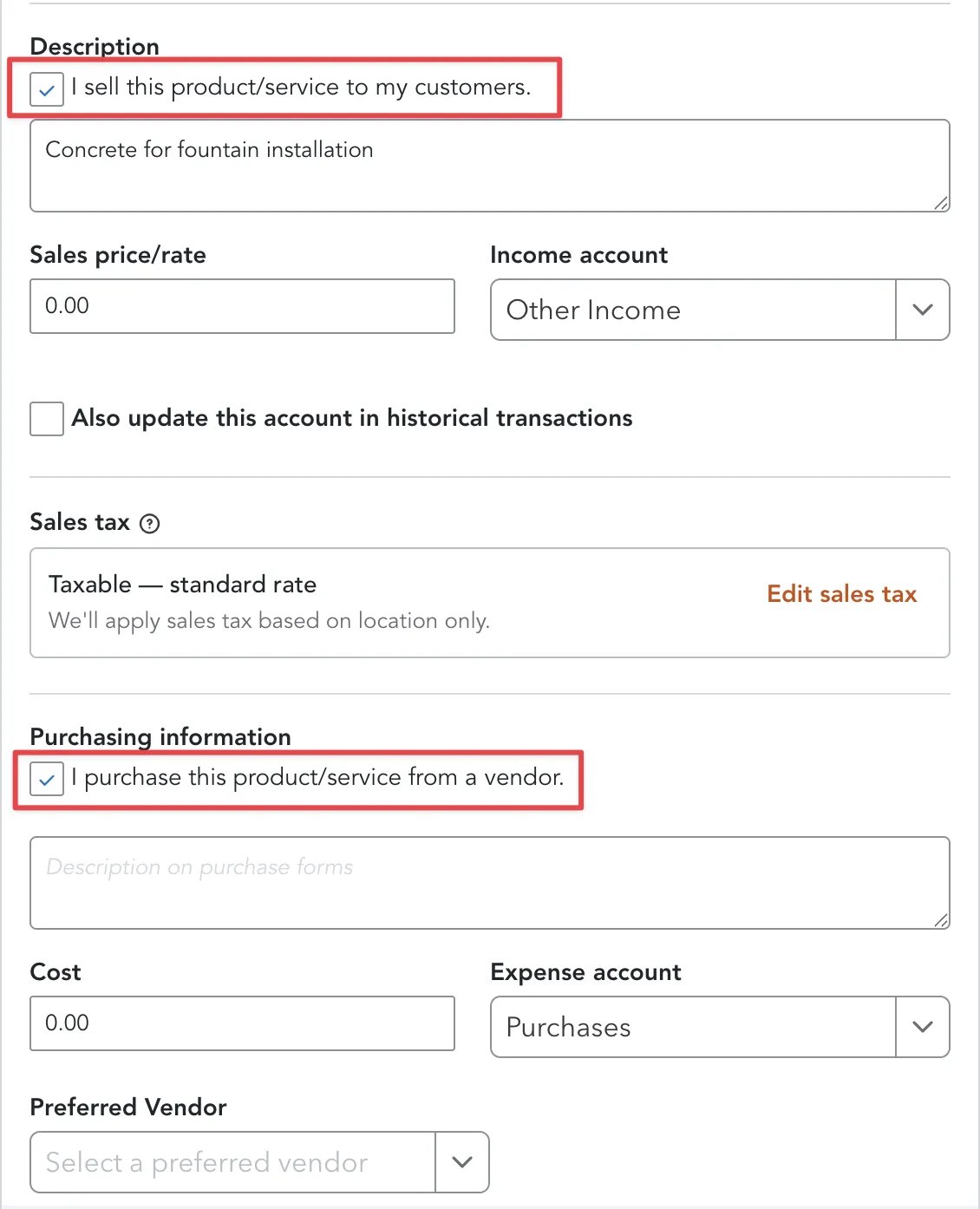
7. **An item isn't defined correctly on the QuickBooks side.** In QuickBooks Products and Services, items used on invoices need *"I sell this product/service to my customers"* checked. Items used on bills need *"I purchase this product/service from a vendor"* checked.
It updates as QuickBooks accepts the document.
### Reading the Exported column
| What you see | What it means |
| ---------------------- | ----------------------------------------------------------------------------------------------- |
| **Accounting pending** | Being delivered to QuickBooks. Desktop exports stay pending until your Web Connector next runs. |
| **Accounting • date** | The invoice or bill was created in QuickBooks on that date. |
| **Accounting failed** | Something blocked the export — see the reasons below, fix it, and export again. |
The document number in QuickBooks is the Settlement ID. Each line carries the job, [Ticket](/concepts/tickets-timesheets), truck, and [Material](/concepts/materials) details, posted against your mapped items.
## Why an export fails
Almost always one of these seven. Fix the cause, then click **Export** again — failed exports can be retried.
1. **The QuickBooks connection hasn't finished syncing to Tread yet.** Check **Settings → Integrations → Rutter** for a Last Sync time.
2. **The Settlement isn't approved yet.** Approve it first, then export.
3. **The Settlement's customer or vendor isn't matched to a QuickBooks customer or vendor yet** (Customer / Vendors tab).
4. **A charge type on the Settlement isn't mapped to a QuickBooks item yet** — freight, material, and every add-on each need one (Items tab).
5. **Your A/R or A/P ledger isn't matched to a QuickBooks chart-of-accounts account yet** (Ledger tab).
6. **The Settlement has already been exported once.** Exports are one-time — QuickBooks never receives a duplicate.
7. **An item isn't defined correctly on the QuickBooks side.** In QuickBooks Products and Services, items used on invoices need *"I sell this product/service to my customers"* checked. Items used on bills need *"I purchase this product/service from a vendor"* checked.
 Still stuck? Contact your Tread representative with the Settlement ID and the exact message you saw.