> ## Documentation Index
> Fetch the complete documentation index at: https://docs.tread.ai/llms.txt
> Use this file to discover all available pages before exploring further.
# How to Edit Your Username in Tread
> Edit a user's name, phone, email, roles, and truck from the mobile app.
Keep names, phone numbers, and emails current from the field — so dispatches and notifications reach the right person without waiting for someone at a laptop.
## Who can use it
**Manage Users** appears on the **Account** tab only if your role includes user management. If you don't see it, ask your Admin to make the change or update your [role](/concepts/roles-permissions).
From this screen you can edit any user on your account, not just yourself.
## Edit a user
Open the Tread app — or go to [link.tread.io/app](https://link.tread.io/app) to install it. Tap **Account** in the bottom menu.
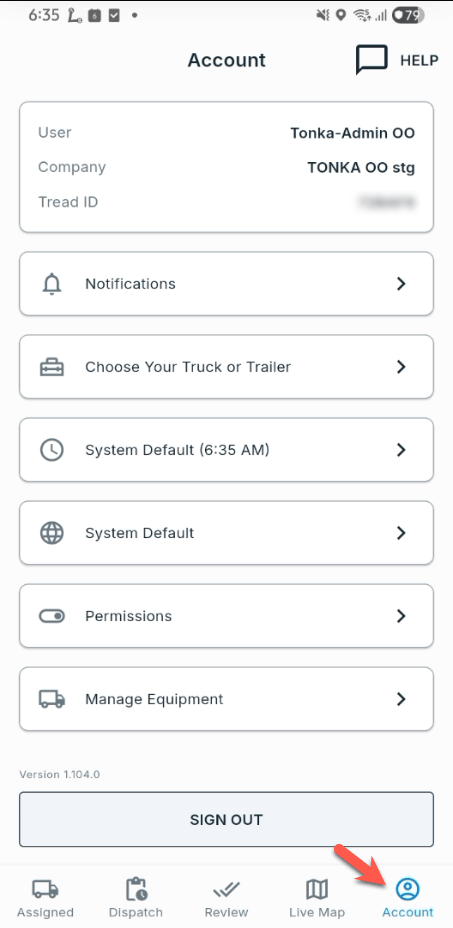 Scroll down the Account screen and tap **Manage Users**.
 The Users screen lists every user on your account with their roles. Use **Search** to find someone, then tap **EDIT** on their row.
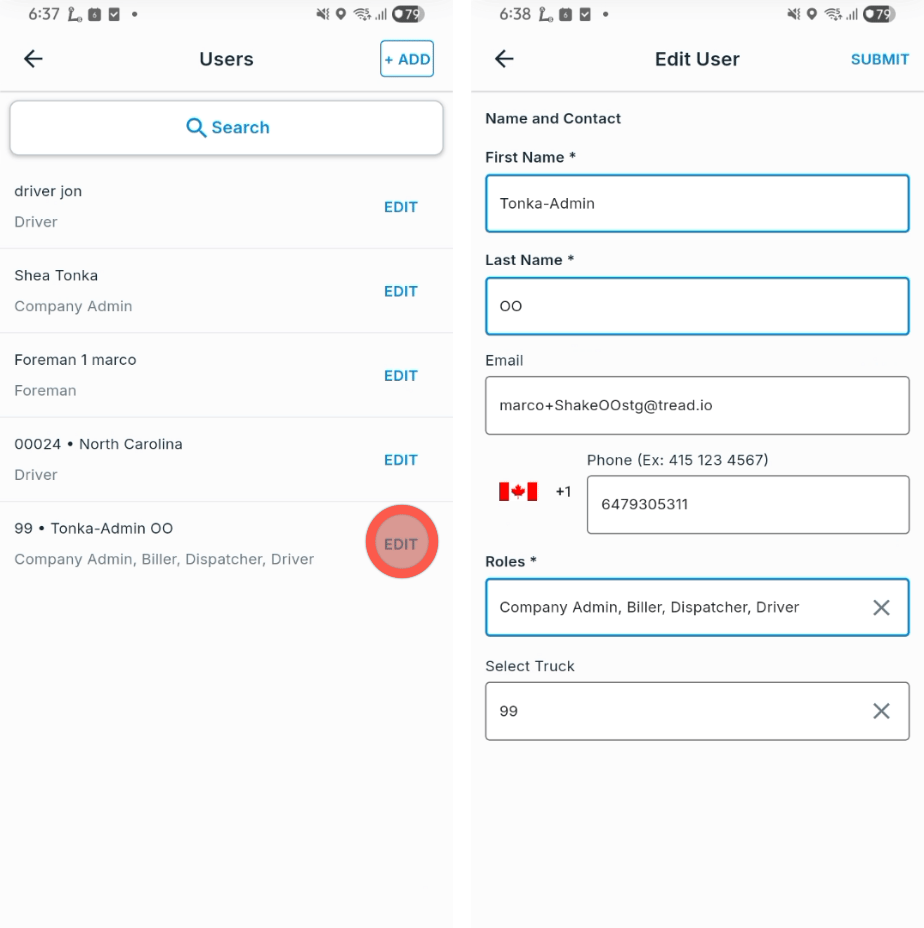 You can change the user's **First Name**, **Last Name**, **Email**, **Phone**, and **Roles**. If the roles include [Driver](/concepts/driver-lifecycle) (the user who receives a dispatch and performs it), a **Select Truck** field also appears to set the user's truck.
The phone number is also how the user signs in. After you change it, sign-in codes go to the new number. See [Mobile Troubleshooting](/mobile/troubleshooting) if the user can't sign in.
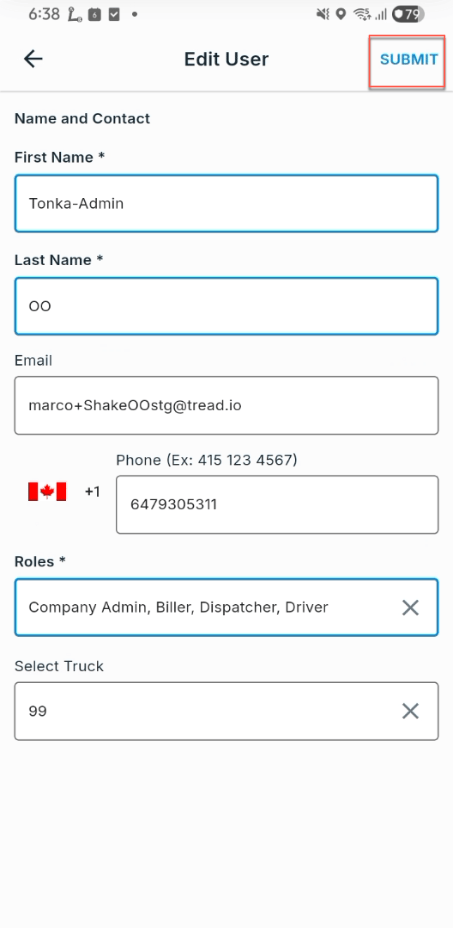
Tap **SUBMIT** at the top right. Changes save immediately.
You can change the user's **First Name**, **Last Name**, **Email**, **Phone**, and **Roles**. If the roles include [Driver](/concepts/driver-lifecycle) (the user who receives a dispatch and performs it), a **Select Truck** field also appears to set the user's truck.
The phone number is also how the user signs in. After you change it, sign-in codes go to the new number. See [Mobile Troubleshooting](/mobile/troubleshooting) if the user can't sign in.
Tap **SUBMIT** at the top right. Changes save immediately.
 To add a new user instead, tap **+ ADD** at the top of the Users screen. See [adding dispatchers and admins](/vendor-guide/setup-trucks-and-drivers).
## Related
* [Roles and permissions](/concepts/roles-permissions) — what each role can see and do.
* [Driver lifecycle](/concepts/driver-lifecycle) — how Driver records work.
* [Mobile Troubleshooting](/mobile/troubleshooting) — sign-in codes and common app issues.
To add a new user instead, tap **+ ADD** at the top of the Users screen. See [adding dispatchers and admins](/vendor-guide/setup-trucks-and-drivers).
## Related
* [Roles and permissions](/concepts/roles-permissions) — what each role can see and do.
* [Driver lifecycle](/concepts/driver-lifecycle) — how Driver records work.
* [Mobile Troubleshooting](/mobile/troubleshooting) — sign-in codes and common app issues.