> ## Documentation Index
> Fetch the complete documentation index at: https://docs.tread.ai/llms.txt
> Use this file to discover all available pages before exploring further.
# Past Shifts & History
> How Drivers review past shifts, hours, and completed dispatches in the app.
[Drivers](/concepts/driver-lifecycle) look up their own hours, tickets, and past dispatches in the app — no call to the office needed.
## Open the History page
Sign in to the Tread app ([link.tread.io/app](https://link.tread.io/app)). Tap **History** — the clock icon in the bottom menu. The page has three tabs: **In Review**, **Done**, and **Time Logs**.
## View past shifts
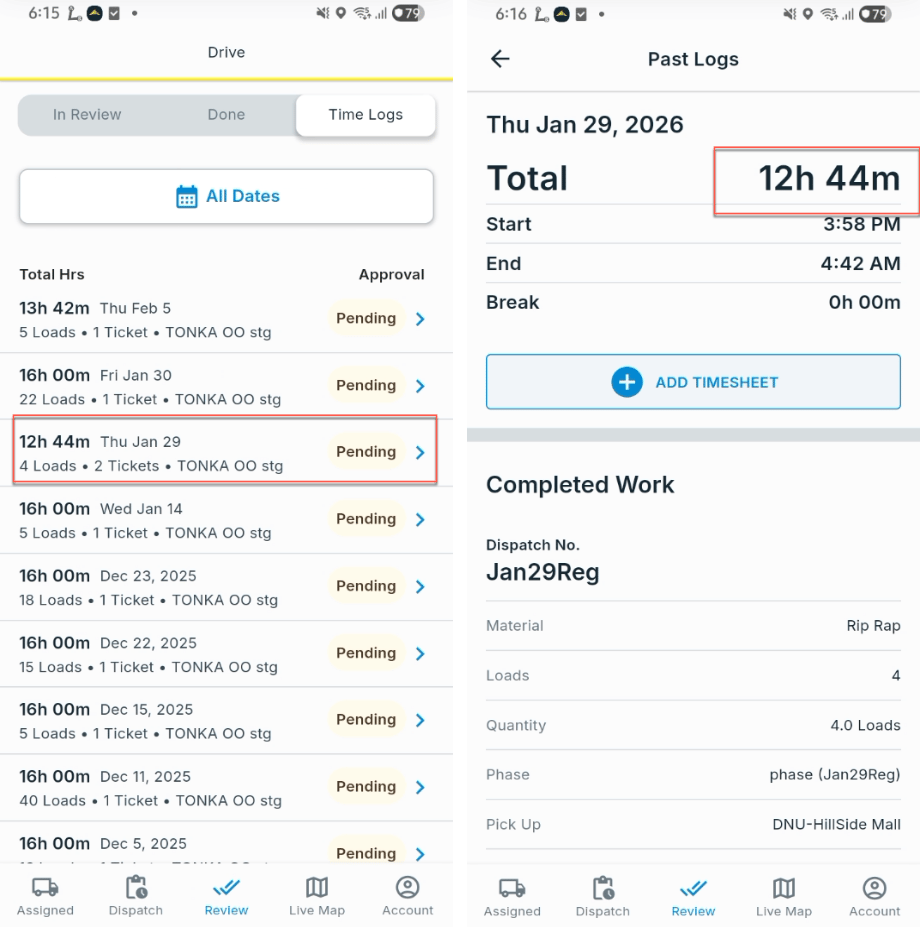
Tap **Time Logs**. Each row is one shift, with total hours, loads, tickets, and approval status.
Tap a shift to see its Past Logs. This shows start and end times, break time, [timesheets](/concepts/tickets-timesheets), and the completed work on each dispatch.
 ## View completed dispatches
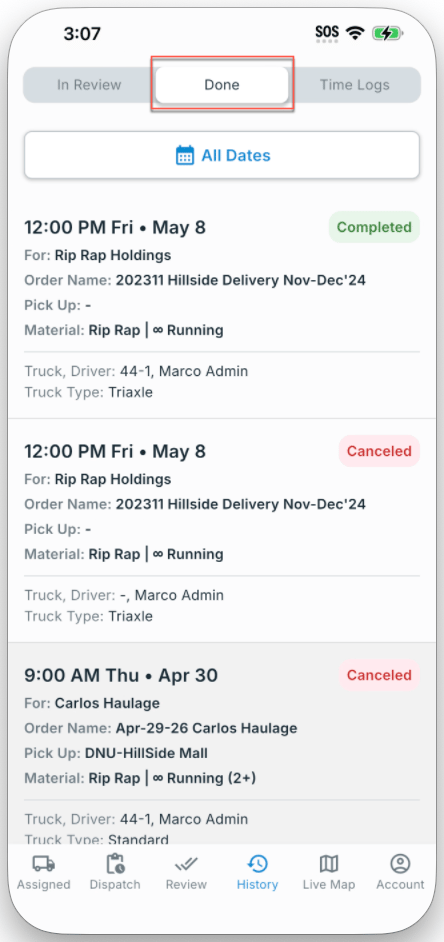
Tap **Done**. Completed and canceled dispatches appear as cards. Use **All Dates** to filter by date.
## View completed dispatches
Tap **Done**. Completed and canceled dispatches appear as cards. Use **All Dates** to filter by date.
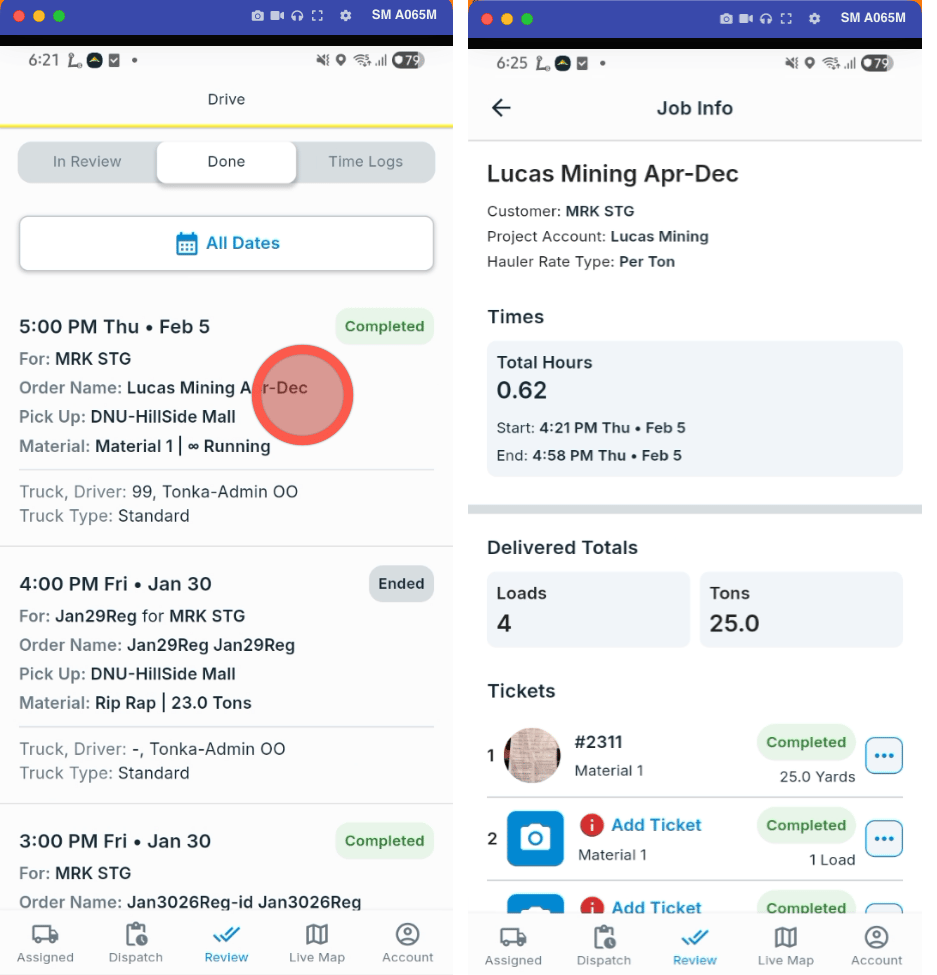
 Tap anywhere on the dispatch card. Job Info shows hours, delivered totals, and every ticket and document on the job.
 ## Which tab to use
| You want | Tab |
| ------------------------------------------------ | ------------- |
| Hours worked and timesheets for a shift | **Time Logs** |
| Loads, tickets, and documents on a past dispatch | **Done** |
## Related
* [Driver App](/mobile/driver-app)
* [Tickets & Timesheets](/concepts/tickets-timesheets)
* [Driver Lifecycle](/concepts/driver-lifecycle)
## Which tab to use
| You want | Tab |
| ------------------------------------------------ | ------------- |
| Hours worked and timesheets for a shift | **Time Logs** |
| Loads, tickets, and documents on a past dispatch | **Done** |
## Related
* [Driver App](/mobile/driver-app)
* [Tickets & Timesheets](/concepts/tickets-timesheets)
* [Driver Lifecycle](/concepts/driver-lifecycle)