> ## Documentation Index
> Fetch the complete documentation index at: https://docs.tread.ai/llms.txt
> Use this file to discover all available pages before exploring further.
# Integrations Setup
> Connect telematics and Paver Tracker during onboarding.
## What you'll do
Connect the two data feeds that matter during onboarding: telematics for live truck positions, and Paver Tracker if you pave. Accounting integrations come after billing is live.
## Before you start
* A login for your telematics (ELD) provider's account.
* [Equipment](/onboarding/master-data/equipment) loaded so vehicles can match Equipment records.
* [Sites](/onboarding/master-data/sites) loaded so geofences line up with arrival events.
* If you pave: the job IDs your Paver Tracker uses, for project External IDs.
## Walkthrough
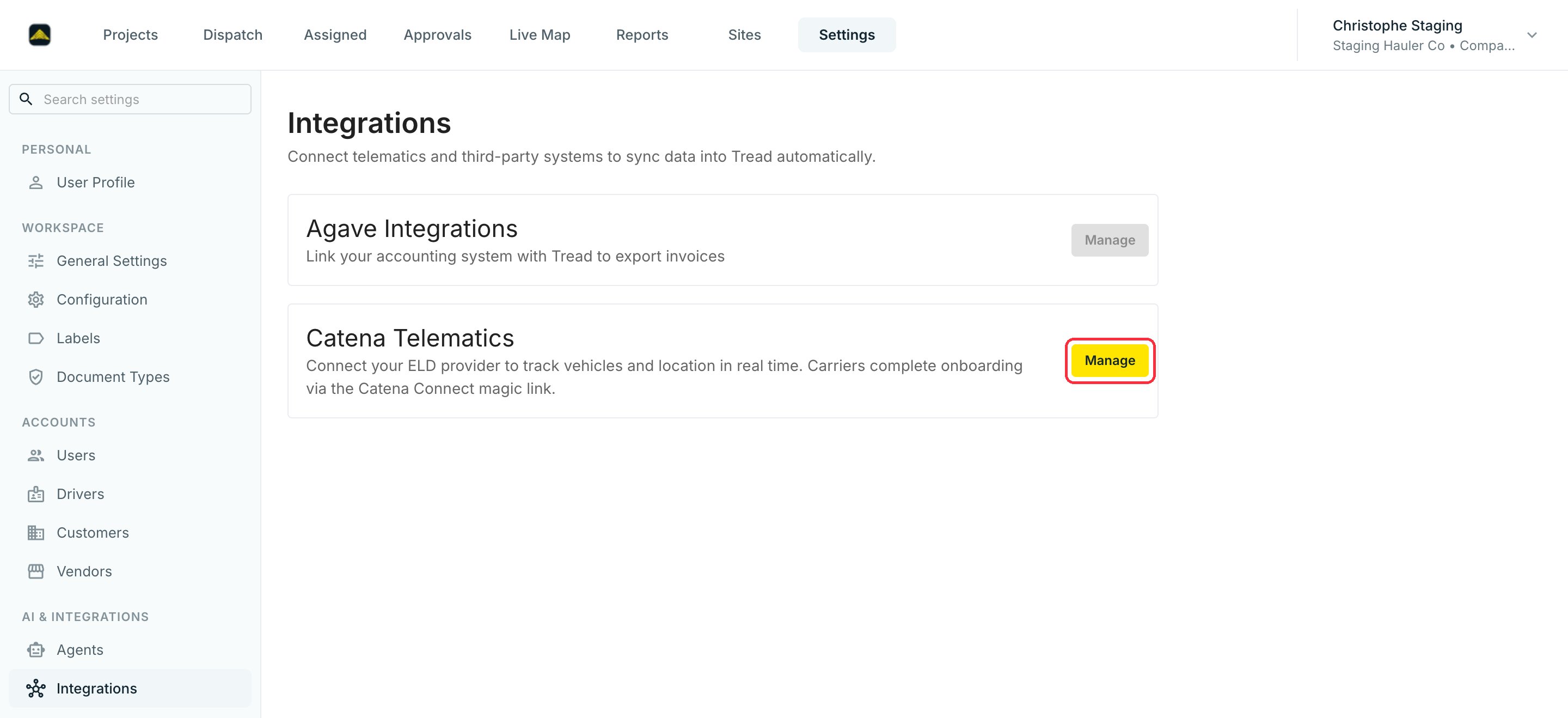
Go to **Settings → Integrations** and click **Manage** on **Catena Telematics**. Tread connects to dozens of ELD providers through Catena.
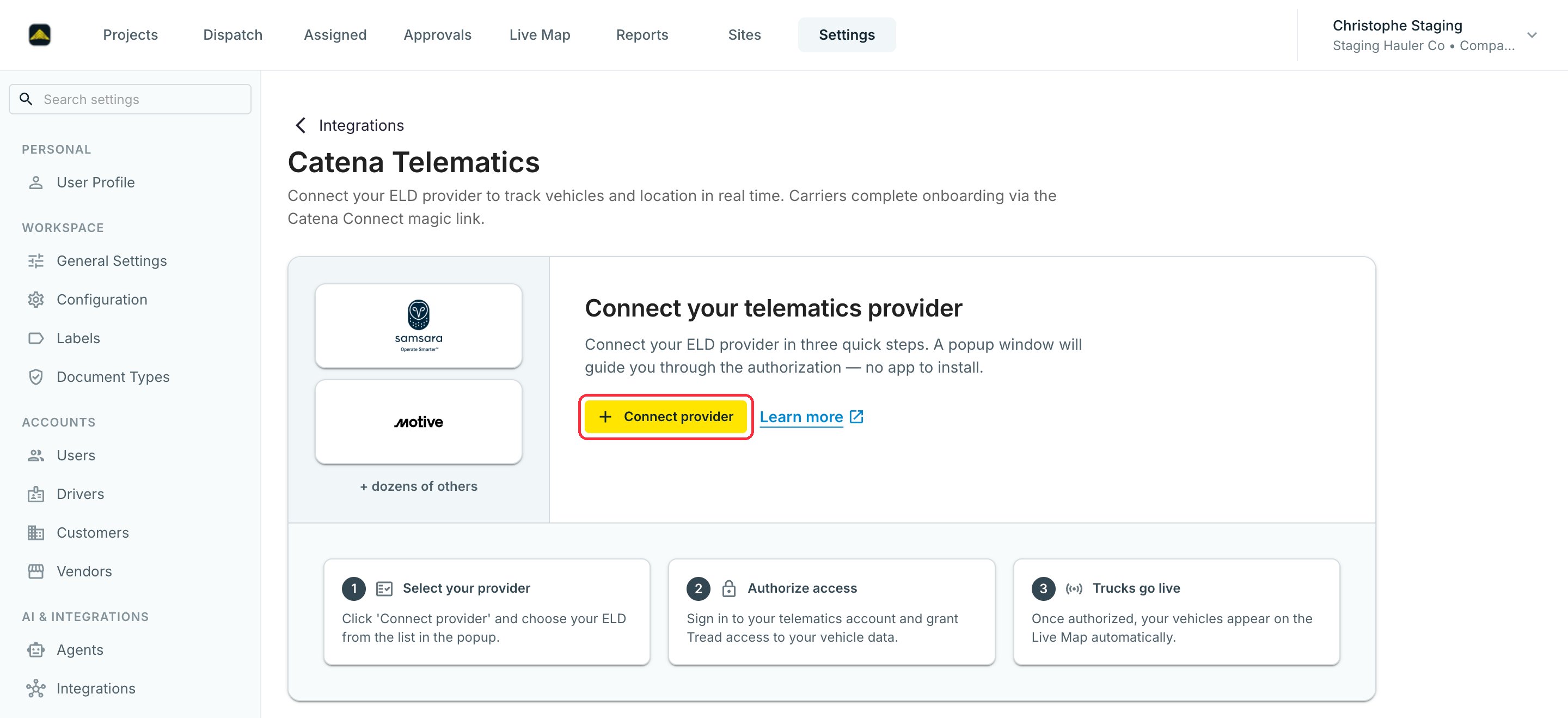
 Click **Connect provider**. A popup guides you through it: pick your ELD from the list, sign in to your telematics account, and grant Tread access to your vehicle data. Once authorized, your vehicles appear on the [Live Map](/workflows/track-drivers-collect-tickets) automatically. A carrier can also complete the connection through a Catena Connect magic link.
 Match each connected vehicle to an [Equipment](/onboarding/master-data/equipment) record so live positions land on the right truck. See [Telematics](/integrations/telematics) for the matching walkthrough.
If you pave, access **Paver Tracker**, paste your credentials.
If you pave: Paver Tracker is not self-serve — contact Tread to configure the connection and the paver list. Then set each paving project's **External ID** to the Paver Tracker job ID, and turn on **Sync sites from telematics (PaverTracker)** on each order that should follow a paver. See [Paver Tracker](/integrations/paver-tracker) and [Paving & Moving Geofences](/specialized/paving-geofences).
## Verify
The Catena Telematics page shows your connection status. The [Live Map](/workflows/track-drivers-collect-tickets) shows live pins for active trucks.
## Common mistakes
**Skipping the vehicle match.** Tread can't record positions against a truck it can't identify. Walk through every connected vehicle before moving on.
Match each connected vehicle to an [Equipment](/onboarding/master-data/equipment) record so live positions land on the right truck. See [Telematics](/integrations/telematics) for the matching walkthrough.
If you pave, access **Paver Tracker**, paste your credentials.
If you pave: Paver Tracker is not self-serve — contact Tread to configure the connection and the paver list. Then set each paving project's **External ID** to the Paver Tracker job ID, and turn on **Sync sites from telematics (PaverTracker)** on each order that should follow a paver. See [Paver Tracker](/integrations/paver-tracker) and [Paving & Moving Geofences](/specialized/paving-geofences).
## Verify
The Catena Telematics page shows your connection status. The [Live Map](/workflows/track-drivers-collect-tickets) shows live pins for active trucks.
## Common mistakes
**Skipping the vehicle match.** Tread can't record positions against a truck it can't identify. Walk through every connected vehicle before moving on.