> ## Documentation Index
> Fetch the complete documentation index at: https://docs.tread.ai/llms.txt
> Use this file to discover all available pages before exploring further.
# Users
> Add the people who will log into Tread.
## What you'll do
Add every dispatcher, billing lead, foreman, and admin who needs a Tread login.
## Before you start
* A list of users with name, email, mobile phone, and role.
* Each user needs a unique mobile phone number — Tread uses it for SMS login.
* Decide whether to invite users by email, SMS or both.
* Optional: an Ext. ID for each user if you want to match Tread back to an HRIS or accounting system.
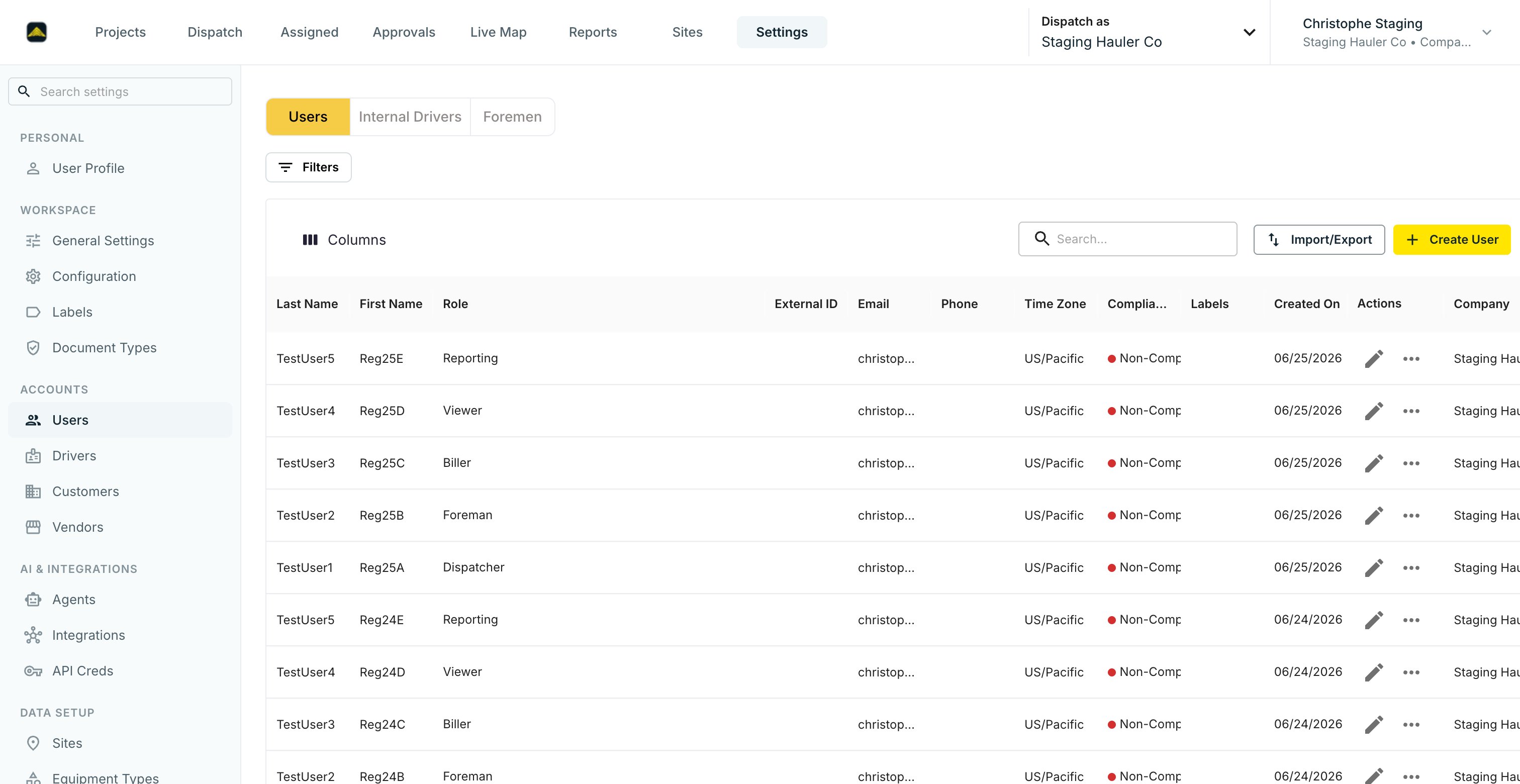 ## Walkthrough
Click **Create User** in the top right.
## Walkthrough
Click **Create User** in the top right.
 Enter name, email, and mobile phone. Pick one or more roles — Company Admin, Dispatcher, Biller, Foreman, Reporting, Viewer, or Driver. See [Roles & Permissions](/concepts/roles-permissions) for what each role can do.
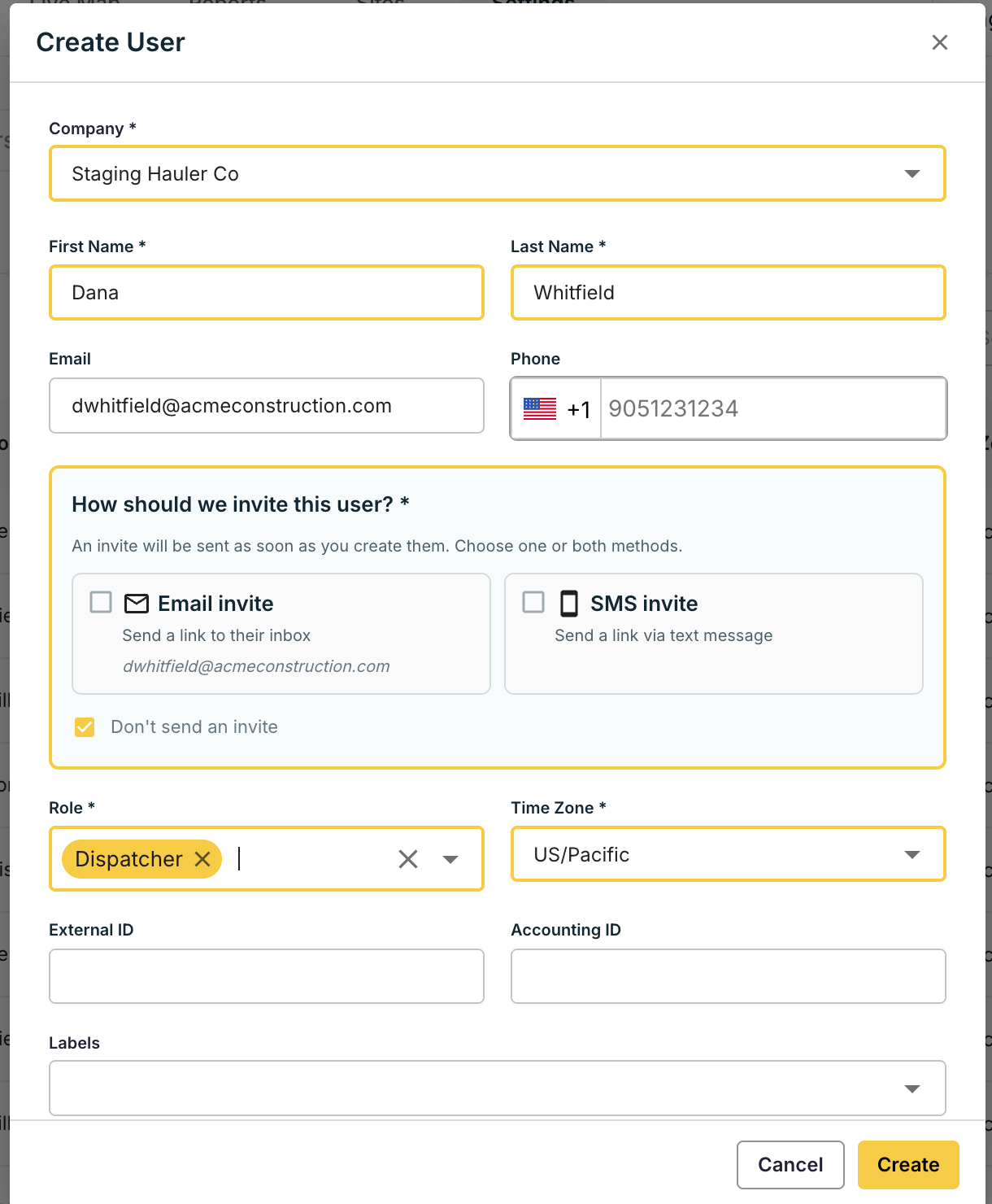 If you sync to QuickBooks, Sage, Vista, or another system, paste the matching identifier here. It must be unique across all users.
In the **How should we invite this user?** section, check **Email invite**, **SMS invite**, or **Don't send an invite**. The invite goes out as soon as you click **Create** — email carries a link to set a password, SMS carries a link to download the mobile app.
For more than 20 users, ask your Tread implementation lead to run a CSV import.
## Internal drivers
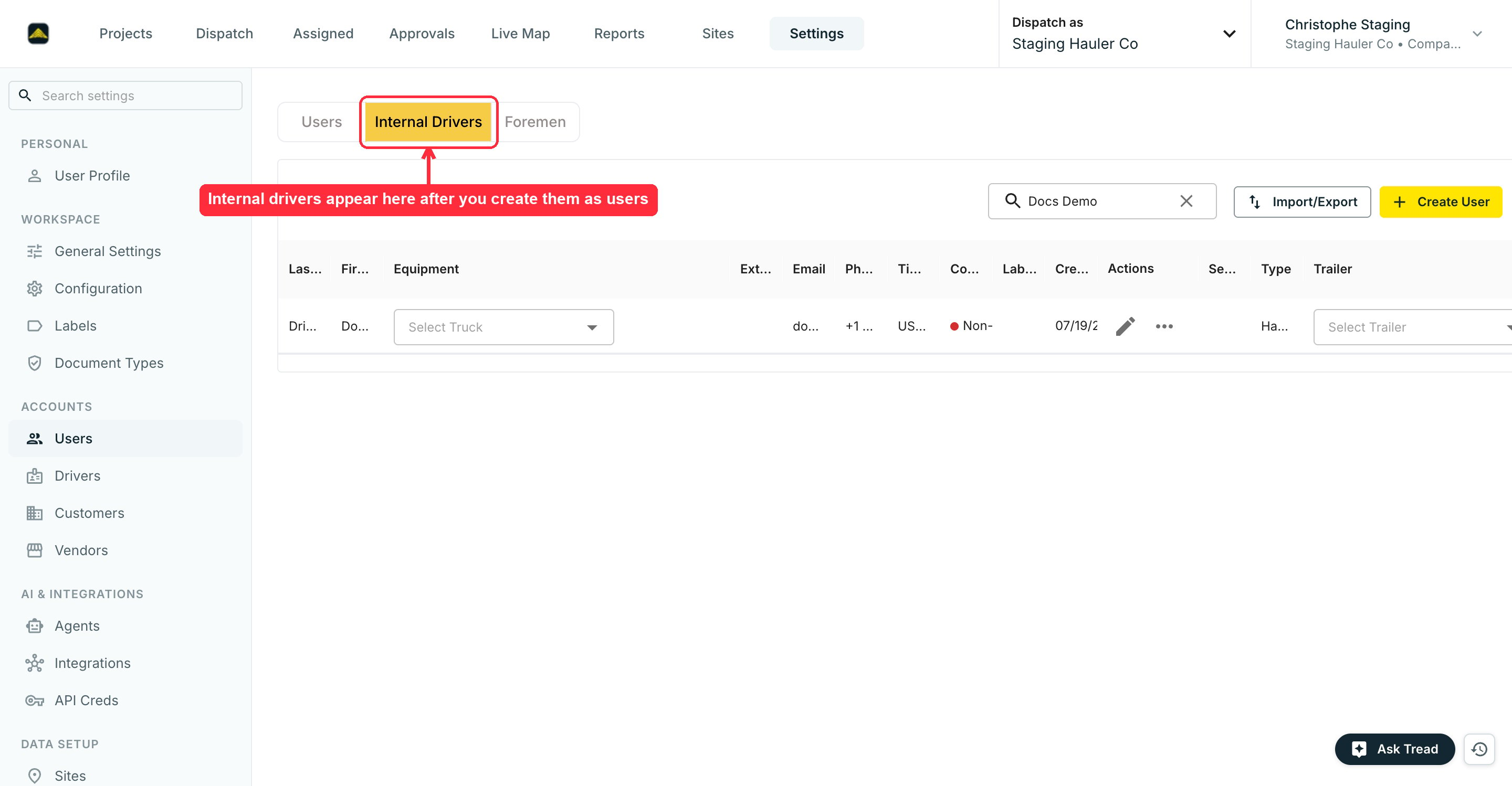
An internal driver — an employee who drives for your account — is a user with the **Driver** role. Create them on this page, not on the [Drivers](/onboarding/master-data/drivers) page.
After you create them, they appear under the **Internal Drivers** tab, where you can assign their default truck.
If you sync to QuickBooks, Sage, Vista, or another system, paste the matching identifier here. It must be unique across all users.
In the **How should we invite this user?** section, check **Email invite**, **SMS invite**, or **Don't send an invite**. The invite goes out as soon as you click **Create** — email carries a link to set a password, SMS carries a link to download the mobile app.
For more than 20 users, ask your Tread implementation lead to run a CSV import.
## Internal drivers
An internal driver — an employee who drives for your account — is a user with the **Driver** role. Create them on this page, not on the [Drivers](/onboarding/master-data/drivers) page.
After you create them, they appear under the **Internal Drivers** tab, where you can assign their default truck.
 **Don't add employees on the Drivers page.** That page creates a driver with their own account — an [Owner-Operator](/onboarding/master-data/drivers). You can't convert the record yourself; contact support to remove it, then re-create the driver here.
## Verify
Settings → Users shows every person added to your account. Search by phone number returns one match per user.
## Forgot password or lost invite
### Reset a password
Users reset their own password — no admin needed.
**Don't add employees on the Drivers page.** That page creates a driver with their own account — an [Owner-Operator](/onboarding/master-data/drivers). You can't convert the record yourself; contact support to remove it, then re-create the driver here.
## Verify
Settings → Users shows every person added to your account. Search by phone number returns one match per user.
## Forgot password or lost invite
### Reset a password
Users reset their own password — no admin needed.
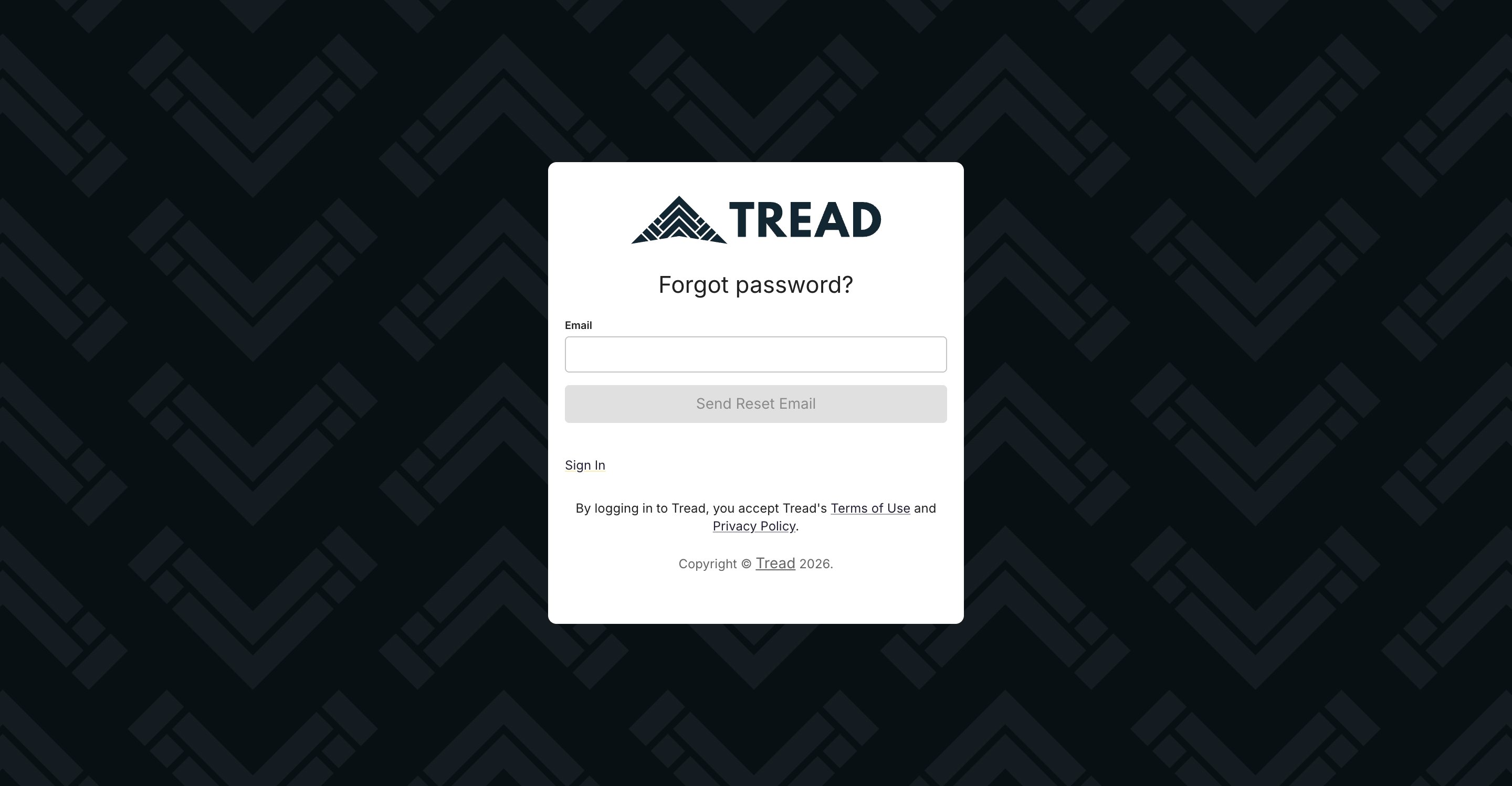 Tread emails a link to set a new password.
Password reset applies to email sign-in only. SMS login uses a one-time code, so there is no password to reset.
### Resend an invite
If a user never activated their account or lost the invite, resend it.
Search by name, email, or phone number.
Choose **Resend Email Invite** or **Resend SMS Invite**.
Tread emails a link to set a new password.
Password reset applies to email sign-in only. SMS login uses a one-time code, so there is no password to reset.
### Resend an invite
If a user never activated their account or lost the invite, resend it.
Search by name, email, or phone number.
Choose **Resend Email Invite** or **Resend SMS Invite**.
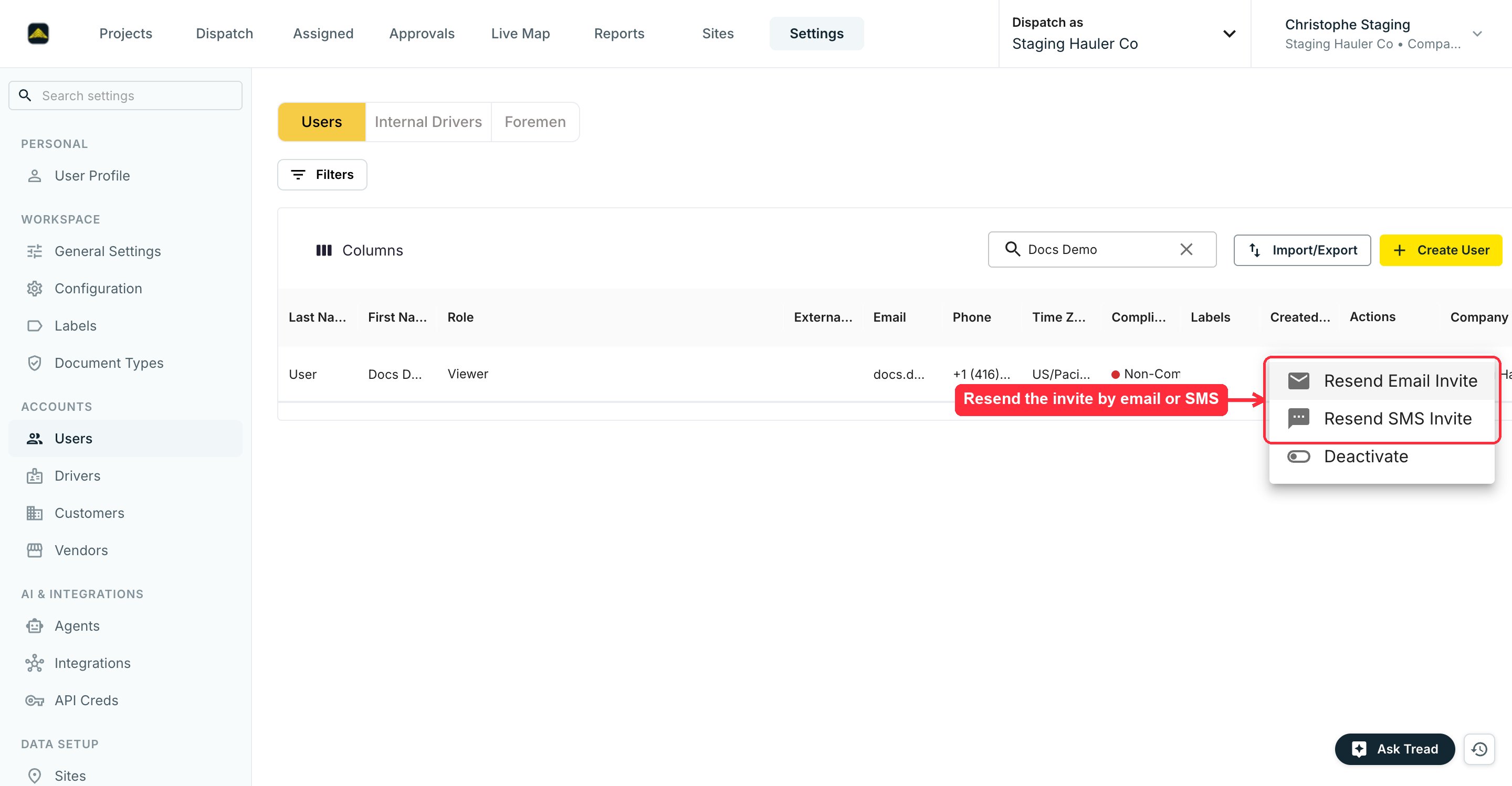 Resend options only show for users who haven't activated their account yet. For an active user, use the password reset steps above.
## Common mistakes
**Reusing a phone number across two users.** Tread treats phone numbers as unique. A duplicate blocks SMS login for both accounts. If a user needs to leave, deactivate — don't delete — to keep the number reusable.
Resend options only show for users who haven't activated their account yet. For an active user, use the password reset steps above.
## Common mistakes
**Reusing a phone number across two users.** Tread treats phone numbers as unique. A duplicate blocks SMS login for both accounts. If a user needs to leave, deactivate — don't delete — to keep the number reusable.