> ## Documentation Index
> Fetch the complete documentation index at: https://docs.tread.ai/llms.txt
> Use this file to discover all available pages before exploring further.
# Vendors
> Add the third-party hauling companies you dispatch to.
## What you'll do
Add every Vendor — an account you send dispatches to, instead of assigning your own [Driver](/onboarding/master-data/drivers). That covers brokers, outside haulers, and Owner-Operators (O\&Os).
## Before you start
* A vendor list with company name, address, primary contact name, email, and mobile phone.
* Decide which vendors are O\&Os — an O\&O is a Vendor with a single Driver, dispatched directly as a Shared Driver.
* Vendor addresses are required if you want them to appear on PDF settlement statements.
## Walkthrough
Open **Settings → Vendors** and click **Create Account**. The Account Type is set to **Vendor**. If the vendor already runs Tread, use **Connect** instead — see [Connected Ecosystem](/concepts/connected-ecosystem).
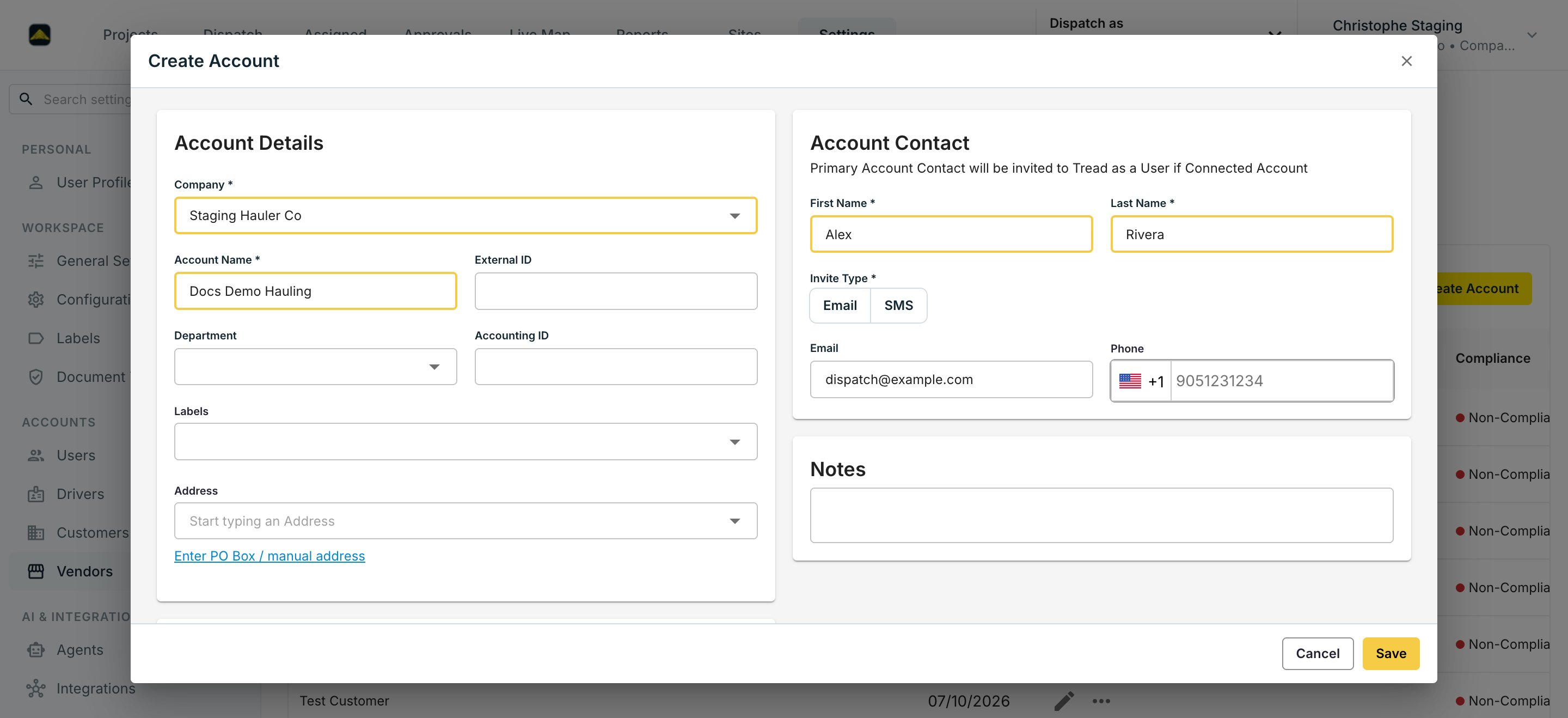 Fill in the **Account Name**, address, and — if you export to accounting — the **External ID** and **Accounting ID**. Accuracy matters here: this data prints on settlement statements and exports to accounting.
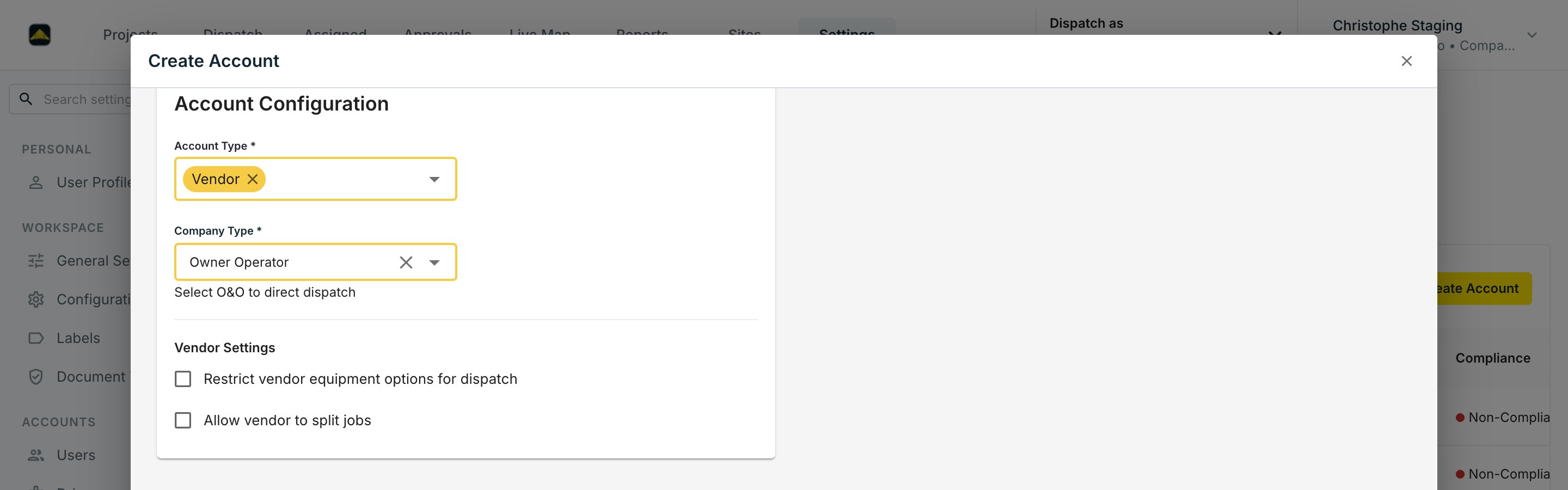
Pick **Broker**, **Contractor**, **Hauler**, **Owner Operator**, or **Producer**. Pick **Owner Operator** for a single-Driver vendor you dispatch directly — the form says it plainly: "Select O\&O to direct dispatch." Two Vendor Settings live here too: restrict the vendor's equipment options for dispatch, and allow the vendor to split jobs.
Fill in the **Account Name**, address, and — if you export to accounting — the **External ID** and **Accounting ID**. Accuracy matters here: this data prints on settlement statements and exports to accounting.
Pick **Broker**, **Contractor**, **Hauler**, **Owner Operator**, or **Producer**. Pick **Owner Operator** for a single-Driver vendor you dispatch directly — the form says it plainly: "Select O\&O to direct dispatch." Two Vendor Settings live here too: restrict the vendor's equipment options for dispatch, and allow the vendor to split jobs.
 Enter the contact's name and pick an **Invite Type** (Email or SMS). If the account is connected, this contact is invited to Tread as a User — use a real email or mobile number.
From [Equipment](/onboarding/master-data/equipment), share each truck the vendor runs to their company. They see it, you keep ownership.
## Verify
Settings → Vendors lists every hauler with its compliance status. Open one — the account shows the contact you entered, and any shared equipment appears under their fleet.
## Common mistakes
**Adding subhauler drivers as drivers on your own roster.** Drivers who work for a vendor belong on the vendor's company, not yours. If you add them as your drivers, dispatch boards mis-attribute hours and settlements pay the wrong party.
Vendor adoption takes about four weeks. Set expectations early and stay firm on the requirement.
Enter the contact's name and pick an **Invite Type** (Email or SMS). If the account is connected, this contact is invited to Tread as a User — use a real email or mobile number.
From [Equipment](/onboarding/master-data/equipment), share each truck the vendor runs to their company. They see it, you keep ownership.
## Verify
Settings → Vendors lists every hauler with its compliance status. Open one — the account shows the contact you entered, and any shared equipment appears under their fleet.
## Common mistakes
**Adding subhauler drivers as drivers on your own roster.** Drivers who work for a vendor belong on the vendor's company, not yours. If you add them as your drivers, dispatch boards mis-attribute hours and settlements pay the wrong party.
Vendor adoption takes about four weeks. Set expectations early and stay firm on the requirement.