> ## Documentation Index
> Fetch the complete documentation index at: https://docs.tread.ai/llms.txt
> Use this file to discover all available pages before exploring further.
# FAQ
> Common questions from new customers.
## Setup
Users first, Equipment Types, Equipment, then Drivers, Customers, Vendors, Materials, Sites, and finally optional items like Departments and Service Classes. Equipment Types must exist before you can add Equipment. See [Master Data Overview](/onboarding/master-data/overview).
Flat is the default and right for almost everyone. Use parent/child only for real regional splits with separate dispatchers, billing, and AP. See [Companies & Hierarchy](/concepts/companies-hierarchy).
At the parent company. Share down to child companies that need them. Creating at the child level is the most common setup mistake — it blocks cross-division dispatch and breaks reporting.
A Project is a long-running container or template— the customer, the site, the rates, the materials. An Order is the daily work that runs against the project. One project can have hundreds of orders. See [Orders & Projects](/concepts/orders-projects).
Yes. A geofence (a virtual fence around a site) is what triggers automatic load start and end. Without it, drivers have to start, progress and end every load manually. See [Sites & Geofences](/concepts/sites-geofences).
Both the web app and the mobile driver app have a color mode setting. Pick **System**, **Light**, or **Dark** on either one. System follows your device setting.
**On the web app:** go to **Settings → User Profile → Appearance**.
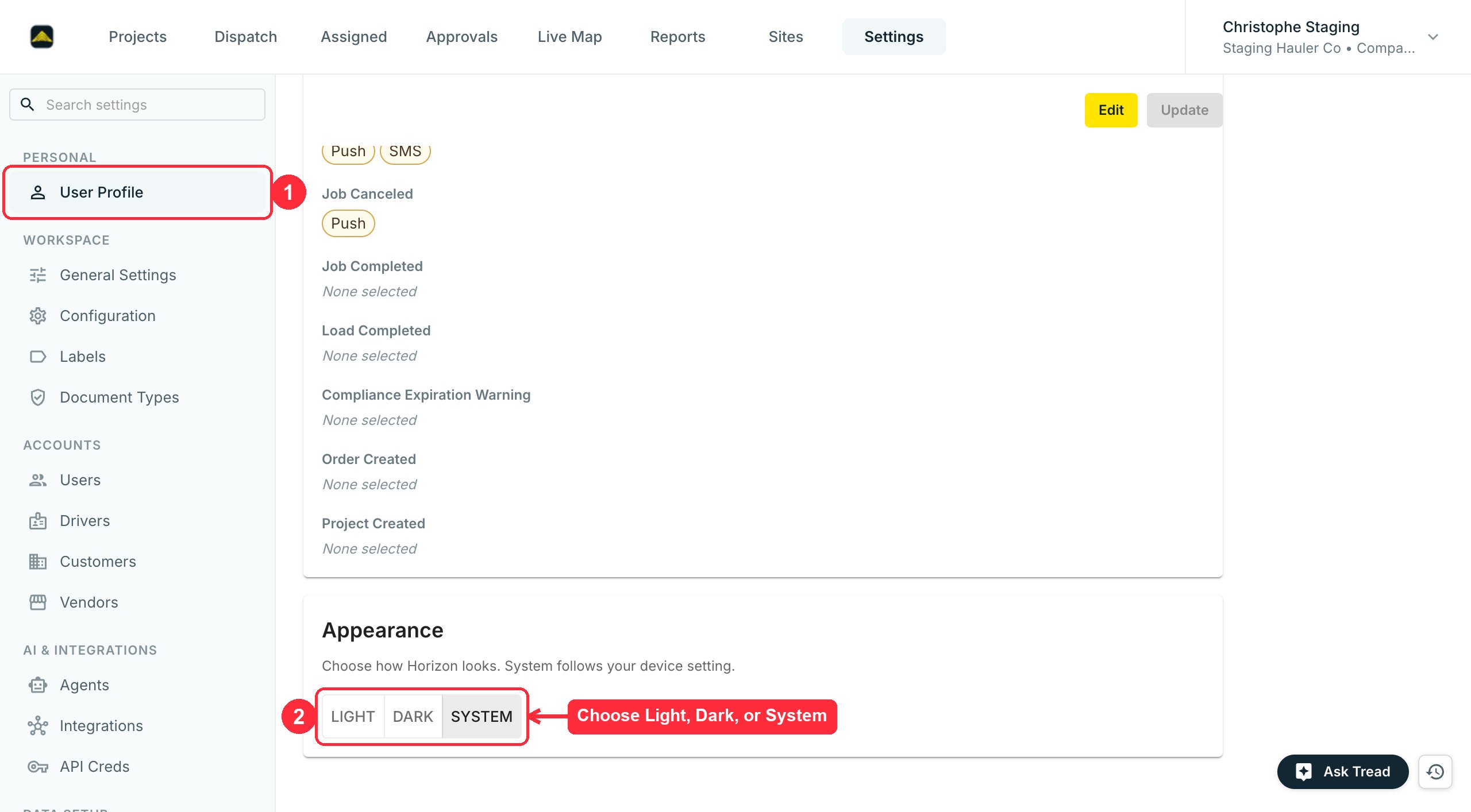 **In the mobile driver app:** open the **Account** tab and tap the **Appearance** row, below Timezone and Language. The row shows the current choice — for example, **Appearance: System**. Pick a mode from the sheet that opens. The change applies right away, and works with no service.
Your choice saves to your user account, so it follows you across devices and between the app and the web app.
**Don't see Appearance?** Dark mode is still rolling out, and the app needs to be up to date. If the setting is missing on web or in the app, it isn't enabled for your company yet — contact Tread support. Until it is, the app stays light no matter what your phone is set to. If the web app looks dark or has inverted colors and Appearance is set to Light, check your device or browser display settings.
Reload the browser page, then reopen the order form. A site added while the app was already open — by you in another tab, or by a teammate — may not appear in the list until the page reloads.
If the site is still missing after a reload, check these:
* **The site is active.** The New Order site list only shows active sites. Reactivate it under **Settings → Sites**.
* **You're on the right company.** The list only shows sites on the company the order is under. See [Companies & Hierarchy](/concepts/companies-hierarchy).
* **The list is still loading.** Sites load a page at a time as you scroll. Keep scrolling before you decide a site is missing.
Still missing? Open a support chat with the site name and the company you're creating the order under. See [Sites & Geofences](/concepts/sites-geofences).
## Billing
After the load is approved. Approvals run in three tiers: shift, job, and load. Tickets that don't appear on a settlement are almost always tickets that haven't been approved yet. See [Settlements & Driver Pay](/concepts/settlements-driver-pay).
Void it. Tread doesn't edit approved settlements in place. Void, unapprove the lines, fix the data, re-approve, and create a new settlement. Voided settlements stay under the Void filter for audit.
Yes — deleted tickets aren't gone. Tread keeps an audit trail of ticket deletions, and support can usually recover a recently deleted ticket. Open a support chat and include the order, the driver, the load number, and the rough deletion time. To prevent the next one, review who has delete permission on tickets. See [Roles & Permissions](/concepts/roles-permissions) and [Digital Tickets](/specialized/digital-tickets).
When another ticket on your account has the same ticket number and a service date within 7 days of it. Both tickets get a red **Duplicate** warning on the load, and the **Potential Duplicates** filter lists everything flagged.
What counts as a match:
* **Formatting is ignored.** `A-1234`, `a1234`, and `A 1234` are all the same number.
* **The check covers your whole account**, not one order or project. A number reused on another project still flags.
* **Tickets with no service date** are compared to each other. Two undated tickets sharing a number both flag.
* **Each pair is checked separately**, so a long run can chain. Tickets on day 1, day 7, and day 13 all flag, even though the first and last are 12 days apart.
This is a warning, not a block. Tread still lets the ticket be created and approved, so an approver should compare the two before it reaches billing. Correct the ticket number or the service date and the flag clears on its own. See [Digital Tickets](/specialized/digital-tickets).
Three pieces:
* A Fuel Price Index (the weekly diesel reference)
* A Surcharge Schedule (the price-to-surcharge table).
* Add-On that applies the schedule to an order.
* Update the index weekly.
**In the mobile driver app:** open the **Account** tab and tap the **Appearance** row, below Timezone and Language. The row shows the current choice — for example, **Appearance: System**. Pick a mode from the sheet that opens. The change applies right away, and works with no service.
Your choice saves to your user account, so it follows you across devices and between the app and the web app.
**Don't see Appearance?** Dark mode is still rolling out, and the app needs to be up to date. If the setting is missing on web or in the app, it isn't enabled for your company yet — contact Tread support. Until it is, the app stays light no matter what your phone is set to. If the web app looks dark or has inverted colors and Appearance is set to Light, check your device or browser display settings.
Reload the browser page, then reopen the order form. A site added while the app was already open — by you in another tab, or by a teammate — may not appear in the list until the page reloads.
If the site is still missing after a reload, check these:
* **The site is active.** The New Order site list only shows active sites. Reactivate it under **Settings → Sites**.
* **You're on the right company.** The list only shows sites on the company the order is under. See [Companies & Hierarchy](/concepts/companies-hierarchy).
* **The list is still loading.** Sites load a page at a time as you scroll. Keep scrolling before you decide a site is missing.
Still missing? Open a support chat with the site name and the company you're creating the order under. See [Sites & Geofences](/concepts/sites-geofences).
## Billing
After the load is approved. Approvals run in three tiers: shift, job, and load. Tickets that don't appear on a settlement are almost always tickets that haven't been approved yet. See [Settlements & Driver Pay](/concepts/settlements-driver-pay).
Void it. Tread doesn't edit approved settlements in place. Void, unapprove the lines, fix the data, re-approve, and create a new settlement. Voided settlements stay under the Void filter for audit.
Yes — deleted tickets aren't gone. Tread keeps an audit trail of ticket deletions, and support can usually recover a recently deleted ticket. Open a support chat and include the order, the driver, the load number, and the rough deletion time. To prevent the next one, review who has delete permission on tickets. See [Roles & Permissions](/concepts/roles-permissions) and [Digital Tickets](/specialized/digital-tickets).
When another ticket on your account has the same ticket number and a service date within 7 days of it. Both tickets get a red **Duplicate** warning on the load, and the **Potential Duplicates** filter lists everything flagged.
What counts as a match:
* **Formatting is ignored.** `A-1234`, `a1234`, and `A 1234` are all the same number.
* **The check covers your whole account**, not one order or project. A number reused on another project still flags.
* **Tickets with no service date** are compared to each other. Two undated tickets sharing a number both flag.
* **Each pair is checked separately**, so a long run can chain. Tickets on day 1, day 7, and day 13 all flag, even though the first and last are 12 days apart.
This is a warning, not a block. Tread still lets the ticket be created and approved, so an approver should compare the two before it reaches billing. Correct the ticket number or the service date and the flag clears on its own. See [Digital Tickets](/specialized/digital-tickets).
Three pieces:
* A Fuel Price Index (the weekly diesel reference)
* A Surcharge Schedule (the price-to-surcharge table).
* Add-On that applies the schedule to an order.
* Update the index weekly.
See [Manage Rates, Add-Ons, Fees](/concepts/rates-add-ons).
No. One job is one invoice. If a customer needs separate invoices for different scopes, build separate jobs.
Commission applies to the line item, not the invoice total. If you set a 20% commission, each line carries its own 20% calculation. Test commission on the settlement side before go-live.
Yes — QuickBooks (via Rutter), Sage 300, Vista, Foundation, and Spectrum. See [Integrations](/integrations/quickbooks).
Drivers, equipment, target loads, drop-off site, and notes stay editable mid-shift — see [Intra-Day Changes](/specialized/intra-day-changes). The customer on an in-progress or completed order is not self-serve editable; contact Tread support to swap the customer. Approved settlements can't be edited in place. Void and re-approve to fix billing. See [Settlements & Driver Pay](/concepts/settlements-driver-pay).
## Drivers & Vendors
A vendor is a hauling company you sub-dispatch to. An owner-operator (O\&O) is a single driver who owns their truck and runs for you directly. Owner-operators get dispatched like internal drivers; vendors receive a job and assign their own driver.
An internal truck is [Equipment](/concepts/equipment) on your own account, run by your own drivers. An external truck belongs to a [vendor](/onboarding/master-data/vendors) — an account you send dispatches to, instead of assigning your own driver. A subhauler with one truck who runs for you directly is an owner-operator (O\&O): a vendor with a single driver, dispatched like your own. See [Dispatching to Drivers and Vendors](/concepts/dispatching-drivers-vendors).
Yes, if the vendor shares that driver to you. The shared driver then appears in your Assign list and you dispatch them like your own. Otherwise the vendor accepts the job and assigns one of their drivers. See [Dispatching to Drivers and Vendors](/concepts/dispatching-drivers-vendors).
Deactivate the driver. If the driver is a user in your account the driver can be "Deactivated", if the driver was added as Owner Operator you can "Remove Share". Deactivation removes the account from the system, Remove Share removes access to the driver in your account.
Yes. A dispatcher can accept the job and advance its status step by step from the Dispatch page, on the driver's behalf, until the sign-in issue is fixed. See [Mobile Troubleshooting](/mobile/troubleshooting).
No. Once you accept a job, **Reject** is gone — the app only offers **Start**. Contact your dispatcher: they can un-assign you from the job or cancel it. Going off duty does not release an accepted job, so it stays yours until the dispatcher acts. See [Drivers: Accept & Start Jobs](/workflows/drivers-accept-and-start-jobs).
Yes, but not from the app. A driver cannot undo it — ask your dispatcher to contact the sender, as they will be able to restore the completed job.
Plan for four weeks to get used to the app. The dispatcher holds the line: tickets and signatures come from the app, no paper backup. Customers who hold this line see zero churn after the first month.
No, and they must not. Driver-facing rates show the driver pay rate only. Customer rates and markups are role-restricted. See [Roles & Permissions](/concepts/roles-permissions).
Contact Tread support. Drivers do not have a self-serve Connect flow yet — vendors and customers do. When you try to add a driver whose phone is already on another Tread account, you'll see "phone number already taken." Tread support links the existing record across companies, so the driver keeps one app login. Send the driver's name, phone number, and your company. See [Driver Lifecycle](/concepts/driver-lifecycle).
A common mix-up: a new hire gets created under Vendors or as an Owner-Operator instead of as an internal driver. Open Settings → Drivers, find the person, locate the 3 dots and select Remove Share.
Contact Tread support and provide the driver details. Tread Support will be able to help reset the account so you can add the driver as a User in your account.
To rename a vendor whose legal name and EIN are unchanged, edit the company name from Settings → Vendors. If the legal name or EIN changed, create a new vendor record and deactivate the old. 1099s tie to the EIN at the time of payment — editing in place misreports prior pay. To merge two duplicate profiles, contact Tread support. Merging touches dispatch history, app logins, and pay records, so it isn't self-serve. See [Driver Lifecycle](/concepts/driver-lifecycle).
## Integrations
QuickBooks (via Rutter), Sage 300, Vista Viewpoint, Foundation, and Spectrum. The data flows one way: Tread to your accounting system. See [Integrations Overview](/onboarding/integrations).
Samsara, Motive, Geotab, and more. Telematics gives Tread the truck's GPS and engine state, which powers the live map and auto-geofence triggers. See [Telematics](/integrations/telematics).
Yes. The HCSS integration is bidirectional — jobs, cost codes, equipment hours, and timecards sync between systems. See [HCSS HeavyJob](/integrations/hcss).
Yes. Most customers run for weeks on CSV exports before connecting accounting. The export covers customers, invoices, bills, and settlements.
## Mobile
The driver signs in with the mobile phone number on their Driver record — the number the Admin entered when adding them. Tread texts a one-time code to that number to confirm it. Drivers invited by email can also sign in with a password or a magic link.
Most first-login failures come from a number mismatch. If the driver types a different number than the one on file, no code arrives. Check the [Driver record](/onboarding/master-data/drivers) matches the phone in the driver's hand.
Still no code after 60 seconds? See [Mobile Troubleshooting](/mobile/troubleshooting).
iPhone (iOS 16 and newer) and Android (7.0 and newer). Android 10 or newer is recommended — older Android devices run the app but battery and GPS performance degrade. See [Mobile Troubleshooting](/mobile/troubleshooting) for the full list of unsupported devices.
Yes. Drivers can capture tickets, signatures, and timesheet photos offline. Tread queues the data and uploads when service returns.
Almost always a geofence problem. Either the site has no geofence, the radius is too small, or the driver's GPS is disabled. Check the site, then the driver's location permission. See [Sites & Geofences](/concepts/sites-geofences).
Yes. A user with the foreman role can create orders, dispatch trucks, and approve work from the same Tread mobile app drivers use. See [Foreman App](/workflows/foreman).
Quick checks before opening a ticket:
* Wait 60 seconds, then tap **Resend code**.
* Confirm the phone number on file matches the SIM in the phone.
* For Spanish-speaking drivers, switch the app language under Settings → Idioma.
Full fix list at [Mobile Troubleshooting](/mobile/troubleshooting).
Tread needs at least 800 MB of free storage on the phone to save data, photos, and tickets. Below that, the app shows a **Storage full** screen and pauses until space is freed.
To free up space:
* Delete apps you no longer use.
* Delete or back up old photos and videos — they usually take the most space.
* Clear app caches (Android only).
Then return to Tread and tap **Restart**. For step-by-step device guides, see [Apple (iPhone & iPad)](https://support.apple.com/guide/iphone/manage-storage-on-iphone-iph47c931112/ios) or [Android](https://support.google.com/android/answer/7431795).
## Notifications
Who receives each alert is set per user, not company-wide. Tread sends operational alerts — new dispatches, unassigned jobs, approvals — and each user has their own notification preferences.
If too many people are getting texts, an Admin opens **Settings → Users**, edits each affected user, and turns off the alert types they don't need.
Role also affects the volume. A user with a dispatcher or admin [role](/concepts/roles-permissions) receives more operational alerts than a driver.
## Pricing
Pricing is per truck per month, with a platform fee. Talk to your account executive for a quote — pricing varies by trucks under management, integrations, and contract length.
No. The license is on trucks under dispatch, not on user seats. Dispatchers, foremen, billing leads, and connected customers don't add to the count.
Tread runs proof-of-value pilots — usually 30 to 60 days against one yard or one customer. Talk to sales.
## Related
* [Glossary](/resources/glossary)
* [Common Setup Mistakes](/resources/common-mistakes)