> ## Documentation Index
> Fetch the complete documentation index at: https://docs.tread.ai/llms.txt
> Use this file to discover all available pages before exploring further.
# Digital Tickets
> Ticket capture without paper — by photo, by SMS, or straight from the source system.
Tread turns paper tickets into billable data the same day — no scanning, no faxing, no driving tickets to the office.
## How it works
A [ticket](/concepts/tickets-timesheets) is the proof a load was delivered — quantity, material, site, time. Tread accepts tickets through three paths.
**Photo capture.** A driver or foreman photographs the paper ticket in the [Driver App](/mobile/driver-app) or [Foreman App](/workflows/foreman). Tread reads the photo with AI, fills in the fields, and queues the ticket for approval. The AI reading is informational — a person still approves before billing.
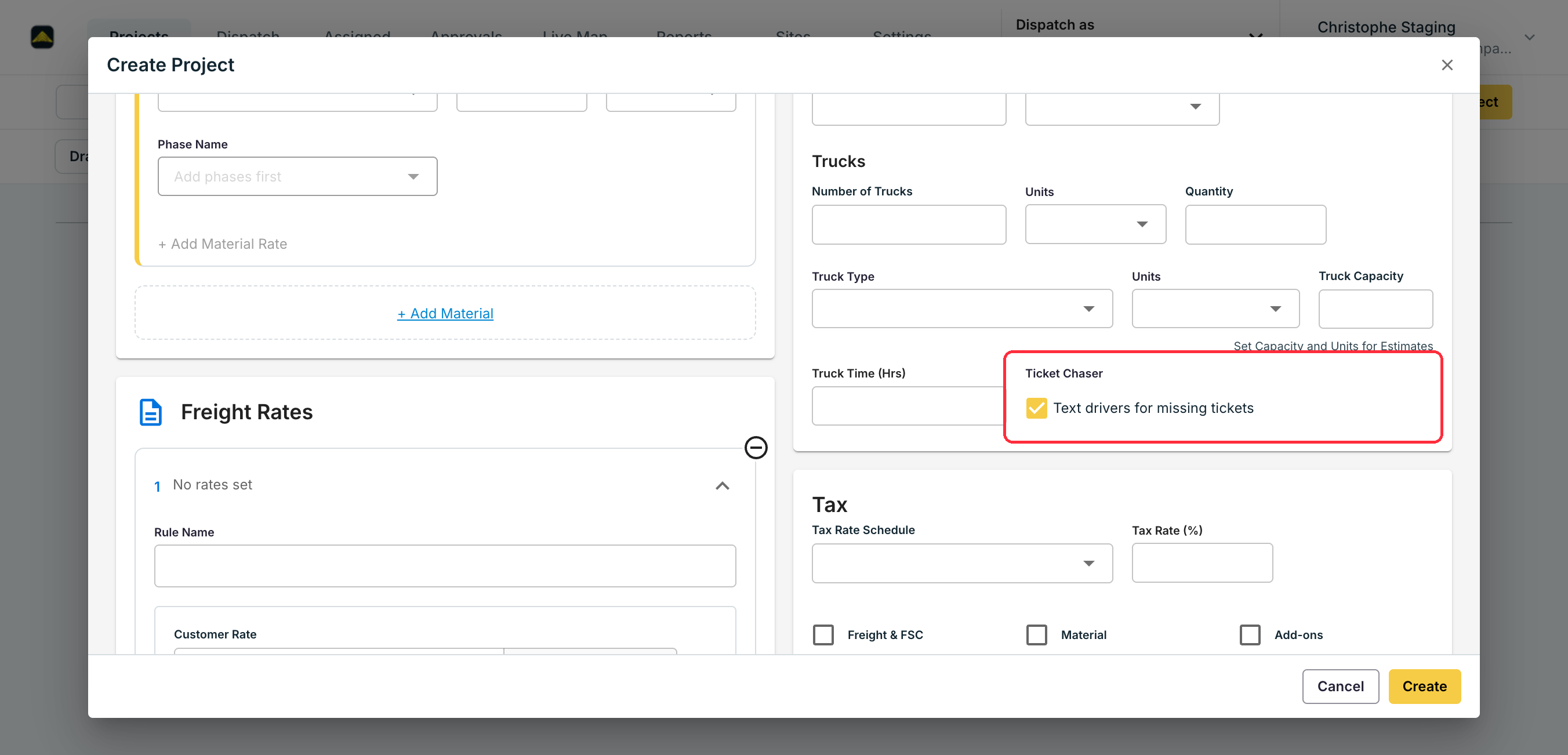
**SMS capture.** Turn on **Ticket Chaser**, the order setting labeled "Text drivers for missing tickets." When a job ends with more loads than tickets, Tread texts the driver a request. The driver replies with a photo of the ticket. Same AI reading, same approval queue. Useful for drivers who cannot install the app and for one-off subhaulers.
**Integration capture.** When a quarry, plant, or scale system already produces digital tickets, Tread pulls them in through an [integration](/integrations/telematics). No driver action required. Common with producer scale tickets and with [Paver Tracker](/integrations/paver-tracker) on paving work.
## Setup
SMS capture needs a texting number connected to your account. Ask your Tread contact to set it up.
Open the Project form. Under **Order Defaults**, check **Text drivers for missing tickets**. Orders in the Project inherit the setting. You can also set it on a single order.
 For scale or paver tickets, connect the source in Settings → Integrations. See [Paver Tracker](/integrations/paver-tracker) and [Telematics](/integrations/telematics) for the supported feeds.
## Common pitfalls
**AI ticket reading is informational. It does not block approvals.** A flagged ticket is a hint, not a rejection. Train approvers to read flags as "look closer," not "do not pay."
**Truck number formatting trips up the AI reader.** Dashes, leading zeros, and vendor-prefixed numbers all confuse the parser. Standardize truck names in [Equipment](/onboarding/master-data/equipment) before going live.
For scale or paver tickets, connect the source in Settings → Integrations. See [Paver Tracker](/integrations/paver-tracker) and [Telematics](/integrations/telematics) for the supported feeds.
## Common pitfalls
**AI ticket reading is informational. It does not block approvals.** A flagged ticket is a hint, not a rejection. Train approvers to read flags as "look closer," not "do not pay."
**Truck number formatting trips up the AI reader.** Dashes, leading zeros, and vendor-prefixed numbers all confuse the parser. Standardize truck names in [Equipment](/onboarding/master-data/equipment) before going live.