When to use this
You have fuel surcharges based on an index price (e.g. your surcharge rate depends on the latest diesel prices published on the EIA Gulf Coast Index). Tread applies the right surcharge automatically once it’s configured. No manual invoice edits each time fuel prices change.How it works
A fuel surcharge has three parts, and all three are required:- Fuel Price Index — the fuel price you’re tracking. Tread includes default indexes that update every week from the U.S. Energy Information Administration (EIA), or you can create your own.
- Fuel Surcharge Schedule — a table mapping fuel price tiers to a surcharge (a percentage of the freight total, a per-unit amount, or a flat amount per load).
- Add On — the piece that actually attaches the schedule to an order or project so it shows up on invoices and driver pay.
Fuel price indexes
Find indexes in Settings → Fuel Surcharge, on the Fuel Surcharge Indexes tab. Default indexes — Tread has 10 default regional diesel indexes based on the US EIA. Tread automatically updates the price each week around 11am Eastern on Tuesday (Wednesday on holiday weeks).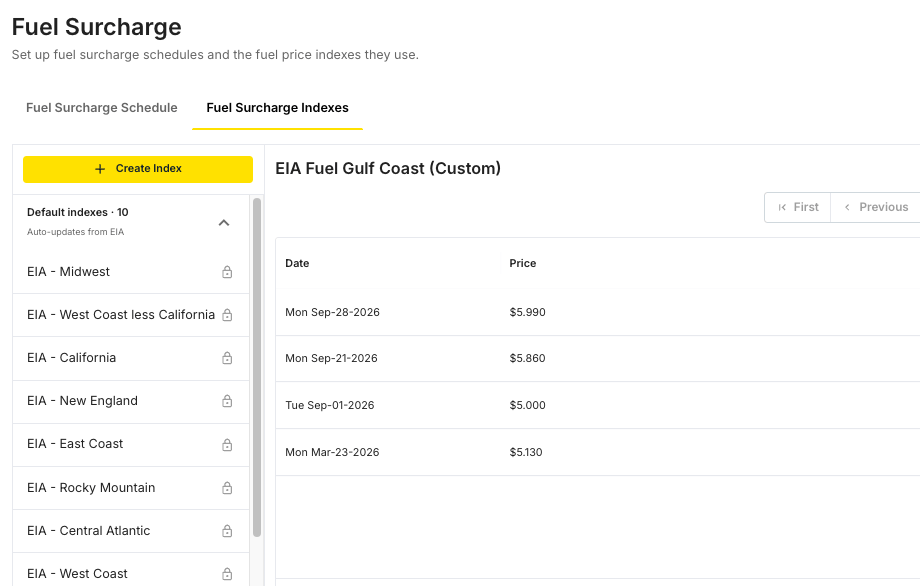
Setup
1
Create a Fuel Surcharge Schedule
In Settings, open Fuel Surcharge and stay on the Fuel Surcharge Schedule tab.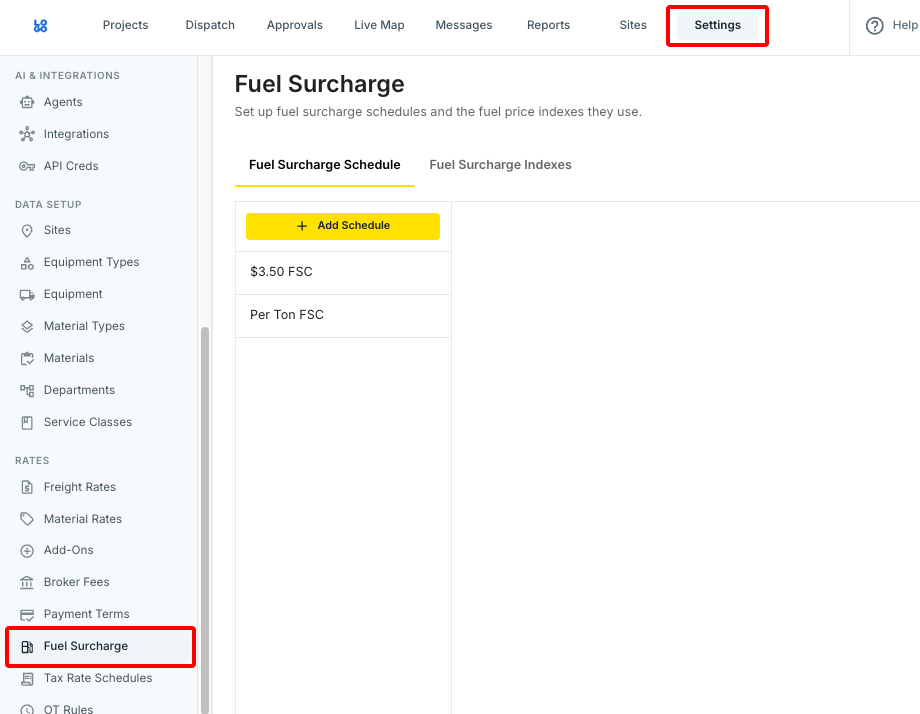
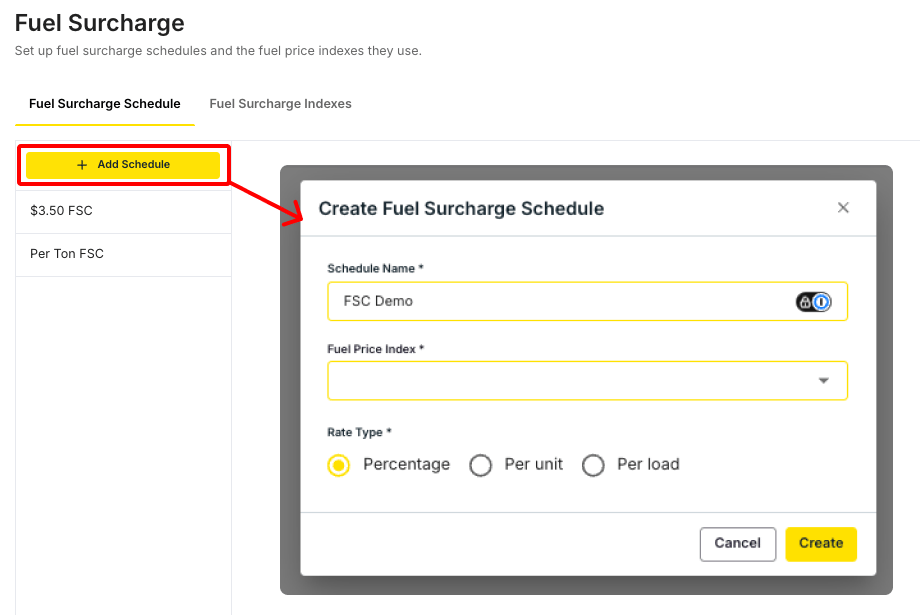
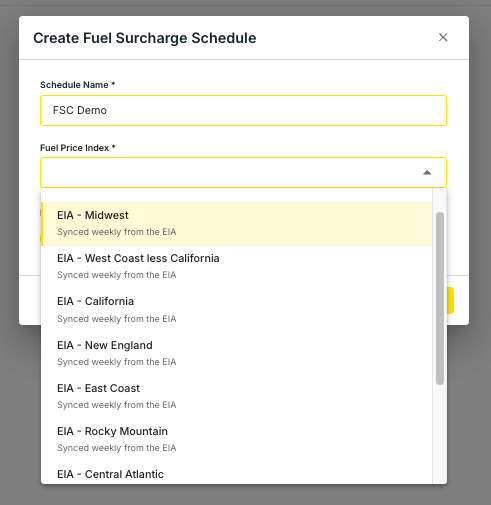
- Percentage (e.g. 1% of the freight total)
- Per unit (e.g. $0.25 per ton, multiplied by the invoiced quantity)
- Per load (e.g. $10 per load, multiplied by the number of loads on the invoice
2
Add Surcharges
Select the schedule and click Add Price to enter your surcharge rates.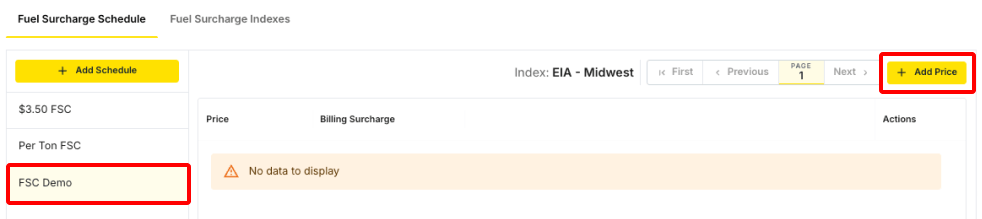

- Price - At what fuel price should this rate be applied
- Surcharge - The rate
3
Create a Fuel Surcharge add-on
An add-on is required to apply a Fuel Surcharge to customers or vendors/drivers if you pass-through.
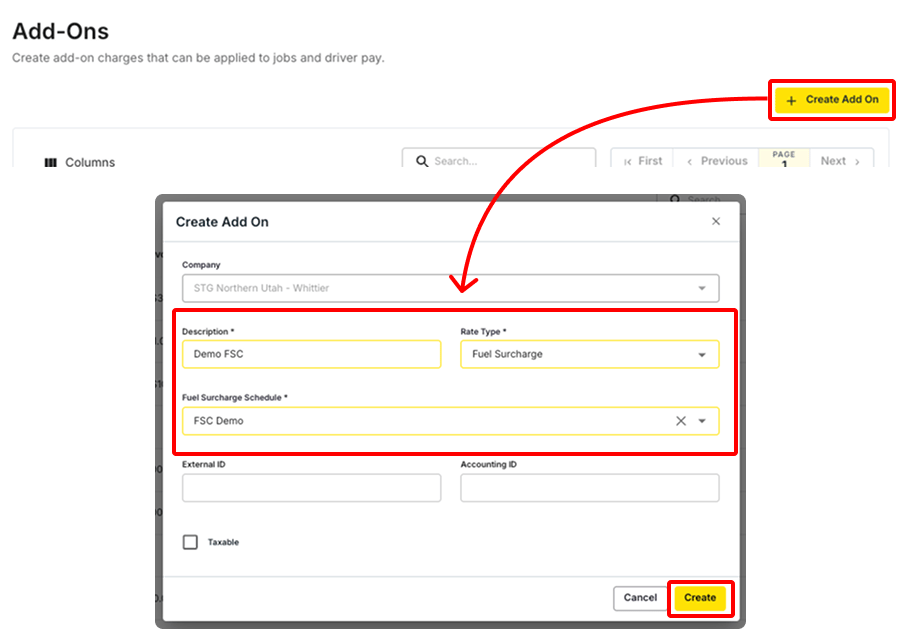
- In Settings, open Add-Ons and click Create Add On.
- Enter a Description your team will recognize (e.g. Fuel Surcharge – Gulf Coast).
- Set the Rate Type to Fuel Surcharge, then select one Schedule
-
Click Create
4
Apply it to an order or project
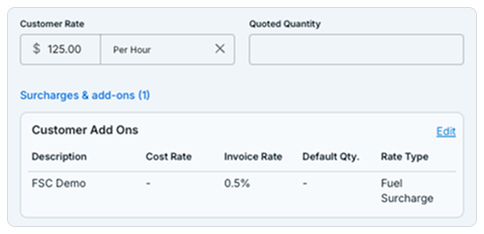
Open an order from Dispatch or Projects and scroll to Freight Rates. Under the Customer Rate block (or Vendor Rate, if you pass the surcharge through to a vendor), click the ••• menu, choose Add On, and select the fuel surcharge add-on.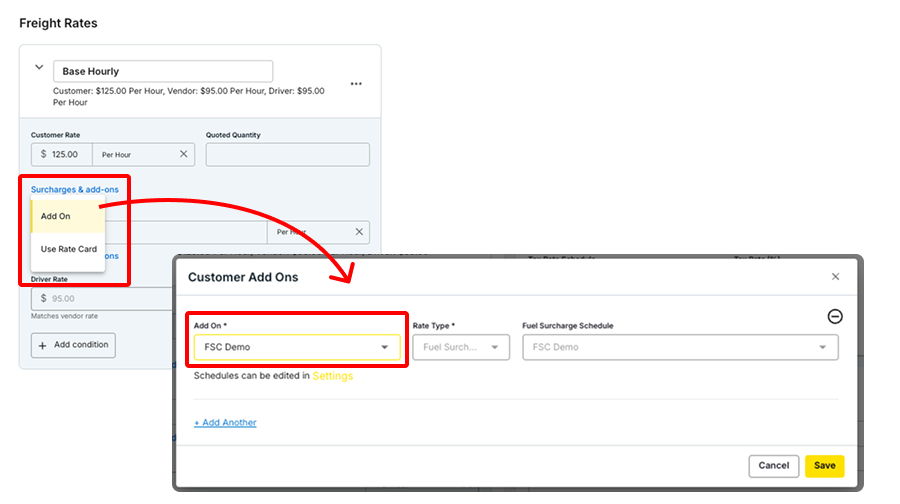
Create a custom index
Only needed if you’re not using a default index.1
Create the index
In Settings → Fuel Surcharge, open the Fuel Surcharge Indexes tab. Click Create Index and name it (e.g. Acme Rack Price). Avoid names that start with “EIA” — they’re easy to confuse with the default indexes, which update on their own.
2
Add prices
Select the index, click Add Price, and enter the fuel price with its date. Tread matches each job to the price entry dated closest to (without exceeding) the job’s start date, so add a new entry — don’t edit the old one — each time the price changes.
3
Keep the price current
Add a new entry every week (or on whatever cadence your surcharge schedule assumes). Tread automatically recalculates the surcharge on every invoice that uses that schedule and isn’t locked — no need to touch individual orders.
How the surcharge is calculated
Tread takes the index price dated on or before the job’s start date, then applies the highest schedule rate at or below that price. With tiers at 3.50, 3.60, and 3.70, an index price of 3.65 uses the 3.60 tier.Switch a schedule to a different index
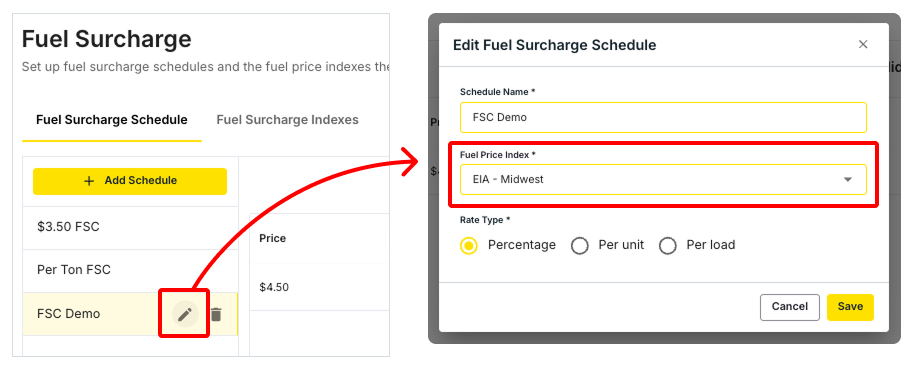
If you built your schedule on a custom index and want Tread to keep the price current for you, point the schedule at a default index. Your rates, rate type, and add-ons stay as they are.1
Open your schedules
In Settings → Fuel Surcharge, stay on the Fuel Surcharge Schedule tab.
2
Edit the schedule
Hover over the schedule and click the pencil icon.
3
Change the index and save
Pick the new Fuel Price Index — default indexes are marked Synced weekly from the EIA — and click Save.