> ## Documentation Index
> Fetch the complete documentation index at: https://docs.tread.ai/llms.txt
> Use this file to discover all available pages before exploring further.
# Paving & Moving Geofences
> Geofences that travel with the paver, fed by the operator's phone or by Paver Tracker.
## When to use this
Use a moving geofence when the work is linear — paving, milling, road striping — and the active drop zone shifts down the road as the day goes on. A fixed geofence at one milepost will miss every load delivered past it.
## How it works
A [geofence](/concepts/sites-geofences) (a virtual fence around a site that tells Tread when a truck has arrived or left) usually stays put. A moving geofence is tied to a piece of [equipment](/concepts/equipment) instead of to a fixed point. Wherever that equipment reports its position, the geofence follows.
Trucks crossing the moving boundary trigger the same arrive and depart events as a static [site](/concepts/sites-geofences). Tickets, on-site minutes, and load counts attach to the [order](/concepts/orders-projects) (the day's work) the same way.
## Set up a moving geofence
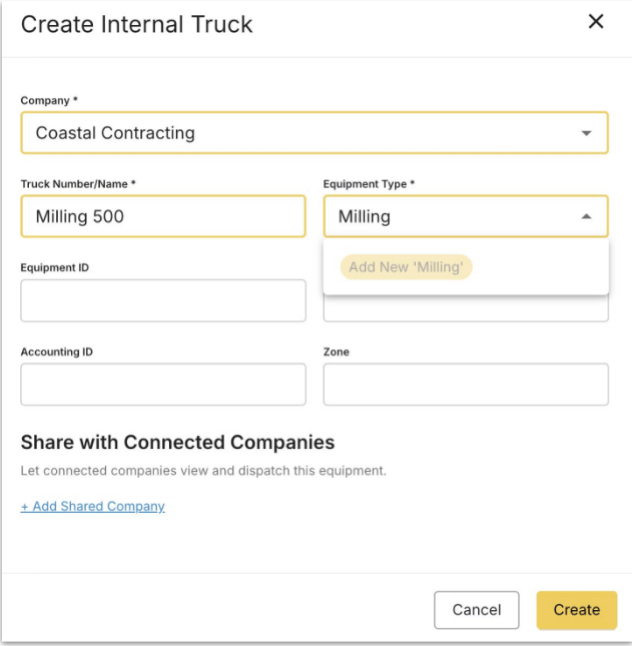
In Settings → Equipment, add the paver or mill and name it. No special settings are needed. If it carries a telematics device, map it on the **Integrations** tab.
 Set **Geofence Type** to **Equipment**, pick the paver under **Available Equipment**, then set the **Radius**.
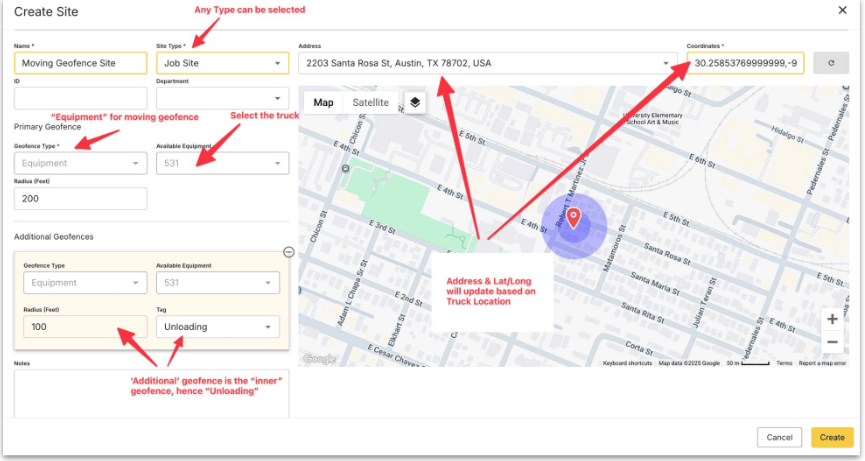 Under **Additional Geofences**, add a tighter circle and give it a **Tag** — Loading, Unloading, Check In, Scaling, or Ticketing. Additional geofences follow the same equipment automatically, so you only set radius and tag.
The person running the paver needs both roles. The **Driver** role is what matters for the geofence: only a Driver can clock in, and clocking in is what starts GPS. Set the paver as their primary equipment. See [Foreman](/workflows/foreman).
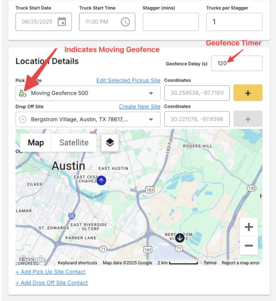
Create the [order](/concepts/orders-projects) as normal and pick the moving site as the pickup or drop-off. Milling equipment is usually the pickup; the paver is usually the drop-off. Set **Geofence Delay (s)** here, not on the site.
Under **Additional Geofences**, add a tighter circle and give it a **Tag** — Loading, Unloading, Check In, Scaling, or Ticketing. Additional geofences follow the same equipment automatically, so you only set radius and tag.
The person running the paver needs both roles. The **Driver** role is what matters for the geofence: only a Driver can clock in, and clocking in is what starts GPS. Set the paver as their primary equipment. See [Foreman](/workflows/foreman).
Create the [order](/concepts/orders-projects) as normal and pick the moving site as the pickup or drop-off. Milling equipment is usually the pickup; the paver is usually the drop-off. Set **Geofence Delay (s)** here, not on the site.
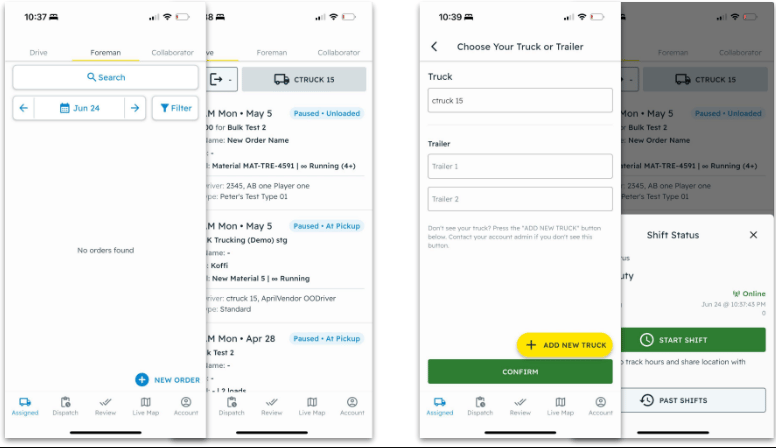
 On the **Drive** tab, the operator sets **Truck & Trailer** to the paver, then taps **Start Shift**. From that point the phone's position moves the geofence. The operator does not have to be assigned to the order.
 ## Feeding the position
Two sources move the same geofence. Either one works; you do not need both.
| Source | Updates | Setup |
| -------------------------------------------- | ------------------------------- | --------------------------------------------------------- |
| Operator's phone | Every few seconds while on duty | The steps above. Nothing else to turn on. |
| [Paver Tracker](/integrations/paver-tracker) | About once a minute | Tread creates the equipment, site, and geofences for you. |
The geofence moves on the live map as positions arrive — no page refresh needed. A job's route timeline replays where the geofence sat through the day, alongside truck history.
## Common pitfalls
**No clock-in, no movement.** If the operator never starts a shift, Tread falls back to that equipment's last known position from up to 12 hours earlier. With nothing in that window, the geofence is dropped from the job and no arrive or depart events fire.
**A radius that is too wide catches the staging area.** Trucks queueing 200 feet behind the paver will register as on-site, inflating wait time and load counts. Start tight; widen only if drivers report missed arrivals.
**Geofence Delay applies to the outer circle only.** The delay set on the order filters arrivals on the outer **Site** geofence. Inner geofences trigger with no delay.
**"Sync sites from telematics (PaverTracker)" is not the on switch.** That checkbox only appears when the company has a Paver Tracker fleet connected, and it is on by default. Turning it off stops Paver Tracker from moving daily sites on that order. It does nothing to a moving geofence you set up by hand.
## Related
* [Paver Tracker](/integrations/paver-tracker)
* [Sites & Geofences](/concepts/sites-geofences)
* [Equipment](/concepts/equipment)
* [Foreman](/workflows/foreman)
## Feeding the position
Two sources move the same geofence. Either one works; you do not need both.
| Source | Updates | Setup |
| -------------------------------------------- | ------------------------------- | --------------------------------------------------------- |
| Operator's phone | Every few seconds while on duty | The steps above. Nothing else to turn on. |
| [Paver Tracker](/integrations/paver-tracker) | About once a minute | Tread creates the equipment, site, and geofences for you. |
The geofence moves on the live map as positions arrive — no page refresh needed. A job's route timeline replays where the geofence sat through the day, alongside truck history.
## Common pitfalls
**No clock-in, no movement.** If the operator never starts a shift, Tread falls back to that equipment's last known position from up to 12 hours earlier. With nothing in that window, the geofence is dropped from the job and no arrive or depart events fire.
**A radius that is too wide catches the staging area.** Trucks queueing 200 feet behind the paver will register as on-site, inflating wait time and load counts. Start tight; widen only if drivers report missed arrivals.
**Geofence Delay applies to the outer circle only.** The delay set on the order filters arrivals on the outer **Site** geofence. Inner geofences trigger with no delay.
**"Sync sites from telematics (PaverTracker)" is not the on switch.** That checkbox only appears when the company has a Paver Tracker fleet connected, and it is on by default. Turning it off stops Paver Tracker from moving daily sites on that order. It does nothing to a moving geofence you set up by hand.
## Related
* [Paver Tracker](/integrations/paver-tracker)
* [Sites & Geofences](/concepts/sites-geofences)
* [Equipment](/concepts/equipment)
* [Foreman](/workflows/foreman)