> ## Documentation Index
> Fetch the complete documentation index at: https://docs.tread.ai/llms.txt
> Use this file to discover all available pages before exploring further.
# Setup Trucks & Drivers
> Add your trucks, drivers, dispatchers, and admins before the first job goes out.
Same setup, two surfaces. Complete these steps on mobile or web — whichever is easier for your team.
Assign a default truck to each driver. The truck name shows up alongside the driver every time you dispatch — fewer clicks, fewer mistakes.
Download the Tread app from the App Store or Google Play, or go to [link.tread.io/app](https://link.tread.io/app). Sign in using your mobile phone number and the SMS verification code.
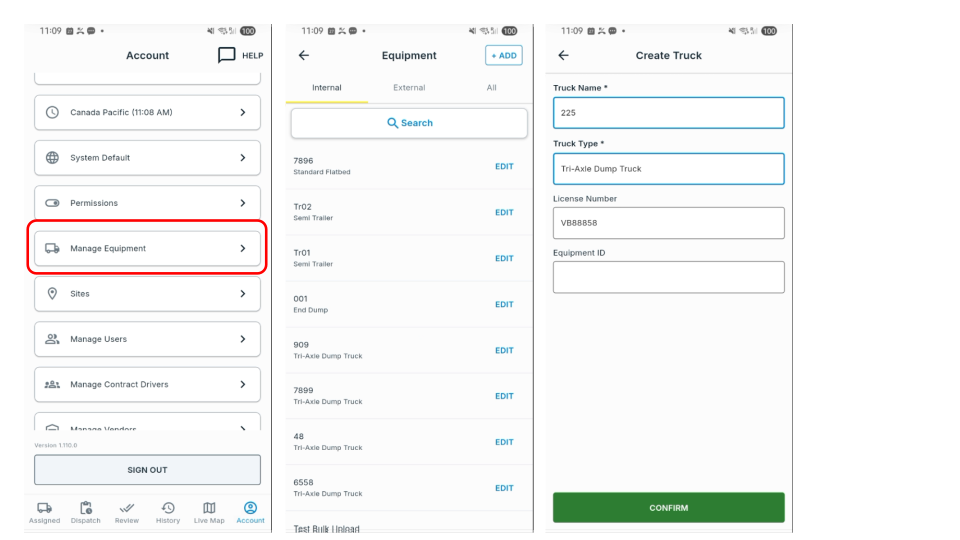
Tap **Account → Manage Equipment → + Add**. Enter the truck name and type, then tap **Save**. Repeat for each truck in your fleet.
 Video Guide • 30 seconds
**Video Guide • 30 seconds**
Tap **Account → Manage Contract Drivers → + Add**. Enter the driver's name and phone number. Toggle on **Send SMS invite** to send the driver a download link, then tap **Save**.
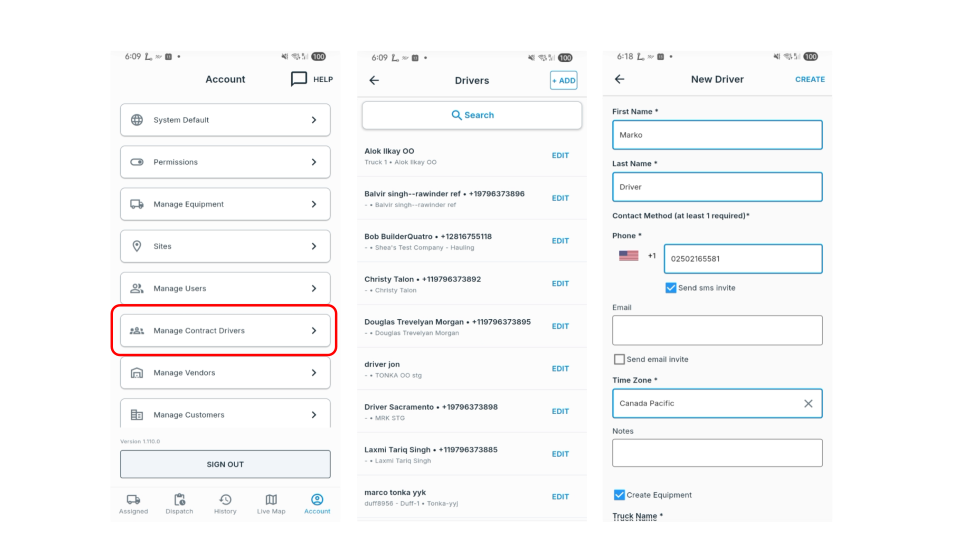 The SMS invite sends a download link directly to the driver's phone. If you skip this step, you can send the invite from the driver's profile later.
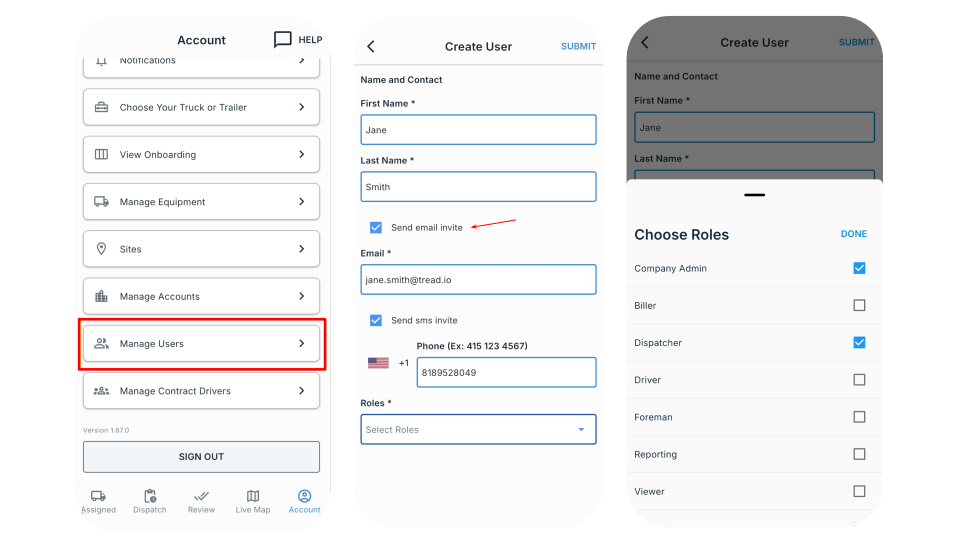
Tap **Account → Manage Users → + Add**. Enter the user's name, email, and phone. Select the appropriate role — **Dispatcher** or **Admin** — and tap **Save**.
The SMS invite sends a download link directly to the driver's phone. If you skip this step, you can send the invite from the driver's profile later.
Tap **Account → Manage Users → + Add**. Enter the user's name, email, and phone. Select the appropriate role — **Dispatcher** or **Admin** — and tap **Save**.
 Admins can access all account settings including billing. Assign the Admin role only to team members who need that level of access.
Go to [app.tread-horizon.com](https://app.tread-horizon.com) and sign in with your email and password.
Admins can access all account settings including billing. Assign the Admin role only to team members who need that level of access.
Go to [app.tread-horizon.com](https://app.tread-horizon.com) and sign in with your email and password.
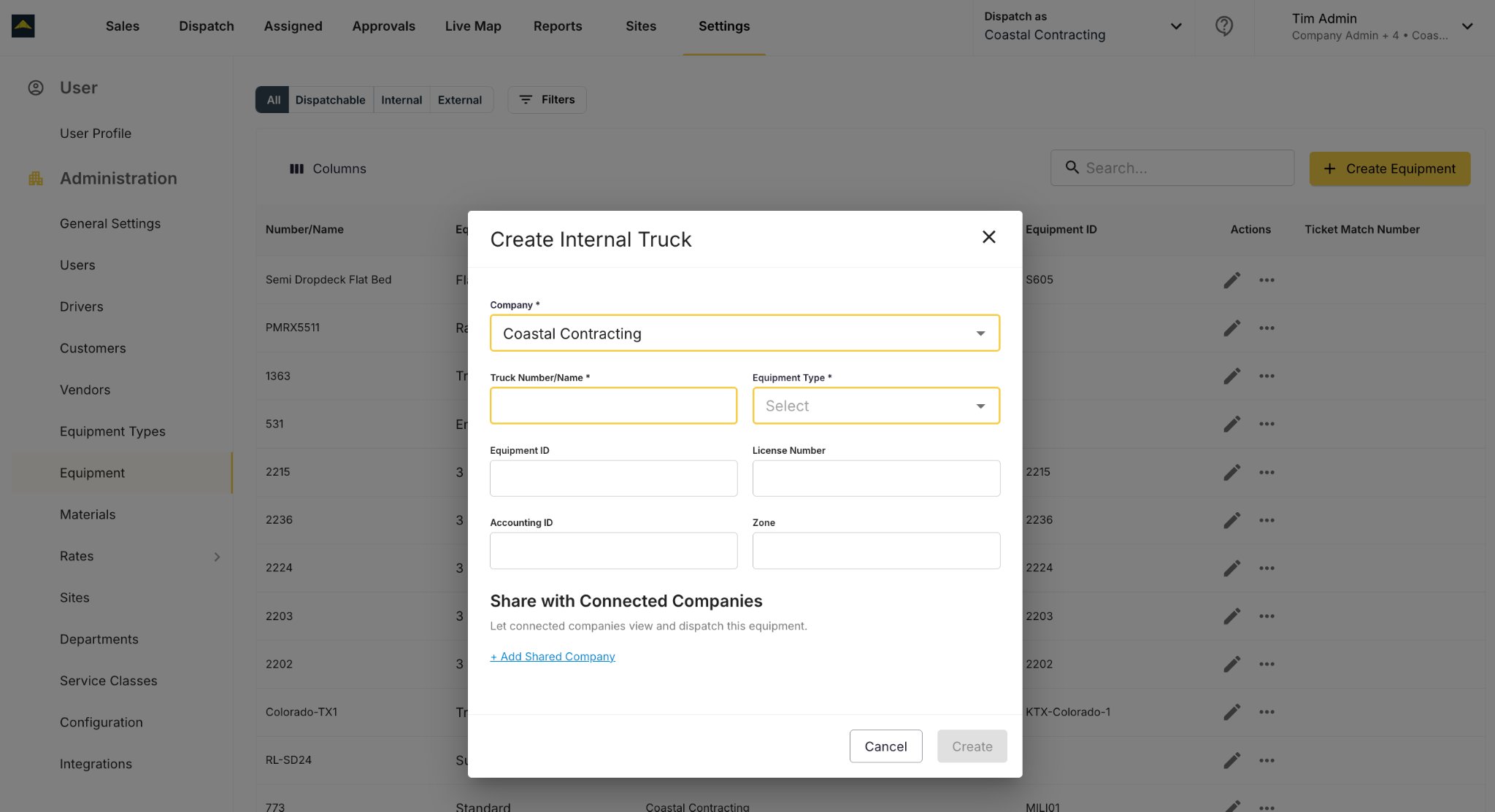
 Open **Settings → Equipment → Create Equipment**. Enter the truck name and type, then click **Save**. Repeat for each truck in your fleet.
 Go to **Settings → Drivers → Create Driver**. Fill in the driver's name and phone number. Check **Send SMS invite** so the driver receives a download link for the Tread app. Click **Save**.
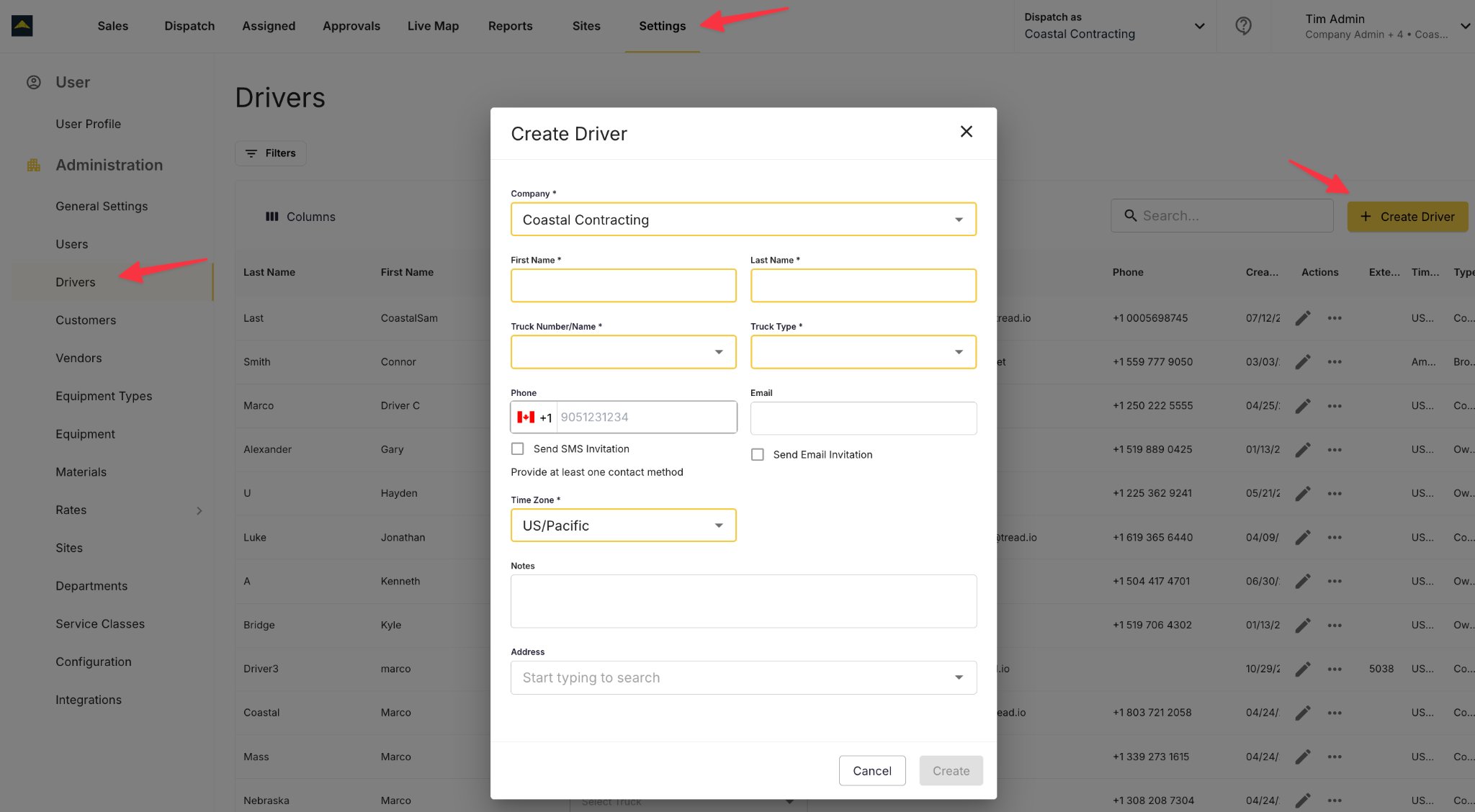 If you leave the SMS invite unchecked, you can send the invite later from the driver's profile. The driver won't be able to log in until they've received and used the invite link.
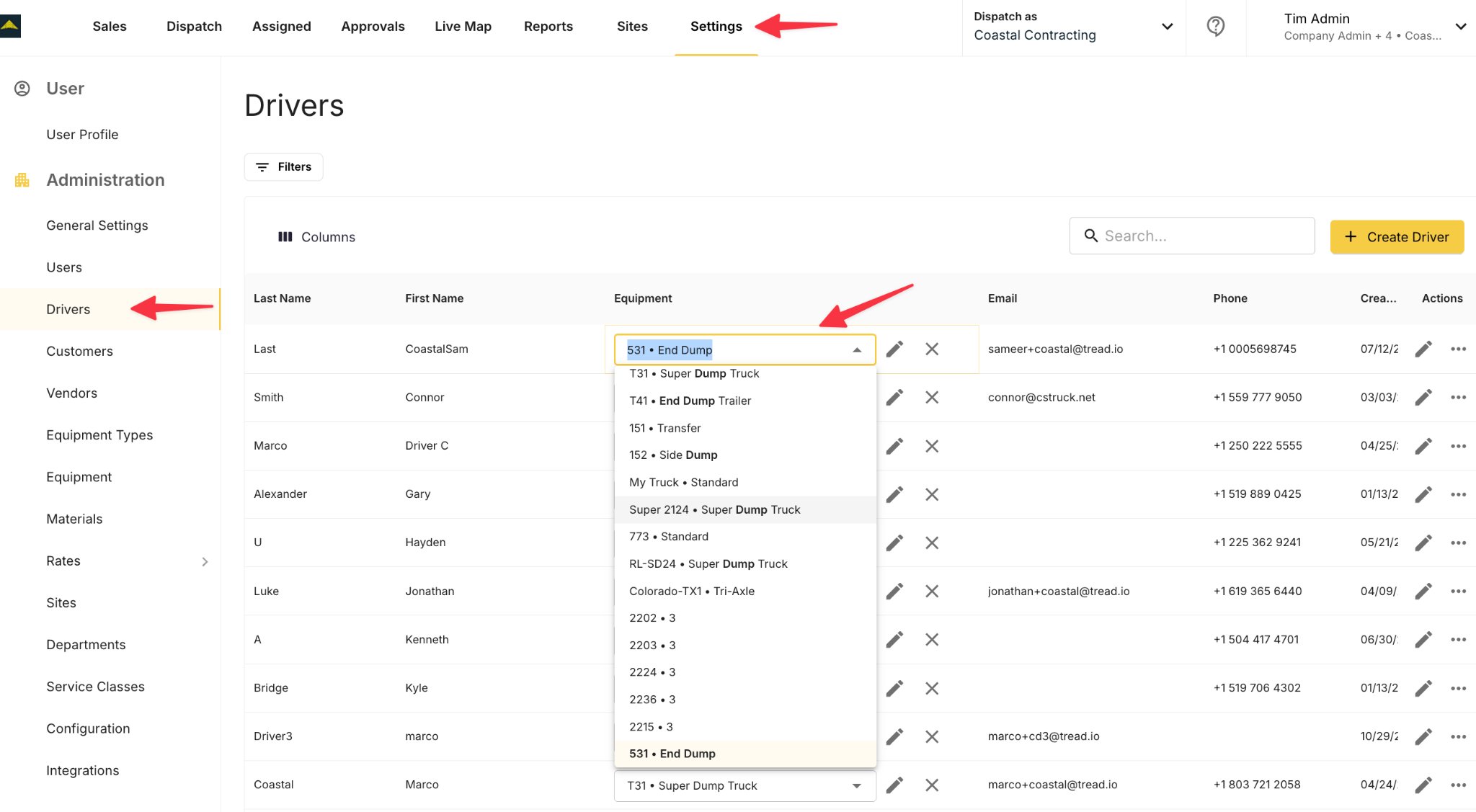
In **Settings → Drivers**, click a driver's name to open their profile. Set the **Equipment** field to their default truck and click **Save**. The selected truck will pre-fill on every new assignment for this driver.
If you leave the SMS invite unchecked, you can send the invite later from the driver's profile. The driver won't be able to log in until they've received and used the invite link.
In **Settings → Drivers**, click a driver's name to open their profile. Set the **Equipment** field to their default truck and click **Save**. The selected truck will pre-fill on every new assignment for this driver.
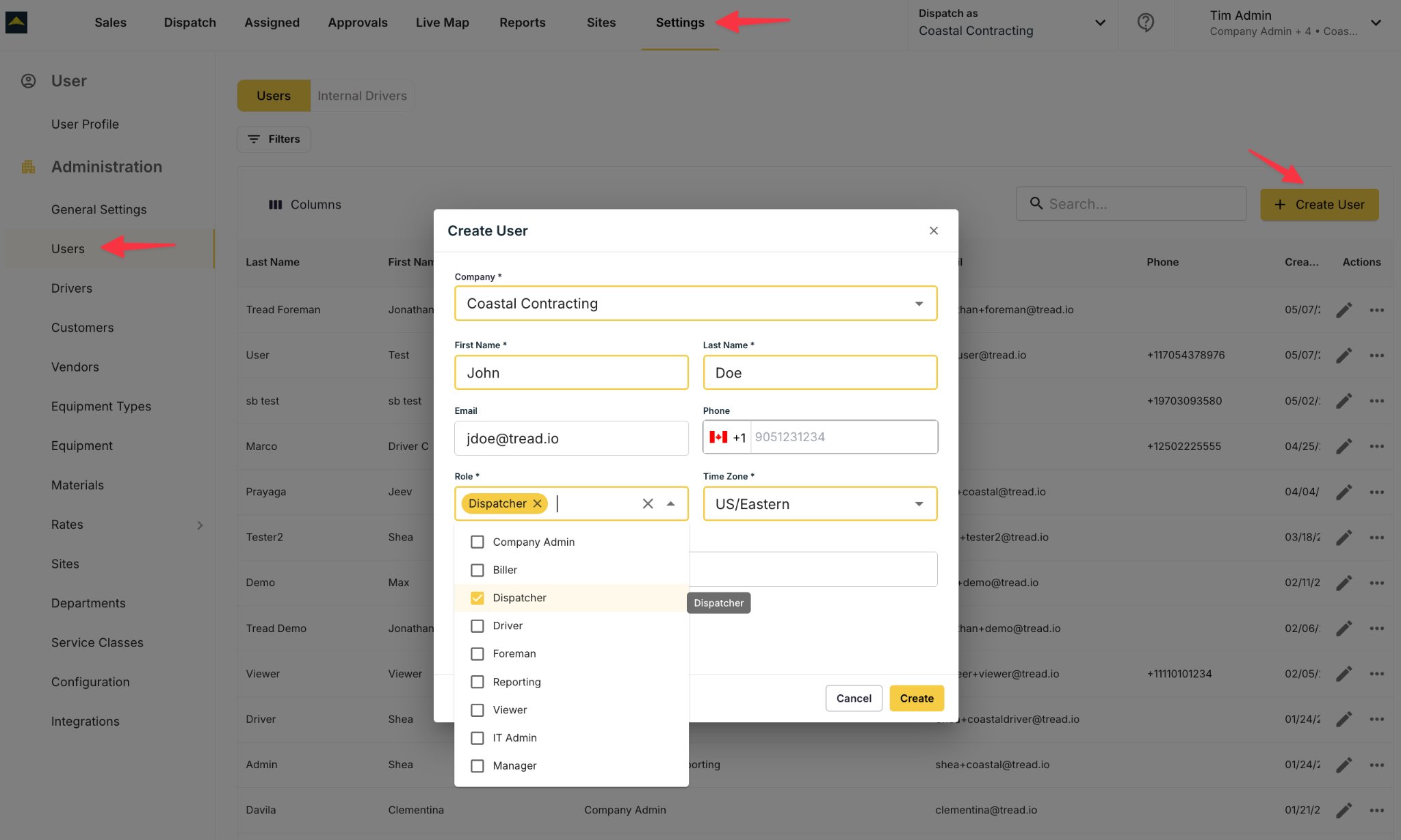
 Go to **Settings → Users → Create User**. Enter the user's name, email, and phone. Select **Dispatcher** (can create and send jobs) or **Admin** (full account access) and click **Save**.
 ## Common mistakes
**"Phone number already in use" when adding a driver.** This means the number is already on a driver record under a different company account — often the driver's own previous employer, or another vendor they've worked with. There's no self-serve way to move the record yourself. Contact support with the driver's name, phone number, and both company names, and they'll reassign it.
## Common mistakes
**"Phone number already in use" when adding a driver.** This means the number is already on a driver record under a different company account — often the driver's own previous employer, or another vendor they've worked with. There's no self-serve way to move the record yourself. Contact support with the driver's name, phone number, and both company names, and they'll reassign it.