> ## Documentation Index
> Fetch the complete documentation index at: https://docs.tread.ai/llms.txt
> Use this file to discover all available pages before exploring further.

# Train Your Drivers

> The three things every driver needs to know on day one.

By the end of this section, every driver will have the Tread app downloaded, permissions granted, and know how to accept jobs, add scale tickets, and stop a job.

<Tip>
  Print the one-page driver guide and put it in the cab of each truck. Drivers can scan the QR code to download the app.
</Tip>

<div style={{display: 'flex', flexDirection: 'column', alignItems: 'center', marginBottom: '24px'}}>
  <img src="https://mintcdn.com/treadtechnologiesinc/2yTFCBLsscTZKGqY/images/vendor-guide/p02_img01_290x290.png?fit=max&auto=format&n=2yTFCBLsscTZKGqY&q=85&s=ddfe80faad51a2adacd14dd3c2813573" alt="Scan to download the Tread app" width="160" data-path="images/vendor-guide/p02_img01_290x290.png" />

  <p style={{fontSize: '0.85rem', color: '#6b7280', marginTop: '4px'}}>Scan to download the Tread app</p>
</div>

<CardGroup cols={2}>
  <Card title="Download the app" icon="smartphone">
    Available on App Store and Google Play. Go to [link.tread.io/app](https://link.tread.io/app) from any phone.
  </Card>

  <Card title="One-page driver guide" icon="file-text">
    A printable reference card for the cab. Ask your CSM for the latest version.
  </Card>
</CardGroup>

## Step 1 — Download and sign in

<AccordionGroup>
  <Accordion title="Download the Tread app">
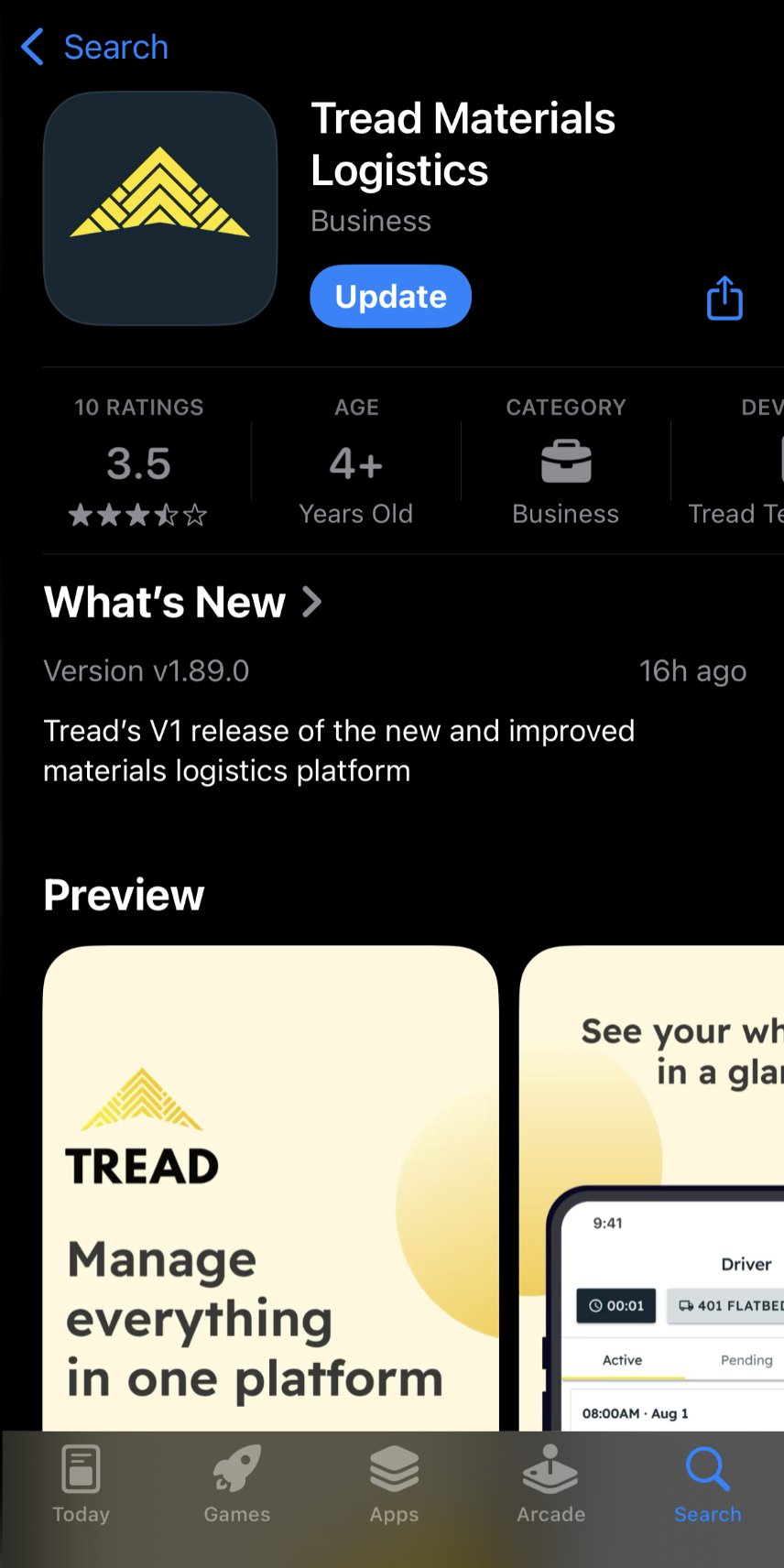
    Search for **Tread** on the App Store (iPhone) or Google Play (Android), or go to [link.tread.io/app](https://link.tread.io/app) from any phone browser.

    <img src="https://mintcdn.com/treadtechnologiesinc/3mSuM3sVSfQar0wQ/images/vendor-guide/p17_img02_856x1712.png?fit=max&auto=format&n=3mSuM3sVSfQar0wQ&q=85&s=c15a07b8929bedf5b5b710ea44c962ac" alt="App Store listing: Tread Materials Logistics" width="280" style={{margin: '12px auto', display: 'block'}} data-path="images/vendor-guide/p17_img02_856x1712.png" />
  </Accordion>

  <Accordion title="Enter your phone number">
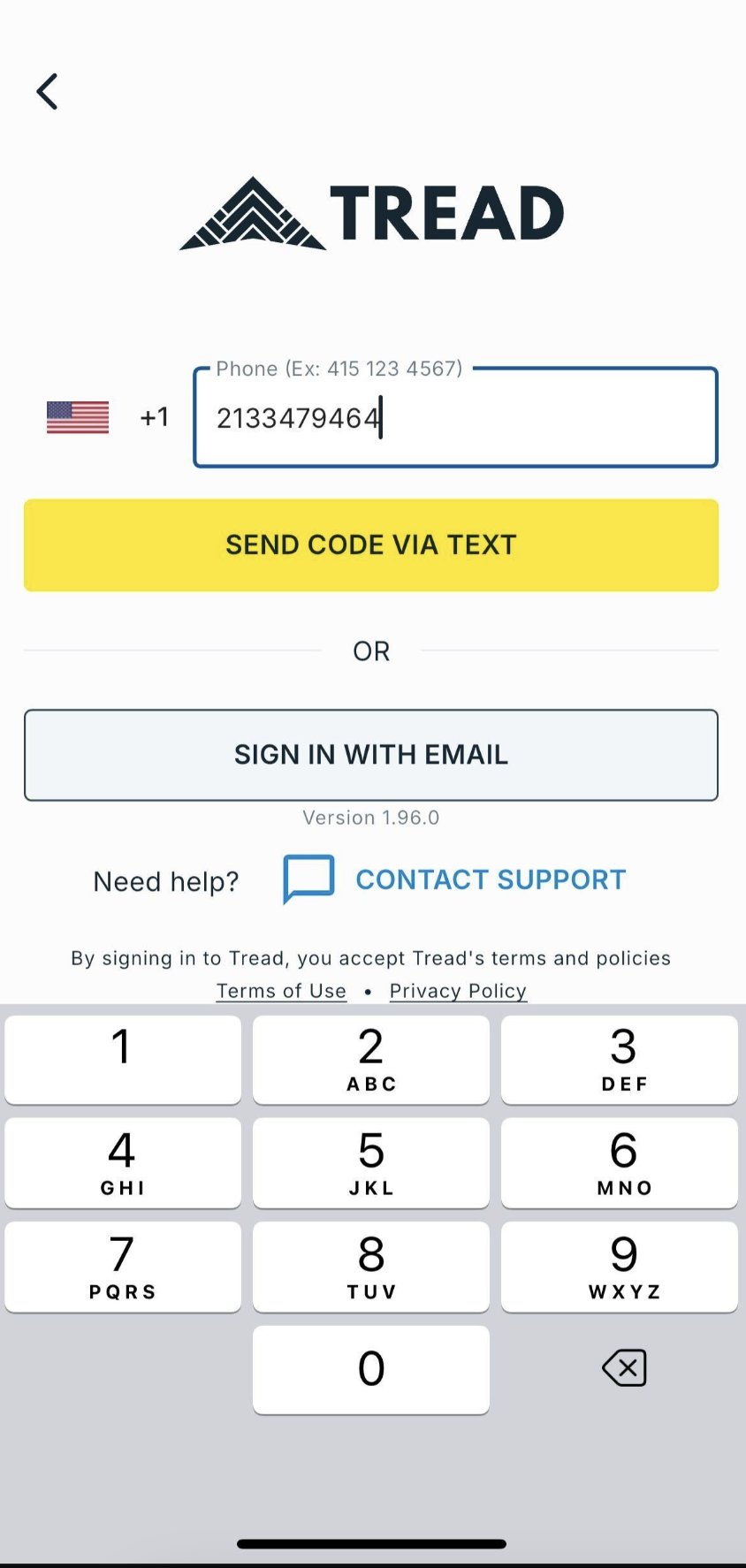
    Open the app and enter your mobile number. No password required — Tread uses phone number verification only.

    <img src="https://mintcdn.com/treadtechnologiesinc/2yTFCBLsscTZKGqY/images/vendor-guide/p09_img02_844x1774.png?fit=max&auto=format&n=2yTFCBLsscTZKGqY&q=85&s=76a3e54a5028392d0f89cedb4ce4be5a" alt="Enter phone number" width="280" style={{margin: '12px auto', display: 'block'}} data-path="images/vendor-guide/p09_img02_844x1774.png" />
  </Accordion>

  <Accordion title="Enter the SMS code">
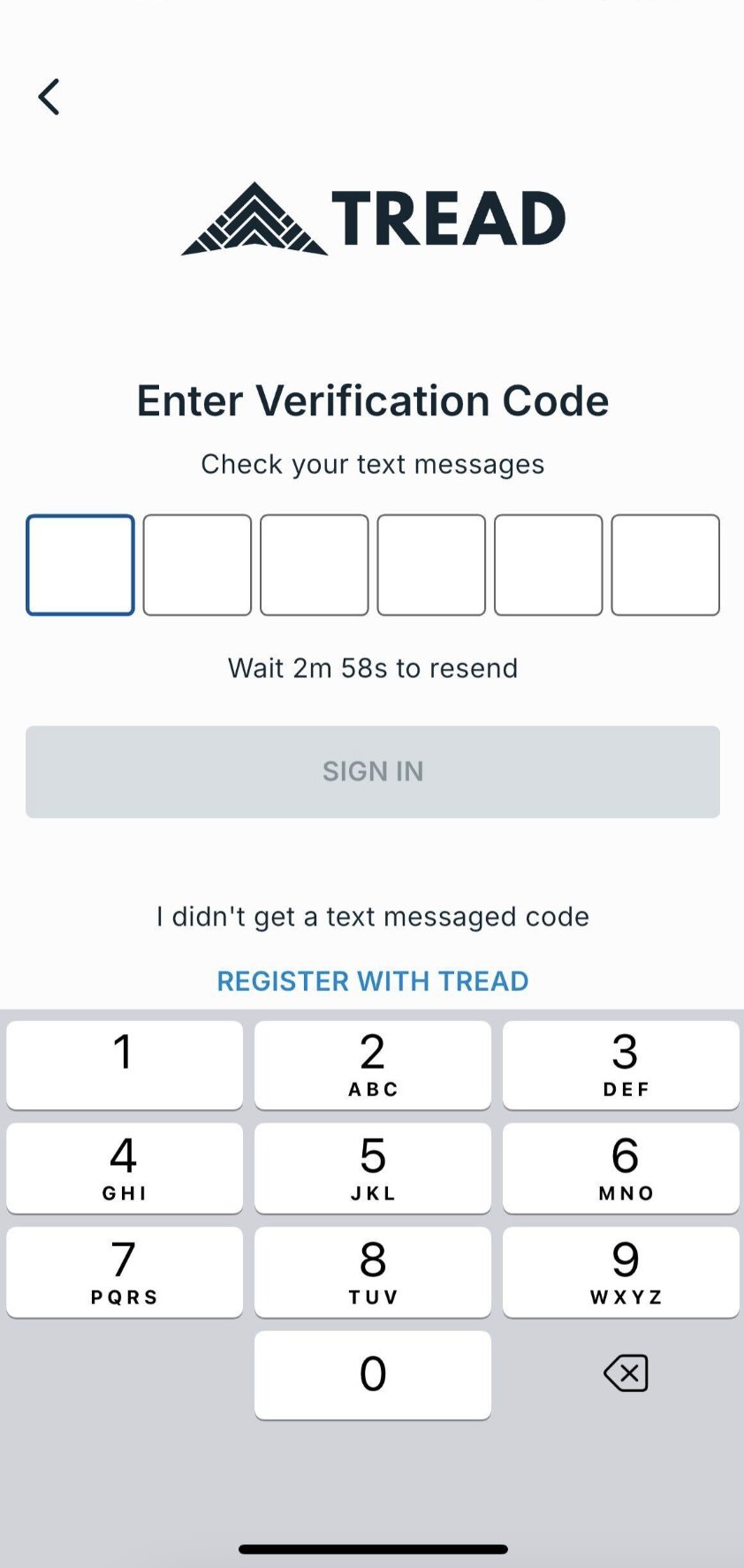
    A 6-digit code will be sent by text message. Enter it in the app to complete sign-in.

    <img src="https://mintcdn.com/treadtechnologiesinc/2yTFCBLsscTZKGqY/images/vendor-guide/p09_img03_842x1774.png?fit=max&auto=format&n=2yTFCBLsscTZKGqY&q=85&s=0919385f5b0c5a0a47b63205d2dec27c" alt="Enter verification code" width="280" style={{margin: '12px auto', display: 'block'}} data-path="images/vendor-guide/p09_img03_842x1774.png" />
  </Accordion>
</AccordionGroup>

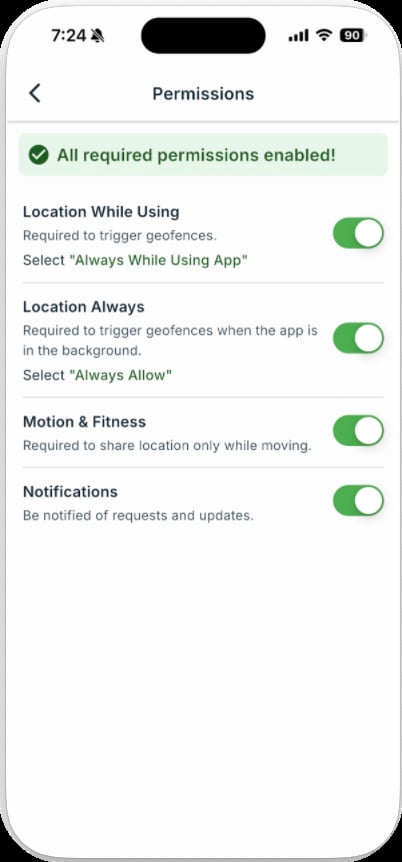
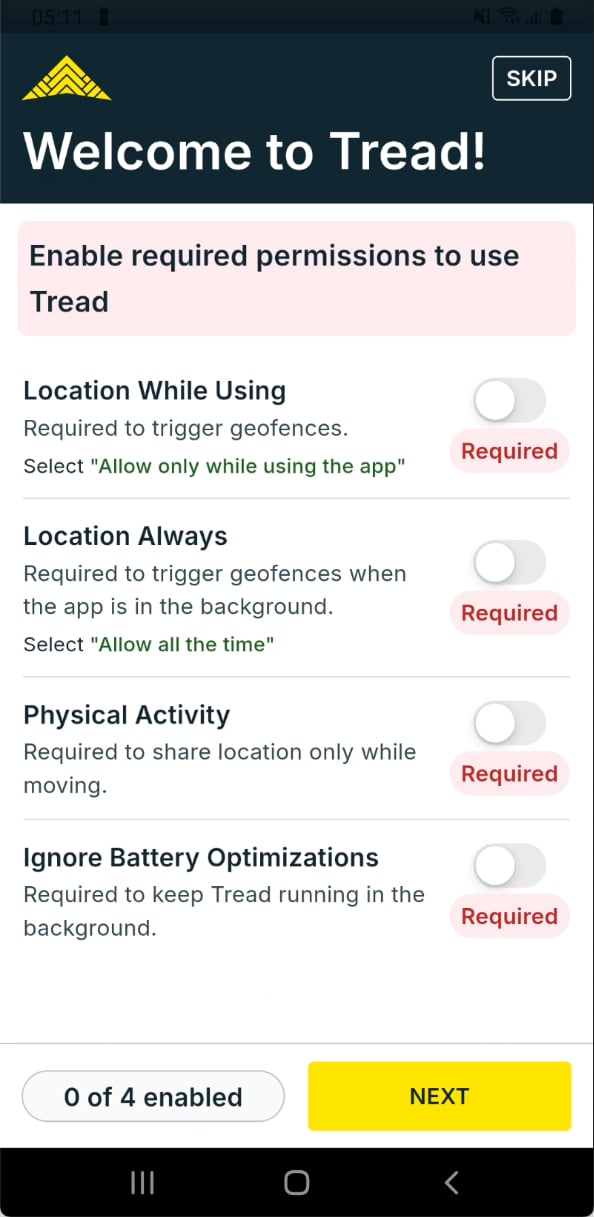
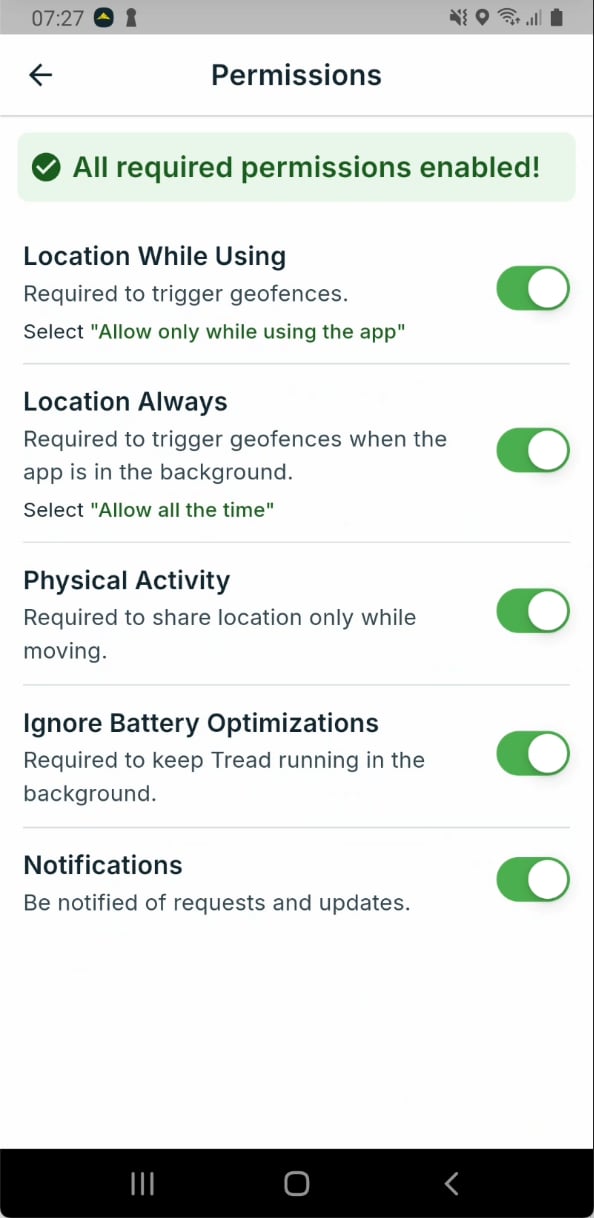
## Step 2 — Enable location permissions

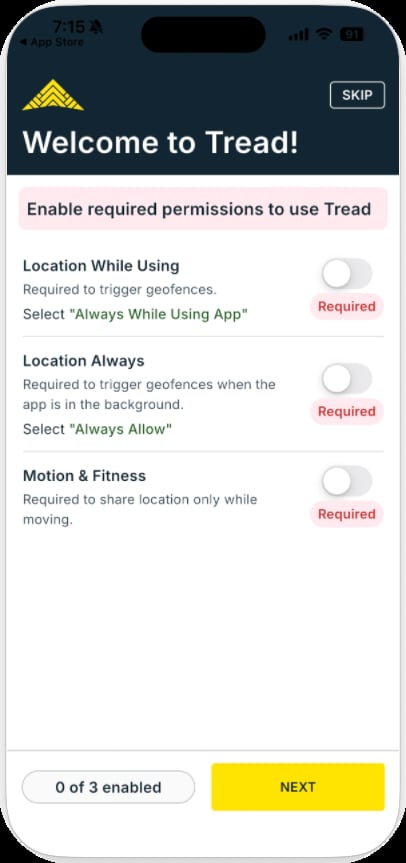
Tread tracks driver location **only while a job is active**. No tracking occurs outside of active jobs.

<Tabs>
  <Tab title="iOS">
    <div style={{display: 'flex', gap: '16px', flexWrap: 'wrap', justifyContent: 'center'}}>
      <img src="https://mintcdn.com/treadtechnologiesinc/3mSuM3sVSfQar0wQ/images/vendor-guide/p10_img03_406x863.png?fit=max&auto=format&n=3mSuM3sVSfQar0wQ&q=85&s=266a7e1aba60e21714e5f7df7f89cddc" alt="iOS: enable location permissions" width="260" data-path="images/vendor-guide/p10_img03_406x863.png" />

      <img src="https://mintcdn.com/treadtechnologiesinc/3mSuM3sVSfQar0wQ/images/vendor-guide/p10_img04_402x862.png?fit=max&auto=format&n=3mSuM3sVSfQar0wQ&q=85&s=5221bfddbb5f81dd474757c57b6b3342" alt="iOS: all permissions enabled" width="260" data-path="images/vendor-guide/p10_img04_402x862.png" />
    </div>
  </Tab>

  <Tab title="Android">
    <div style={{display: 'flex', gap: '16px', flexWrap: 'wrap', justifyContent: 'center'}}>
      <img src="https://mintcdn.com/treadtechnologiesinc/2yTFCBLsscTZKGqY/images/vendor-guide/p10_img01_594x1217.png?fit=max&auto=format&n=2yTFCBLsscTZKGqY&q=85&s=1a2c18df9f14232b4491ee050ebd0051" alt="Android: enable location permissions" width="260" data-path="images/vendor-guide/p10_img01_594x1217.png" />

      <img src="https://mintcdn.com/treadtechnologiesinc/2yTFCBLsscTZKGqY/images/vendor-guide/p10_img02_594x1218.png?fit=max&auto=format&n=2yTFCBLsscTZKGqY&q=85&s=2381e33ff5f473b0a14a99f13164fa83" alt="Android: all permissions enabled" width="260" data-path="images/vendor-guide/p10_img02_594x1218.png" />
    </div>
  </Tab>
</Tabs>

<Note>
  Drivers must allow location access for job tracking to work.
</Note>

## Step 3 — Run the job

<AccordionGroup>
  <Accordion title="Accept and start">
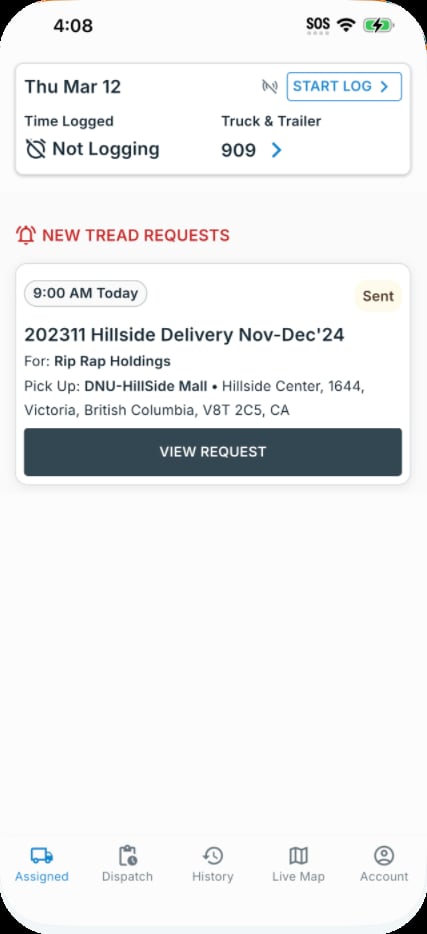
    1. Tap **Assigned** to see new job requests.

    <img src="https://mintcdn.com/treadtechnologiesinc/3mSuM3sVSfQar0wQ/images/vendor-guide/p11_img01_427x934.png?fit=max&auto=format&n=3mSuM3sVSfQar0wQ&q=85&s=7413261542b6f65a95b41d1de76cc0df" alt="Assigned tab: VIEW REQUEST" width="260" style={{margin: '12px auto', display: 'block'}} data-path="images/vendor-guide/p11_img01_427x934.png" />

    2. Tap **Accept** to confirm you are taking the job.
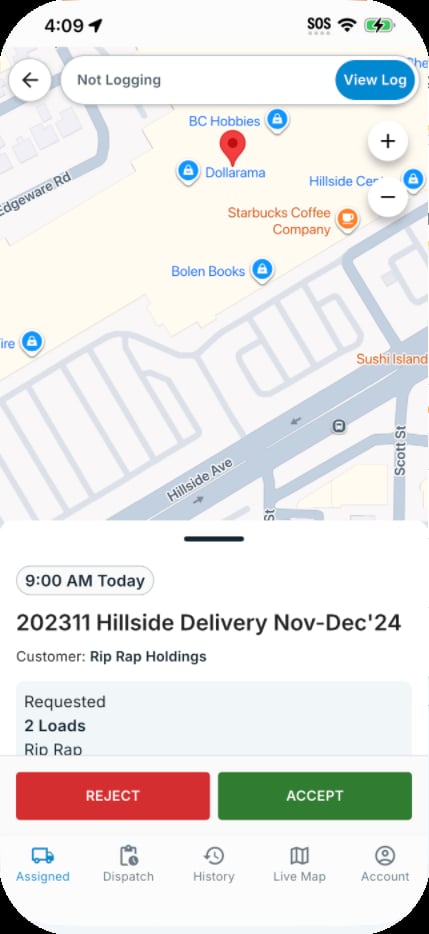
    <img src="https://mintcdn.com/treadtechnologiesinc/3mSuM3sVSfQar0wQ/images/vendor-guide/p11_img02_429x934.png?fit=max&auto=format&n=3mSuM3sVSfQar0wQ&q=85&s=33b4c4de469b03af7ff78072d6756597" alt="Job detail: ACCEPT" width="260" style={{margin: '12px auto', display: 'block'}} data-path="images/vendor-guide/p11_img02_429x934.png" />

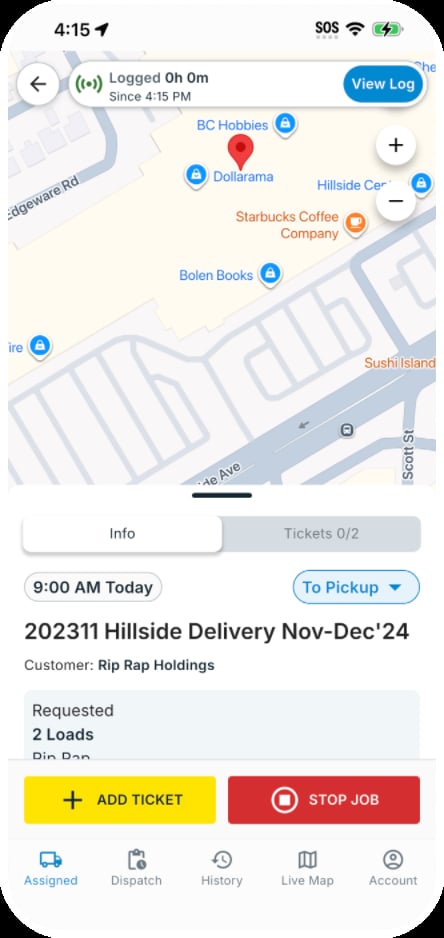
    3. Tap **Start Job** when ready. Location tracking begins and the dispatcher can see you on the map.
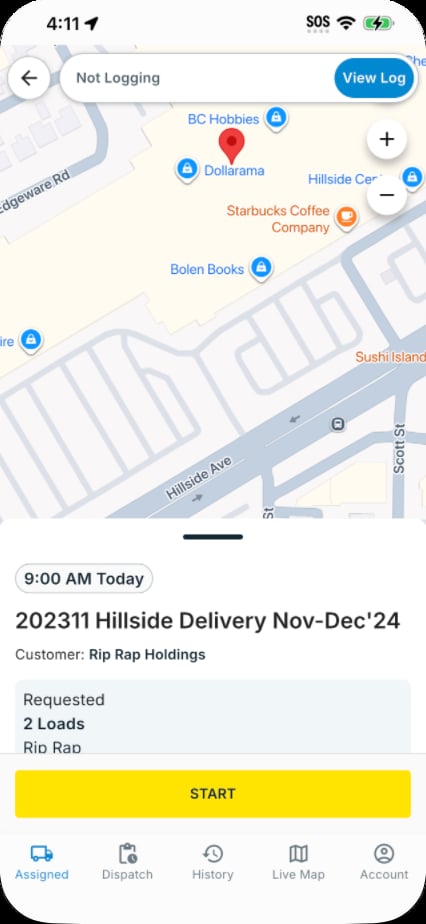
    <img src="https://mintcdn.com/treadtechnologiesinc/3mSuM3sVSfQar0wQ/images/vendor-guide/p11_img03_426x924.png?fit=max&auto=format&n=3mSuM3sVSfQar0wQ&q=85&s=239aecb55b44ec711f9fdbde77c33f9e" alt="Job detail: START" width="260" style={{margin: '12px auto', display: 'block'}} data-path="images/vendor-guide/p11_img03_426x924.png" />
  </Accordion>

  <Accordion title="Add a scale ticket">
    1. After loading, tap **Add Ticket** on the active job screen.

    <img src="https://mintcdn.com/treadtechnologiesinc/3mSuM3sVSfQar0wQ/images/vendor-guide/p12_img01_444x938.png?fit=max&auto=format&n=3mSuM3sVSfQar0wQ&q=85&s=e1205ebee436b380aae60fd427d3dcba" alt="Active job: ADD TICKET button" width="260" style={{margin: '12px auto', display: 'block'}} data-path="images/vendor-guide/p12_img01_444x938.png" />

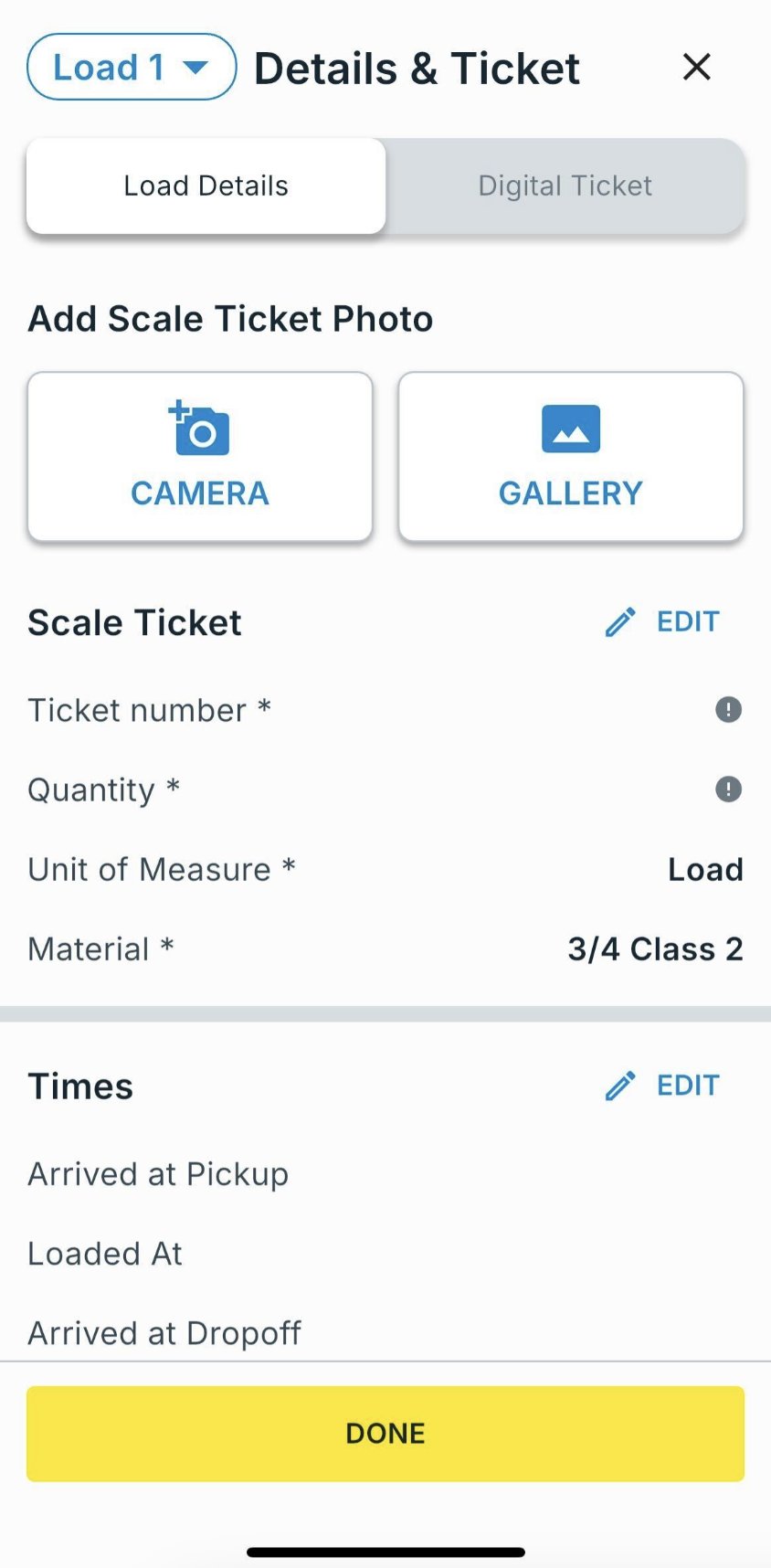
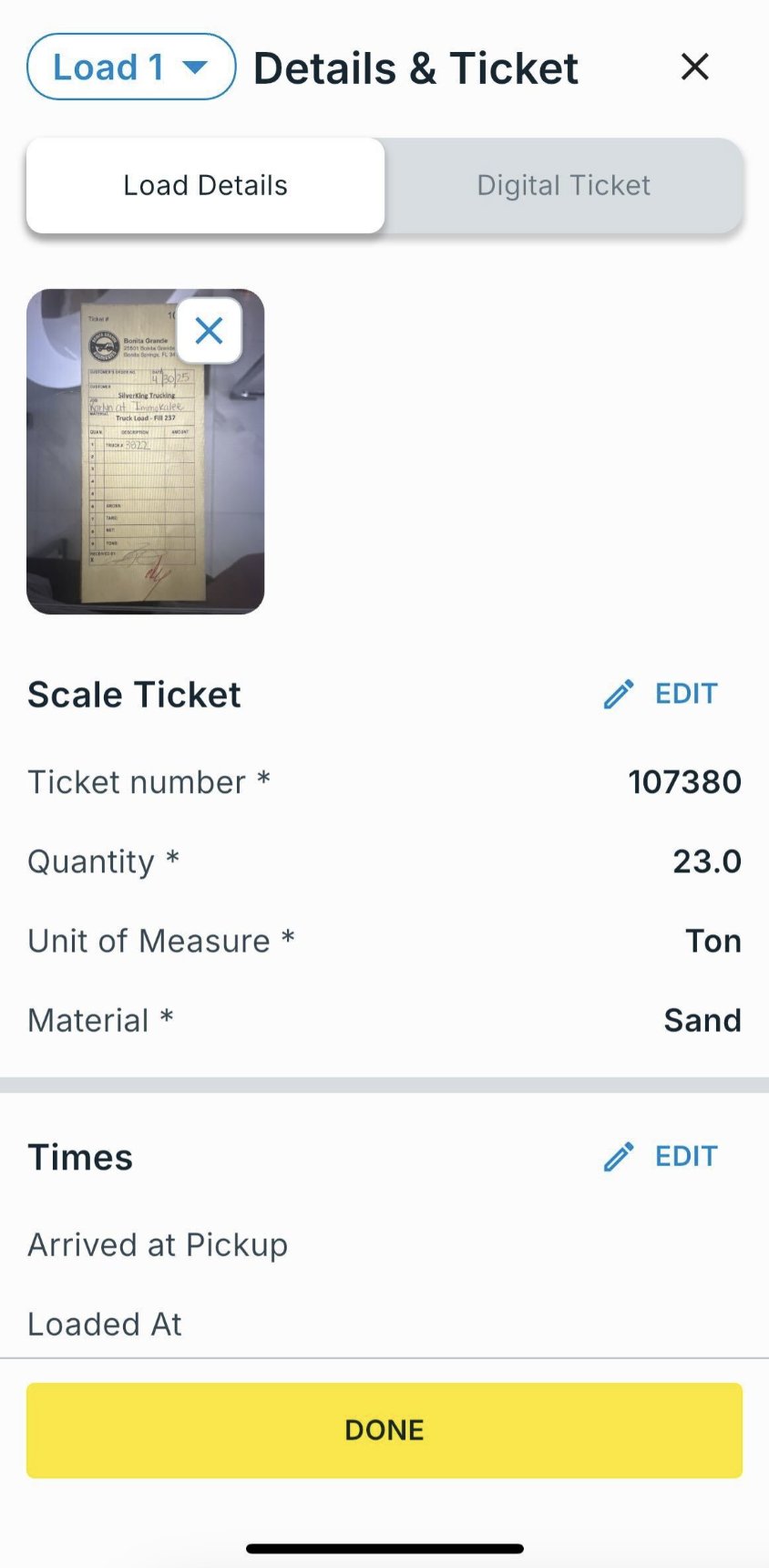
    2. Take a photo of the scale ticket. Tread reads it automatically and fills in the ticket number and net weight — check the fields and correct them if needed.
    <img src="https://mintcdn.com/treadtechnologiesinc/3mSuM3sVSfQar0wQ/images/vendor-guide/p12_img03_844x1716.png?fit=max&auto=format&n=3mSuM3sVSfQar0wQ&q=85&s=3e5ea25ff3ca7a267e4cf7ea86695dfe" alt="Ticket form: photo and fields" width="260" style={{margin: '12px auto', display: 'block'}} data-path="images/vendor-guide/p12_img03_844x1716.png" />

    3. Tap **Save**. The ticket appears immediately in the dispatcher's view.
    <img src="https://mintcdn.com/treadtechnologiesinc/3mSuM3sVSfQar0wQ/images/vendor-guide/p12_img04_844x1720.png?fit=max&auto=format&n=3mSuM3sVSfQar0wQ&q=85&s=4d64ab22faf9dd9885115ad97d529e4b" alt="Ticket filled and saved" width="260" style={{margin: '12px auto', display: 'block'}} data-path="images/vendor-guide/p12_img04_844x1720.png" />
  </Accordion>

  <Accordion title="Stop the job">
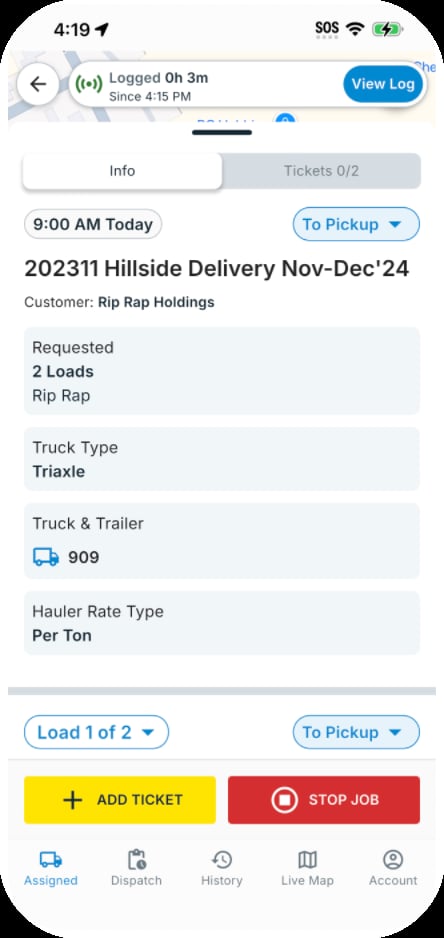
    1. Tap the red **Stop Job** button when your last delivery is complete.

    <img src="https://mintcdn.com/treadtechnologiesinc/3mSuM3sVSfQar0wQ/images/vendor-guide/p13_img01_444x938.png?fit=max&auto=format&n=3mSuM3sVSfQar0wQ&q=85&s=f2f2e37ccaa1e7d319e53ebe80fbb1b0" alt="STOP JOB button" width="260" style={{margin: '12px auto', display: 'block'}} data-path="images/vendor-guide/p13_img01_444x938.png" />

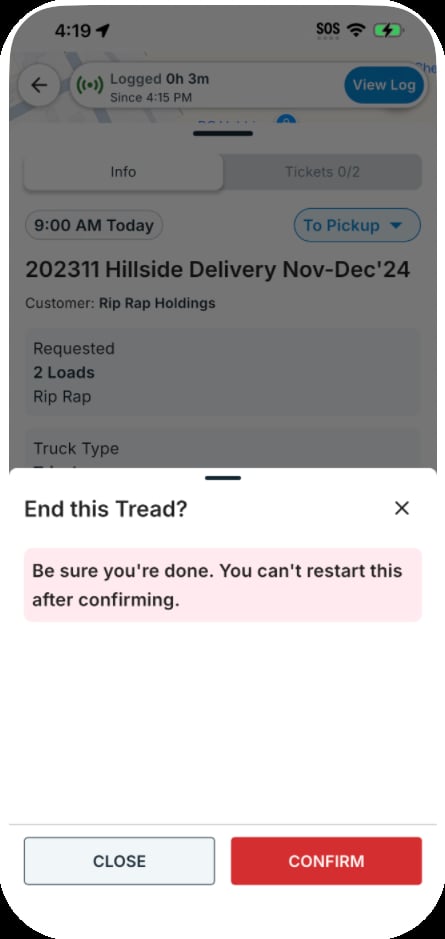
    2. Confirm the end-of-job prompt.

    <img src="https://mintcdn.com/treadtechnologiesinc/3mSuM3sVSfQar0wQ/images/vendor-guide/p13_img02_445x939.png?fit=max&auto=format&n=3mSuM3sVSfQar0wQ&q=85&s=a6cb1093ff7048216465209246fd3a25" alt="End this job confirmation" width="260" style={{margin: '12px auto', display: 'block'}} data-path="images/vendor-guide/p13_img02_445x939.png" />

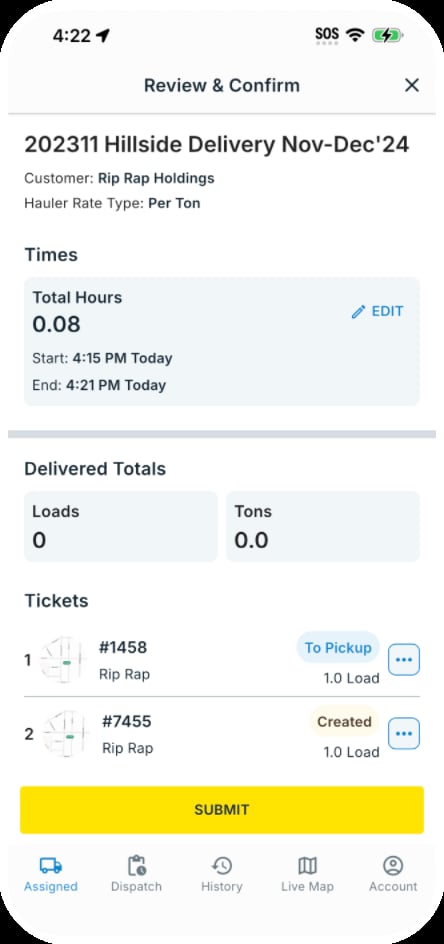
    3. Review your timesheet if applicable and tap **Submit**.
    <img src="https://mintcdn.com/treadtechnologiesinc/3mSuM3sVSfQar0wQ/images/vendor-guide/p13_img03_444x944.png?fit=max&auto=format&n=3mSuM3sVSfQar0wQ&q=85&s=c28d763100c350e196e4e2b9a4e6471d" alt="Review and Confirm: SUBMIT" width="260" style={{margin: '12px auto', display: 'block'}} data-path="images/vendor-guide/p13_img03_444x944.png" />
  </Accordion>
</AccordionGroup>

<Tip>
  For hourly work, drivers log time directly in the app. Timesheet entry is rolling out by region — contact your CSM to confirm availability.
</Tip>