> ## Documentation Index
> Fetch the complete documentation index at: https://docs.tread.ai/llms.txt
> Use this file to discover all available pages before exploring further.
# Approving Jobs
The **Approve Jobs** page is where you approve work at the job level. This is typically used for tonnage jobs and per-load jobs where you want to review the specific work completed rather than a driver’s full day.
## Before You Start
A job will only appear on the Approve Jobs page once two conditions are met:
* The job has been **completed**
* The order is **in progress**
If the order has not yet started or the job is still open, it will not show up in this view.
## Approving a Job
1. Navigate to **Approvals → Approve Jobs**.
2. Filter to the date and order you want to review.
3. Click into a job to verify the details. From here you can:
* Edit times if any corrections are needed.
* Click **View Route History** to see how the driver moved throughout the day based on location data.
* Review the **Timeline** for a full log of all actions taken by the driver, dispatcher, or system.
4. Once everything looks correct, click **Approve Job**.
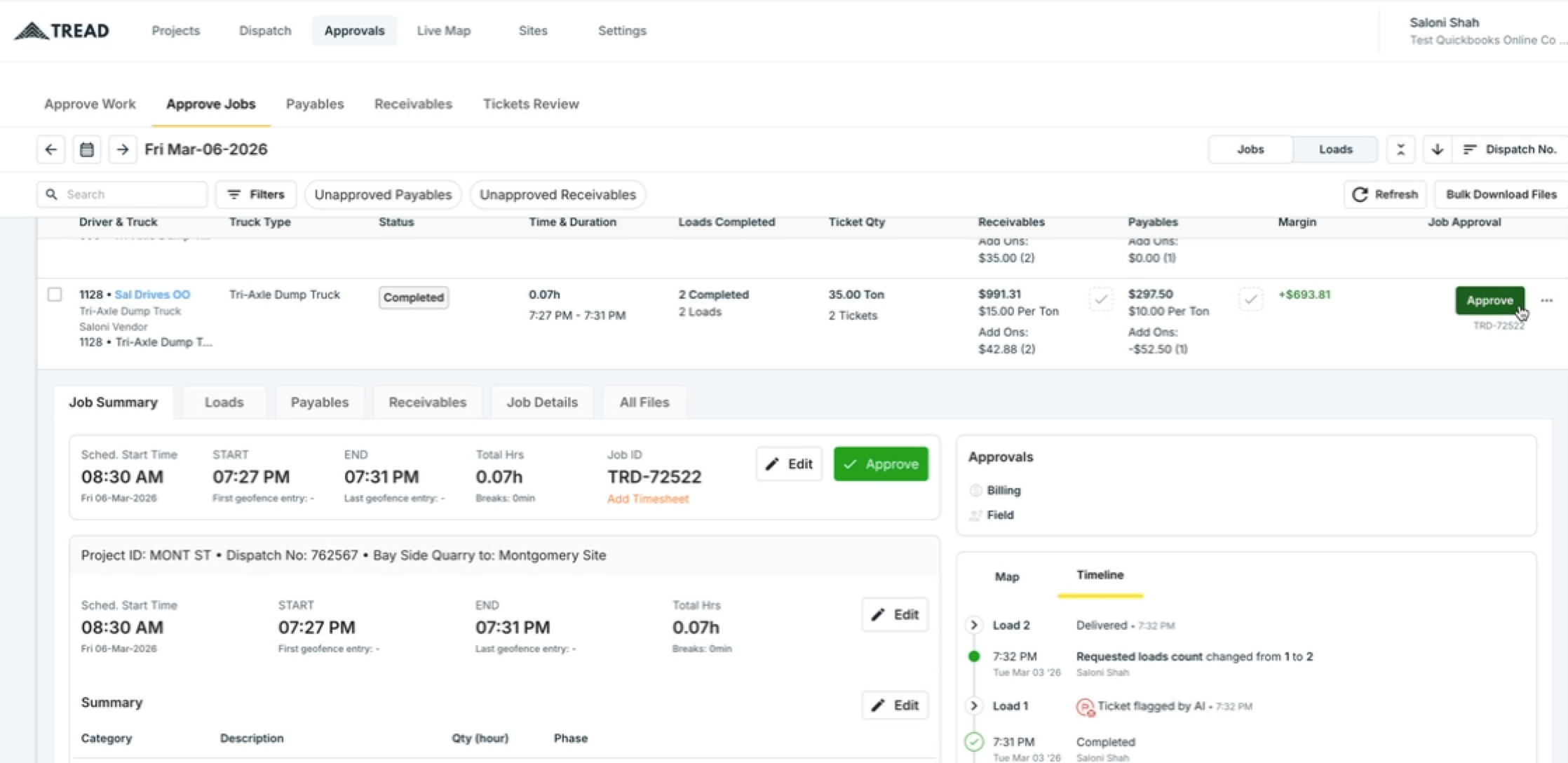 💡 Approving a job automatically approves all loads underneath it — you do not need to approve them separately.
## Bulk Approving Jobs
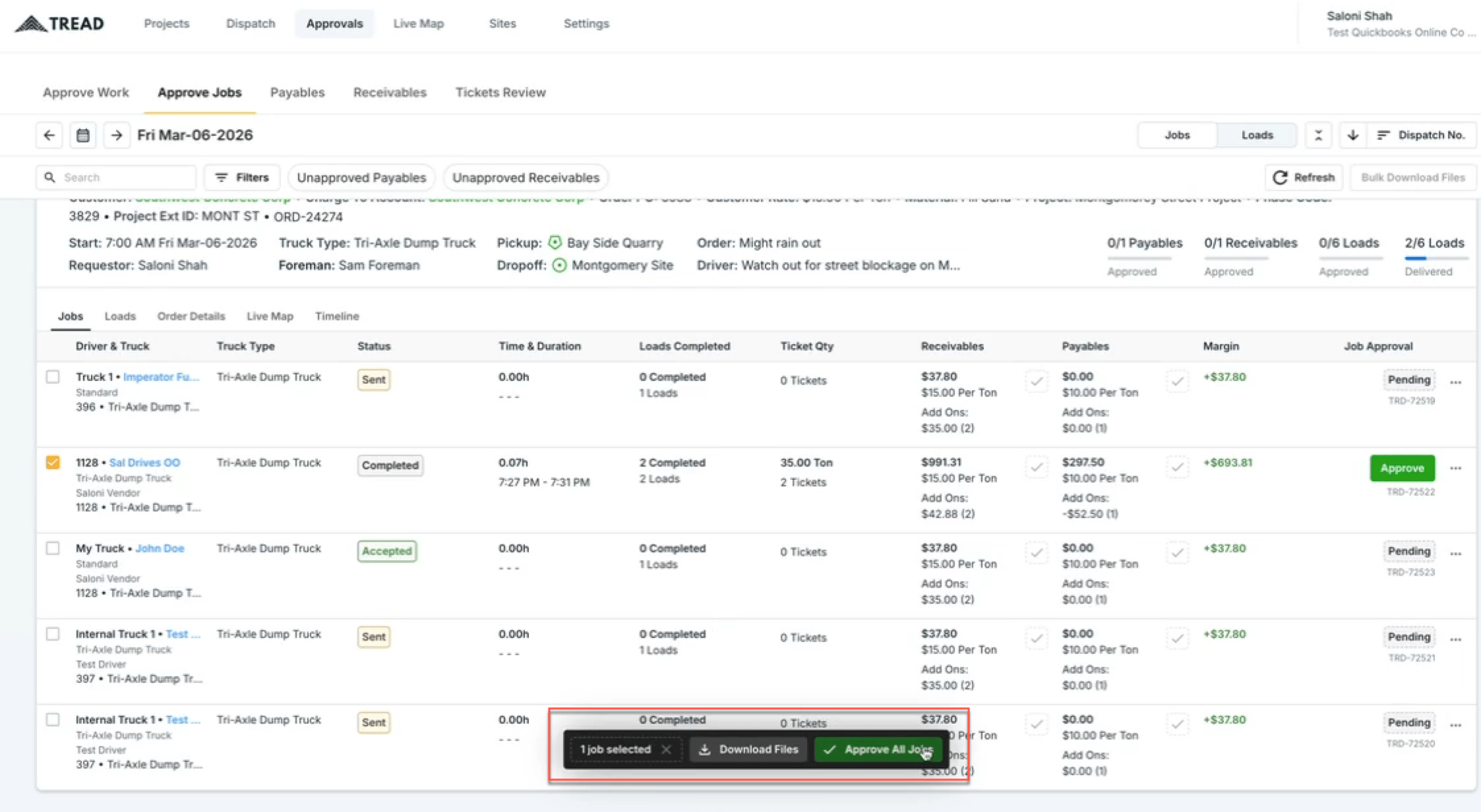
To approve multiple jobs at once, select all the jobs that need to be approved and click **Bulk Approve**. This is useful at the end of the day when reviewing a full list of completed jobs.
💡 Approving a job automatically approves all loads underneath it — you do not need to approve them separately.
## Bulk Approving Jobs
To approve multiple jobs at once, select all the jobs that need to be approved and click **Bulk Approve**. This is useful at the end of the day when reviewing a full list of completed jobs.
 ## Unapproving Jobs and Loads
Approvals can be adjusted after the fact if needed:
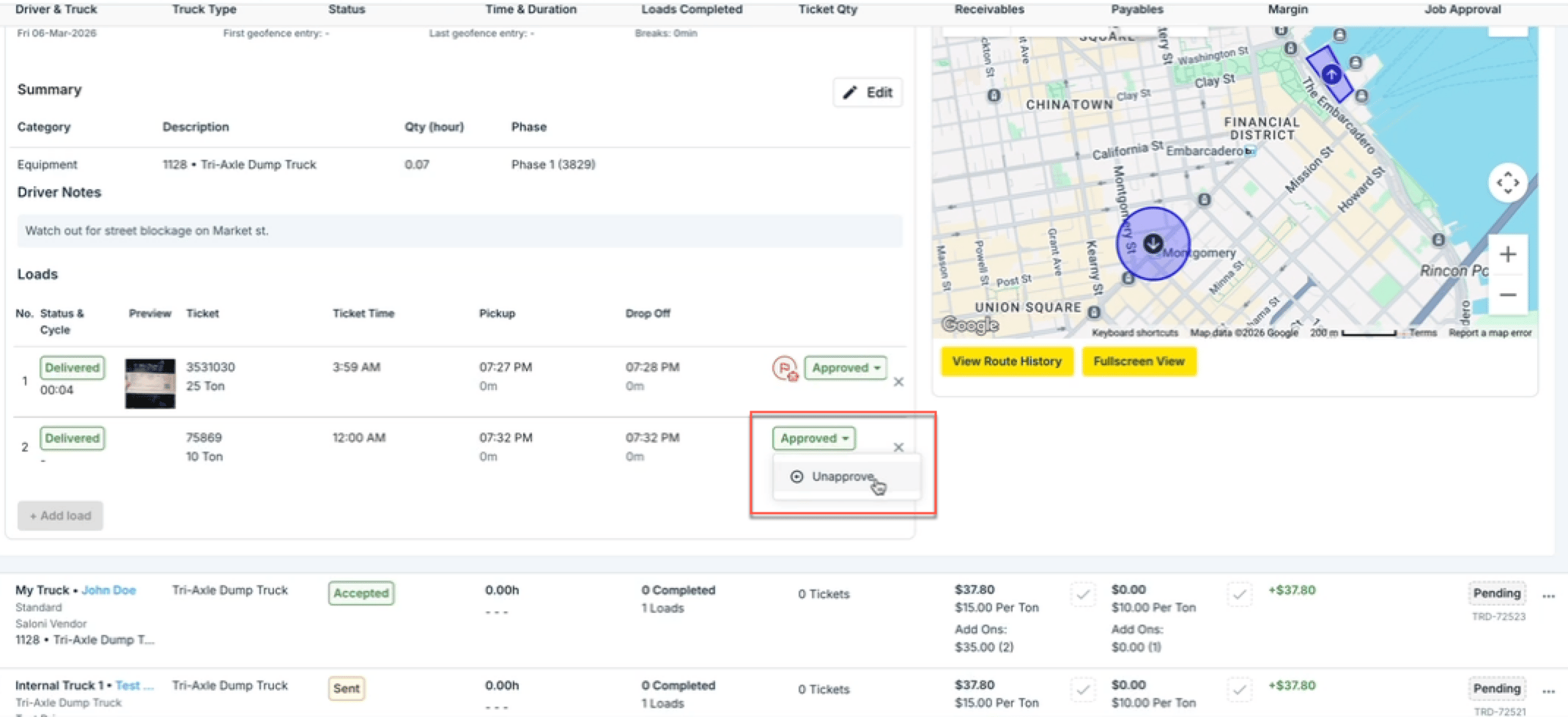
* To unapprove at the **load level** while keeping the job approved, click the dropdown arrow on the job and unapprove the individual load.
To unapprove at the **job level** while keeping a load approved, you can do so independently — however, unapproving the job means you will need to re-approve the loads underneath it individually.
## Unapproving Jobs and Loads
Approvals can be adjusted after the fact if needed:
* To unapprove at the **load level** while keeping the job approved, click the dropdown arrow on the job and unapprove the individual load.
To unapprove at the **job level** while keeping a load approved, you can do so independently — however, unapproving the job means you will need to re-approve the loads underneath it individually.
 ## Watch it
Let us show you how:
Questions? We're here to help! Contact us anytime at 1 (888) 558-7323 or email us at [support@tread.io](mailto:support@tread.io)
## Watch it
Let us show you how:
Questions? We're here to help! Contact us anytime at 1 (888) 558-7323 or email us at [support@tread.io](mailto:support@tread.io)