> ## Documentation Index
> Fetch the complete documentation index at: https://docs.tread.ai/llms.txt
> Use this file to discover all available pages before exploring further.
# Approving Loads & Tickets
If your workflow is ticket-based and you prefer to review each load individually before approving, the **Loads** view in the Approvals page gives you full visibility into every ticket across all orders for a given day.
## Switching to the Loads View
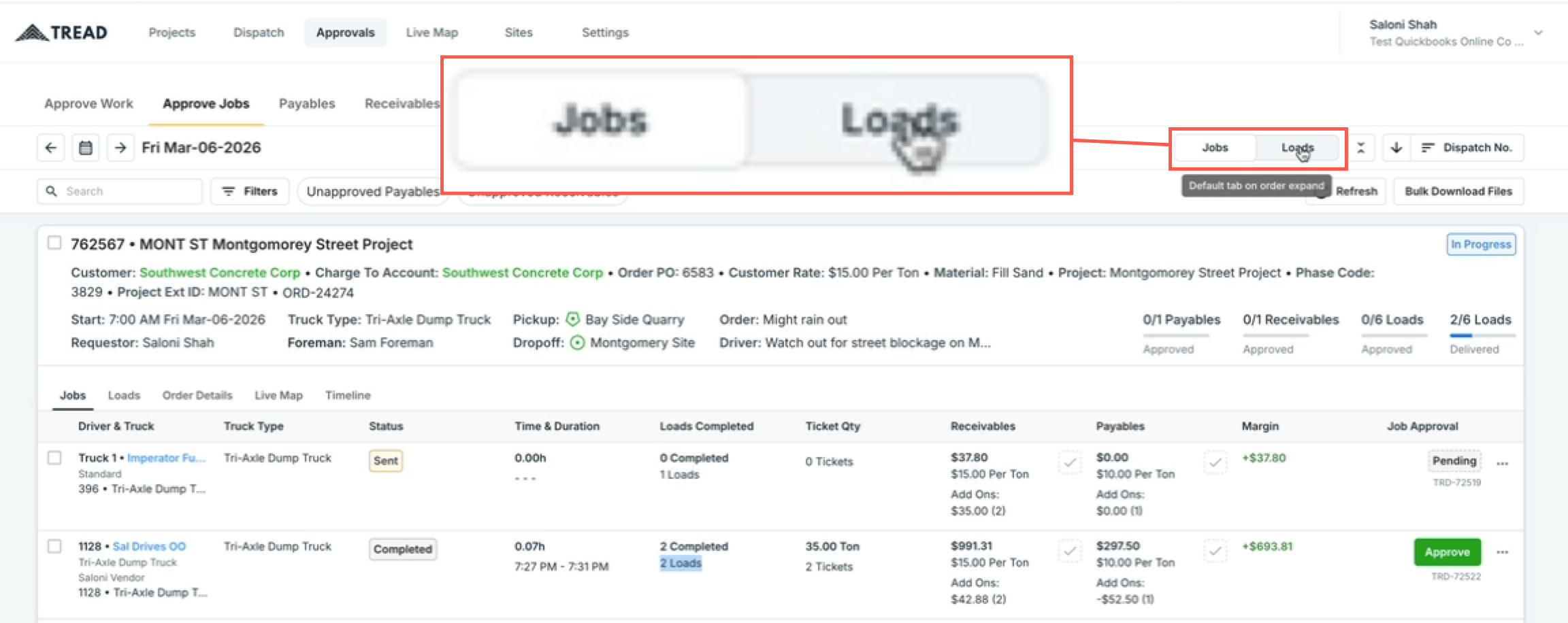
By default, the Approvals page displays jobs. To switch to load-level approvals:
1. Navigate to **Approvals → Approve Jobs**.
2. Click the **Jobs / Loads** toggle in the top right corner and select **Loads**.
This view shows all loads for a given order, as well as loads across multiple orders for the selected day — all in one place.
 ## Reviewing and Approving Loads
Once in the Loads view, work through each load one by one:
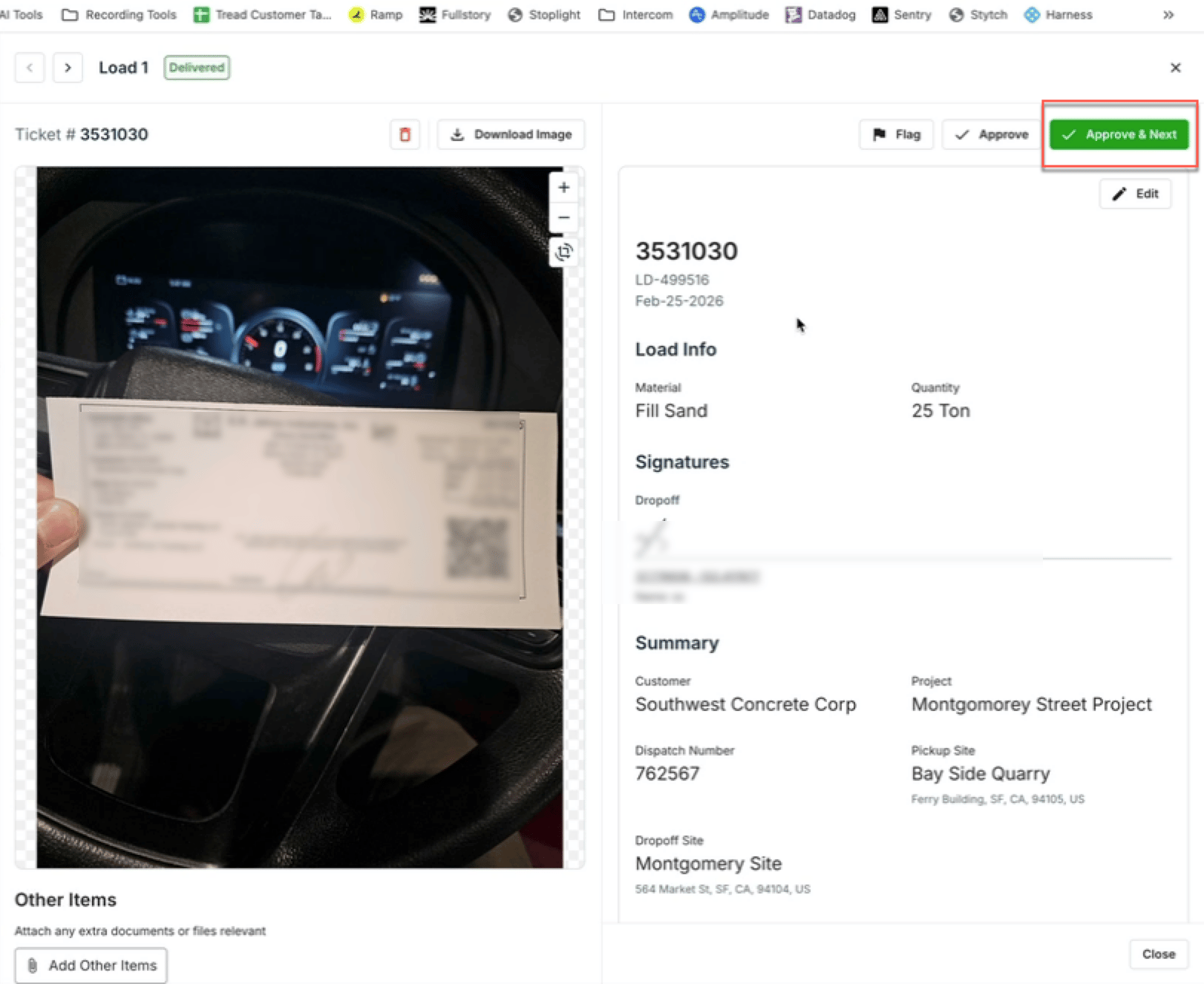
1. Open a load drawer to review the details and confirm everything looks correct.
2. Choose one of the following options:
* **Approve** — Approves the current load and keeps you on the same page.
* **Approve Next** — Approves the current load and automatically moves you to the next one.
3. Loads that have not yet been completed will remain in a **pending** status and cannot be approved until they are finished.
## Reviewing and Approving Loads
Once in the Loads view, work through each load one by one:
1. Open a load drawer to review the details and confirm everything looks correct.
2. Choose one of the following options:
* **Approve** — Approves the current load and keeps you on the same page.
* **Approve Next** — Approves the current load and automatically moves you to the next one.
3. Loads that have not yet been completed will remain in a **pending** status and cannot be approved until they are finished.
 ## Bulk Approving All Loads
If everything looks correct and you want to approve all loads at once, use the **Approve All** option to approve all loads for the selected day in a single action.
## Watch it
Let us show you how:
Questions? We're here to help! Contact us anytime at 1 (888) 558-7323 or email us at [support@tread.io](mailto:support@tread.io)
## Bulk Approving All Loads
If everything looks correct and you want to approve all loads at once, use the **Approve All** option to approve all loads for the selected day in a single action.
## Watch it
Let us show you how:
Questions? We're here to help! Contact us anytime at 1 (888) 558-7323 or email us at [support@tread.io](mailto:support@tread.io)