> ## Documentation Index
> Fetch the complete documentation index at: https://docs.tread.ai/llms.txt
> Use this file to discover all available pages before exploring further.
# Approving Shifts
The **Approve Work** page is where you approve a driver’s full day as a digital timesheet. This captures the entire shift — from when a driver starts their day to when they end it — along with all jobs completed within that shift.
## Reviewing a Shift
1. Navigate to **Approvals → Approve Work**.
2. Filter to the date you want to review.
3. Each shift entry shows the driver’s start time, end time, and all jobs completed during that shift.
4. If any times need to be corrected, click into the shift to **edit the shift times, such as Clock in time** or the times on individual jobs.
5. Once everything looks correct, click **Approve Shift**.
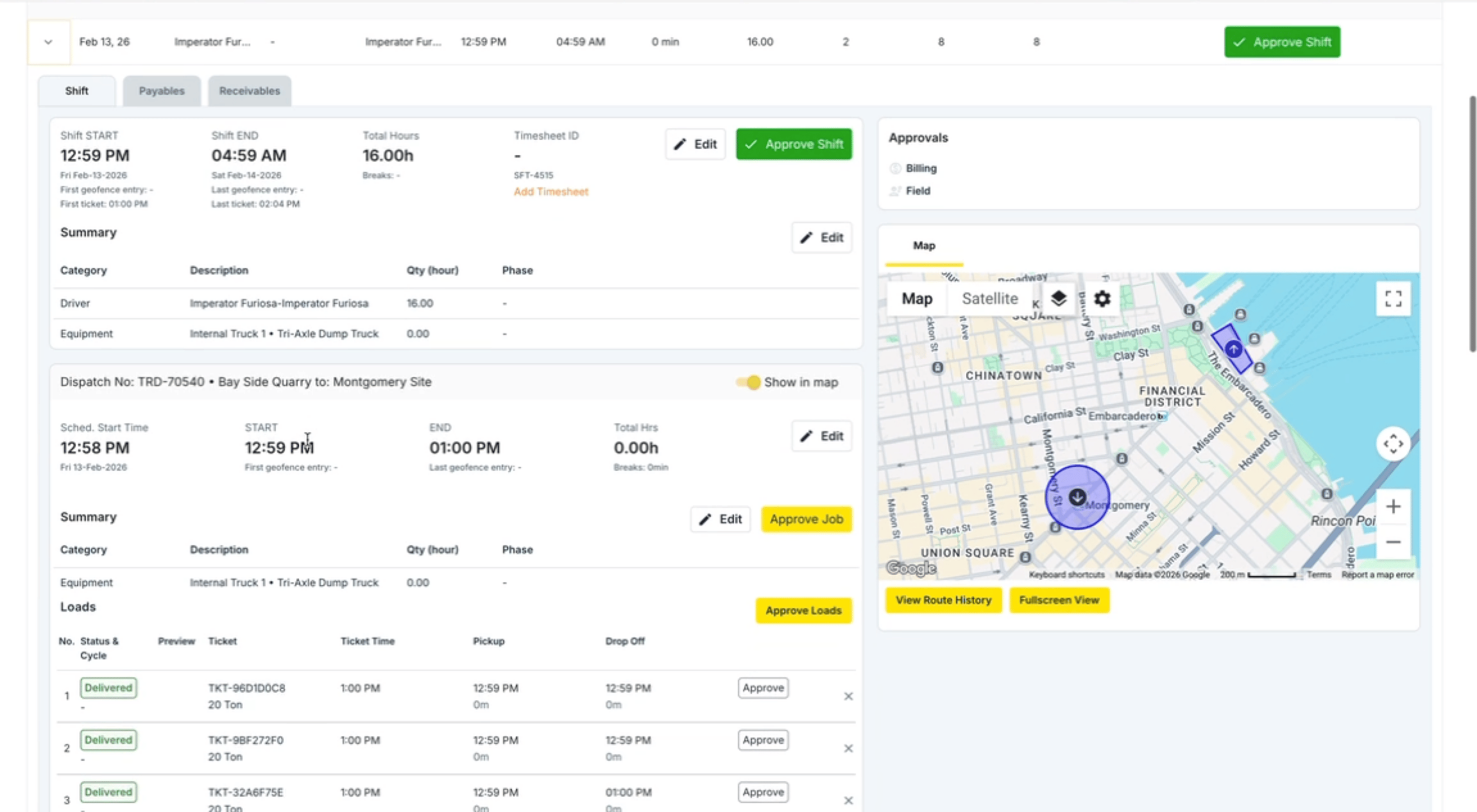 💡 Approving a shift automatically approves all jobs and loads underneath it — you do not need to approve them separately.
💡 How to edit Clock in time:
## Bulk Approving Shifts
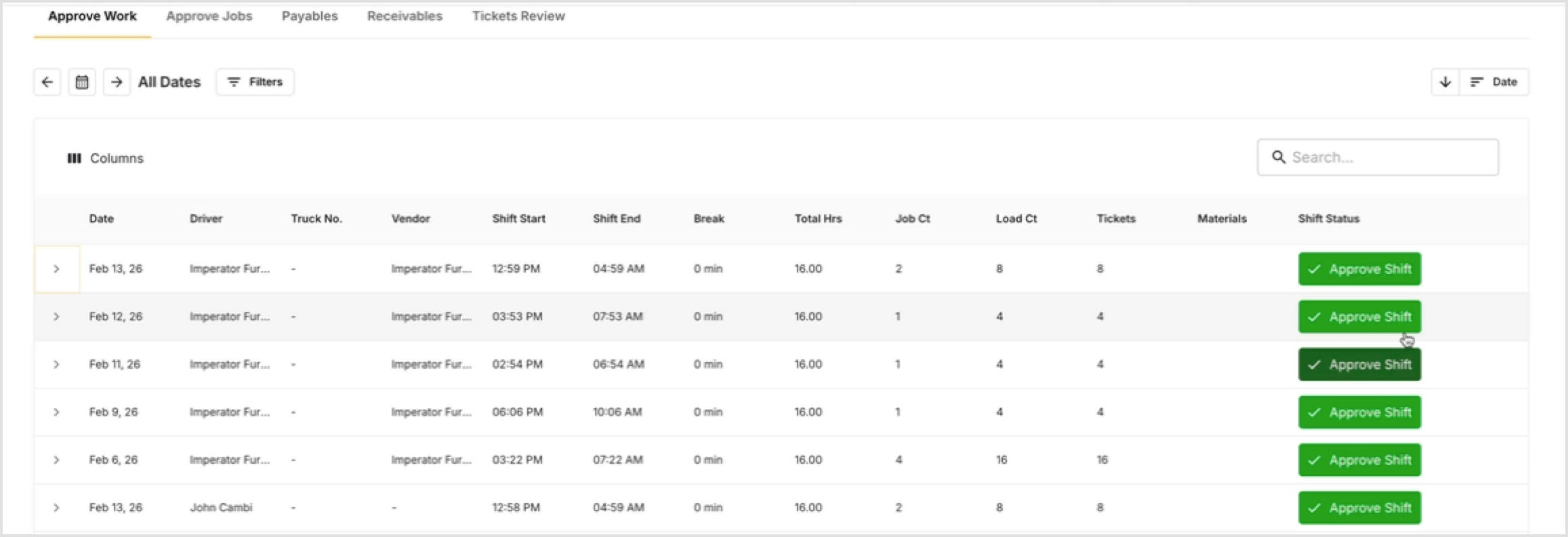
If multiple drivers need to be approved for the same day, you can click **Approve Shift** on each driver one by one down the page. Use the date filter to make sure you are reviewing the correct day.
💡 Approving a shift automatically approves all jobs and loads underneath it — you do not need to approve them separately.
💡 How to edit Clock in time:
## Bulk Approving Shifts
If multiple drivers need to be approved for the same day, you can click **Approve Shift** on each driver one by one down the page. Use the date filter to make sure you are reviewing the correct day.
 ## Shifts Not Yet Completed
If a driver has not ended their shift, the shift will appear as incomplete and cannot be approved until it is closed.
## Shifts Not Yet Completed
If a driver has not ended their shift, the shift will appear as incomplete and cannot be approved until it is closed.
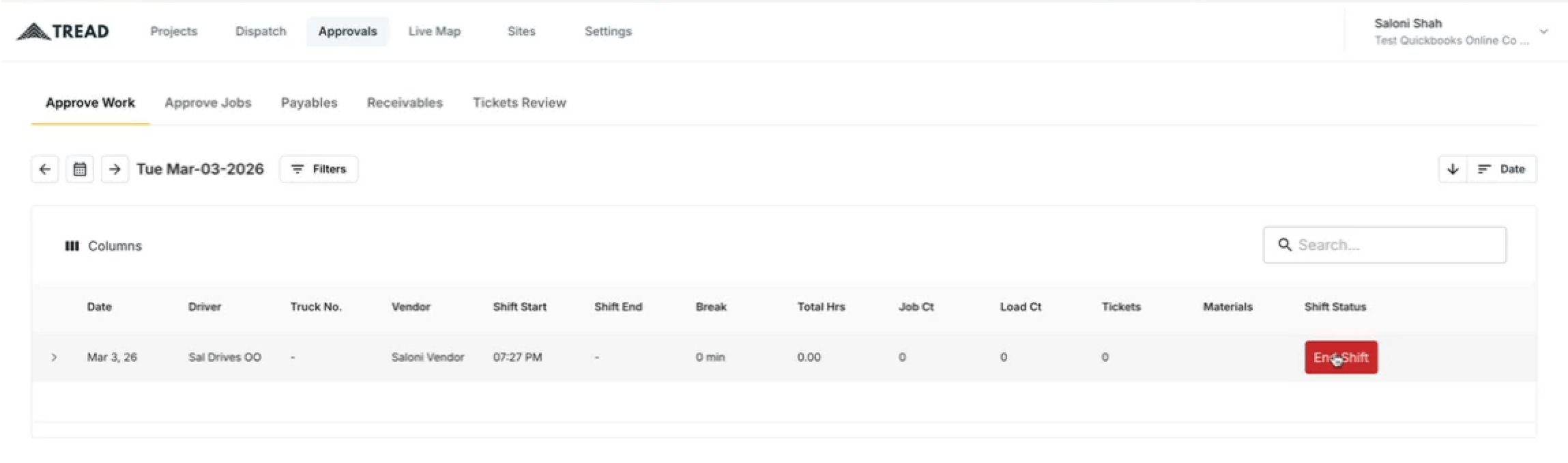 * Only certain user roles have permission to end a shift on a driver’s behalf.
* Once the driver ends their own shift, it will appear as ready for approval.
## Watch it
Let us show you how:
Questions? We're here to help! Contact us anytime at 1 (888) 558-7323 or email us at [support@tread.io](mailto:support@tread.io)
* Only certain user roles have permission to end a shift on a driver’s behalf.
* Once the driver ends their own shift, it will appear as ready for approval.
## Watch it
Let us show you how:
Questions? We're here to help! Contact us anytime at 1 (888) 558-7323 or email us at [support@tread.io](mailto:support@tread.io)