> ## Documentation Index
> Fetch the complete documentation index at: https://docs.tread.ai/llms.txt
> Use this file to discover all available pages before exploring further.
# Approve Payables & Receivables
**Purpose:** After loads are approved, approve the payable and receivable line items for each truck's work so settlements can be created.
**When to run:** Immediately after approving completed work, for the same date. This could be either after approving tickets or hourly job times.
**Prerequisites:** All loads and/or jobs for the target date are approved.
**Next SOP:** Create & Send Settlements
***
## Step 1 — Navigate to the Job view
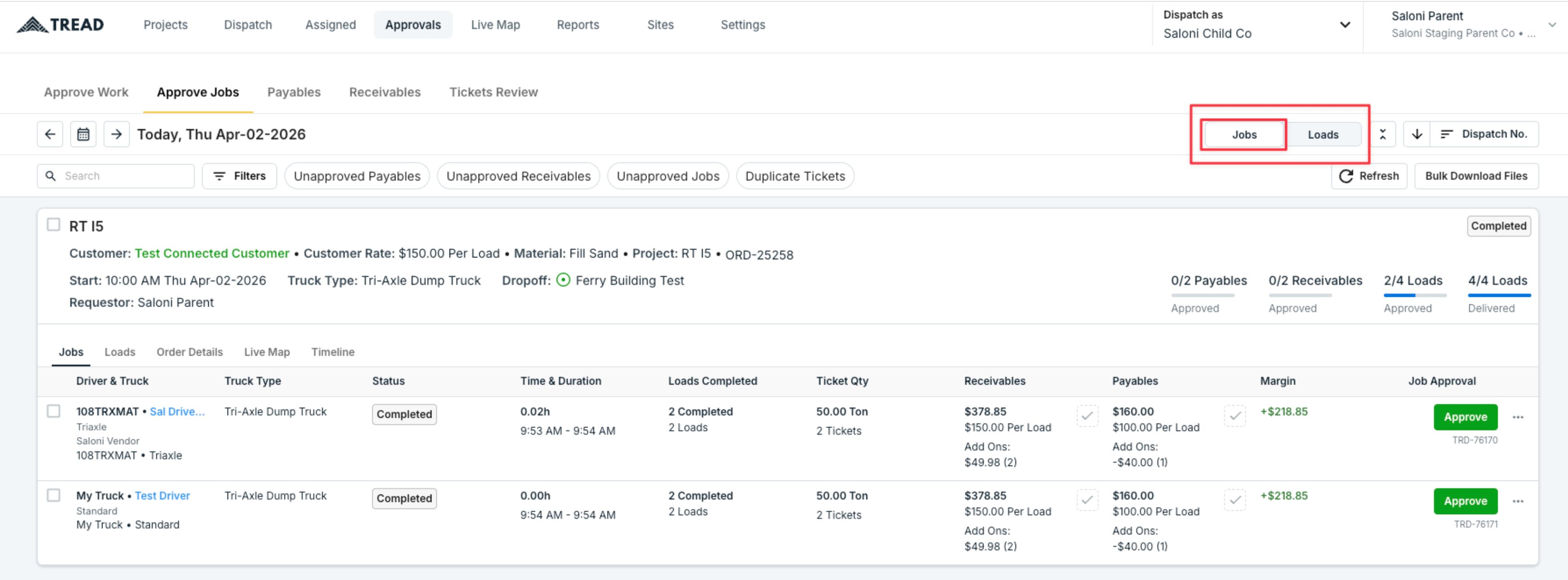
After all your approving all your dispatched work, navigate to the Job view by clicking the default tab labeled **Job**.
 ## Step 2 — Filter for approved work
Depending on how you approved work in the step before, apply one of the following filters:
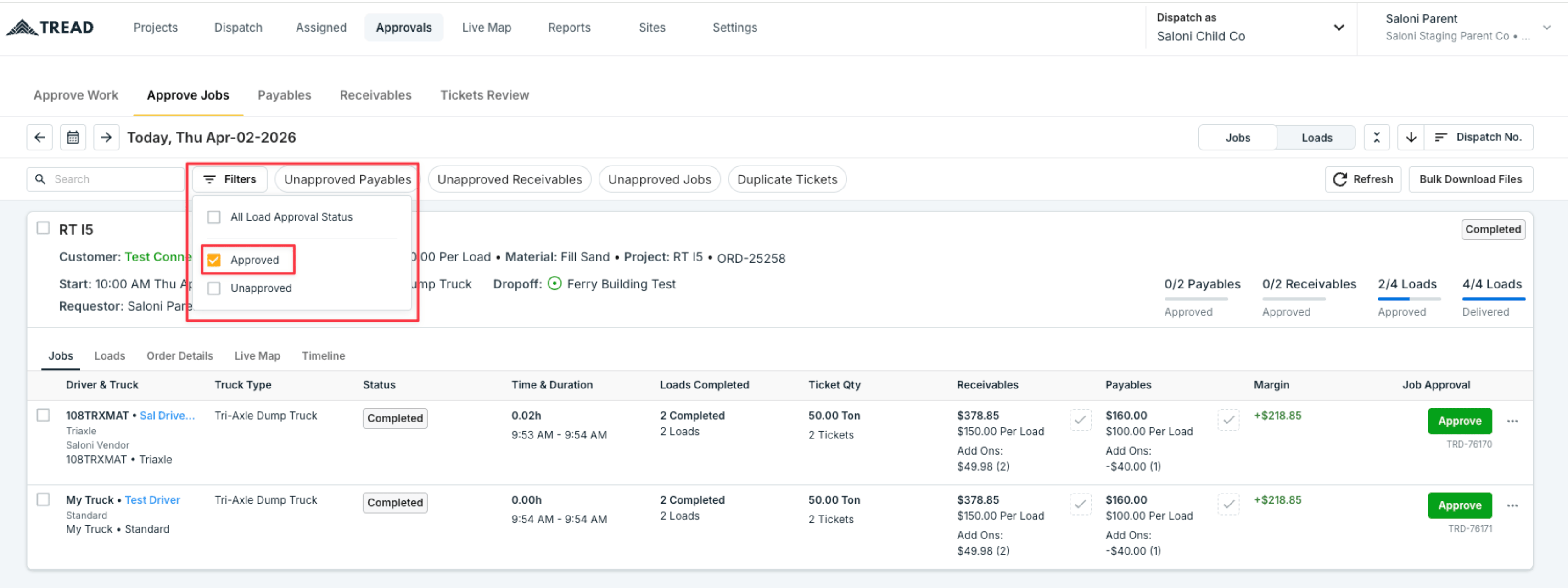
1. **All Approved Loads** under **Load Approval Status** — This displays only the jobs whose loads have been approved and are now ready for payable/receivable approval.
2. **All Approved Jobs** under **Jobs Approval Status.**
Confirm you are looking at the correct date (e.g., today's date). If work approval is not a prerequisite for AR/AP then you can skip this step.
## Step 2 — Filter for approved work
Depending on how you approved work in the step before, apply one of the following filters:
1. **All Approved Loads** under **Load Approval Status** — This displays only the jobs whose loads have been approved and are now ready for payable/receivable approval.
2. **All Approved Jobs** under **Jobs Approval Status.**
Confirm you are looking at the correct date (e.g., today's date). If work approval is not a prerequisite for AR/AP then you can skip this step.
 ## Step 3 — Verify payables and receivables
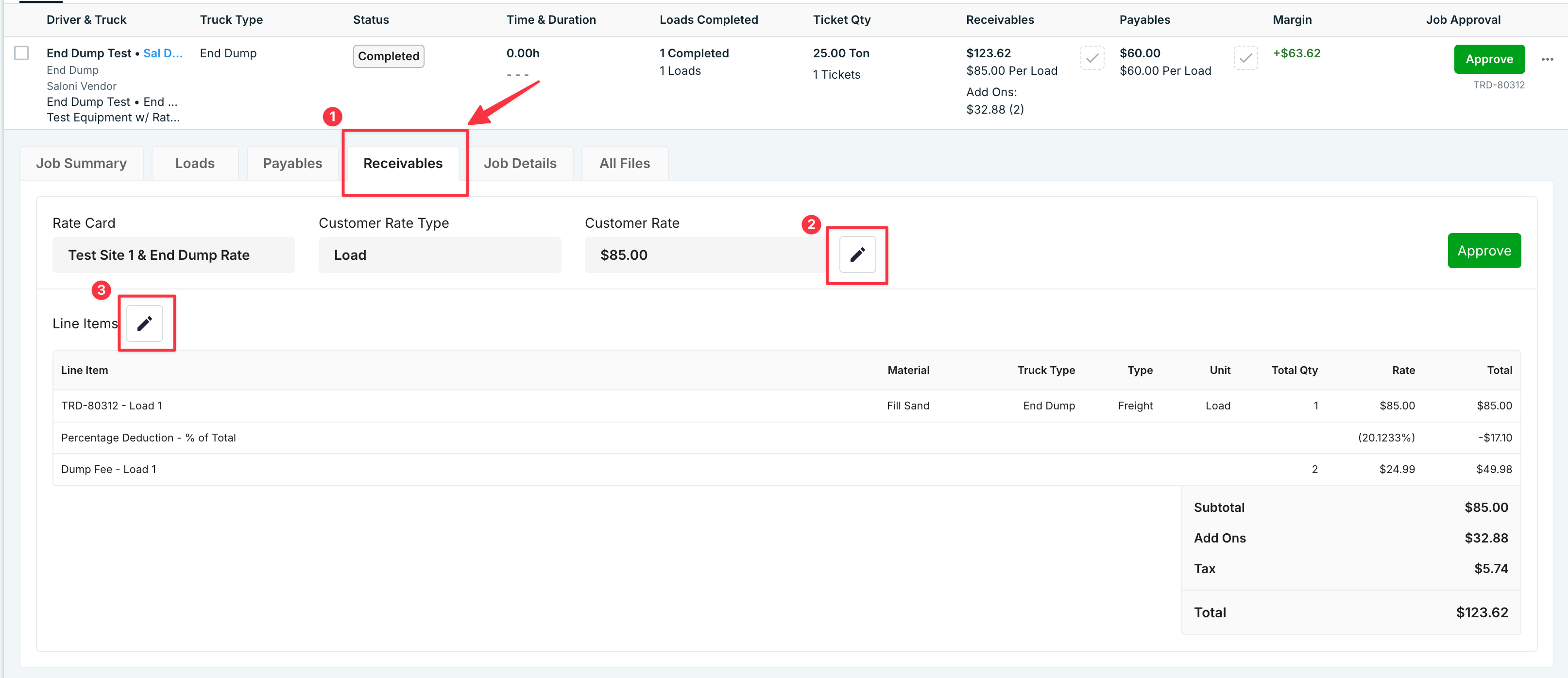
Review the totals for each line item. You can also click into a truck's dispatch and go to the **Payables** or **Receivables** tab to see line-item detail before approving. You can make any changes to the rates, quantities or add-ons directly in this view.
## Step 3 — Verify payables and receivables
Review the totals for each line item. You can also click into a truck's dispatch and go to the **Payables** or **Receivables** tab to see line-item detail before approving. You can make any changes to the rates, quantities or add-ons directly in this view.
 ## Step 4 — Approve payables and receivables invoices
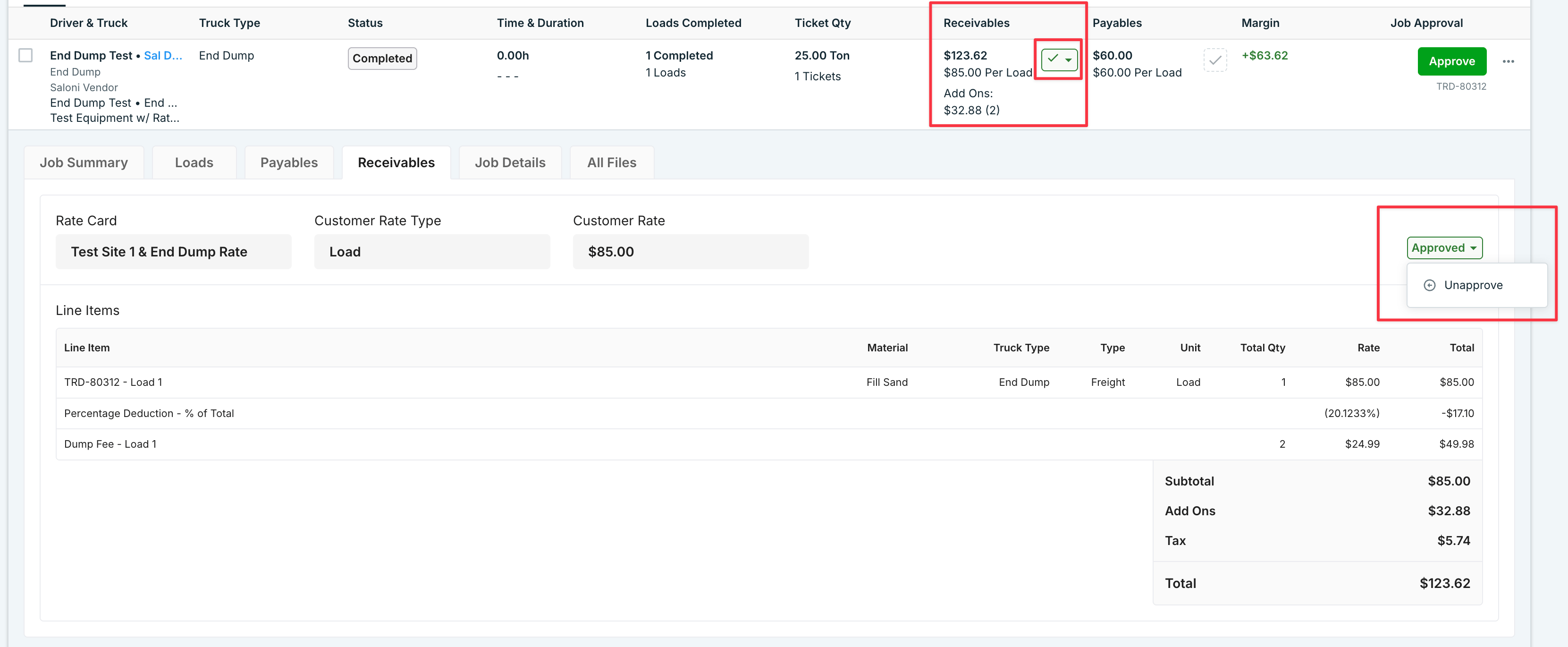
If everything looks correct, click **Approve** on each row for both payables and receivables either via the approval column or on the tab view.
## Step 4 — Approve payables and receivables invoices
If everything looks correct, click **Approve** on each row for both payables and receivables either via the approval column or on the tab view.
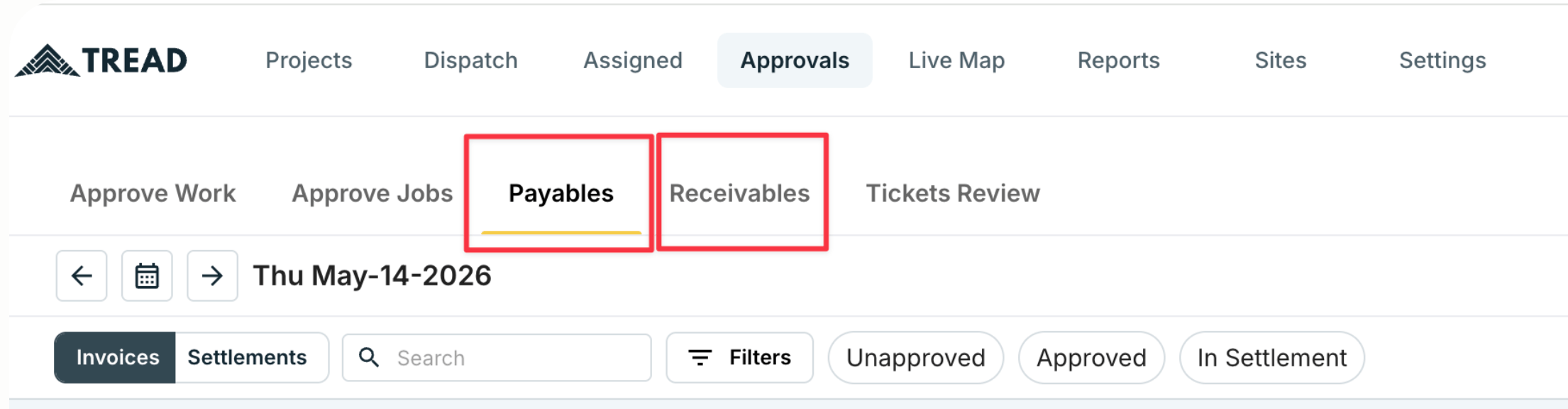
 > **Tip — working on only Payables or only Receivables?** Skip Approve Jobs and go straight to the **Payables** or **Receivables** tab under Approvals. Those tabs show the same information as Approve Jobs but scoped to just one side, with the same editing and approval controls. Changes made there sync back to Approve Jobs and vice versa
>
>
>
> **Tip — working on only Payables or only Receivables?** Skip Approve Jobs and go straight to the **Payables** or **Receivables** tab under Approvals. Those tabs show the same information as Approve Jobs but scoped to just one side, with the same editing and approval controls. Changes made there sync back to Approve Jobs and vice versa
>
>
>  >
***
## Reference: what the approval columns mean
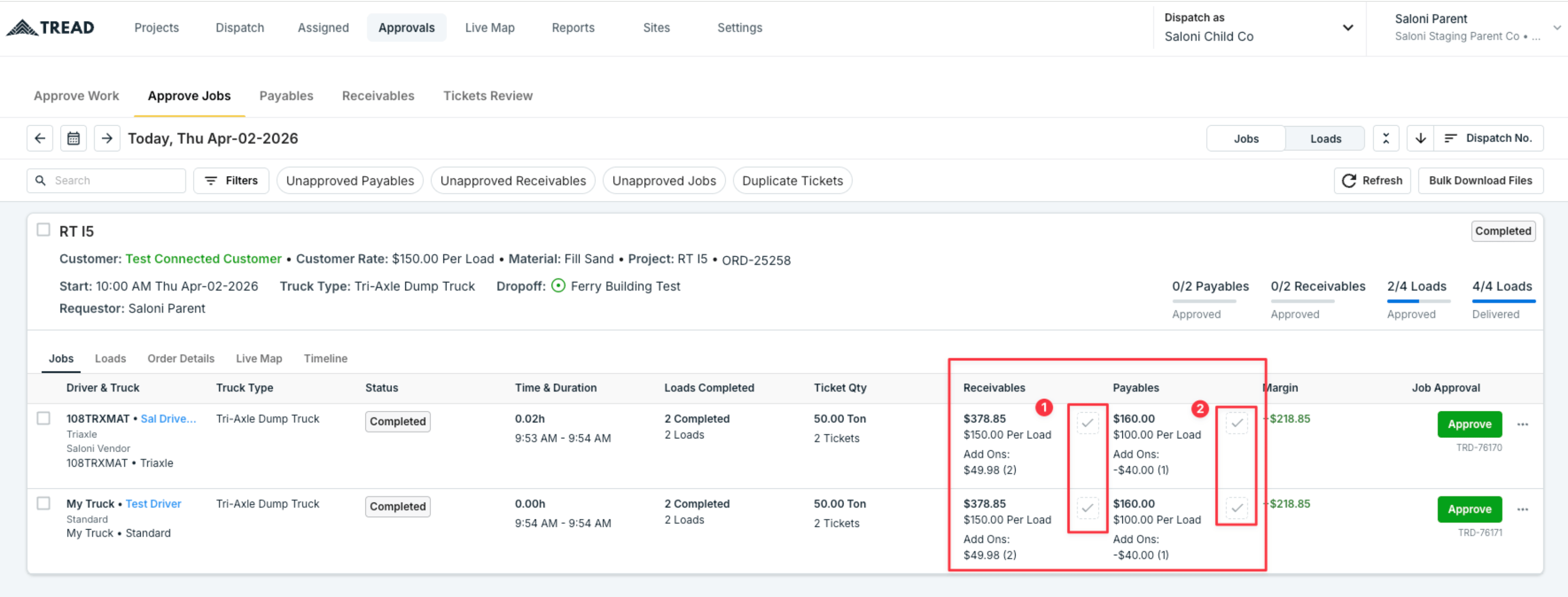
You will see several columns. Focus on the middle two — they control payable and receivable approvals:
* **Payables & Receivables columns (middle):** These are the ones you need to approve to move forward with settlement creation.
* **Job Approval (right column):** Approves the entire truck assignment and all tickets/loads beneath it. You **do not** need to approve this column to proceed with payables and receivables if you are only concerned with approving tickets.
>
***
## Reference: what the approval columns mean
You will see several columns. Focus on the middle two — they control payable and receivable approvals:
* **Payables & Receivables columns (middle):** These are the ones you need to approve to move forward with settlement creation.
* **Job Approval (right column):** Approves the entire truck assignment and all tickets/loads beneath it. You **do not** need to approve this column to proceed with payables and receivables if you are only concerned with approving tickets.
 ***
## Done when
Every approved load for the date has its payables and receivables approved. You're ready to move on to Create & Send Settlements.
***
## Done when
Every approved load for the date has its payables and receivables approved. You're ready to move on to Create & Send Settlements.