

Fix a Settlement (Void & Change)
Purpose: Void an settlement, correct or add missing details (such as a fuel surcharge or a rate fix), and create a new settlement to send to the customer or vendor. When to run: Any time line items on a settlement is found to be incorrect or incomplete. Approved settlements cannot be edited directly — they must be voided and recreated. Prerequisites: The settlement you need to fix has been created. You know what needs to change (an add-on for a single invoice, or an order-level change that should apply across all loads). Related: Create & Send Settlements — the happy-path settlement workflow this is the recovery flow for.Section 1: Void the existing settlement
Step 1 — Open the approved settlement
Go to the Settlements tab and locate the approved settlement you need to modify.Step 2 — Void it
Click Void on the settlement. This removes the settlement but preserves the underlying order, so you can create a new settlement with updated information.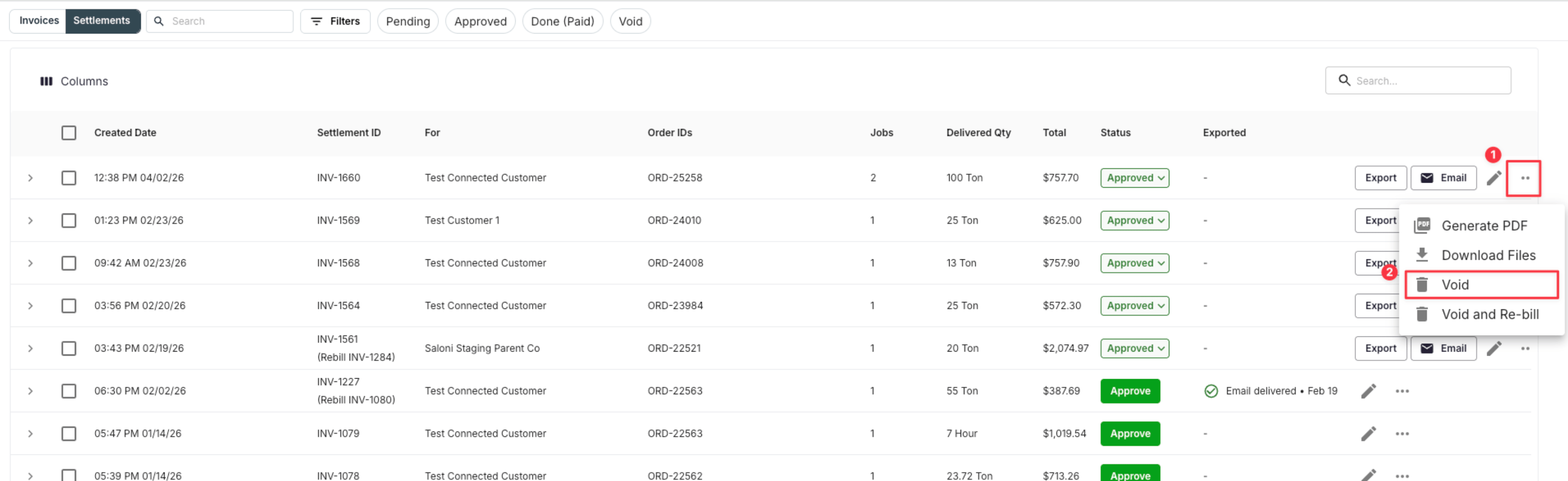
Section 2: Unapprove the receivables or payables
Step 3 — Navigate to Receivables (or Payables)
Navigate back to the Payables or Receivables tab that you would like to make changes to.Step 4 — Unapprove the invoice
Click Unapprove under the invoice. The line items have to be unapproved before you can edit them.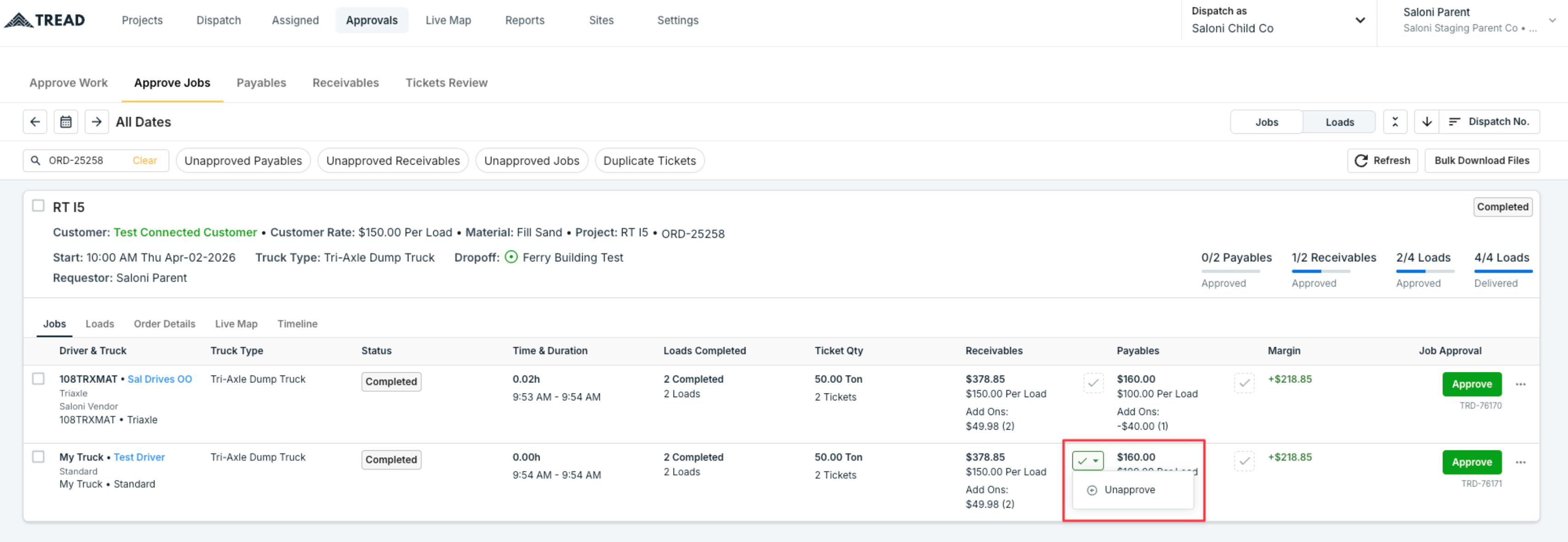
Section 3: Make your changes
Pick the option that matches the scope of the change:- One individual change on one job/dispatch? Use Option A.
- A charge or rate change that should apply across the whole order? Use Option B.
Option A — Edit at the individual job/dispatch level
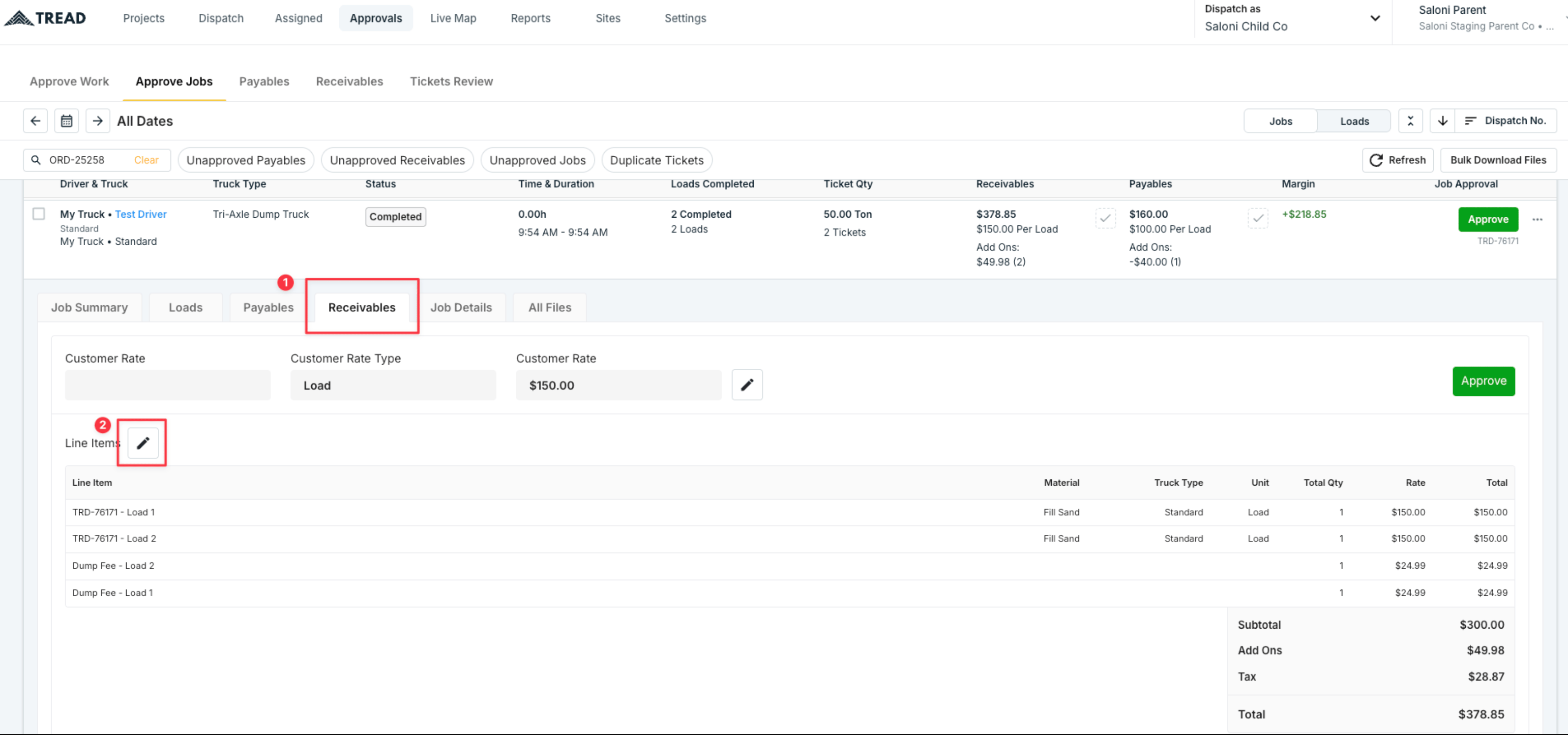
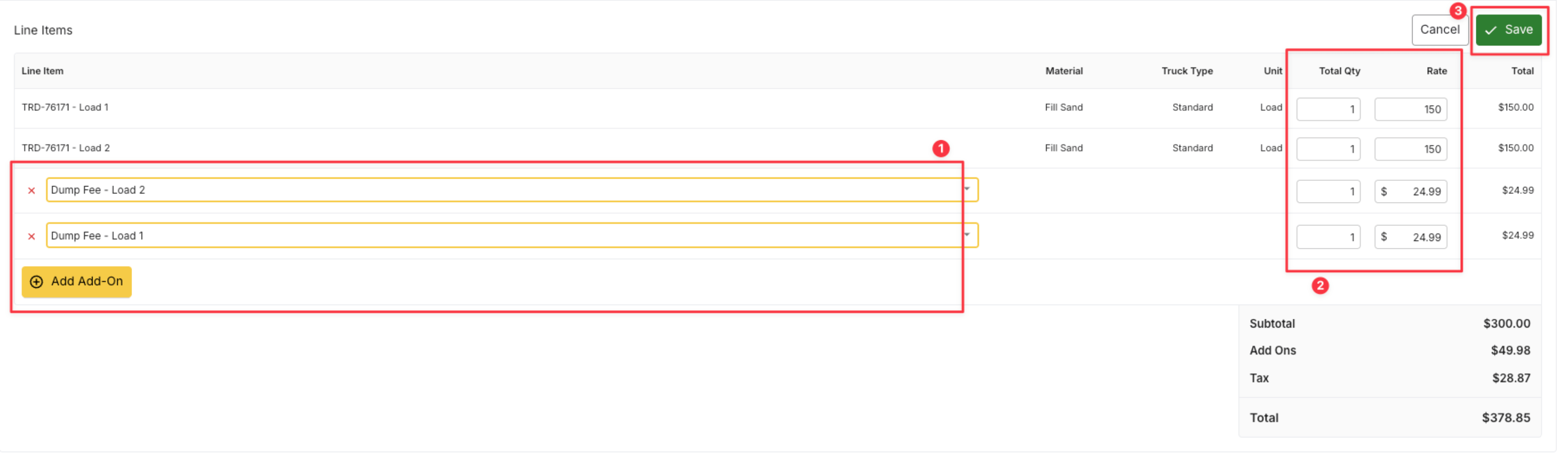
For a one-time change on a specific invoice (e.g., a single Job-level change), edit directly in the receivables/payables view without leaving the screen.- Locate the line item you want to modify.
- Click on the pencil icon to edit rates, quantities or add-ons.
- Save your changes.
Option B — Edit at the order level
For changes that apply to the entire order — such as a fuel surcharge, a rate correction, or any charge that should appear across all loads — make the change in Dispatch.- Copy the order number from the receivables/payables view.
- Navigate to the Dispatch tab.
- Locate and open the order.
- Add the missing item (e.g., fuel surcharge) in the appropriate field.
- Click Save, then Submit.
-
The change automatically applies to all invoices under that order.
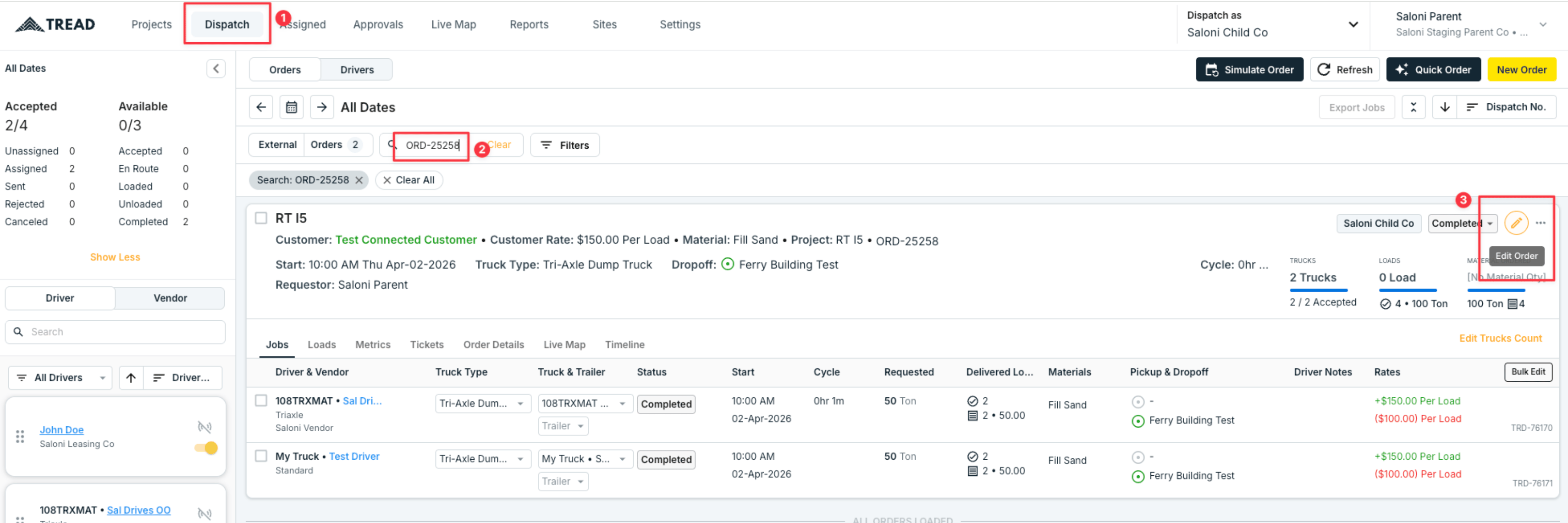
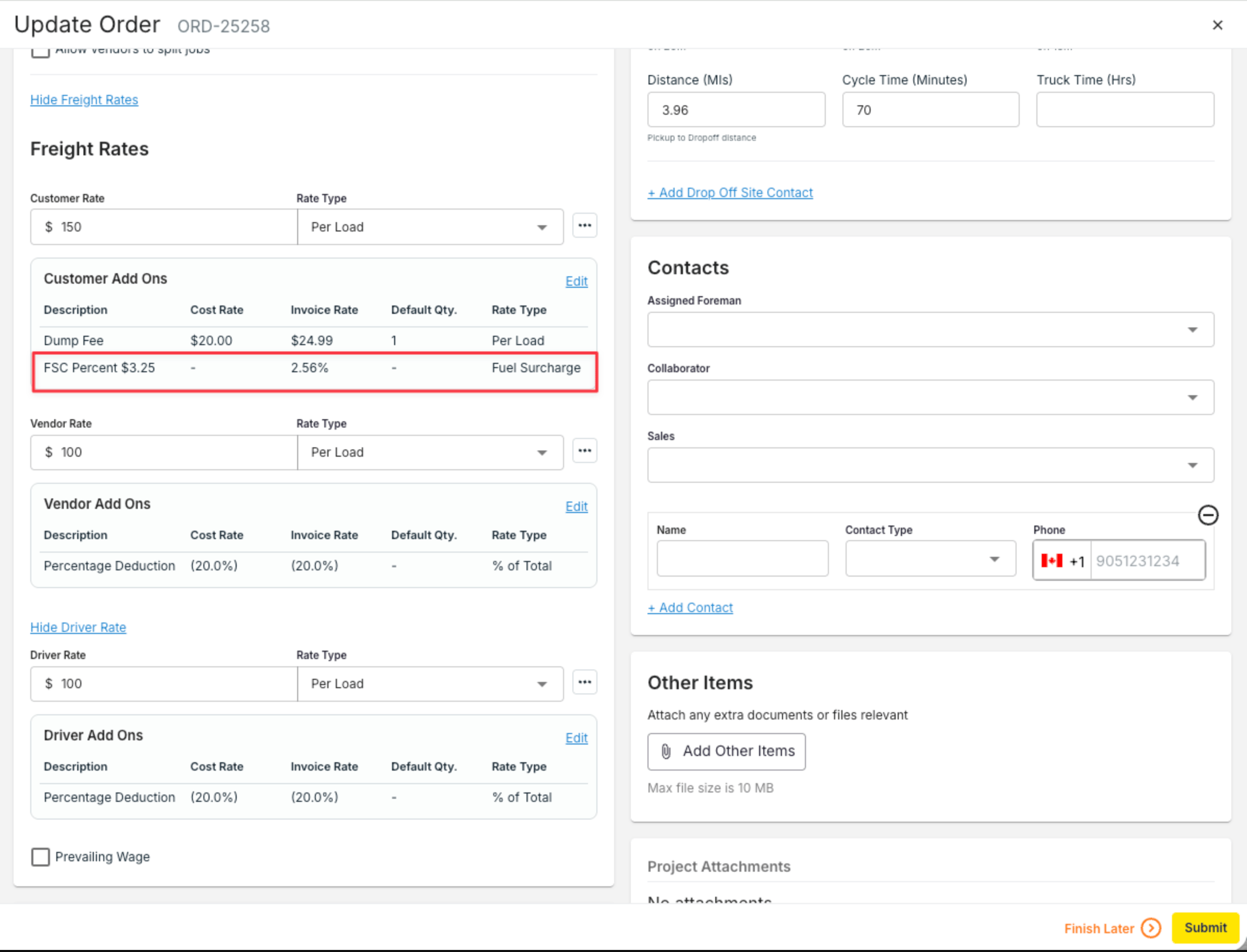
Step 5 — Verify changes applied
Return to the Receivables (or Payables) tab and confirm the changes are reflected. For example, if you added a fuel surcharge at the order level, you should now see it on all relevant loads/trucks under that order.Section 4: Re-approve and create a new settlement
Step 6 — Approve the updated receivables/payables
With your changes in place, re-approve each invoice. This is the same approval step from the original workflow. You can bulk approve directly in the Payables or Receivables tabs.Step 7 — Create the new settlement
Click Create Settlement on the order in the Receivables/Payables view. Manual selection (vs. bulk) is the right call here since you’re typically redoing one settlement, not processing many at once. The system generates a new settlement for that order, now including your changes.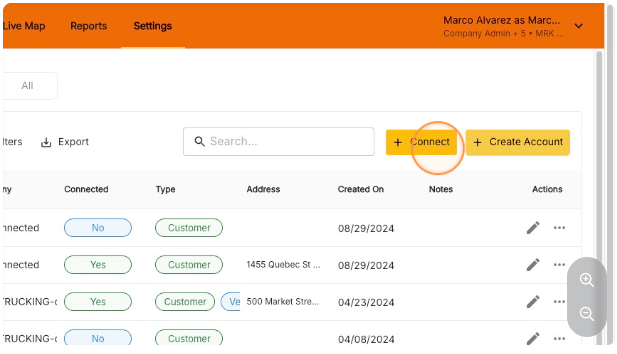
Step 8 — Review the new settlement
Open the Settlements tab and the newly created settlement. Scroll down to verify all changes are present — for example, confirm the fuel surcharge appears for every applicable truck.Section 5: Approve and email the new settlement
Step 9 — Approve
Click Approve on the new settlement.Step 10 — Email
Click Email to send the updated invoice to the customer or vendor, then click Send to confirm. Verify delivery in the status indicator.Tips
- Access voided settlements for reference. If you need to look up a previous voided settlement (for record-keeping or comparison), go to the Settlements tab and click the Void filter. This displays all previously voided settlements.
- One settlement covering two orders? Void it, then invoice each order on its own. A customer who worked two jobs in one day often wants one invoice per job. Go to the Settlements tab, open the ⋯ menu on the settlement, and click Void. Return to Receivables, select the invoices for one order, and click Create settlement. Repeat for the other order. Don’t use Bulk Create Settlement, which groups the orders back together. Order numbers start with ORD- and appear in the Order summary.
- Choose Option A vs Option B by blast radius. If only one invoice is affected, Option A (invoice-level add-on) is faster and lower-risk. If the change should apply to every load on the order, always use Option B (order/dispatch level) — applying it invoice-by-invoice is where mistakes happen.