> ## Documentation Index
> Fetch the complete documentation index at: https://docs.tread.ai/llms.txt
> Use this file to discover all available pages before exploring further.
# Driver: Adding Timesheets to Completed Jobs
> Upload a photo of a paper timesheet to a job from the driver app, as an attachment with the Timesheet category.
Snap a photo of your paper timesheet and attach it to the job. Your hours reach the office without a trip to drop off paper.
## Timesheets go in as attachments, not tickets
A [timesheet](/concepts/tickets-timesheets) is the record of hours worked on a job. Upload it as an **Attachment** with the **Timesheet** category. Don't upload it as a material ticket.
| What you have | Where it goes |
| ---------------------- | -------------------------------------------------- |
| Load or tonnage ticket | **Material Tickets** on the load |
| Timesheet (hours) | **Attachments** on the job, category **Timesheet** |
## Add a timesheet to a completed job
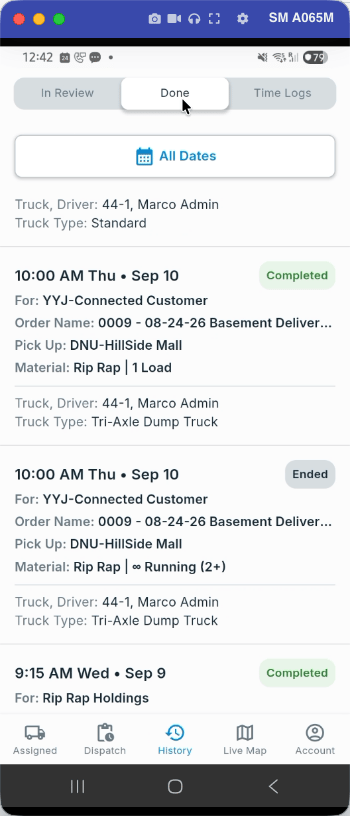
Tap **History** in the bottom bar. Completed jobs are under **Done**. Jobs waiting on review are under **In Review**. Tap the job to open it.
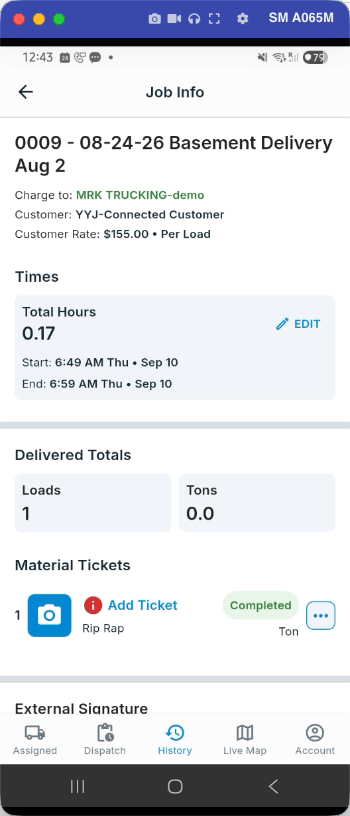
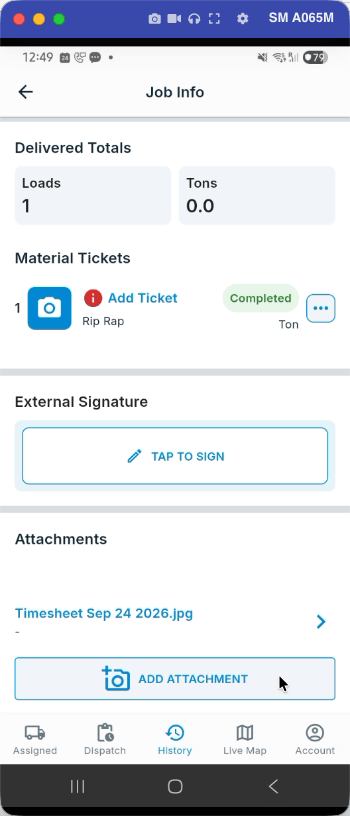
 **Job Info** shows the job's times, delivered totals, and material tickets.
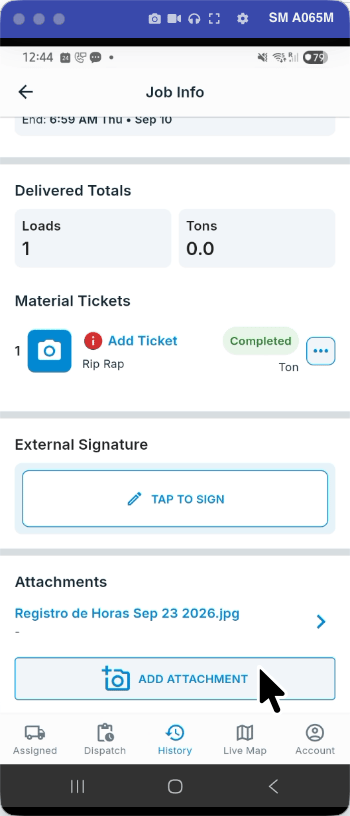
 **Add Attachment** is at the bottom of the **Attachments** section, below **Material Tickets**.
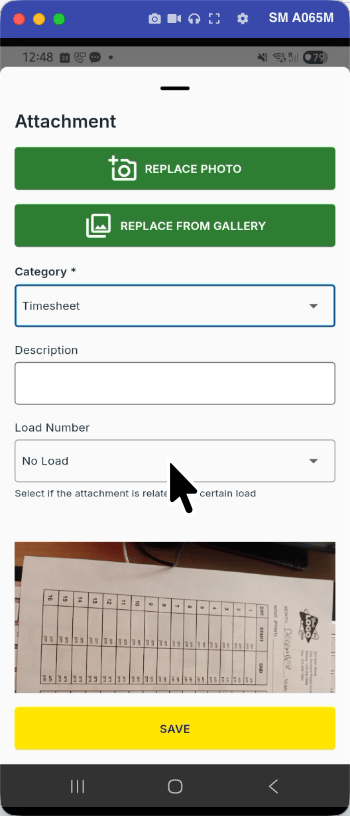
 Tap **Take photo** to use the camera, or **Choose from gallery** if the photo is already on your phone. The first time, your phone asks for camera access. Tap **While using the app**.
Tap **Category** and pick **Timesheet**. Category is required.
Tap **Take photo** to use the camera, or **Choose from gallery** if the photo is already on your phone. The first time, your phone asks for camera access. Tap **While using the app**.
Tap **Category** and pick **Timesheet**. Category is required.
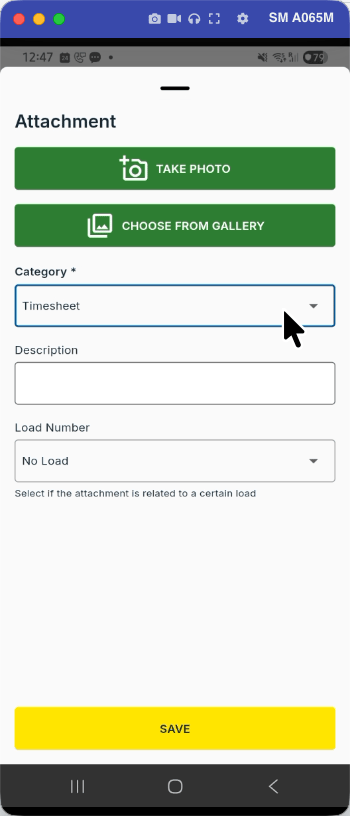 A timesheet covers the whole job, so leave **Load Number** on **No Load**. **Description** is optional. Tap **Save**.
 The photo now shows under **Attachments**, named like *Timesheet Sep 23 2026.jpg*.
 ## Common pitfalls
**Don't upload a timesheet as a material ticket.** Material tickets are for loads. If you already did, upload the photo again as an attachment with the **Timesheet** category, and tell your office which ticket was a mistake.
You can add a timesheet after the job ends. Completed jobs stay under **History** → **Done**.
## Related
* [Drivers: Accept & Start Jobs](/workflows/drivers-accept-and-start-jobs)
* [Drivers: Attach Files to an Order](/workflows/order-attachments)
* [Tickets & Timesheets (per Shift or Hourly)](/concepts/tickets-timesheets)
## Common pitfalls
**Don't upload a timesheet as a material ticket.** Material tickets are for loads. If you already did, upload the photo again as an attachment with the **Timesheet** category, and tell your office which ticket was a mistake.
You can add a timesheet after the job ends. Completed jobs stay under **History** → **Done**.
## Related
* [Drivers: Accept & Start Jobs](/workflows/drivers-accept-and-start-jobs)
* [Drivers: Attach Files to an Order](/workflows/order-attachments)
* [Tickets & Timesheets (per Shift or Hourly)](/concepts/tickets-timesheets)