> ## Documentation Index
> Fetch the complete documentation index at: https://docs.tread.ai/llms.txt
> Use this file to discover all available pages before exploring further.
# Dynamic Rates - Project to Invoice
> Define a pricing rulebook on a project once — Tread matches the right rate to every job.
## What this solves
When pricing varies by truck, material, or site, billers end up re-keying rates on every ticket. Project Rates ends that. You define the pricing rules once on the [Project](/concepts/orders-projects). Tread then applies the right customer, vendor, and driver rate to each order and job automatically.
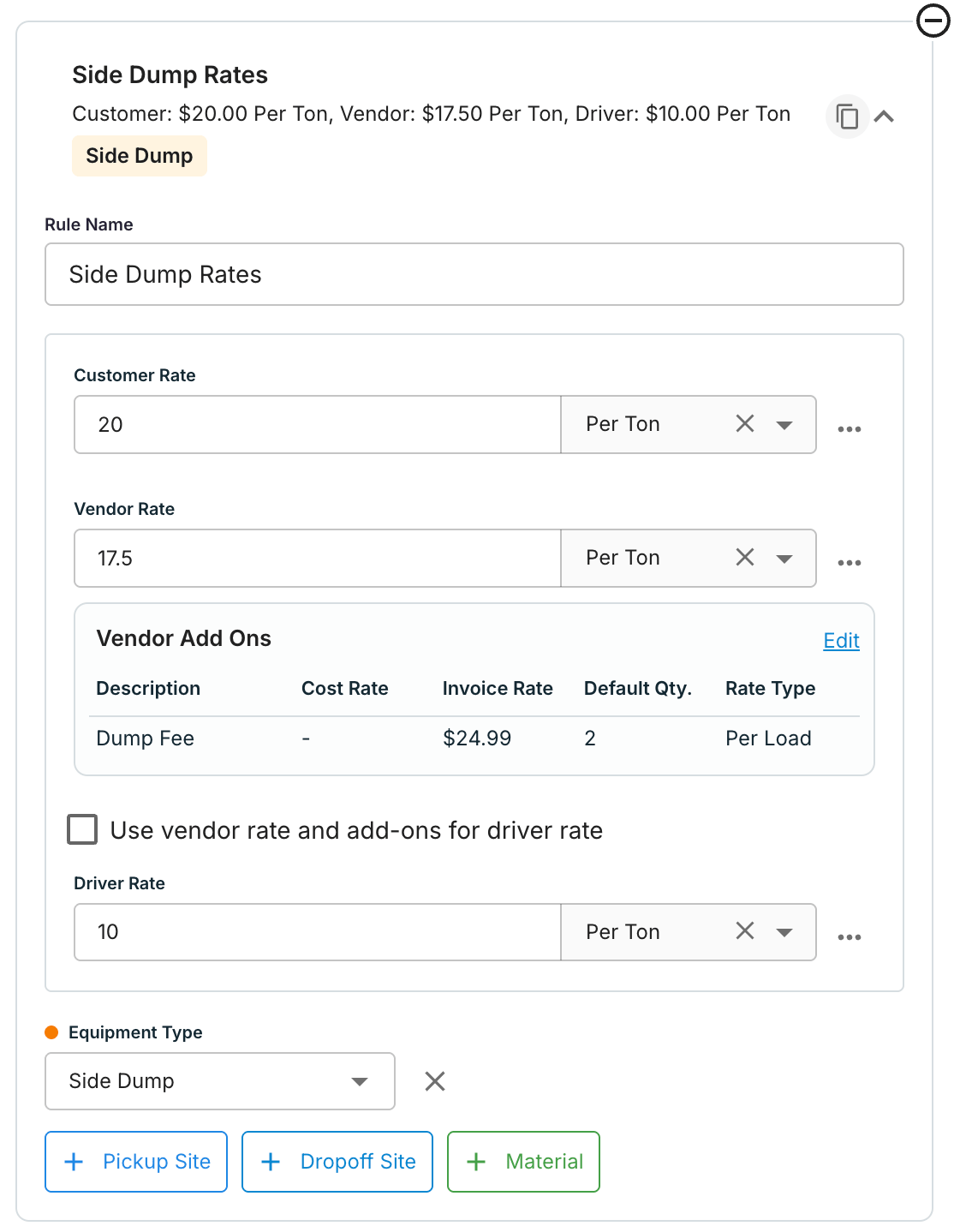
Each rate holds three values:
| Value | What it is |
| ----------------- | ------------------------------------------------------------- |
| **Customer rate** | What the customer is charged |
| **Vendor rate** | What the vendor or carrier is paid |
| **Driver rate** | What your internal driver earns — can inherit the vendor rate |
Check **Use vendor rate and add-ons for driver rate** to keep the driver rate in sync with the vendor rate automatically.
## How matching works
Conditions narrow when a rate applies. There are four, combinable in any mix: **Pickup [Site](/concepts/sites-geofences)**, **Dropoff Site**, **[Equipment](/concepts/equipment) Type**, and [**Material**](/concepts/materials). A rate with no conditions is the project-wide default.
Matching runs per job, once equipment is assigned. Change the truck, pickup, dropoff, or material and the rate re-evaluates. The pick order:
1. **Manual override** — never replaced by automatic matching.
2. **Starred rate** — forces one rate onto every job on the order.
3. **Most specific match** — three conditions beat two, two beat one.
4. **Project default** — the no-condition rate.
5. **Company rate cards** — account-specific first, then defaults.
## Walkthrough
Open a project. Rates appear as accordion rows — collapsed shows a summary with condition chips.
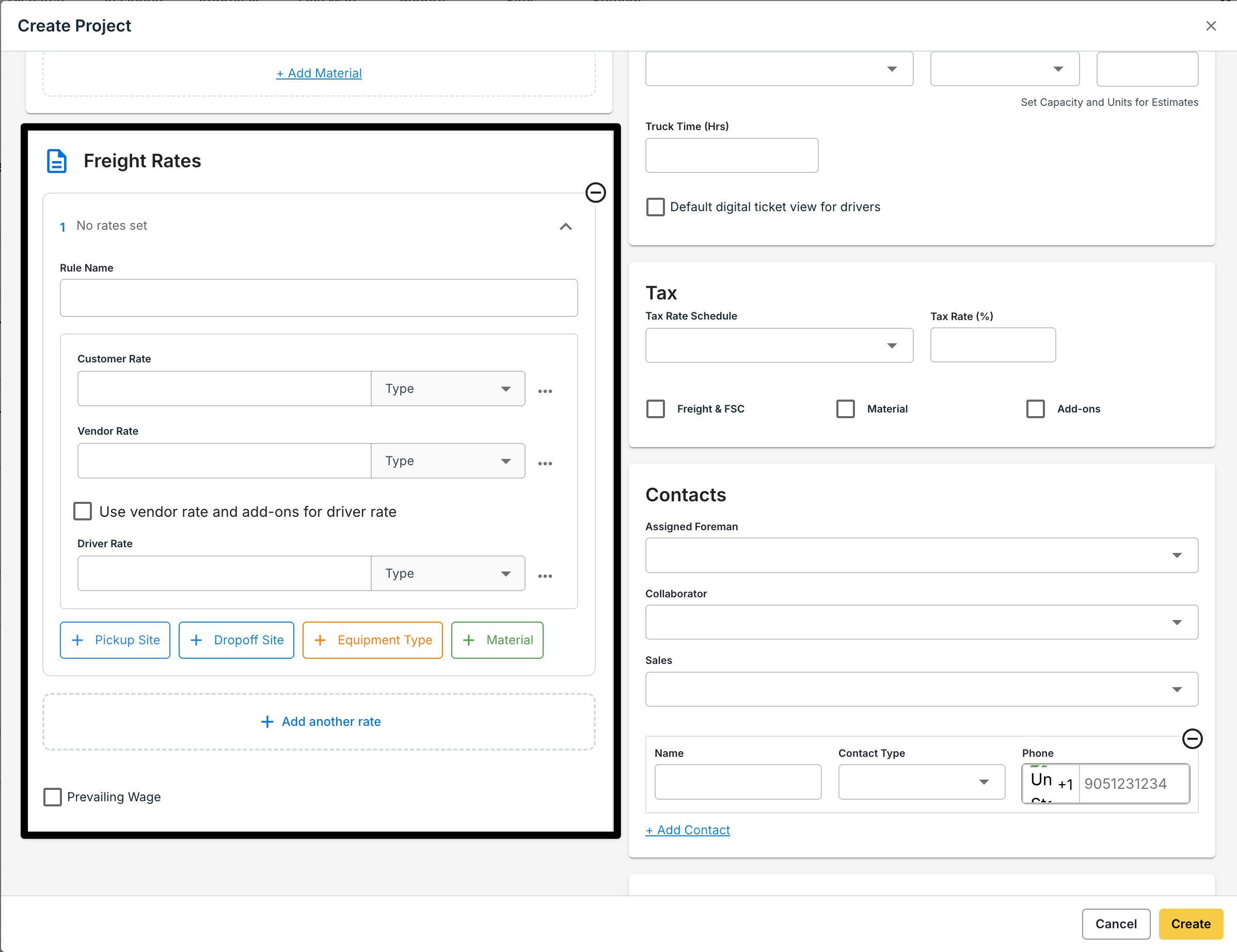 Click **Add another rate**. Name it clearly (e.g., *Tri-Axle Gravel from Main Quarry*). Enter the customer, vendor, and driver values, then add conditions. Duplicate a rate to clone and tweak. There is no limit on rate count.
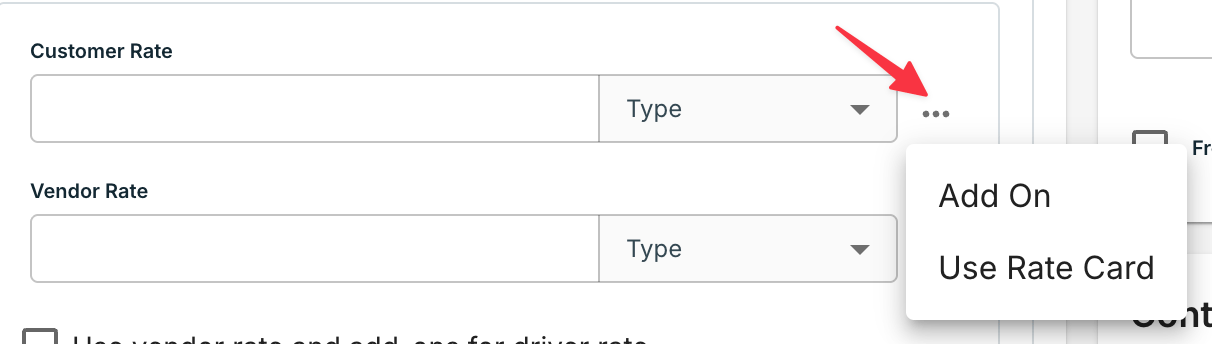
 Use the **…** menu on a rate row to attach [add-ons](/concepts/rates-add-ons) (fuel surcharge, standby) or pull in an account rate card as a starting point. Update a rate card once and every project using it picks up the change.
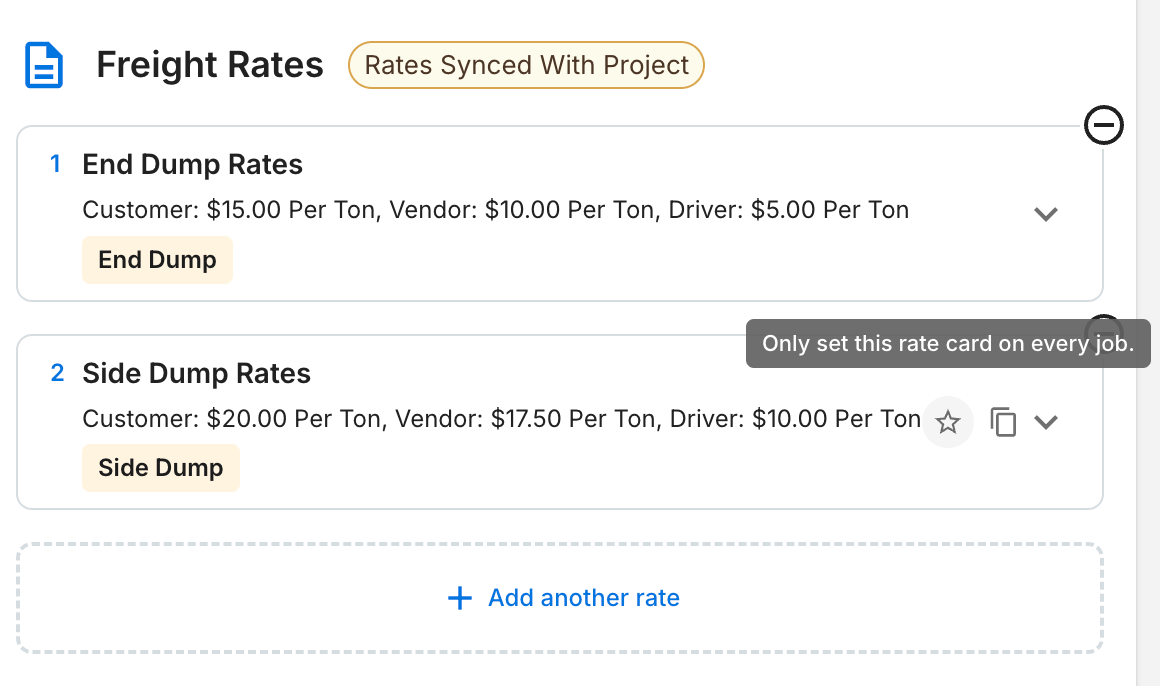
 Every order form shows the project's rates. The **Rates Synced With Project** chip confirms the order reads live project rules. Star one rate to force it onto every job — useful for flat-rate hauls. Orders without a project can hold their own order-level rates.
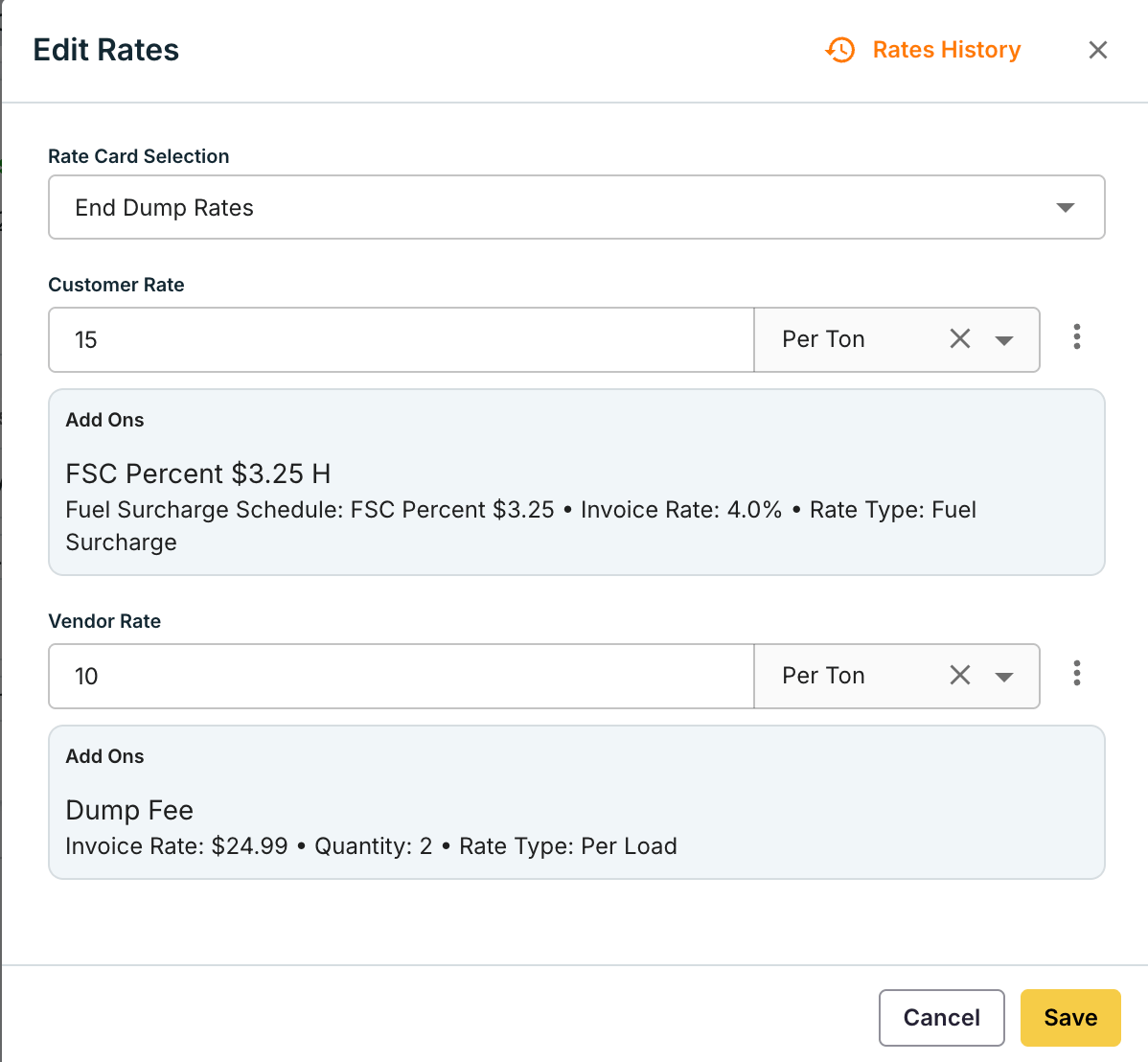
 Assign a vendor or driver, or set equipment — rates match automatically on each job row. To verify which rate card was applied, open the **Edit Rates** or **Edit Job** form.
Fix a single job from the **Edit Job** or **Edit Rates** form. You can change any value directly, or pick from a dropdown of the project's rates — choosing a non-matching rate flags the job as manual. Editing any of the conditions reverts it back to the system match.
Assign a vendor or driver, or set equipment — rates match automatically on each job row. To verify which rate card was applied, open the **Edit Rates** or **Edit Job** form.
Fix a single job from the **Edit Job** or **Edit Rates** form. You can change any value directly, or pick from a dropdown of the project's rates — choosing a non-matching rate flags the job as manual. Editing any of the conditions reverts it back to the system match.
 ## Editing and stamping
While an order is active, rate edits sync both ways between project and order. When an order completes, its rates are **stamped** — snapshotted and disconnected — so later project edits never change finished billing.
A rate edit can reach beyond where you make it. What's reachable:
| Edit at… | Reaches… |
| ----------------- | --------------------------------- |
| Project | All open orders on that project |
| Order (active) | The project + other open orders |
| Order (completed) | That order only — already stamped |
### Steering the cascade
On every rate change — at the project or the order — you choose whether the change applies to existing orders within a date range. Turn on **Apply rate changes to existing orders** (or **…to sibling orders** on an order) and at **Submit**, a dialog opens where you pick which reachable orders receive it.
| Turn it… | And existing orders… |
| -------- | --------------------------------------------------------------------------- |
| Off | Keep their current rates. Only orders created from now on use the new ones. |
| On | You choose which reachable orders cascade. |
The **project always gets the change** — you're editing its rate card, so it can't be skipped. On an active order, the edit rewrites the project card first, then flows out to siblings.
The dialog defaults to orders from today onward — **set an earlier start date to reach older orders.** If you pick a past range, it will re-price completed and in-progress loads, and it warns you before you do.
**Deselecting stamps the order.** Any order you uncheck that's still synced is automatically stamped — it keeps its current rates and stops following the project. Future rate changes won't reach it on their own, and any order-level changes won't impact the project reversely. You can still push a later change to a stamped order by selecting it in this dialog again — but that's not a resync: it pushes that one change down and restamps the order's rates, and the order stays stamped.
## Rate history
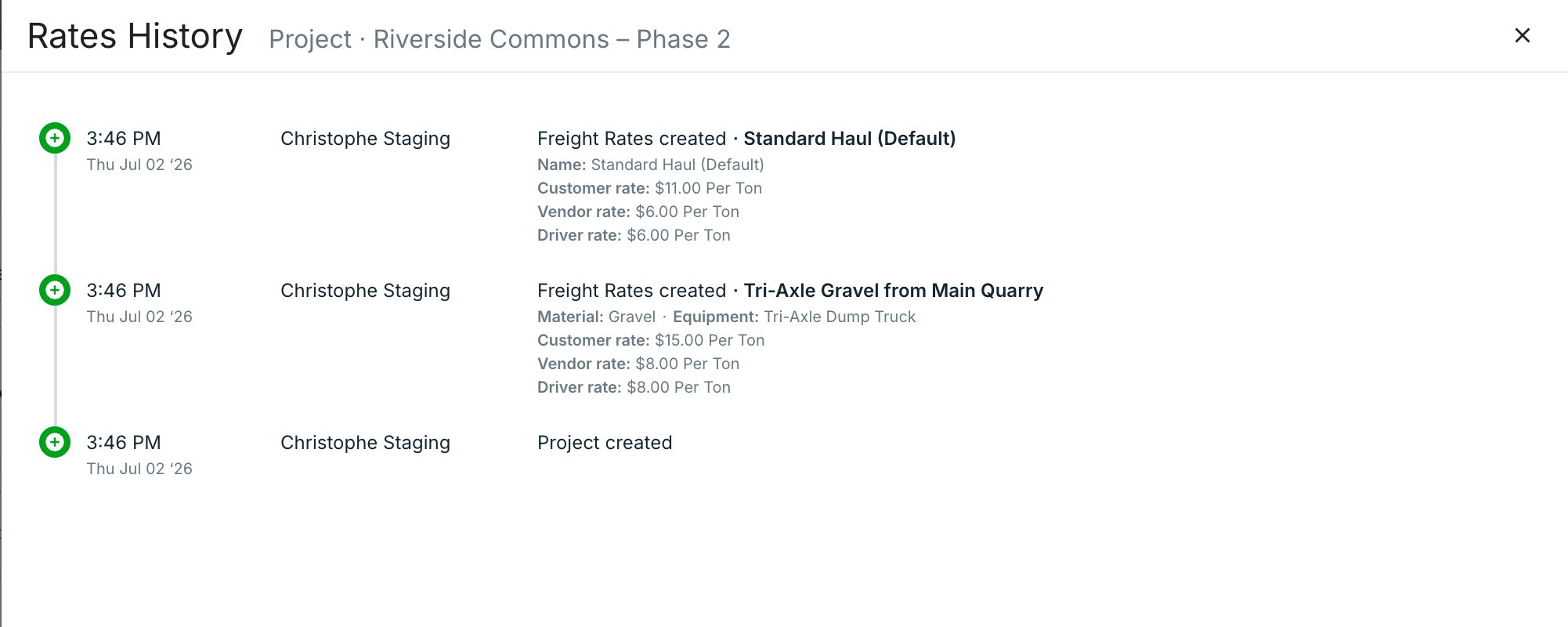
Every rate change is logged. Click **Rates History** on a project card (or in the project form header) to see a timeline: who changed what, when, and the exact values. Use it to answer "why did this rate change?" without a support ticket.
## Editing and stamping
While an order is active, rate edits sync both ways between project and order. When an order completes, its rates are **stamped** — snapshotted and disconnected — so later project edits never change finished billing.
A rate edit can reach beyond where you make it. What's reachable:
| Edit at… | Reaches… |
| ----------------- | --------------------------------- |
| Project | All open orders on that project |
| Order (active) | The project + other open orders |
| Order (completed) | That order only — already stamped |
### Steering the cascade
On every rate change — at the project or the order — you choose whether the change applies to existing orders within a date range. Turn on **Apply rate changes to existing orders** (or **…to sibling orders** on an order) and at **Submit**, a dialog opens where you pick which reachable orders receive it.
| Turn it… | And existing orders… |
| -------- | --------------------------------------------------------------------------- |
| Off | Keep their current rates. Only orders created from now on use the new ones. |
| On | You choose which reachable orders cascade. |
The **project always gets the change** — you're editing its rate card, so it can't be skipped. On an active order, the edit rewrites the project card first, then flows out to siblings.
The dialog defaults to orders from today onward — **set an earlier start date to reach older orders.** If you pick a past range, it will re-price completed and in-progress loads, and it warns you before you do.
**Deselecting stamps the order.** Any order you uncheck that's still synced is automatically stamped — it keeps its current rates and stops following the project. Future rate changes won't reach it on their own, and any order-level changes won't impact the project reversely. You can still push a later change to a stamped order by selecting it in this dialog again — but that's not a resync: it pushes that one change down and restamps the order's rates, and the order stays stamped.
## Rate history
Every rate change is logged. Click **Rates History** on a project card (or in the project form header) to see a timeline: who changed what, when, and the exact values. Use it to answer "why did this rate change?" without a support ticket.
 ## Migrating from Site Rates
Existing Site Rates were migrated automatically — no re-entry. They now appear as rates with a Pickup Site condition and match the same way as before. Layer in more conditions when ready.
## Watch it
Full walkthrough — project rates end to end:
Short demo — a job auto-matching the right rate by site, material, and equipment:
## Common pitfalls
**Add-ons are replaced when the matched rate changes.** A re-match clears the old rate's add-ons and applies the new rate's. To apply an add-on universally, attach it to every rate that could match.
**Two rates with identical conditions are ambiguous** — the first-created rate wins. You can confirm which one applied in the Rates History view. To avoid this, rename one or change a condition so each rate is unique.
## FAQ
Tread falls back to your company rate cards — account-specific first, then defaults. Keep one no-condition rate on the project to guarantee a match.
Not while the order is active — edits sync both ways. After completion, rates are stamped and stop syncing. Job and invoice edits never sync back.
Completed orders hold a snapshot from when the work finished. Reopening the order keeps the stamped rates.
Rates on mobile are editable, not view-only. Drivers' visibility stays gated by [Roles & Permissions](/concepts/roles-permissions). Bulk edits from the order screen act as manual overrides.
## Related
* [Manage Rates, Add-Ons & Fees](/workflows/manage-rates) — company-level rate cards, add-ons, and fuel surcharge
* [Rates, Add-Ons & Fuel Surcharges](/concepts/rates-add-ons) — how Tread models pricing
* [Orders & Projects](/concepts/orders-projects) — how Projects, Orders, and Jobs fit together
* [Settlements & Driver Pay](/concepts/settlements-driver-pay) — where matched rates land
## Migrating from Site Rates
Existing Site Rates were migrated automatically — no re-entry. They now appear as rates with a Pickup Site condition and match the same way as before. Layer in more conditions when ready.
## Watch it
Full walkthrough — project rates end to end:
Short demo — a job auto-matching the right rate by site, material, and equipment:
## Common pitfalls
**Add-ons are replaced when the matched rate changes.** A re-match clears the old rate's add-ons and applies the new rate's. To apply an add-on universally, attach it to every rate that could match.
**Two rates with identical conditions are ambiguous** — the first-created rate wins. You can confirm which one applied in the Rates History view. To avoid this, rename one or change a condition so each rate is unique.
## FAQ
Tread falls back to your company rate cards — account-specific first, then defaults. Keep one no-condition rate on the project to guarantee a match.
Not while the order is active — edits sync both ways. After completion, rates are stamped and stop syncing. Job and invoice edits never sync back.
Completed orders hold a snapshot from when the work finished. Reopening the order keeps the stamped rates.
Rates on mobile are editable, not view-only. Drivers' visibility stays gated by [Roles & Permissions](/concepts/roles-permissions). Bulk edits from the order screen act as manual overrides.
## Related
* [Manage Rates, Add-Ons & Fees](/workflows/manage-rates) — company-level rate cards, add-ons, and fuel surcharge
* [Rates, Add-Ons & Fuel Surcharges](/concepts/rates-add-ons) — how Tread models pricing
* [Orders & Projects](/concepts/orders-projects) — how Projects, Orders, and Jobs fit together
* [Settlements & Driver Pay](/concepts/settlements-driver-pay) — where matched rates land