> ## Documentation Index
> Fetch the complete documentation index at: https://docs.tread.ai/llms.txt
> Use this file to discover all available pages before exploring further.
# Foreman: Run the Day from the Jobsite
> Create orders, dispatch trucks, track progress live, and approve work — all from the Foreman App.
A foreman runs the whole day from a phone: create the [order](/concepts/orders-projects), dispatch trucks, watch every load on a live map, and approve work at the end of shift. The office sees the same data in real time — fewer status calls, and billing starts from hours the foreman already approved.
## Set up a foreman
In Settings → Users, give the user the Foreman role. This unlocks order creation and approval permissions on mobile. See [Adding Users](/onboarding/master-data/users).
On the [project](/concepts/orders-projects), add the foreman as a project contact. Only projects they're assigned to show up on their device.
Foremen use the same Tread app as [Drivers](/mobile/driver-app), signed in with their own credentials. The bottom tabs are **Assigned**, **Review**, **Live Map**, and **Account** — plus **Dispatch** when their role includes dispatch access.
## Create an order
On the **Assigned** tab, tap **+ NEW ORDER**. Pick an [order type](/workflows/order-types): Trucking (request a number of trucks), Equipment Moves (heavy equipment haul), or Service (a single truck for a service like water or fuel).
Key fields: **Project**, **Customer** (the account charged for the order), **Pick Up / Drop Off**, and **Unit** — Truck, Ton, or Load. Tap **CREATE**.
 Orders from a foreman start in a **Pending** state and require dispatcher review. Dispatchers find the request on the web in the **External** tab, where they Accept, Reject, or Cancel it.
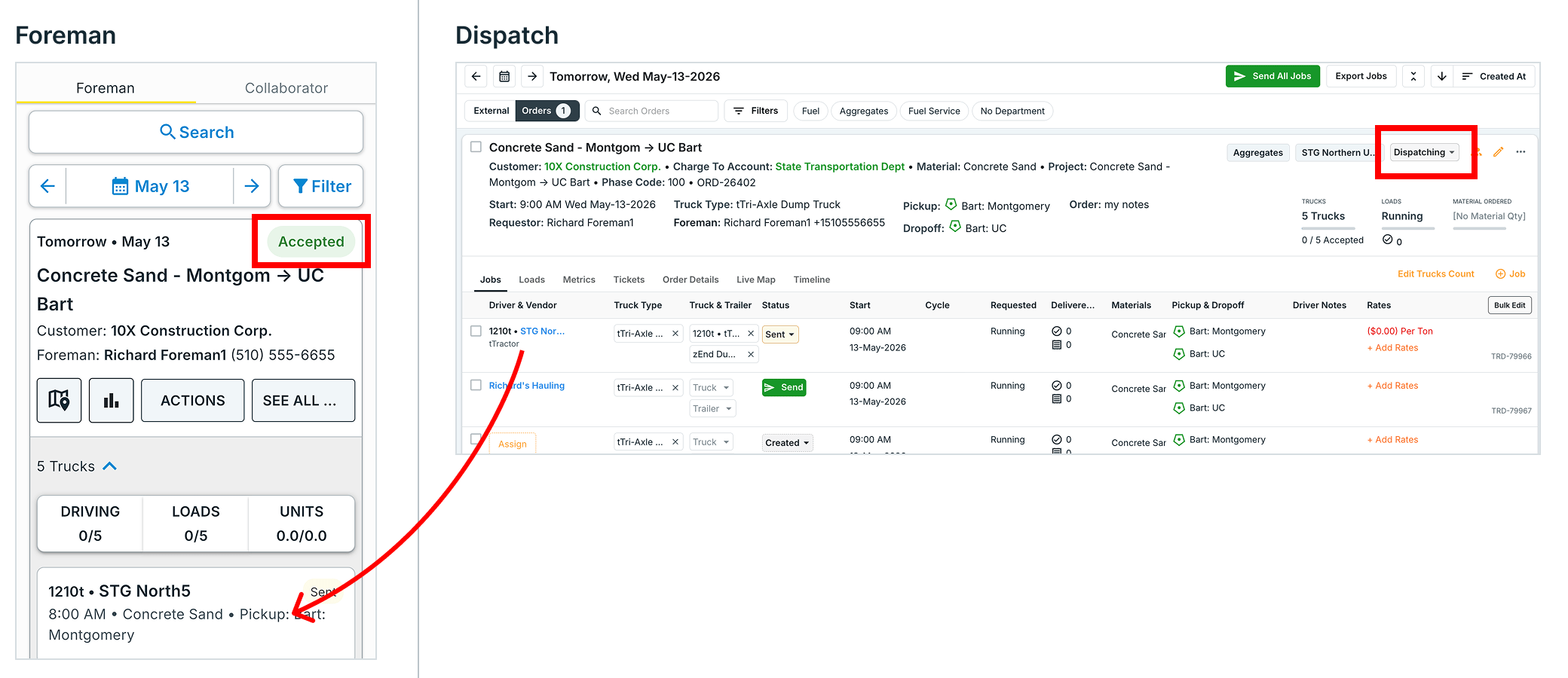
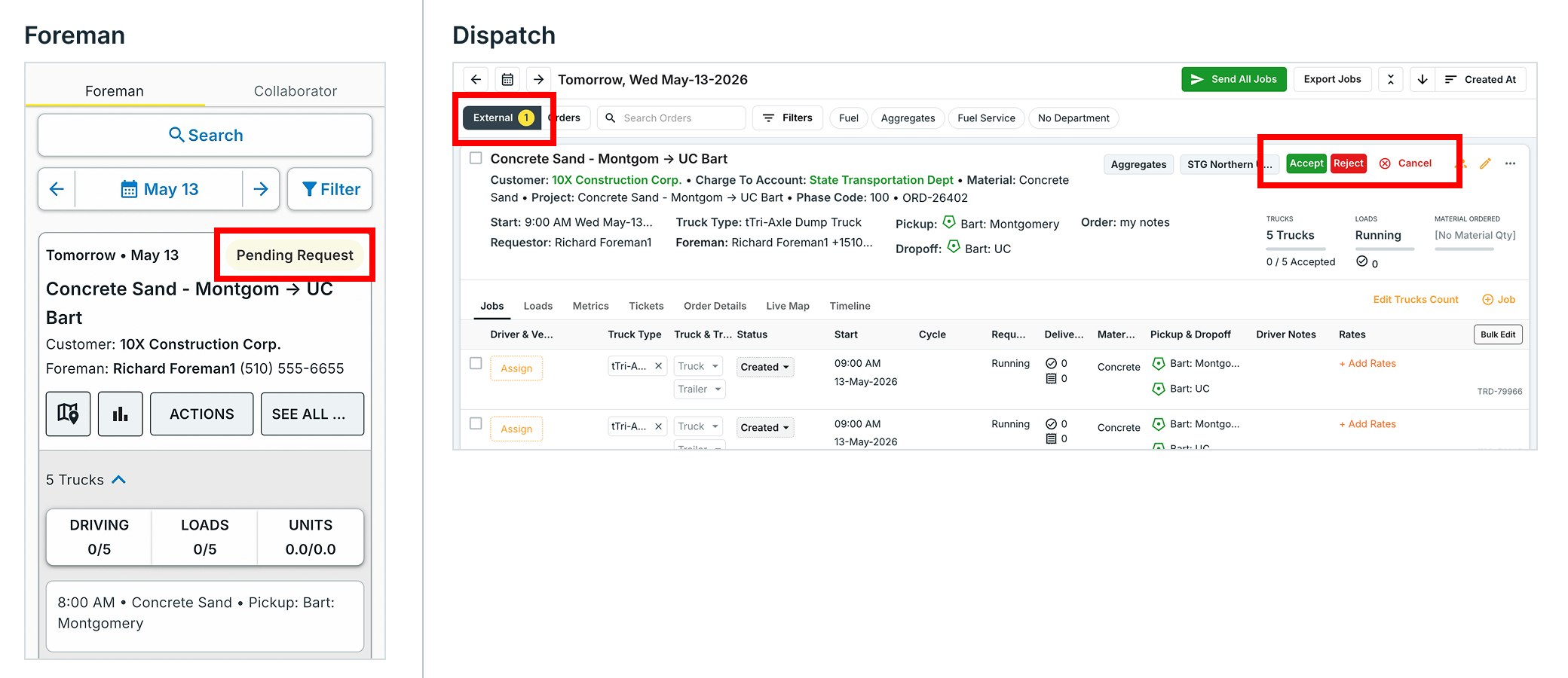 If the request is rejected, the foreman sees the rejection and its reason. If it's accepted, the foreman sees the assigned Drivers and [Vendors](/concepts/connected-ecosystem) (an account you send dispatches to, instead of assigning your own Driver).
 ## Copy an order
Repeat yesterday's work without retyping the form. On an order card, tap **••• ACTIONS**, then pick one:
* **Duplicate Order** — set the start date and truck count, keep or clear the job assignments, tap **CONFIRM**.
* **Copy & Edit Order** — opens the full order form pre-filled with the source order's details. Update anything, then tap **SAVE**.
## Copy an order
Repeat yesterday's work without retyping the form. On an order card, tap **••• ACTIONS**, then pick one:
* **Duplicate Order** — set the start date and truck count, keep or clear the job assignments, tap **CONFIRM**.
* **Copy & Edit Order** — opens the full order form pre-filled with the source order's details. Update anything, then tap **SAVE**.


 ## Assign drivers
When the foreman's role includes dispatch access, the **Dispatch** tab assigns trucks right from the jobsite.
Tap the down arrow next to the truck count (1) to see each truck slot, then tap **+ ASSIGN** (2).
## Assign drivers
When the foreman's role includes dispatch access, the **Dispatch** tab assigns trucks right from the jobsite.
Tap the down arrow next to the truck count (1) to see each truck slot, then tap **+ ASSIGN** (2).
 Search by name or truck number on the **Drivers** tab (or hand the job to a **Vendor**). Tap **SEND** — the [Driver](/concepts/dispatching-drivers-vendors) gets a notification and can accept and start the job in the app.
 ## Track the day in real time
### Order card
On the **Assigned** tab, tap the down arrow on an order card (1) to see live counts (2): trucks driving, loads delivered, and units against the order total — plus each truck's current status.
## Track the day in real time
### Order card
On the **Assigned** tab, tap the down arrow on an order card (1) to see live counts (2): trucks driving, loads delivered, and units against the order total — plus each truck's current status.
 ### Order detail
Tap an order to open it. Tabs across the top: **Jobs** (each dispatch on the order), **Loads**, **Metrics**, **Details**, and **Map**.
### Order detail
Tap an order to open it. Tabs across the top: **Jobs** (each dispatch on the order), **Loads**, **Metrics**, **Details**, and **Map**.
 ### Metrics tab
The **Metrics** tab has two views: **Performance** and **Trucks**.
**Performance** shows progress against the order goal — units shipped versus ordered, delivered / in-transit / remaining loads, first ticket and first drop times, units per hour (shipped and delivered), onsite time at pickup and dropoff, cycle time, and cost per unit.
### Metrics tab
The **Metrics** tab has two views: **Performance** and **Trucks**.
**Performance** shows progress against the order goal — units shipped versus ordered, delivered / in-transit / remaining loads, first ticket and first drop times, units per hour (shipped and delivered), onsite time at pickup and dropoff, cycle time, and cost per unit.
 **Trucks** lists every truck on the order with its current status (1) — To Pickup, At Pickup, To Dropoff, At Dropoff — its cycle time (2), an idle flag when a truck sits too long, and a connectivity indicator (3) that confirms the driver's GPS is reporting.
 The **Loads** tab lists the order's [tickets](/concepts/tickets-timesheets) (proof of load delivered) with delivered totals and cycle averages, so arriving loads can be checked against what was expected.
### Map and Live Map
The order **Map** tab shows pickup and dropoff sites and every truck sharing GPS. Tap a truck (1) to see the driver and truck details with **Call** and **Send Text** (2), plus delivered totals, idle and cycle times, and GPS status (3).
The **Loads** tab lists the order's [tickets](/concepts/tickets-timesheets) (proof of load delivered) with delivered totals and cycle averages, so arriving loads can be checked against what was expected.
### Map and Live Map
The order **Map** tab shows pickup and dropoff sites and every truck sharing GPS. Tap a truck (1) to see the driver and truck details with **Call** and **Send Text** (2), plus delivered totals, idle and cycle times, and GPS status (3).

 The **Live Map** tab in the bottom bar shows the same live truck view across all of the foreman's orders.
## Approve work
The **Review** tab lists each day's jobs (and their loads) for orders assigned to the foreman. Tap **APPROVE** on a completed job, or tap the job to check it first.
The **Live Map** tab in the bottom bar shows the same live truck view across all of the foreman's orders.
## Approve work
The **Review** tab lists each day's jobs (and their loads) for orders assigned to the foreman. Tap **APPROVE** on a completed job, or tap the job to check it first.
 The job detail shows total hours with scheduled start, start, and end times (2), the linked timesheet (3), delivered totals, and each ticket. Tap **APPROVE** when it matches the day.
 Company Admins and Billers see the foreman's sign-off as the **Field** approval in Approvals → Approve Work on the web. Billing pulls from the same approved data.
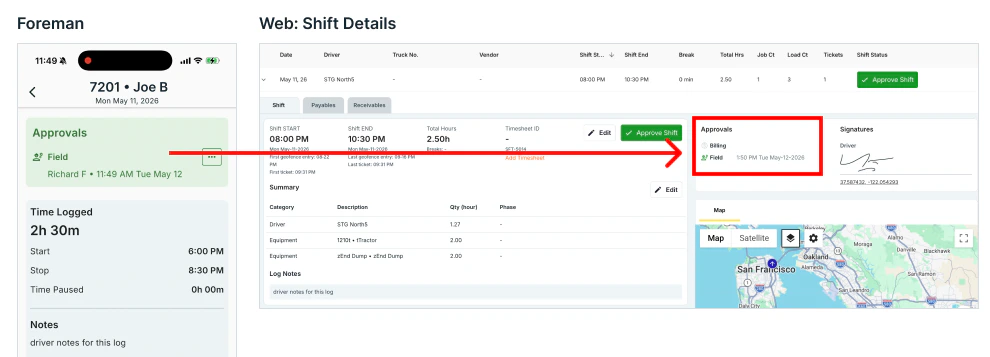 Approve daily, not weekly. End-of-shift approvals keep details fresh and shorten the billing cycle.
## Common pitfalls
**Foreman orders skip dispatch creation, not dispatch review.** The office sees requests appear without warning — set notifications so dispatchers catch new foreman orders quickly.
**Field-first approvals take a few weeks to stick.** A multi-entity hauler saw about four weeks of resistance from drivers and subhaulers before end-of-shift approvals became routine. Stay firm on the workflow during the transition.
## Related
* [Create a Project, Order, and Dispatch](/workflows/create-a-project)
* [Order Types](/workflows/order-types)
* [Intra-Day Changes](/specialized/intra-day-changes)
* [Driver App](/mobile/driver-app)
Approve daily, not weekly. End-of-shift approvals keep details fresh and shorten the billing cycle.
## Common pitfalls
**Foreman orders skip dispatch creation, not dispatch review.** The office sees requests appear without warning — set notifications so dispatchers catch new foreman orders quickly.
**Field-first approvals take a few weeks to stick.** A multi-entity hauler saw about four weeks of resistance from drivers and subhaulers before end-of-shift approvals became routine. Stay firm on the workflow during the transition.
## Related
* [Create a Project, Order, and Dispatch](/workflows/create-a-project)
* [Order Types](/workflows/order-types)
* [Intra-Day Changes](/specialized/intra-day-changes)
* [Driver App](/mobile/driver-app)