> ## Documentation Index
> Fetch the complete documentation index at: https://docs.tread.ai/llms.txt
> Use this file to discover all available pages before exploring further.
# Manage Rates, Add-Ons & Fees
> Set and update pricing across customers, vendors, and drivers.
Pricing is where billing mistakes start. Tread keeps what you charge a [Customer](/concepts/connected-ecosystem), what you pay a Vendor, and what your own Drivers earn as separate rate cards — one price change never leaks into another. This workflow sets up rate cards, add-ons, and fuel surcharge.
## Walkthrough
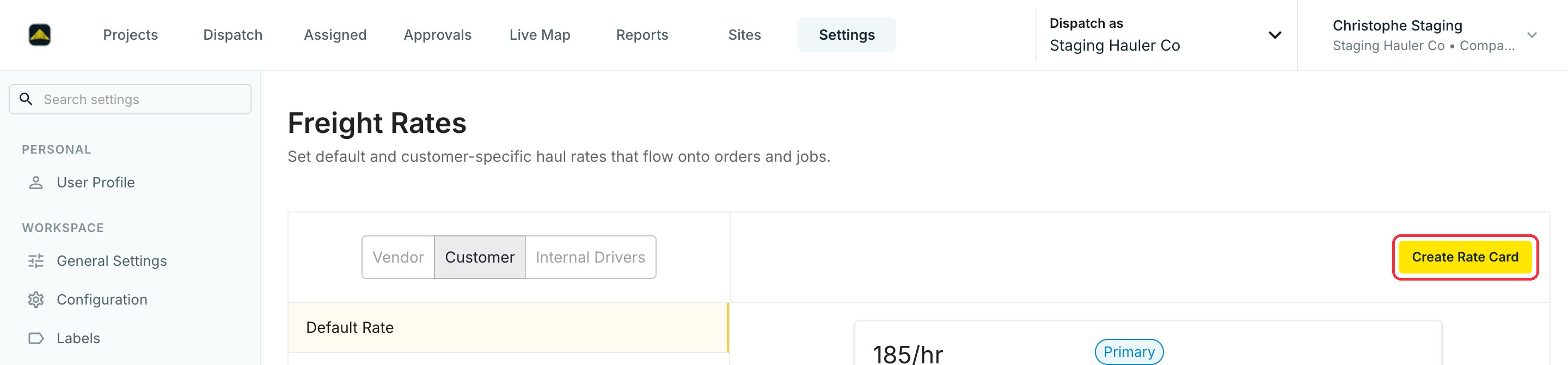
In **Settings**, the **Rates** group holds every pricing screen: **Freight Rates**, **Material Rates**, **Add-Ons**, **Broker Fees**, **Fuel Surcharge Index**, **Fuel Surcharge Schedule**, and **Tax Rate Schedules**. Open **Freight Rates**, then pick **Vendor**, **Customer**, or **Internal Drivers** to choose whose rates you are setting.
Click **Create Rate Card**.
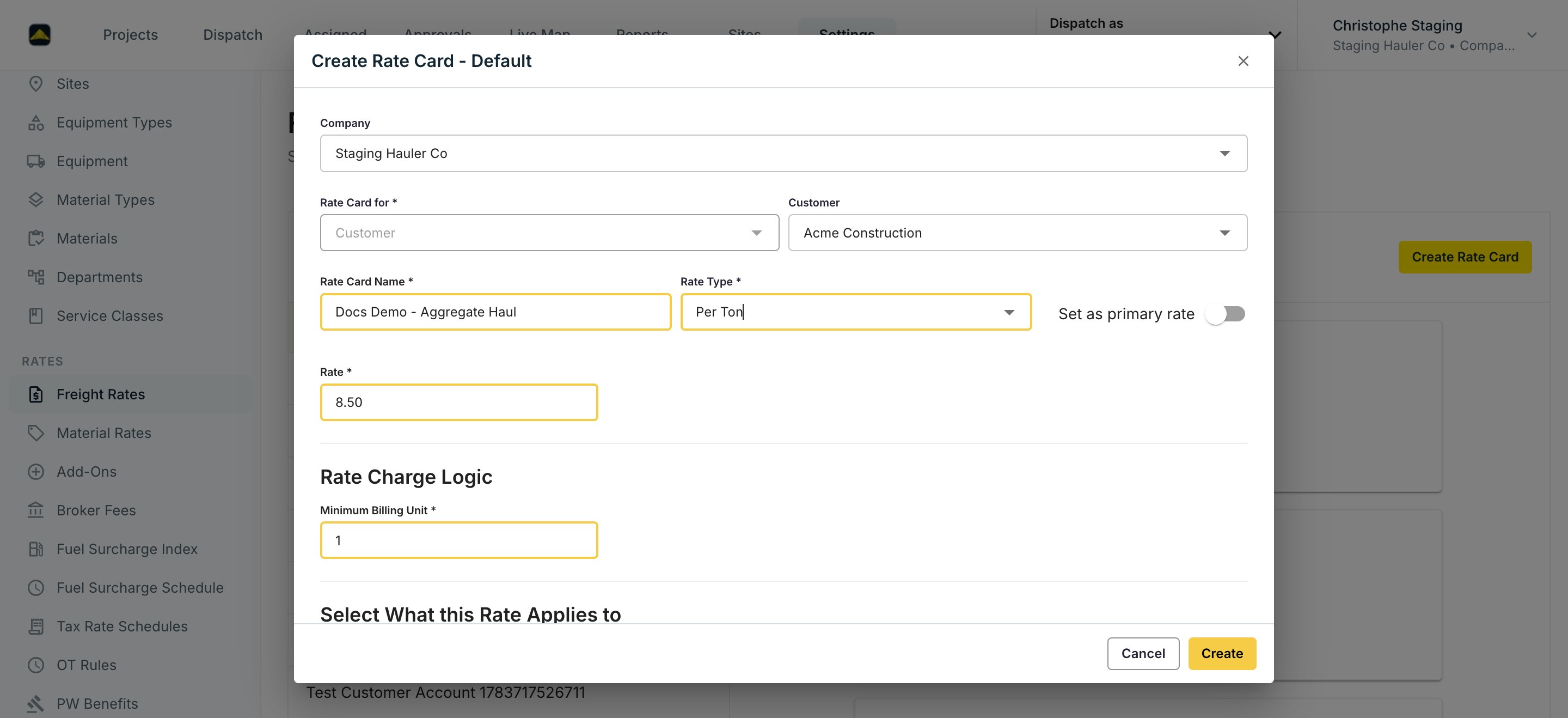
 Name the card, pick a **Rate Type** (Per Ton, Per Hour, Per Load, Flat Rate, and more), then set the **Rate** and **Minimum Billing Unit**. To apply the card only to specific work, narrow it by Project, Equipment, Equipment Type, or Service Class.
 Per-lane pricing — rates by pickup site, dropoff site, or material — lives on the Project instead. See [Project Rates](/workflows/project-rates).
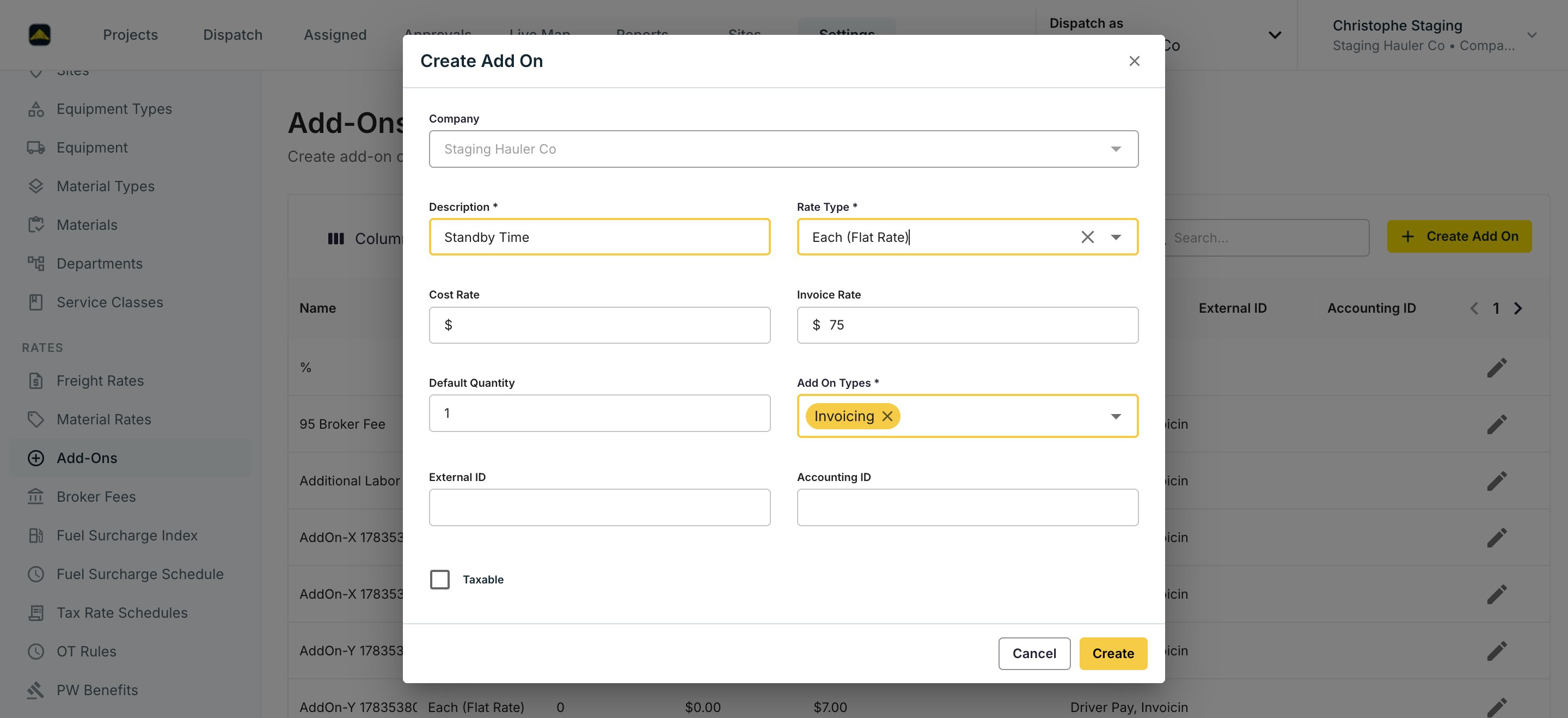
Add-ons are charges on top of the base rate — standby time, tarping fees, equipment surcharges. Under **Add-Ons**, click **Create Add On**. Pick a **Rate Type** (**Per Load**, **Each (Flat Rate)**, or **% of Total**), set the **Cost Rate** (what you pay) and **Invoice Rate** (what you charge), and choose the **Add On Types** that control where it applies: Job, Invoicing, Settlement, Driver Pay, or Shift.
Per-lane pricing — rates by pickup site, dropoff site, or material — lives on the Project instead. See [Project Rates](/workflows/project-rates).
Add-ons are charges on top of the base rate — standby time, tarping fees, equipment surcharges. Under **Add-Ons**, click **Create Add On**. Pick a **Rate Type** (**Per Load**, **Each (Flat Rate)**, or **% of Total**), set the **Cost Rate** (what you pay) and **Invoice Rate** (what you charge), and choose the **Add On Types** that control where it applies: Job, Invoicing, Settlement, Driver Pay, or Shift.
 A rate card can also attach **Automatic Add Ons**, which apply every time the rate card does.
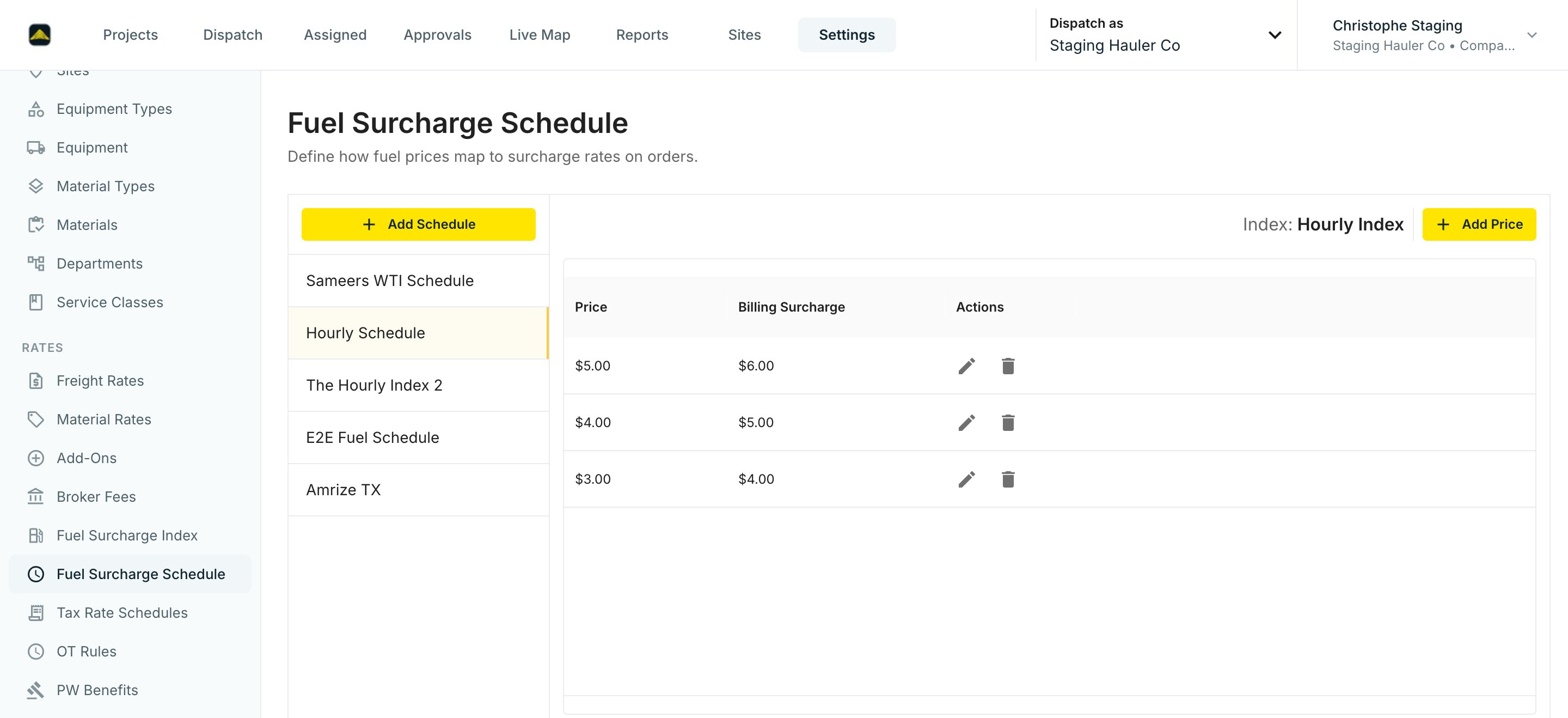
Create a **Fuel Surcharge Index**, then a **Fuel Surcharge Schedule** that maps each fuel price to a surcharge amount. Link the schedule to billing with an add-on whose Rate Type is **Fuel Surcharge**. See [Fuel Surcharges](/specialized/fuel-surcharges) for the full walkthrough.
A rate card can also attach **Automatic Add Ons**, which apply every time the rate card does.
Create a **Fuel Surcharge Index**, then a **Fuel Surcharge Schedule** that maps each fuel price to a surcharge amount. Link the schedule to billing with an add-on whose Rate Type is **Fuel Surcharge**. See [Fuel Surcharges](/specialized/fuel-surcharges) for the full walkthrough.
 When a job is rated, Tread applies the highest-precedence matching rate — see the table below. Override on the Order (star a rate card) or on a single job when a specific dispatch prices differently.
## Rate Precedence
When a load is rated, Tread checks for a matching rate in a fixed order. The first match wins. Everything below it is ignored.
| Order | Rate source | Scope | Wins when |
| ----- | -------------------------------------------- | ------------------------------------------------------------------------------------- | -------------------------------------------------------------------------------- |
| 1 | **Manual override** | Set on a single Job or invoice | Someone picked a rate by hand — never replaced automatically |
| 2 | **Starred rate** | One rate starred on the Order | Forces that rate onto every Job on the Order |
| 3 | **[Project rate](/workflows/project-rates)** | Rules on the Project, narrowed by pickup site, dropoff site, equipment type, material | The most specific matching rule wins; a no-condition rate is the project default |
| 4 | **Account rate card** | Company-level card for the [Customer](/concepts/connected-ecosystem) or Vendor | No project rate matches |
| 5 | **Default rate card** | Company-wide fallback | None of the above match — keeps the load from going un-rated |
Legacy Site Rates were migrated into project rates with a Pickup Site condition — same matching behavior, managed on the Project.
When a rate "disappears" or "reappears" between billing runs, it is almost always precedence plus an unset field falling through. A blank UoM, a missing destination, or a Site row that does not match the load's actual route causes Tread to skip to the next layer. Check the load's Site, Project, and Customer in that order — find the first level where a field is blank or wrong, fix it there.
## Watch it
## Common pitfalls
**Drivers must never see customer rates.** A driver-facing screen built off the wrong rate field can leak customer-facing pricing. Tread separates customer, vendor, and driver rates by design — confirm [Roles & Permissions](/concepts/roles-permissions) gate driver views to driver-rate fields only.
**Fuel surcharge complexity bites first-time admins.** A producer setting up surcharge as both a per-load fee and a percentage rolled it twice and overcharged. Pick one application rule per customer and stay there.
**% of Total and Fuel Surcharge add-ons recalculate with the invoice.** These charges are computed from the invoice's freight subtotal, so they update when invoice line items change. That is expected behavior, not a bug.
## Related
* [Rates, Add-Ons & Fuel Surcharges](/concepts/rates-add-ons) — the data model.
* [Project Rates](/workflows/project-rates) — per-lane pricing rules on the Project.
* [Fuel Surcharges](/specialized/fuel-surcharges) — the full fuel surcharge setup walkthrough.
* [Create a Project, Order, and Dispatch](/workflows/create-a-project) — where rates get applied.
* [Generate Settlements & Driver Pay](/concepts/settlements-driver-pay) — the billing run that uses them.
* [Prevailing Wage](/specialized/prevailing-wage) — government-job rate handling.
When a job is rated, Tread applies the highest-precedence matching rate — see the table below. Override on the Order (star a rate card) or on a single job when a specific dispatch prices differently.
## Rate Precedence
When a load is rated, Tread checks for a matching rate in a fixed order. The first match wins. Everything below it is ignored.
| Order | Rate source | Scope | Wins when |
| ----- | -------------------------------------------- | ------------------------------------------------------------------------------------- | -------------------------------------------------------------------------------- |
| 1 | **Manual override** | Set on a single Job or invoice | Someone picked a rate by hand — never replaced automatically |
| 2 | **Starred rate** | One rate starred on the Order | Forces that rate onto every Job on the Order |
| 3 | **[Project rate](/workflows/project-rates)** | Rules on the Project, narrowed by pickup site, dropoff site, equipment type, material | The most specific matching rule wins; a no-condition rate is the project default |
| 4 | **Account rate card** | Company-level card for the [Customer](/concepts/connected-ecosystem) or Vendor | No project rate matches |
| 5 | **Default rate card** | Company-wide fallback | None of the above match — keeps the load from going un-rated |
Legacy Site Rates were migrated into project rates with a Pickup Site condition — same matching behavior, managed on the Project.
When a rate "disappears" or "reappears" between billing runs, it is almost always precedence plus an unset field falling through. A blank UoM, a missing destination, or a Site row that does not match the load's actual route causes Tread to skip to the next layer. Check the load's Site, Project, and Customer in that order — find the first level where a field is blank or wrong, fix it there.
## Watch it
## Common pitfalls
**Drivers must never see customer rates.** A driver-facing screen built off the wrong rate field can leak customer-facing pricing. Tread separates customer, vendor, and driver rates by design — confirm [Roles & Permissions](/concepts/roles-permissions) gate driver views to driver-rate fields only.
**Fuel surcharge complexity bites first-time admins.** A producer setting up surcharge as both a per-load fee and a percentage rolled it twice and overcharged. Pick one application rule per customer and stay there.
**% of Total and Fuel Surcharge add-ons recalculate with the invoice.** These charges are computed from the invoice's freight subtotal, so they update when invoice line items change. That is expected behavior, not a bug.
## Related
* [Rates, Add-Ons & Fuel Surcharges](/concepts/rates-add-ons) — the data model.
* [Project Rates](/workflows/project-rates) — per-lane pricing rules on the Project.
* [Fuel Surcharges](/specialized/fuel-surcharges) — the full fuel surcharge setup walkthrough.
* [Create a Project, Order, and Dispatch](/workflows/create-a-project) — where rates get applied.
* [Generate Settlements & Driver Pay](/concepts/settlements-driver-pay) — the billing run that uses them.
* [Prevailing Wage](/specialized/prevailing-wage) — government-job rate handling.