> ## Documentation Index
> Fetch the complete documentation index at: https://docs.tread.ai/llms.txt
> Use this file to discover all available pages before exploring further.
# Enable Driver Direct Dispatch
> Share a vendor's driver to your own account so you can assign them jobs without waiting on their dispatcher.
Assign a [vendor's](/onboarding/master-data/vendors) driver yourself instead of sending the dispatch and waiting for their dispatcher to pick someone. The driver becomes a [Shared Driver](/concepts/dispatching-drivers-vendors) — a driver another account shares to you, dispatched directly like your own.
## Share the driver to your account
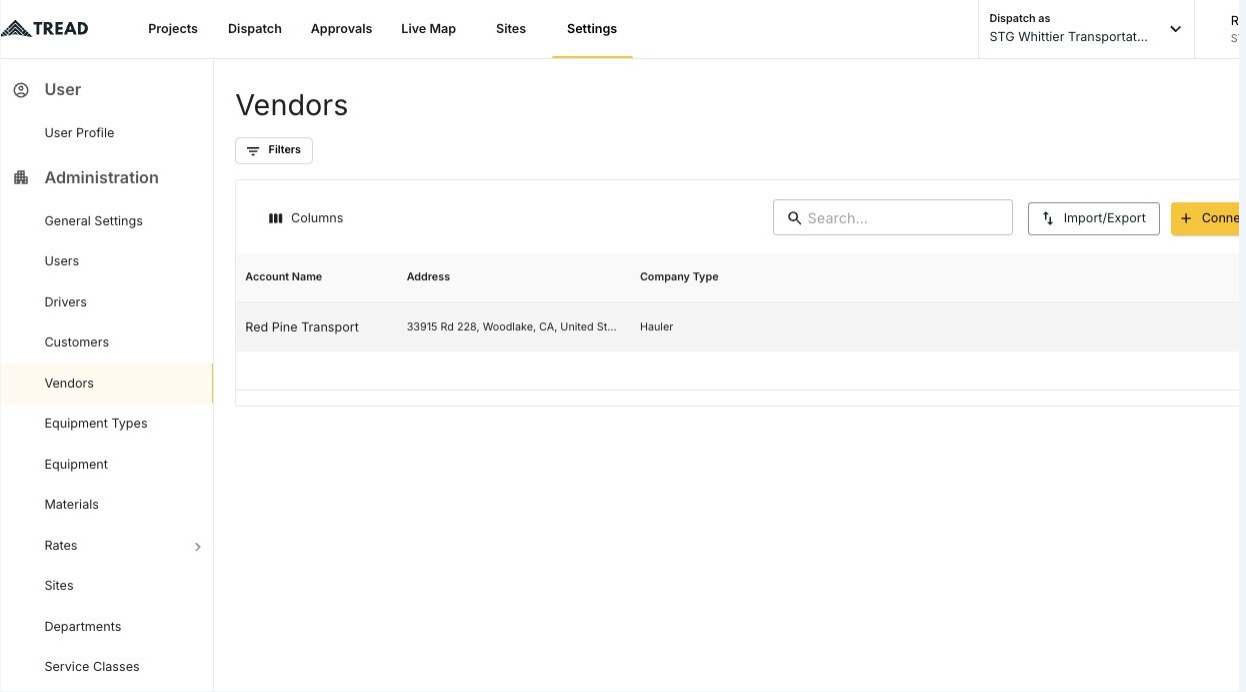 Pick the vendor account the driver belongs to.
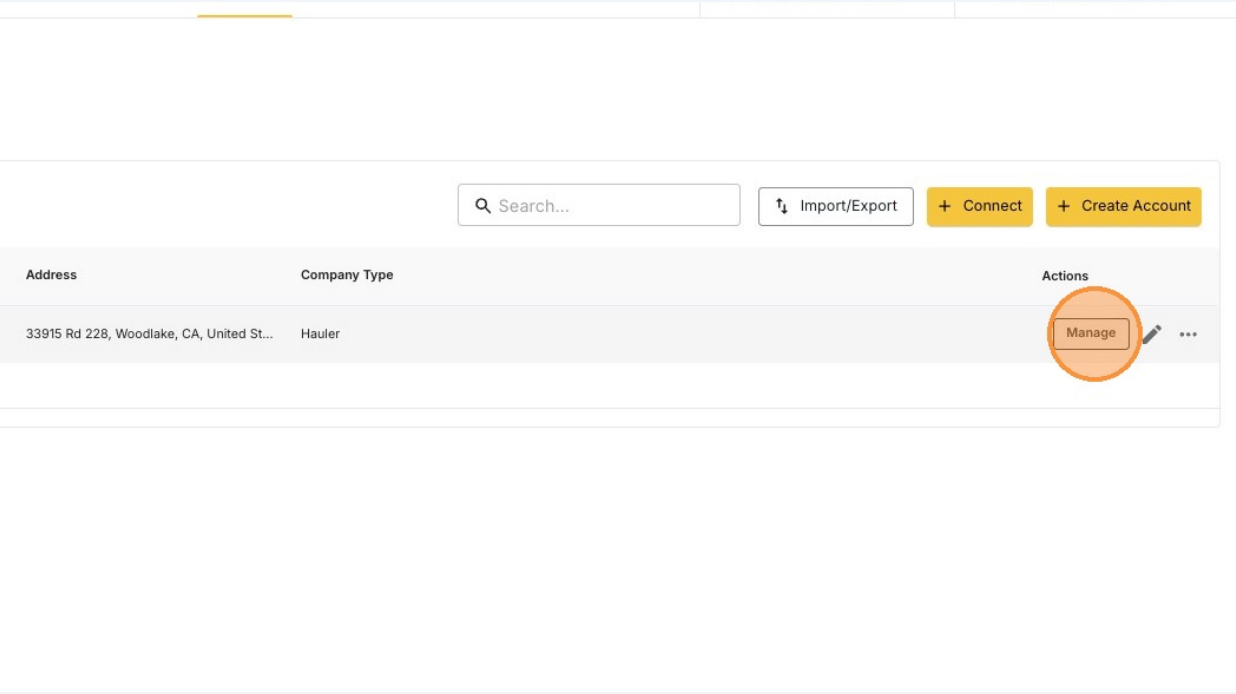 No **MANAGE** button? Email [support@tread.io](mailto:support@tread.io) with the vendors you need to manage, or ask in the in-app chat.
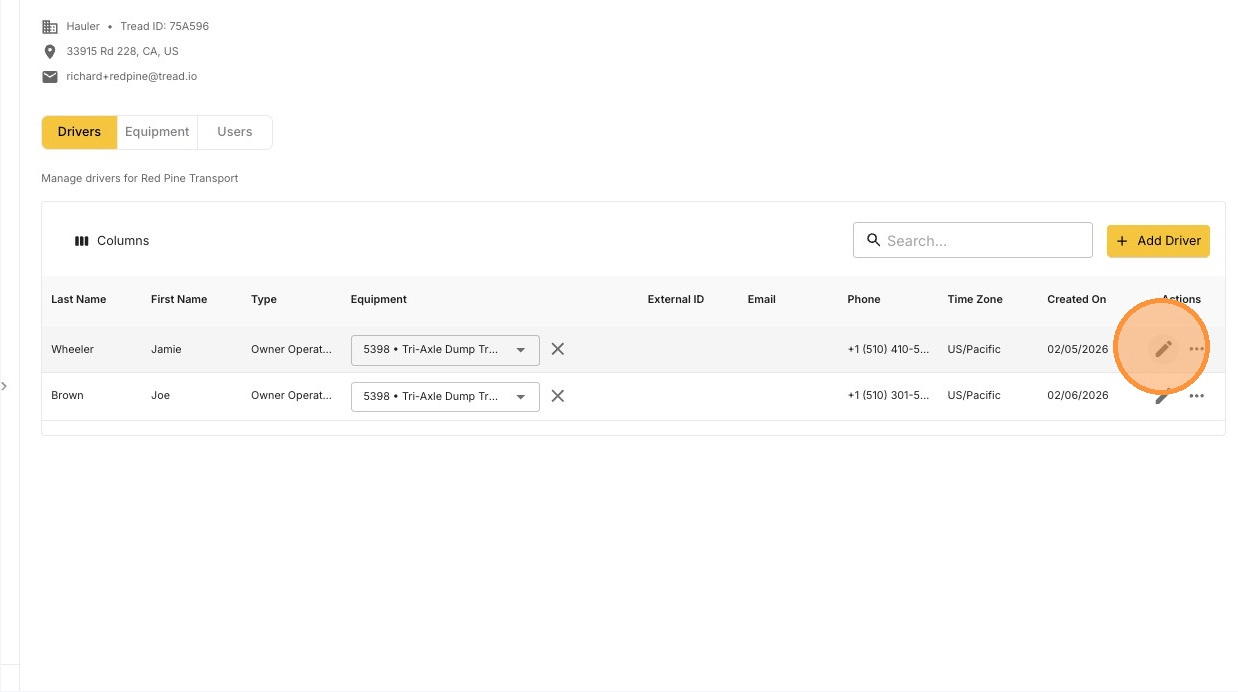
The pencil sits in the **Actions** column of the vendor's **Drivers** tab.
No **MANAGE** button? Email [support@tread.io](mailto:support@tread.io) with the vendors you need to manage, or ask in the in-app chat.
The pencil sits in the **Actions** column of the vendor's **Drivers** tab.
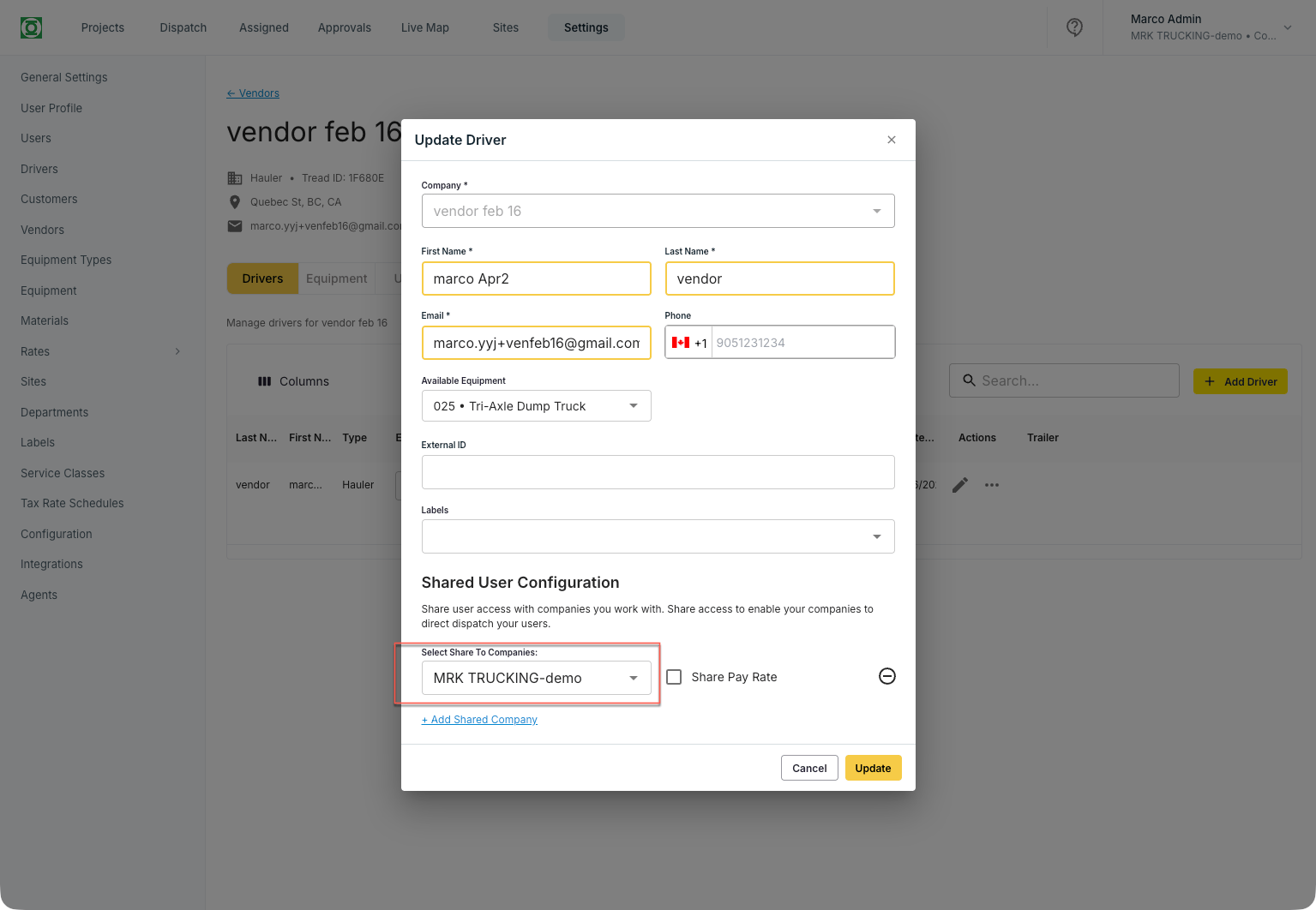
 Scroll to **Shared User Configuration** near the bottom of the form.
Only accounts connected to the vendor appear in the list.
Scroll to **Shared User Configuration** near the bottom of the form.
Only accounts connected to the vendor appear in the list.
 Tick **Share Pay Rate** on the same row if you want the driver's pay rate shared along with the access.
Pick the truck the driver runs. The truck number travels with the driver onto every job you assign.
The driver now appears in the driver panel on the [Dispatch](/dispatch-guide/dispatch-a-job) page.
## Common pitfalls
**The section is missing.** **Shared User Configuration** only shows on users whose role can be shared. Confirm the user holds the Driver role before you look for it.
**The driver has no truck.** A driver with no **Available Equipment** still dispatches, but the job carries no truck number — dispatchers and billing lose the truck reference. Set it while you are in the form.
Removing the share hides the driver from your board again. Use **Remove Share** from the driver row — see [Edit & Remove Drivers from a Vendor's Account](/workflows/vendor-management/edit-drivers).
## Related
* [Dispatching to Drivers and Vendors](/concepts/dispatching-drivers-vendors)
* [Add Drivers to a Vendor's Account](/workflows/vendor-management/add-drivers)
* [Edit & Remove Drivers from a Vendor's Account](/workflows/vendor-management/edit-drivers)
* [Driver Lifecycle](/concepts/driver-lifecycle)
Tick **Share Pay Rate** on the same row if you want the driver's pay rate shared along with the access.
Pick the truck the driver runs. The truck number travels with the driver onto every job you assign.
The driver now appears in the driver panel on the [Dispatch](/dispatch-guide/dispatch-a-job) page.
## Common pitfalls
**The section is missing.** **Shared User Configuration** only shows on users whose role can be shared. Confirm the user holds the Driver role before you look for it.
**The driver has no truck.** A driver with no **Available Equipment** still dispatches, but the job carries no truck number — dispatchers and billing lose the truck reference. Set it while you are in the form.
Removing the share hides the driver from your board again. Use **Remove Share** from the driver row — see [Edit & Remove Drivers from a Vendor's Account](/workflows/vendor-management/edit-drivers).
## Related
* [Dispatching to Drivers and Vendors](/concepts/dispatching-drivers-vendors)
* [Add Drivers to a Vendor's Account](/workflows/vendor-management/add-drivers)
* [Edit & Remove Drivers from a Vendor's Account](/workflows/vendor-management/edit-drivers)
* [Driver Lifecycle](/concepts/driver-lifecycle)