On the Web
Accepting Jobs from your customer
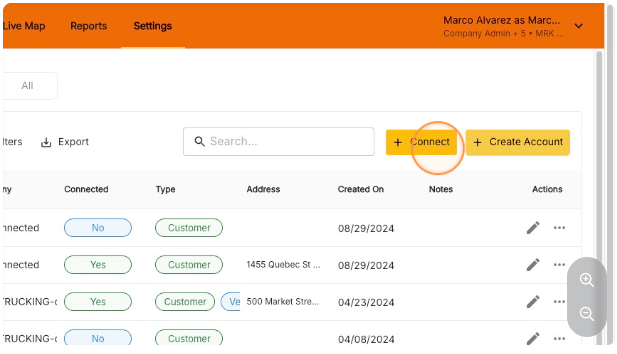
- Click “Accept” to accept jobs individually
- Bulk Accept all jobs by clicking “Accept All”
Assigning jobs to drivers
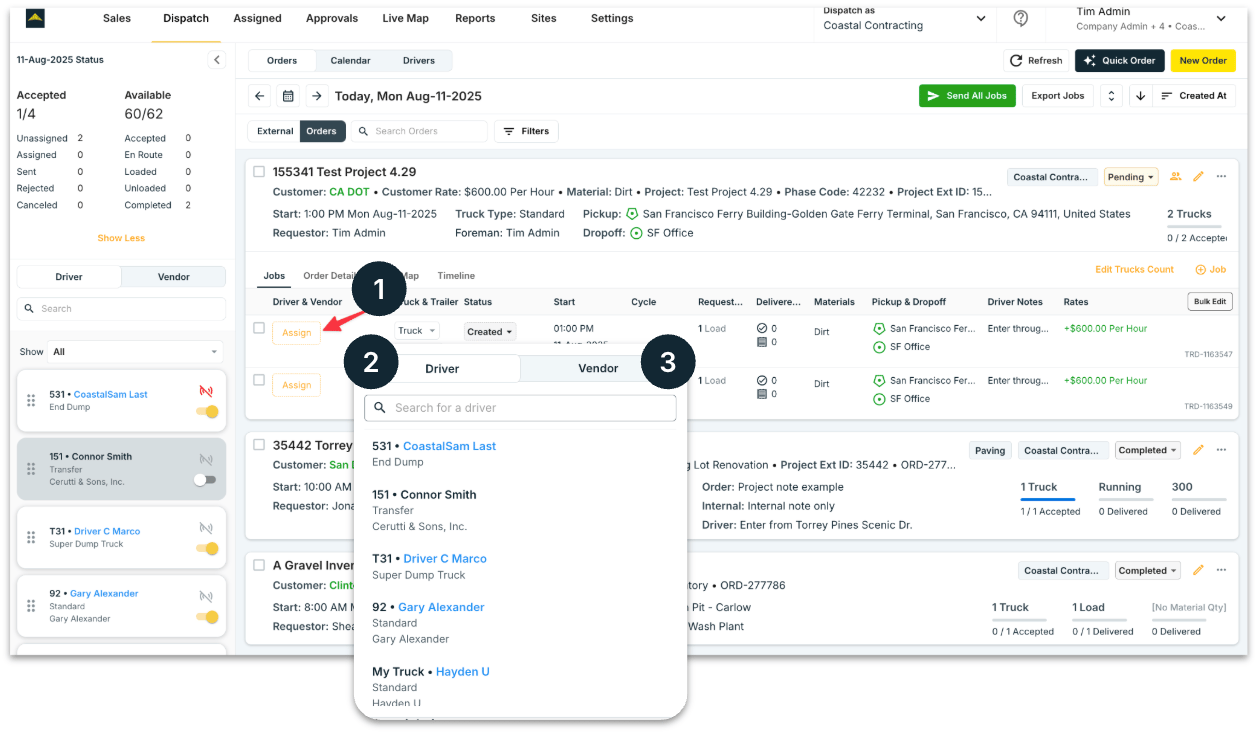
- Click “Assign” to select a Driver for the job assignment
- Driver: use the “Driver” tab to assign an internal or external driver you directly dispatch to
- Vendor: use the “Vendor” tab to assign a multi-truck hauler who will sub-dispatch to their own driver
Dispatching/Sending Jobs to drivers or vendors
Once you’re ready to send jobs, follow the instructions below and Drivers/vendors will be notified of their assignments in the Tread Mobile App- Click “Send”
- “Bulk Send” all jobs by clicking “Send All Jobs”
Note: When using Send All Jobs, every assignment in pending status will be sent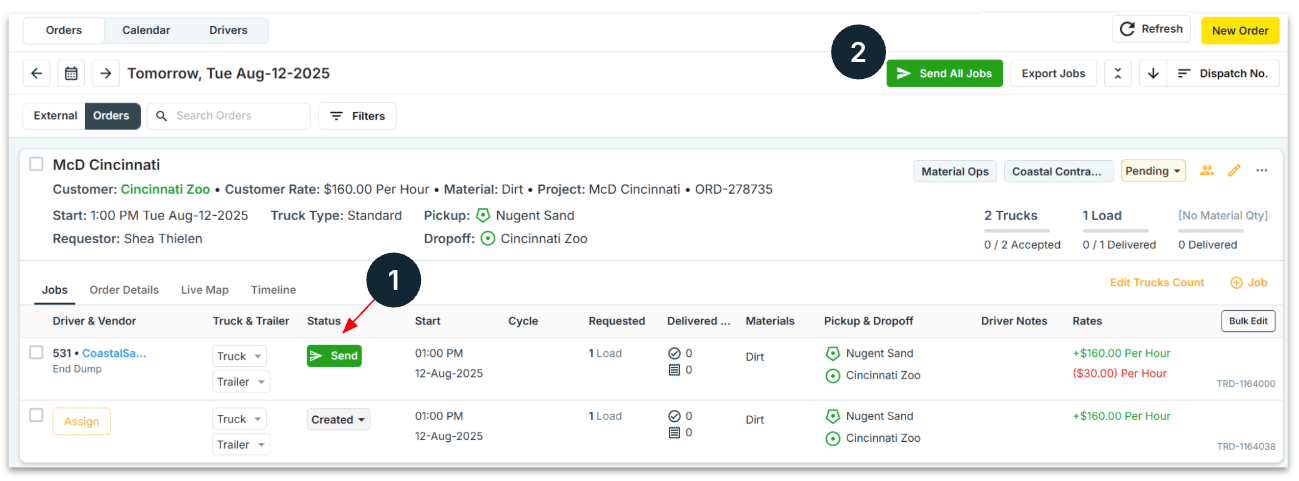
On Mobile
Accepting Jobs from your customer
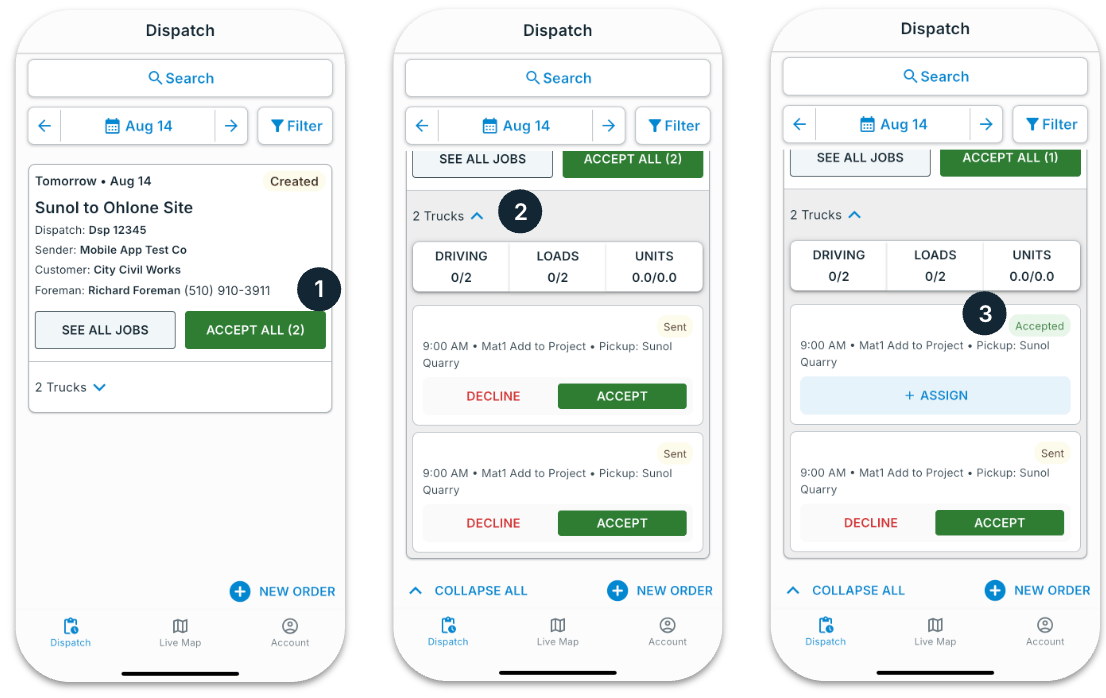
To accept jobs in Tread’s mobile app, simply:- Tap on “Accept All”
- Or you can Accept Jobs individually by selecting the down arrow ( V ) next to the truck count
- Accepted jobs will display an “Accepted” status and are ready to be Assigned to drivers using the “Assign” button
Assigning jobs to drivers
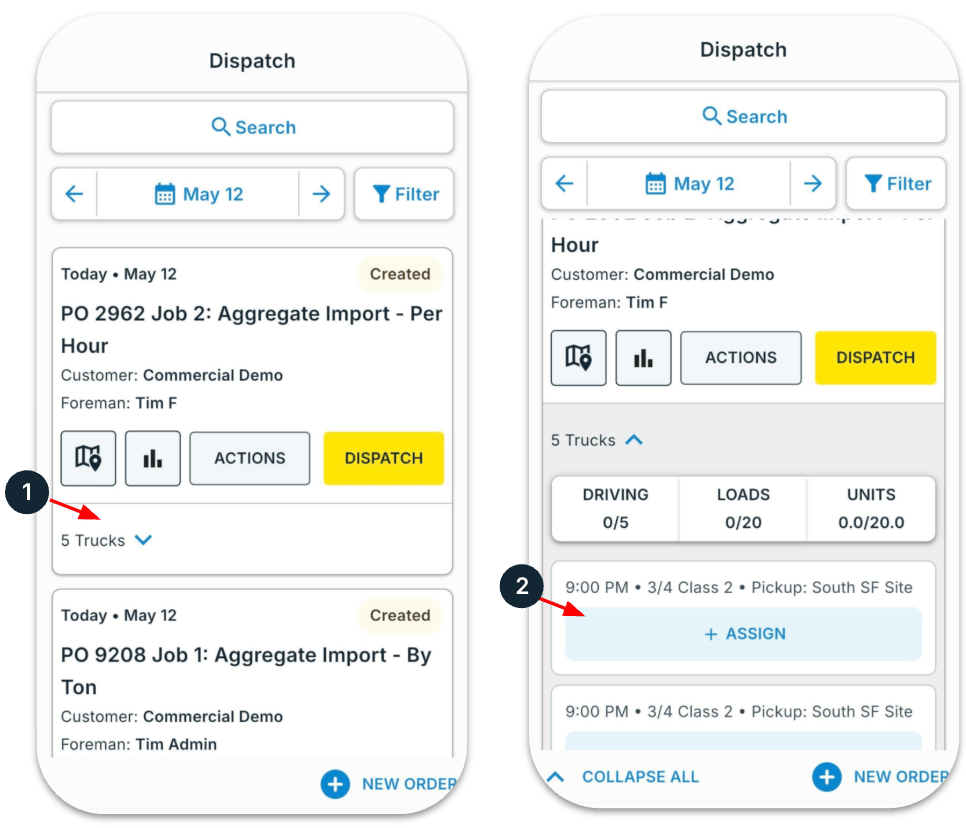
After accepting jobs, assign your driver with a few taps:- Tap the down arrow ( V ) next to the Order truck count to expand and view the list of assigned trucks
- Tap on the “+ Assign” button
Dispatching/Sending Jobs to drivers or vendors
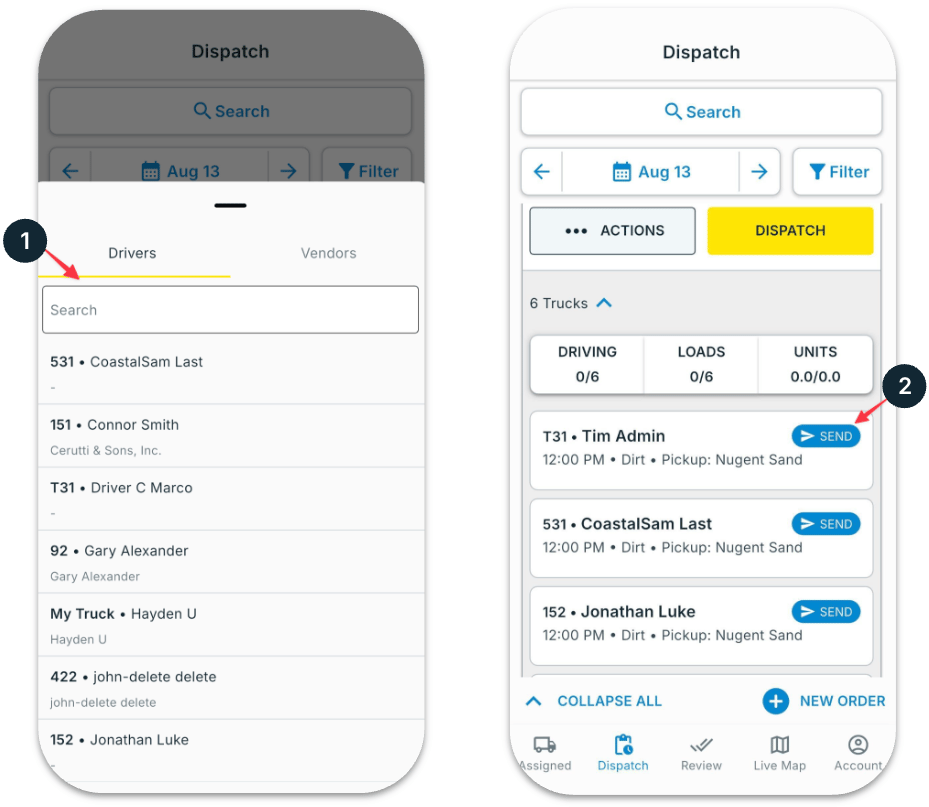
- Select a driver by searching by name or truck number
- Then tap on “Send”
- The driver will receive a notification and can accept the job and start on the mobile app