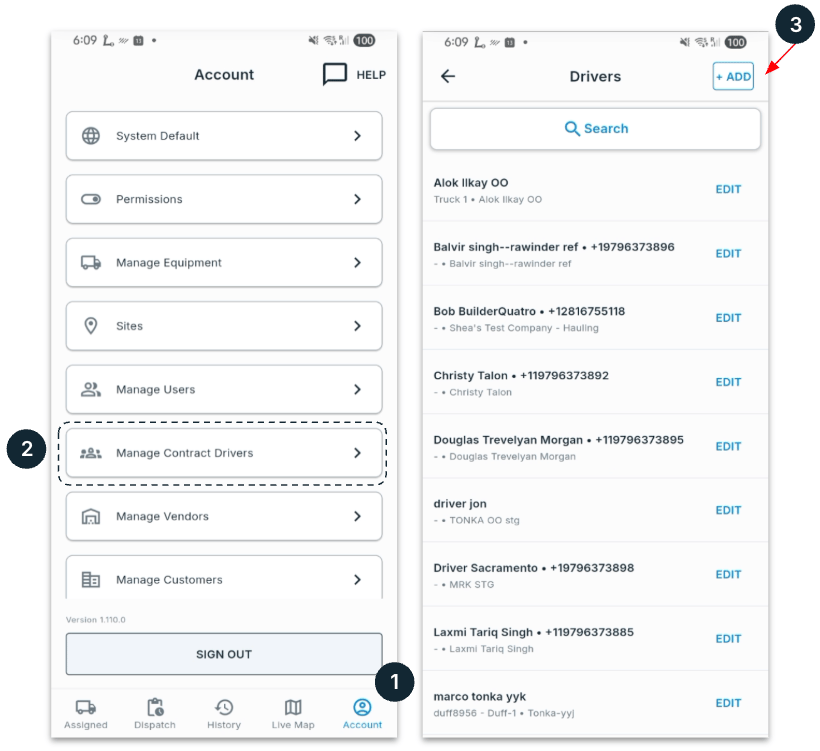
This page is for a vendor working in their own account. To add drivers or trucks to a vendor’s account from your account, see Vendor Management.
On the Web
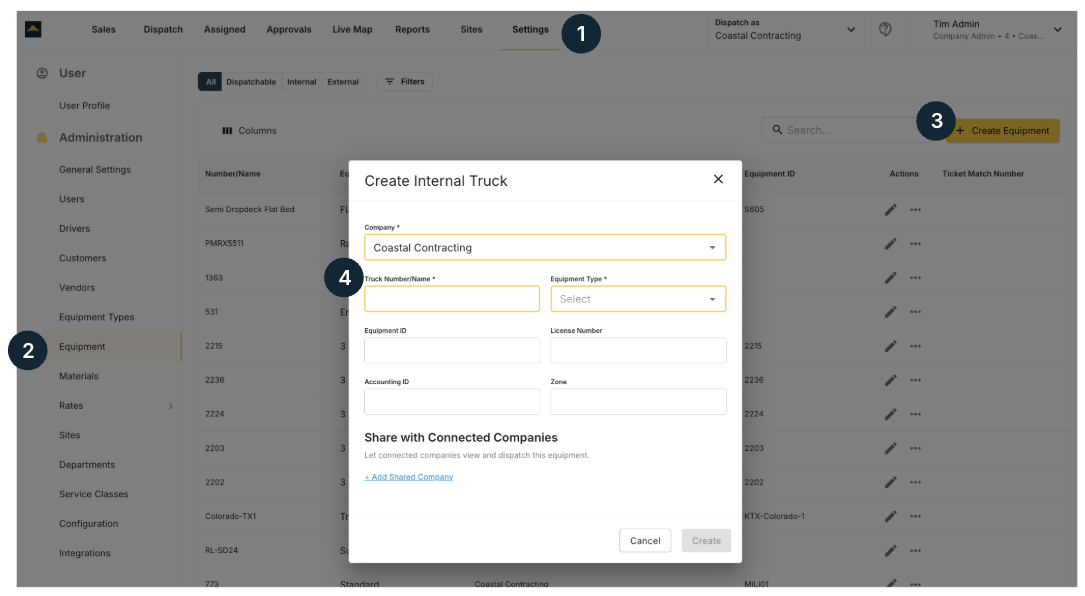
Adding your trucks:
- Go to the Settings
- Click Equipment
- Click Create Equipment
- Add the Truck number or Truck Name & Equipment Type, then click Create
Adding your Drivers:
Once your trucks have been added to your account, you can add your drivers and assign their trucks.Adding your Company Drivers:
Company drivers only drive for you, and no other companies.- Go to Settings
- Select Users
- Click on +Create User
- Complete driver details & click on Create
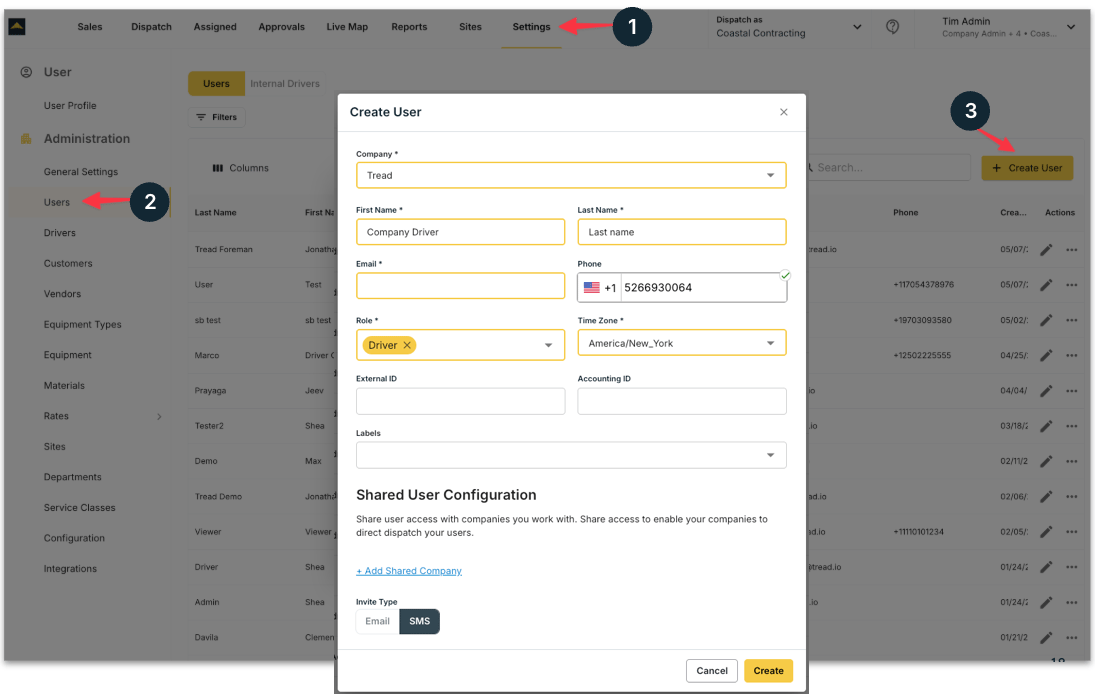
Check the Send SMS Invitation box to invite the driver via text message with link to install the mobile app.
Adding your Contracted Drivers:
Contracted drivers might driver for other companies as well as your own. These are individual drivers, not multi-truck vendors.- Go to the Settings
- Click Users
- Select + Create Driver
- Complete driver details, assign or add new truck
- Click Create
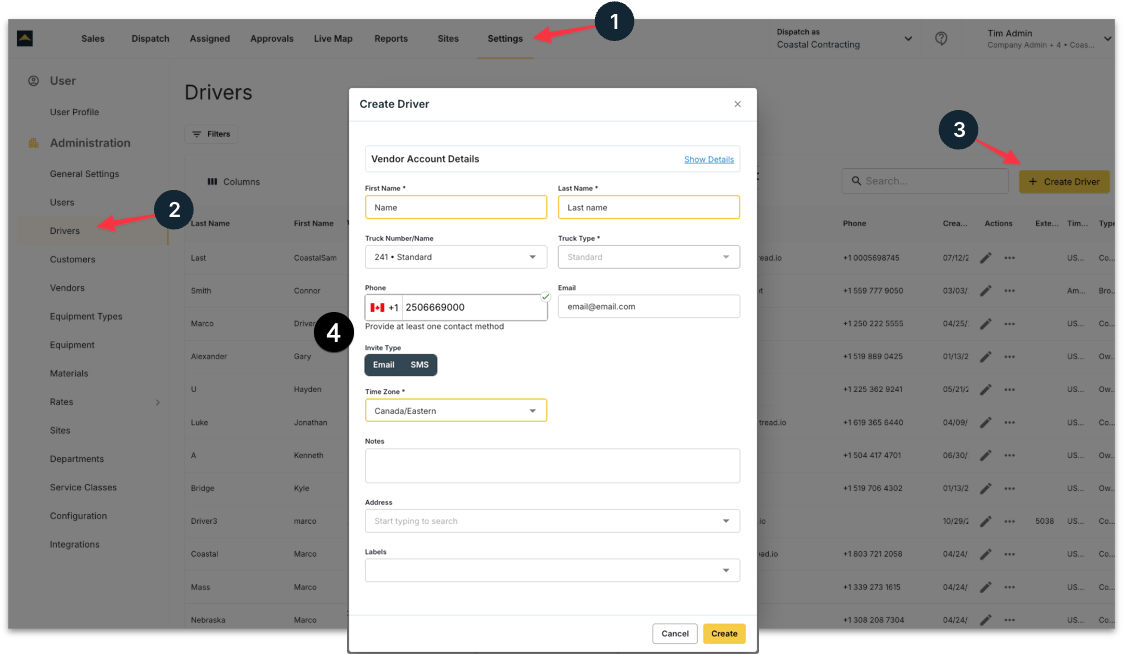
Check the Send SMS Invitation box to invite the driver via text message with link to install the mobile app.
On Mobile
Adding your Company Drivers:
Company drivers only drive for you, and no other companies.- Tap on Account
- Select Manage Users
- Tap on +Add
- Complete driver details & tap on Submit
Select Send SMS invite
Adding your Contracted Drivers:
Contracted drivers might driver for other companies as well as your own. These are individual drivers, not multi-truck vendors.- Tap on Account
- Select Manage Contract Drivers
- On the next screen, tap + Add
-
Complete driver details & tap on Create
Important:
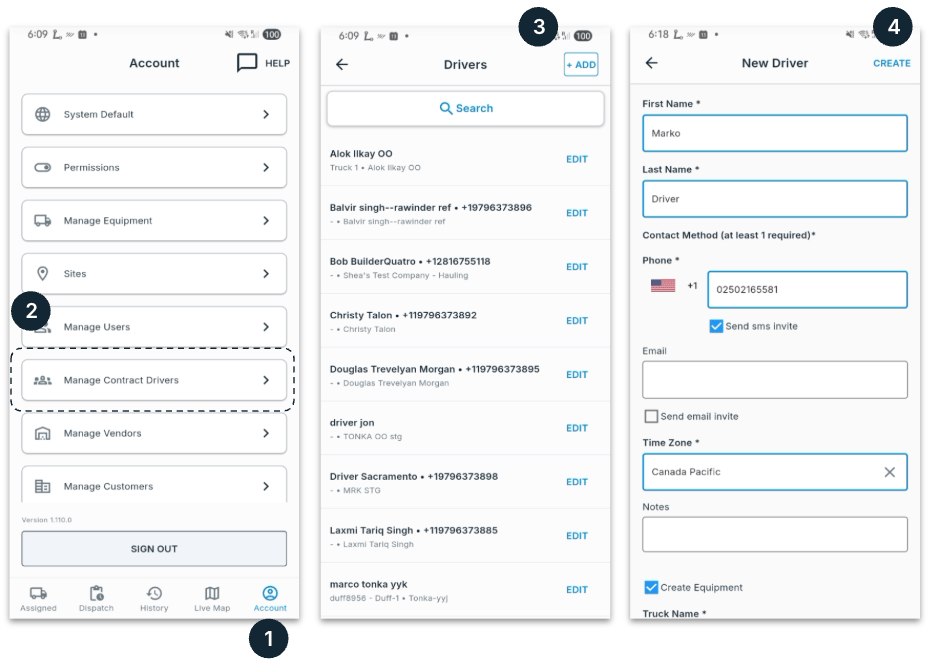
Select Send SMS invite