

Share the driver to your account
1
Open Settings → Vendors
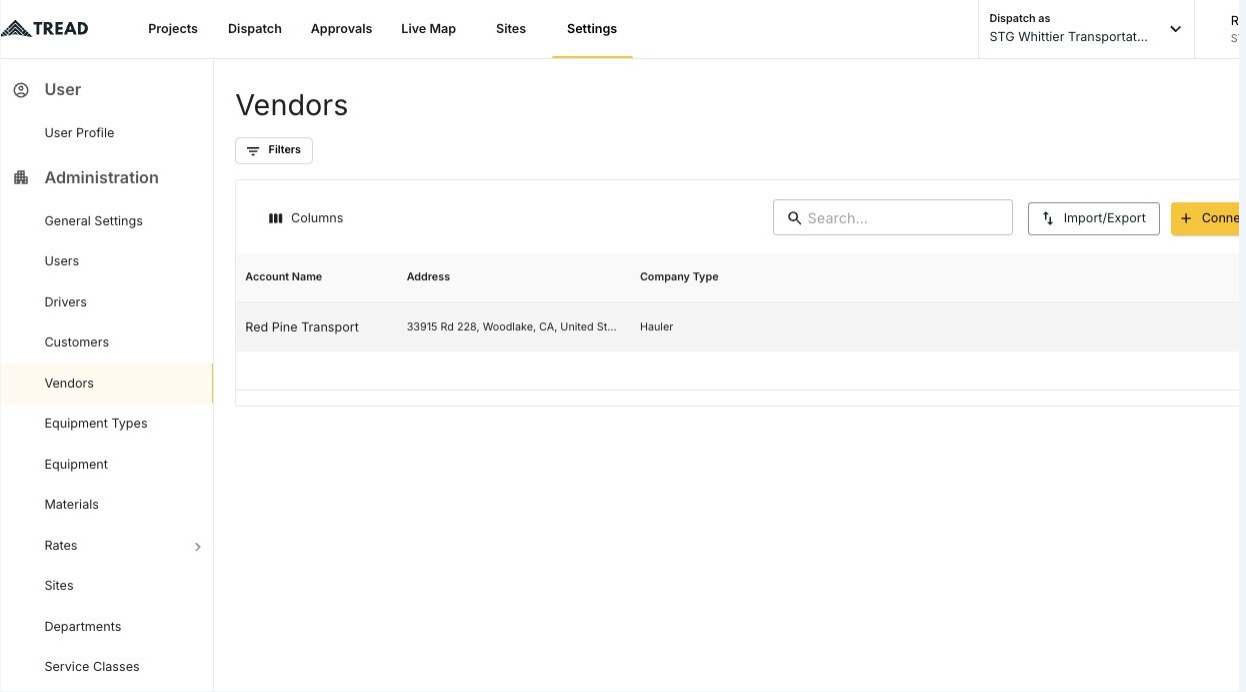
2
Find the vendor and click MANAGE
Pick the vendor account the driver belongs to.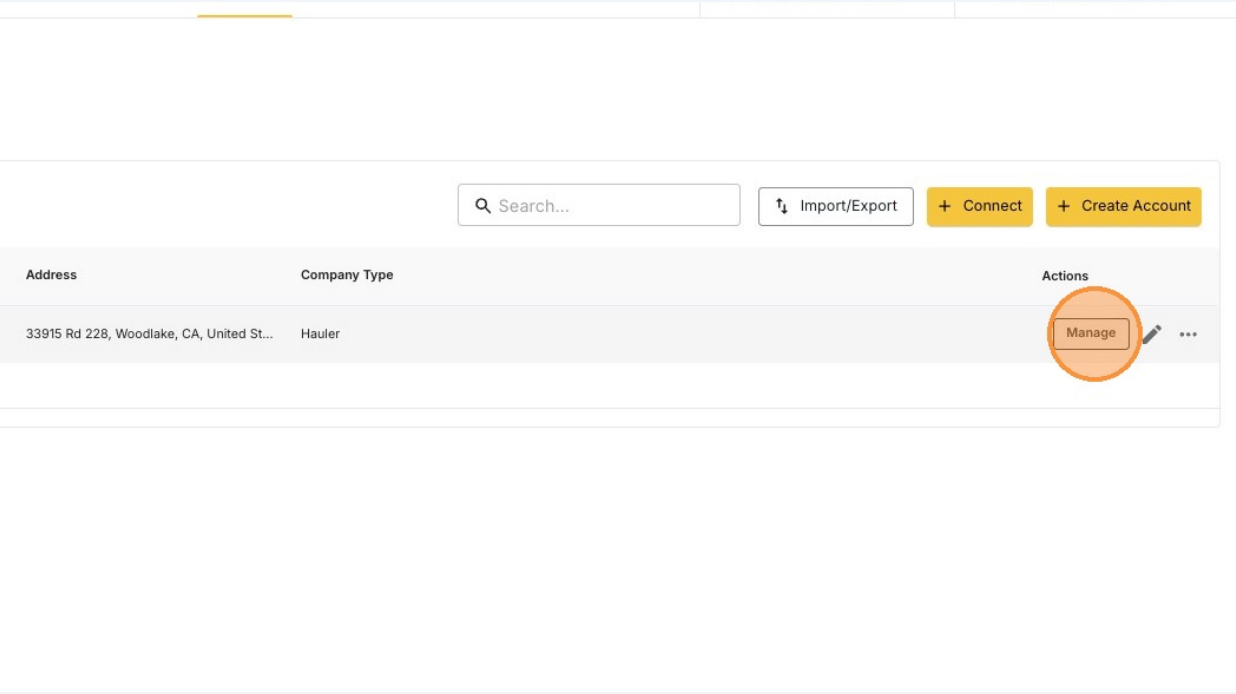
No MANAGE button? Email support@tread.io with the vendors you need to manage, or ask in the in-app chat.
3
Find the driver and click the pencil icon
The pencil sits in the Actions column of the vendor’s Drivers tab.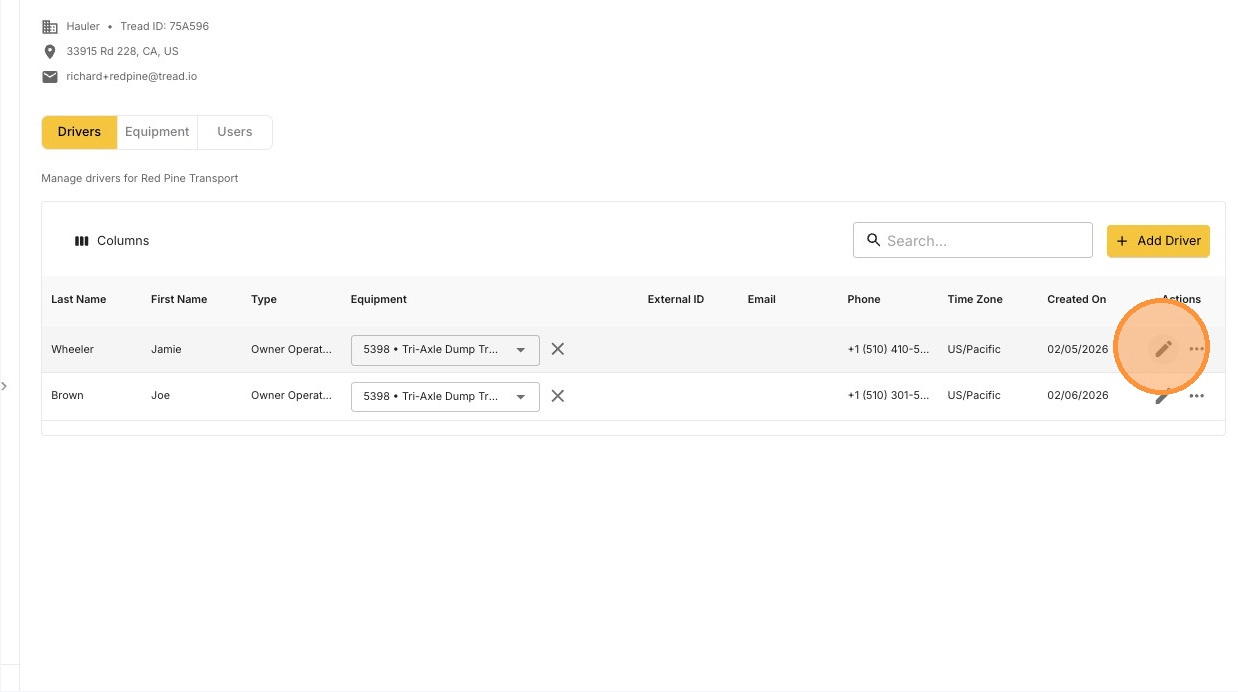
4
Click + Add Shared Company under Shared User Configuration
Scroll to Shared User Configuration near the bottom of the form.
5
Pick your company from Select Share To Companies
Only accounts connected to the vendor appear in the list.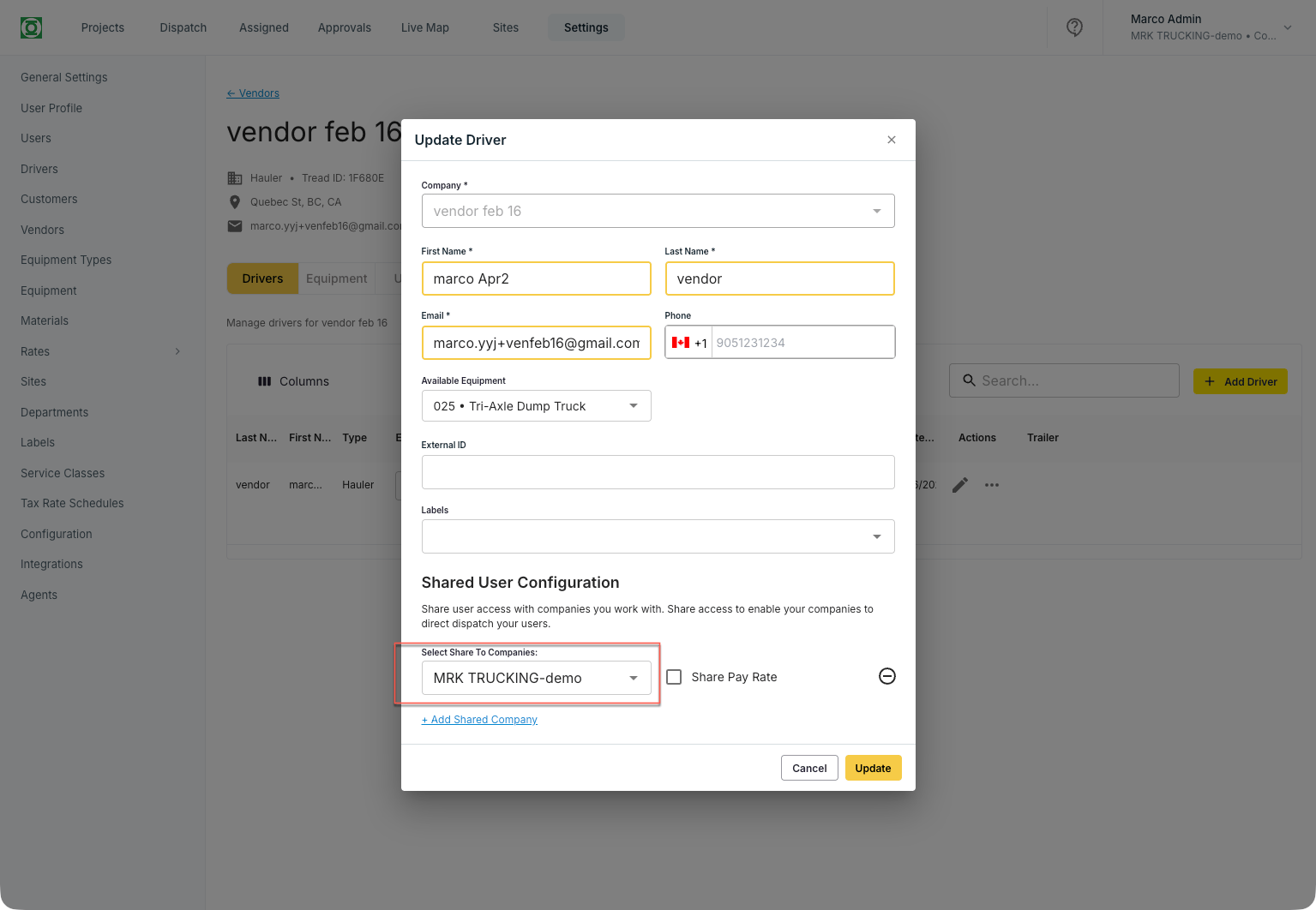
Tick Share Pay Rate on the same row if you want the driver’s pay rate shared along with the access.
6
Give the driver a truck under Available Equipment
Pick the truck the driver runs. The truck number travels with the driver onto every job you assign.
7
Click Update
The driver now appears in the driver panel on the Dispatch page.
Common pitfalls
Removing the share hides the driver from your board again. Use Remove Share from the driver row — see Edit & Remove Drivers from a Vendor’s Account.