

- Dispatch from the web
- Dispatch from Mobile
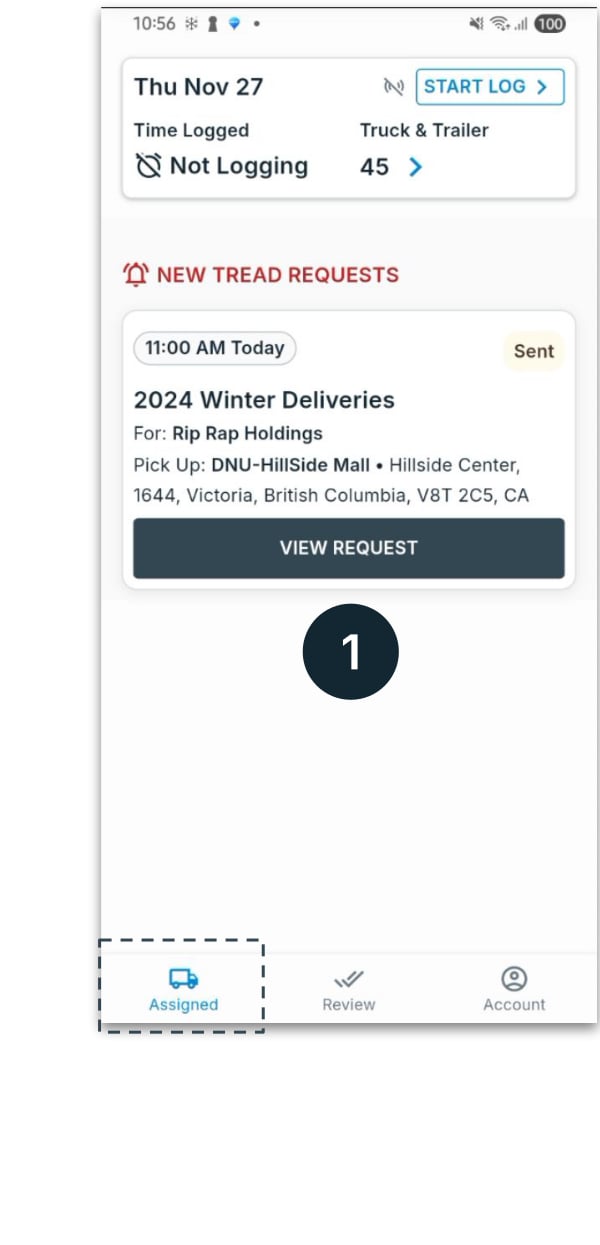
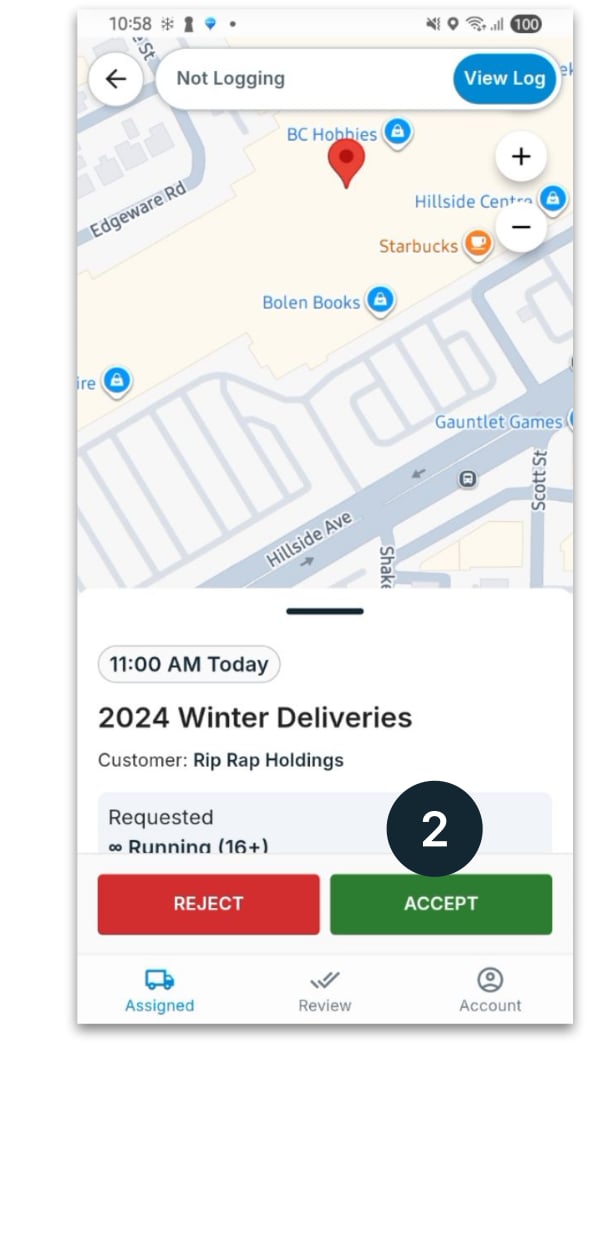
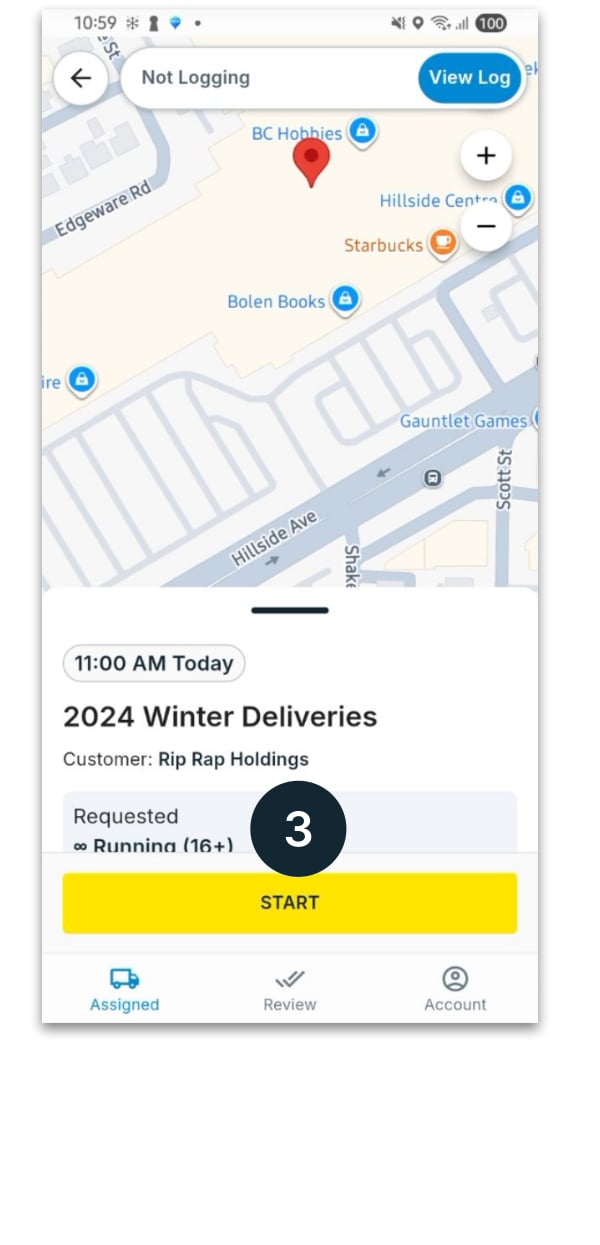
- On mobile — your driver receives
1
Assign a driver (or a vendor)
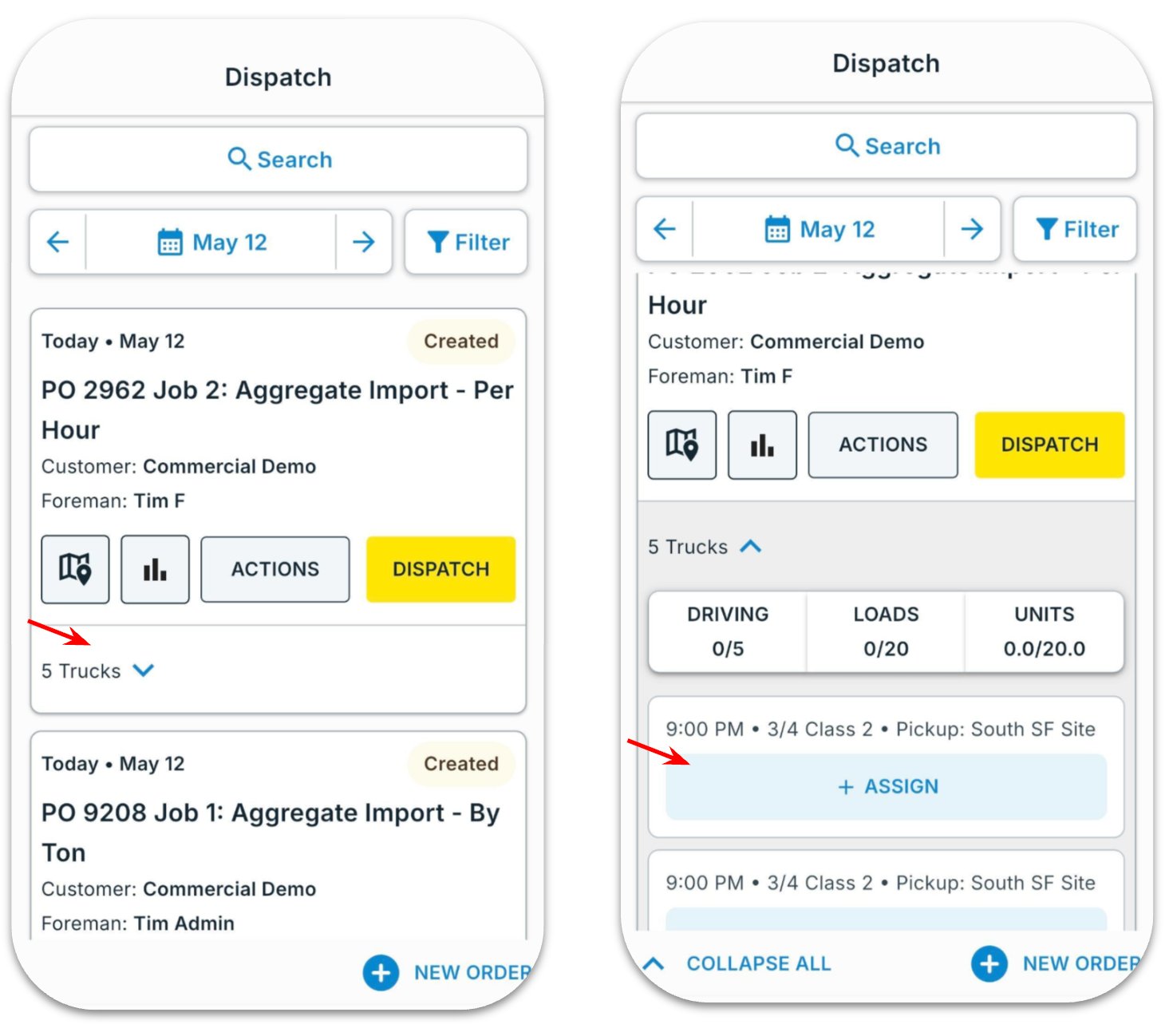
Click Assign on the job row to open the panel, then choose who hauls the job.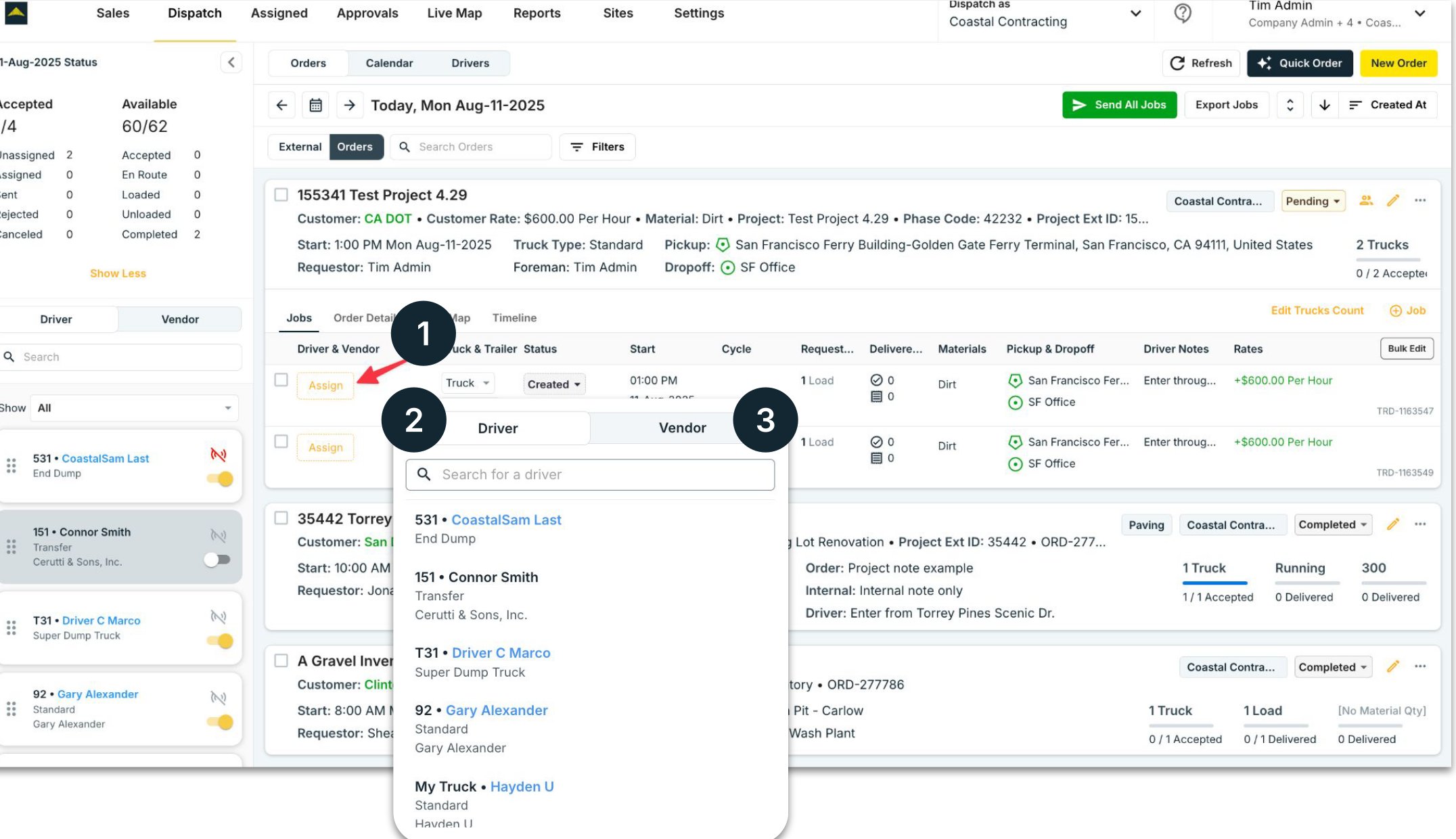
- Assign — opens the Driver / Vendor picker on the job row.
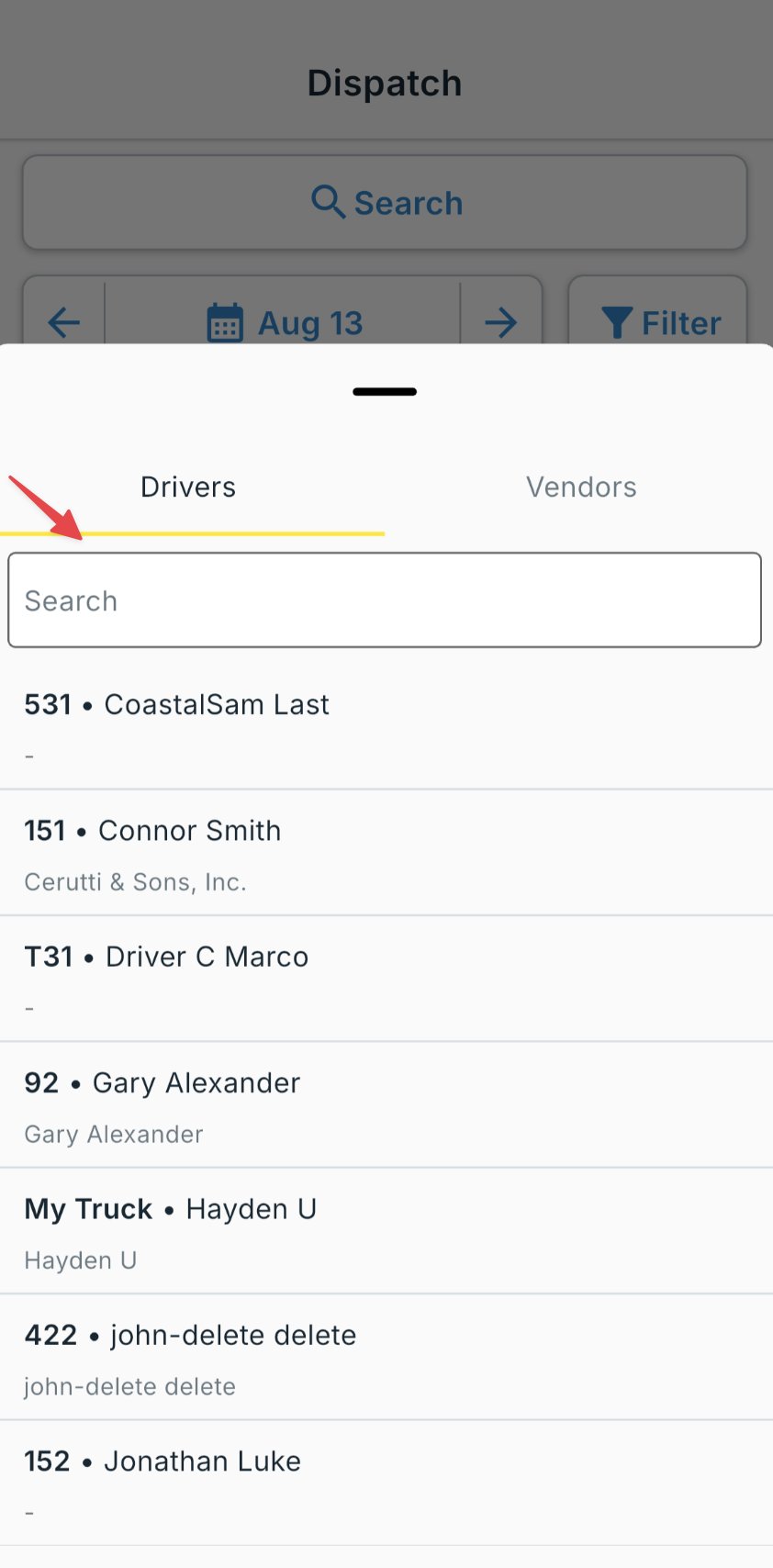
- Driver — assign one of your own drivers (an Internal Driver), or a driver a partner shares to you (a Shared Driver, often an Owner-Operator). Search by name or truck number.
- Vendor — hand the job to a hauling company that will sub-dispatch it to their own driver.
Bulk assign
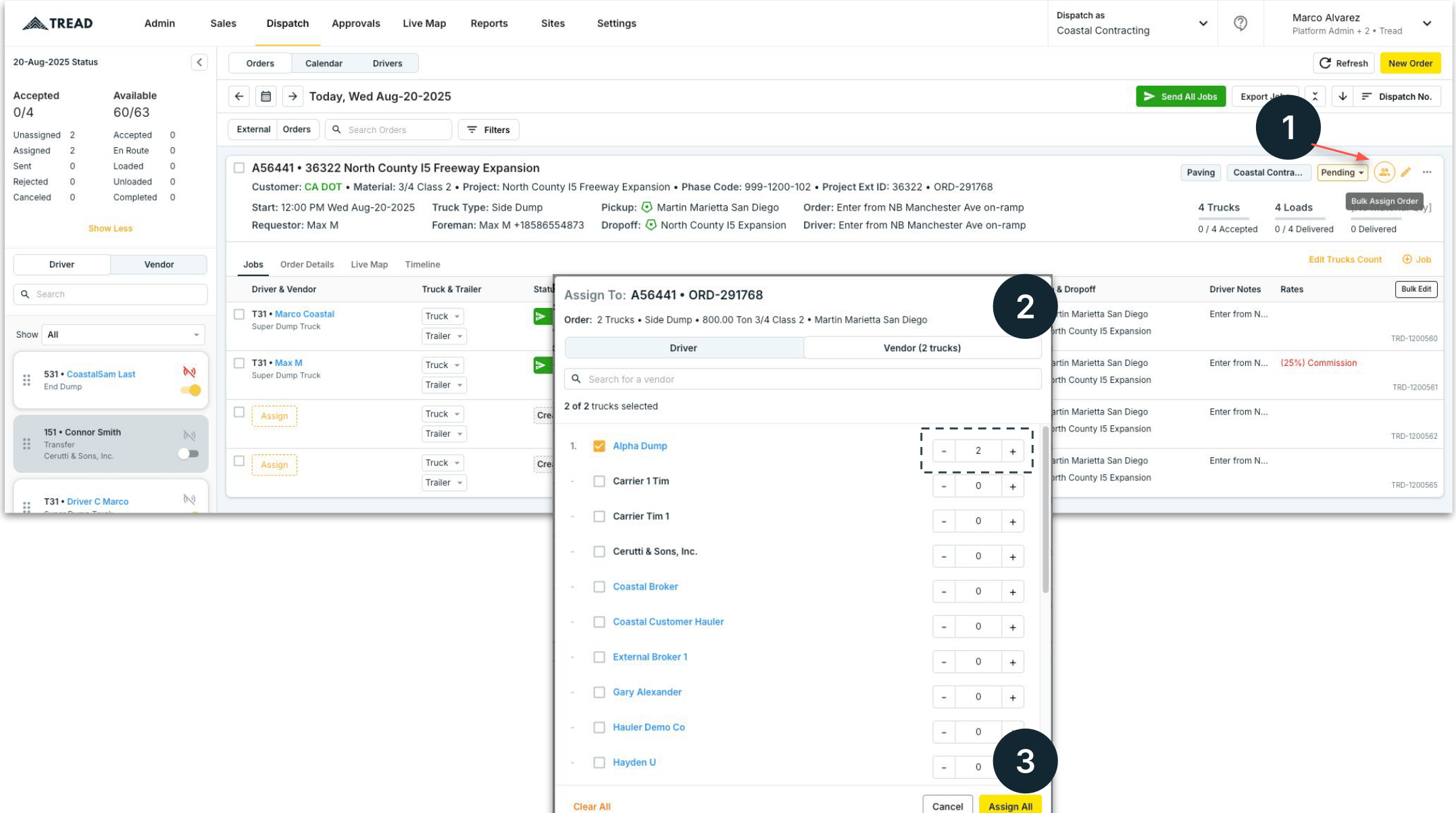
To give many jobs to one hauling company at once:- Click the Bulk Assign (persons) icon at the top right to open the Assign to dialog.
- Use + to set the number of trucks for the selected vendor.
- Click Assign All to assign every selected job to that vendor at once.
2
Send the jobs
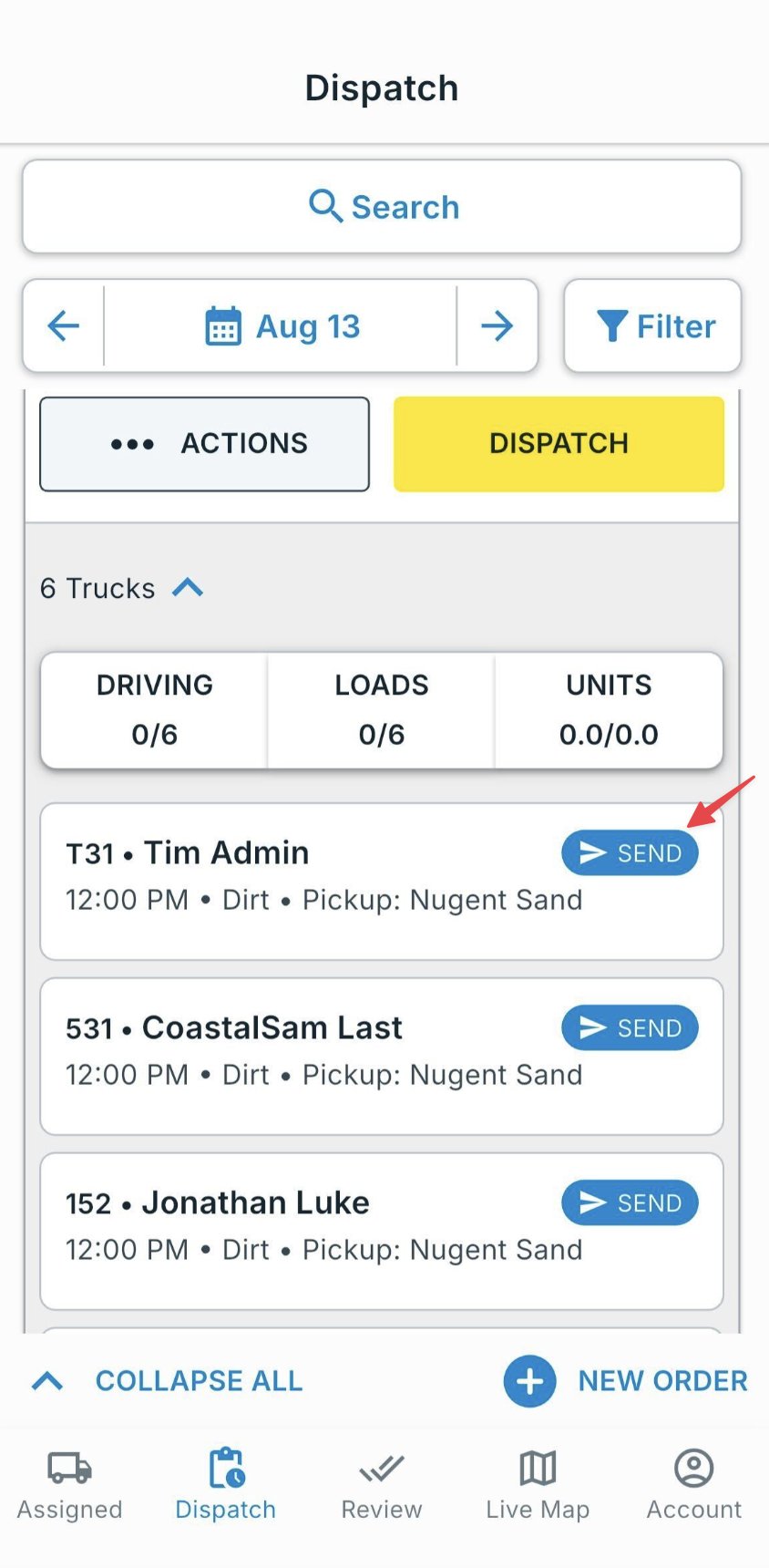
Click Send on a single row to dispatch that driver, or Send All Jobs at the top to send every pending assignment at once. Drivers receive a push notification immediately.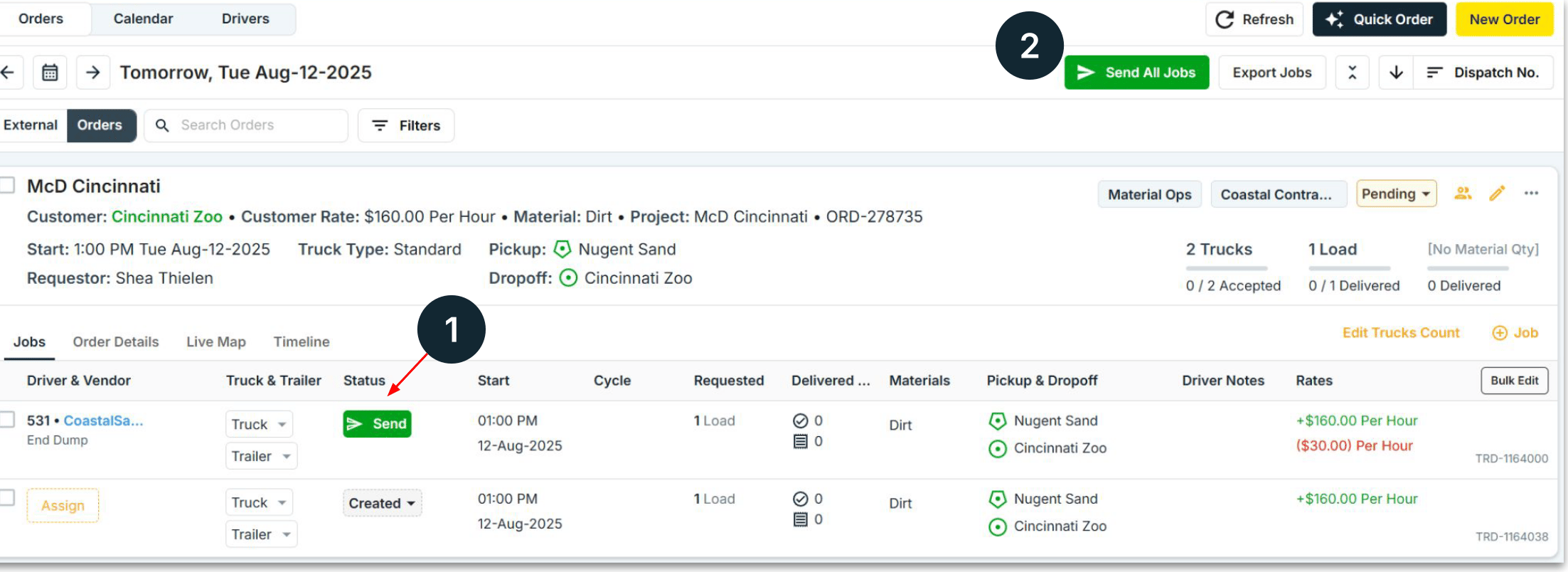
3
Monitor the jobs
Follow each job’s Status as the day runs: Accepted → To Pickup → At Pickup → Loaded → To Dropoff → At Dropoff → Unloaded → In Review → Completed. You can manually advance a status by clicking the down arrow in the status box, and follow trucks on the Live Map.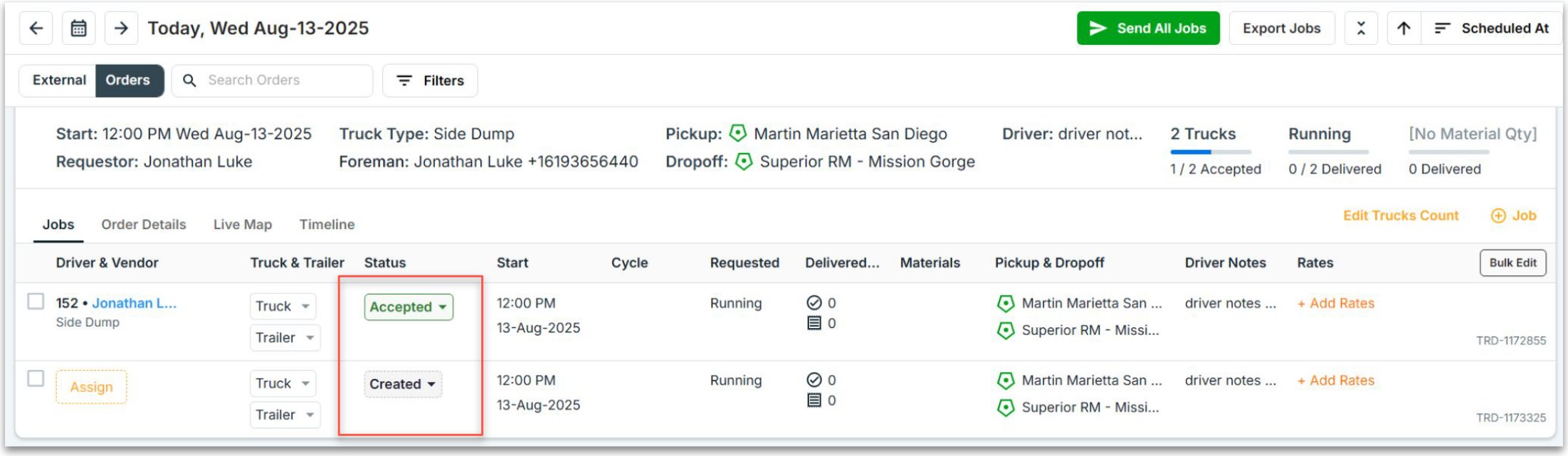
Tips & common pitfalls
- Driver didn’t get the load? Check the job status — if it’s stuck at Assigned (not Sent), you still need to hit Send. If it’s sent but the driver shows Pending, they haven’t accepted yet, or they may not have the app or location permissions (Train Your Drivers).
- Vendor jobs show the driver’s name on your board only after the vendor’s dispatcher accepts and assigns one of their drivers.
- Set a default truck on each driver so it pre-fills on every assignment — fewer clicks, fewer mistakes.
Related
- Dispatch Overview — the board, modes, and prerequisites
- Dispatching to Drivers and Vendors — internal, shared, and vendor drivers
- Track Drivers & Collect Tickets — after the job is sent
- Orders & Projects — what you’re dispatching