

When to use this
Use a moving geofence when the work is linear — paving, milling, road striping — and the active drop zone shifts down the road as the day goes on. A fixed geofence at one milepost will miss every load delivered past it.How it works
A geofence (a virtual fence around a site that tells Tread when a truck has arrived or left) usually stays put. A moving geofence is tied to a piece of equipment instead of to a fixed point. Wherever that equipment reports its position, the geofence follows. Trucks crossing the moving boundary trigger the same arrive and depart events as a static site. Tickets, on-site minutes, and load counts attach to the order (the day’s work) the same way.Set up a moving geofence
1
Create the equipment
In Settings → Equipment, add the paver or mill and name it. No special settings are needed. If it carries a telematics device, map it on the Integrations tab.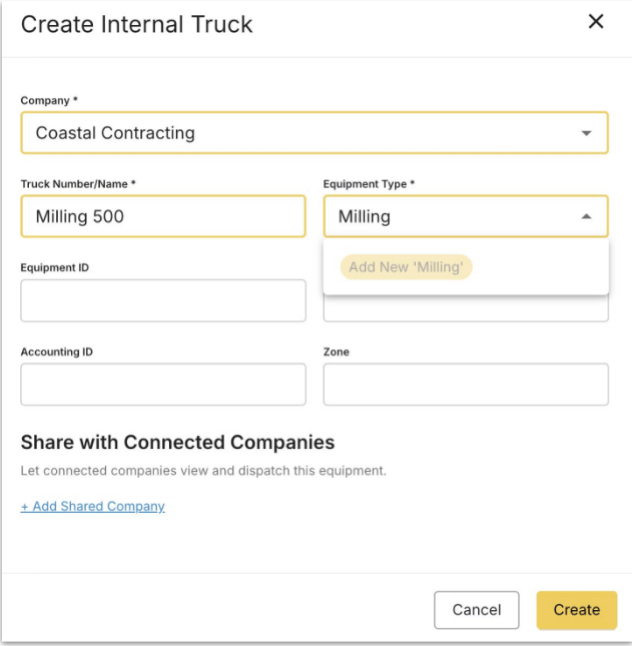
2
Create the site
Set Geofence Type to Equipment, pick the paver under Available Equipment, then set the Radius.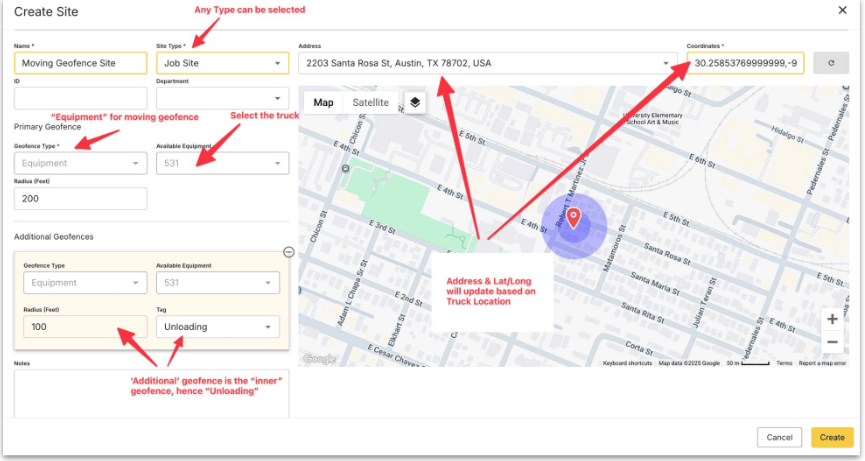
3
Add inner geofences (optional)
Under Additional Geofences, add a tighter circle and give it a Tag — Loading, Unloading, Check In, Scaling, or Ticketing. Additional geofences follow the same equipment automatically, so you only set radius and tag.
4
Set the operator up as Foreman and Driver
The person running the paver needs both roles. The Driver role is what matters for the geofence: only a Driver can clock in, and clocking in is what starts GPS. Set the paver as their primary equipment. See Foreman.
5
Build the order
Create the order as normal and pick the moving site as the pickup or drop-off. Milling equipment is usually the pickup; the paver is usually the drop-off. Set Geofence Delay (s) here, not on the site.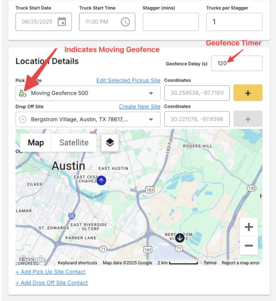
6
Day of: pick the equipment and start the shift
On the Drive tab, the operator sets Truck & Trailer to the paver, then taps Start Shift. From that point the phone’s position moves the geofence. The operator does not have to be assigned to the order.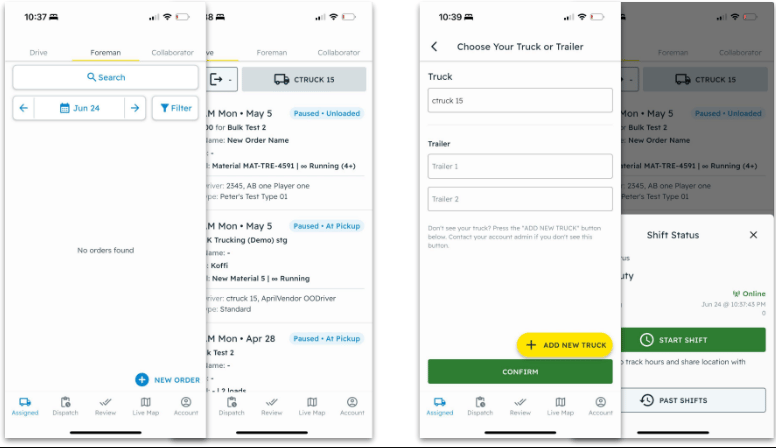
Feeding the position
Two sources move the same geofence. Either one works; you do not need both.
The geofence moves on the live map as positions arrive — no page refresh needed. A job’s route timeline replays where the geofence sat through the day, alongside truck history.
Common pitfalls
Geofence Delay applies to the outer circle only. The delay set on the order filters arrivals on the outer Site geofence. Inner geofences trigger with no delay.