

Who it’s for
Drivers — the users who receive a dispatch and perform it. That includes your own Internal Drivers, Shared Drivers (Drivers another account shares to you), and Owner-Operators (O&O — a Vendor with a single Driver, dispatched directly as a Shared Driver).Key features
- Accept jobs and see the full day’s assignments before the first run.
- Auto-start and auto-end on geofences (a virtual fence around a site).
- Capture scale tickets by photo. OCR pre-fills the load fields.
- Capture e-signatures by shift, job, or load as required.
- Works offline. Uploads queue when service drops and send when it returns.
Walkthrough
1
Sign in
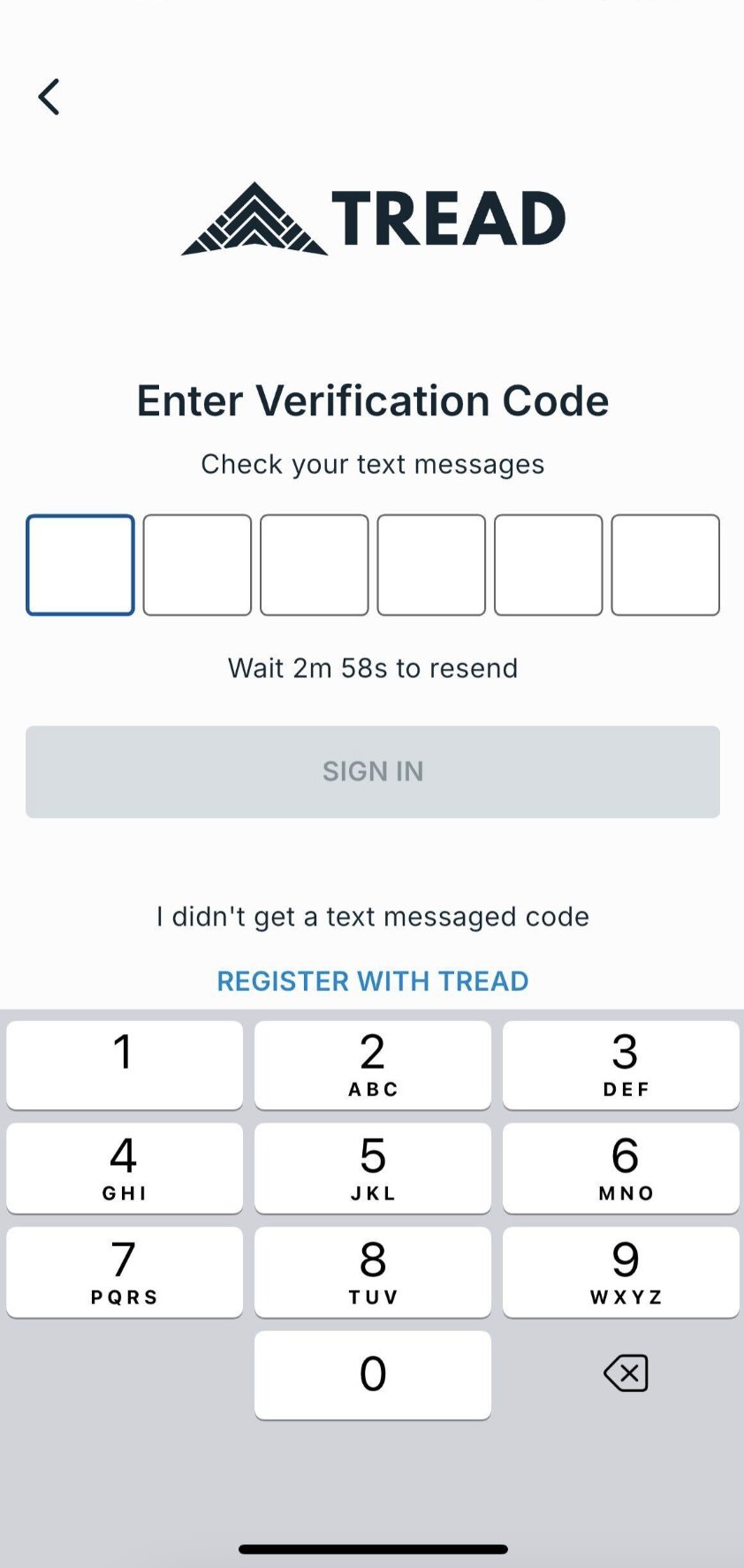
Download Tread from the App Store or Google Play, or go to link.tread.io/app from any phone. Sign in with the phone number on the driver’s user record — no password. Tread texts a one-time code to finish sign-in. See Adding Drivers.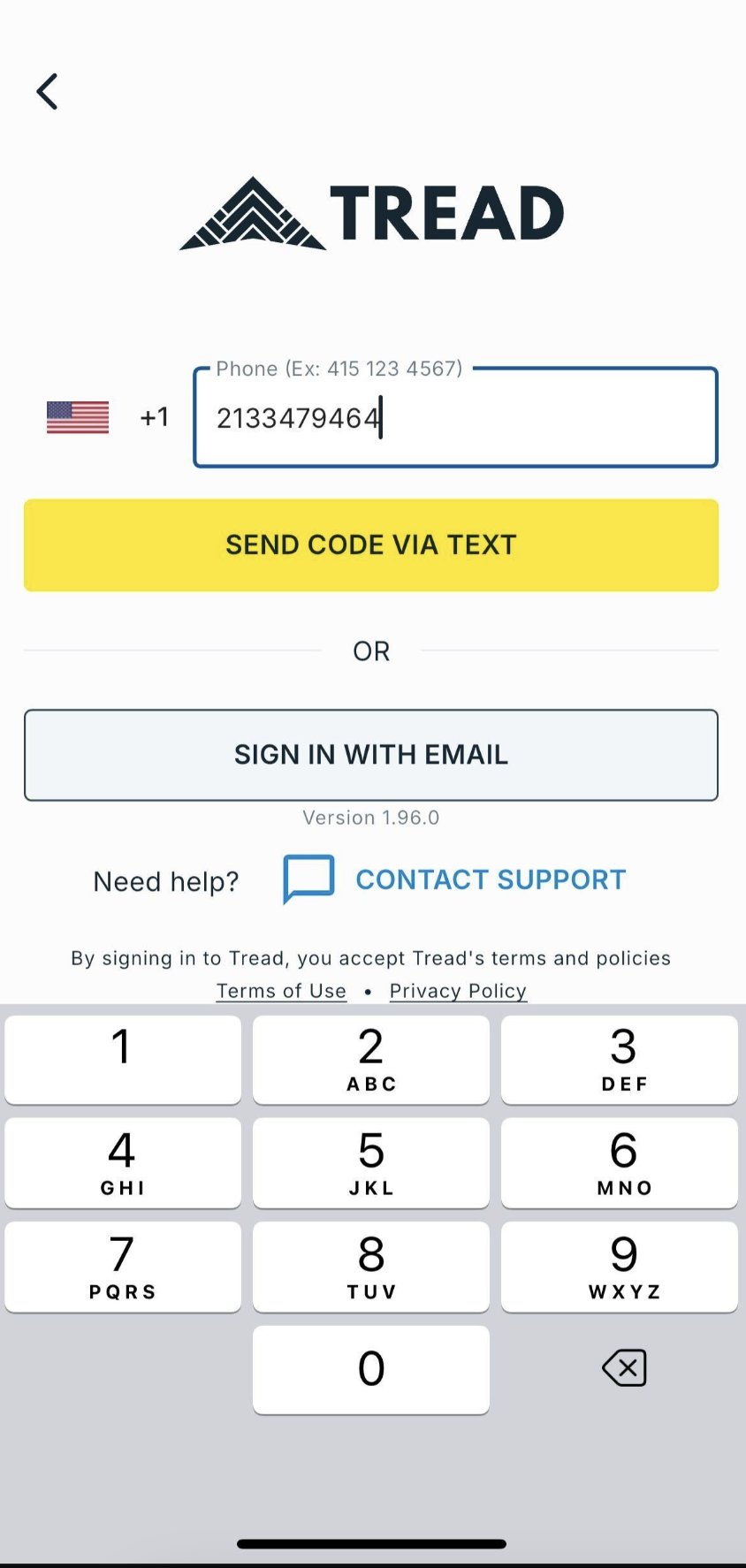
2
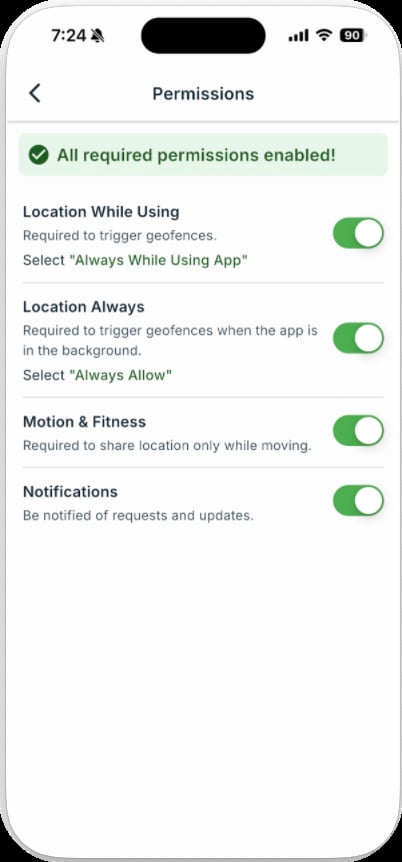
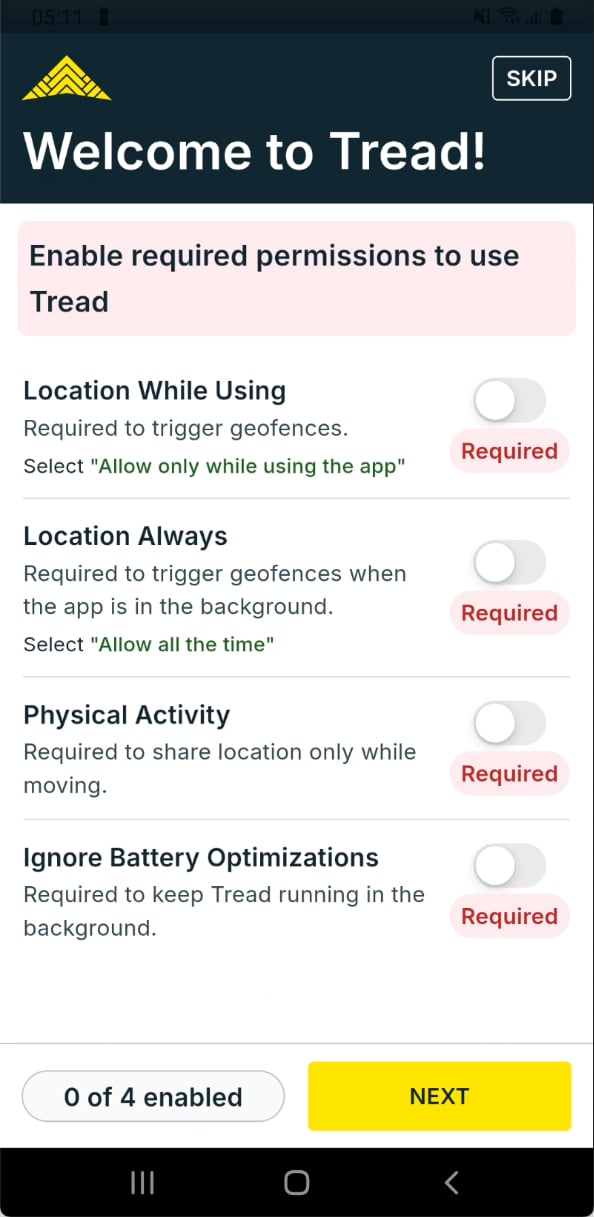
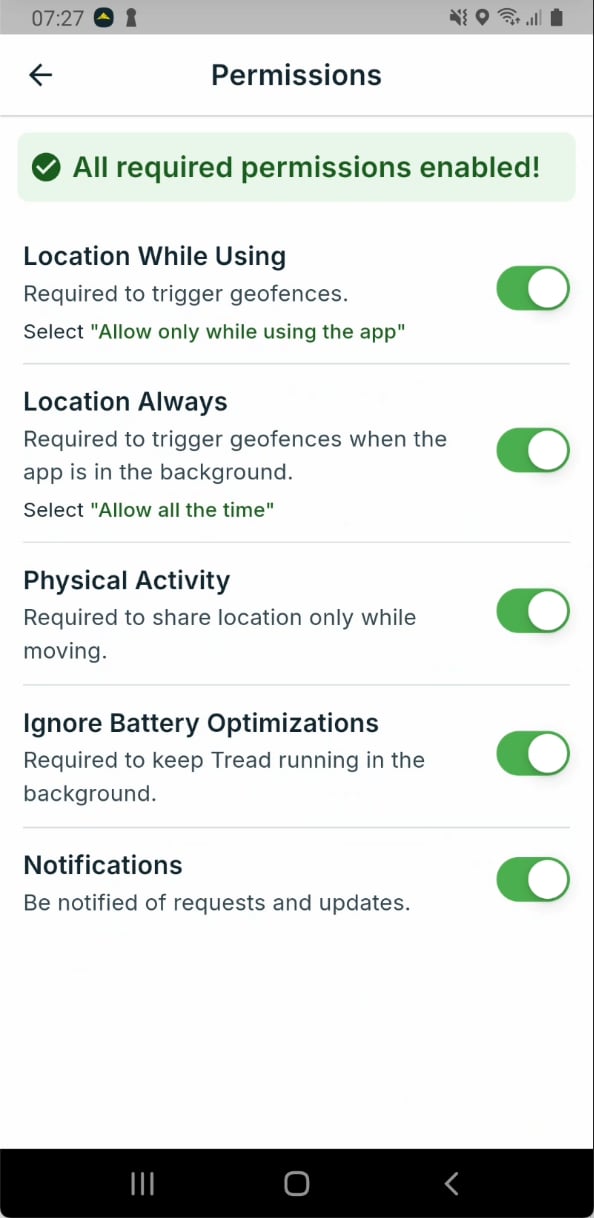
Enable location permissions
Tread tracks driver location only while a job is active. No tracking occurs outside of active jobs. Allow location access when prompted.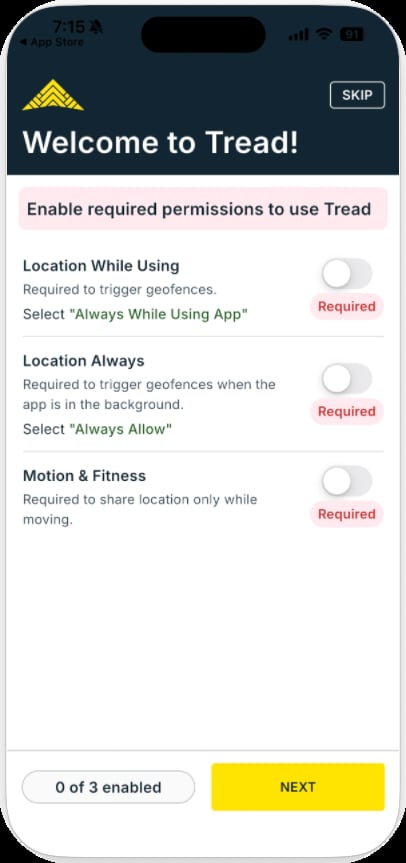
- iOS
- Android
3
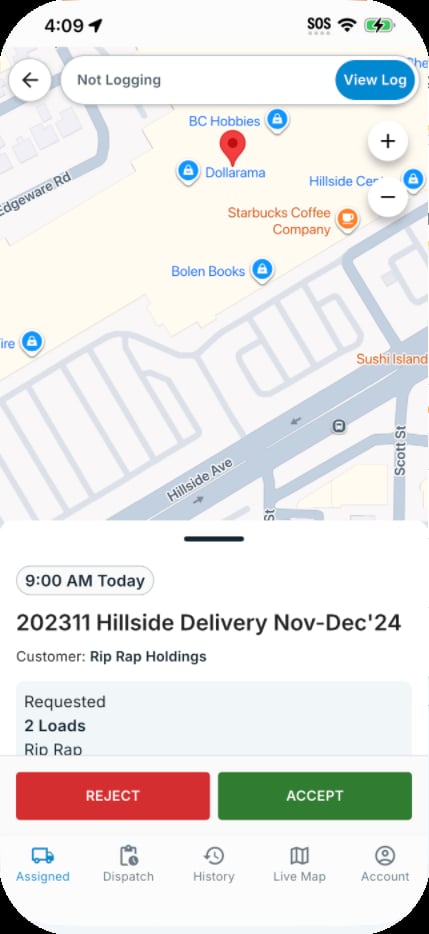
Accept the day's jobs
Assigned jobs appear in the Assigned menu. Tap View Request → Accept on each. Declined jobs return to dispatch.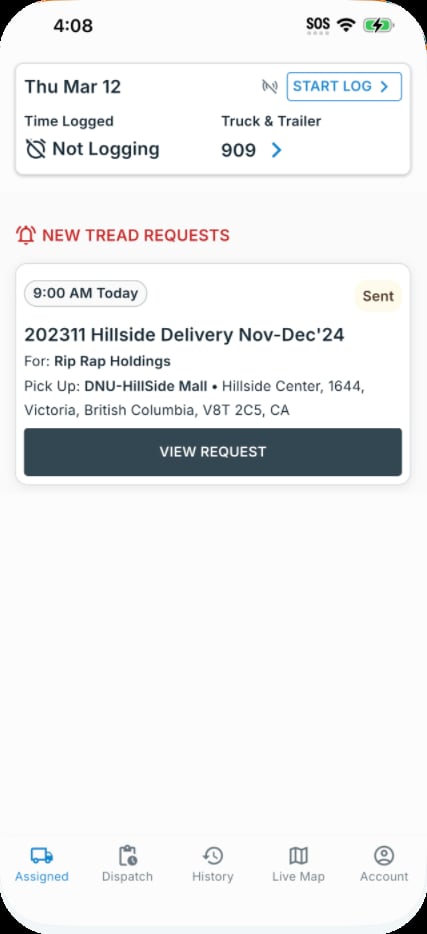
4
Start the run
When Telematics integrations enabled, Tread auto-starts when the truck enters the pickup geofence. The driver can also press Start to start their jobs.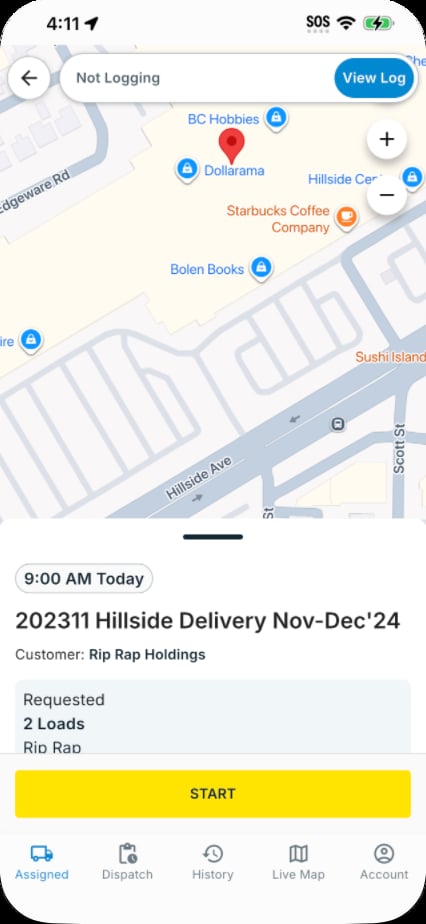
5
Capture the ticket
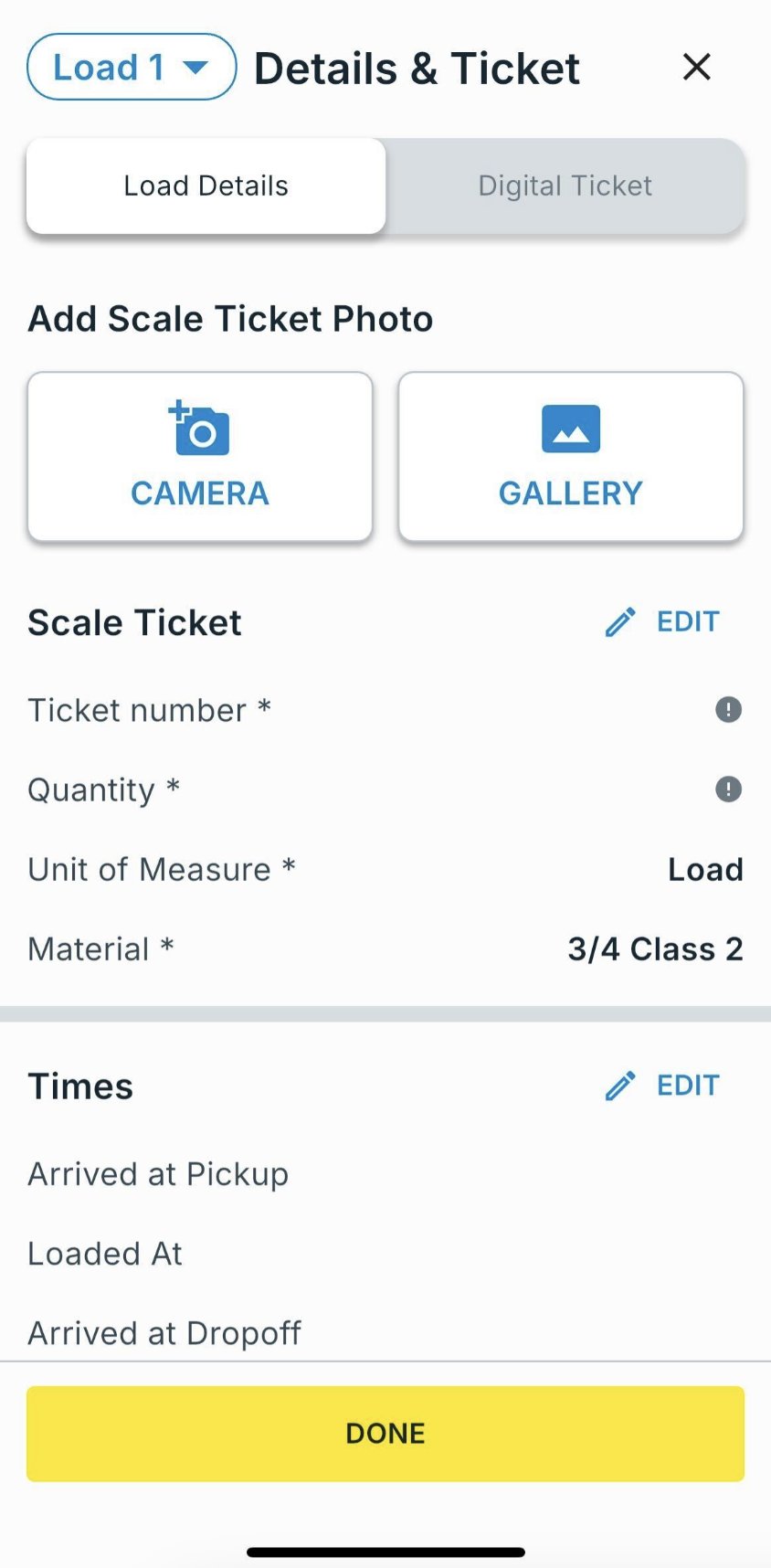
On loaded, snap a photo of the scale ticket. OCR fills the ticket number and quantity. Confirm or edit.Wrong photo? Retake it before you submit. The new photo replaces the old one.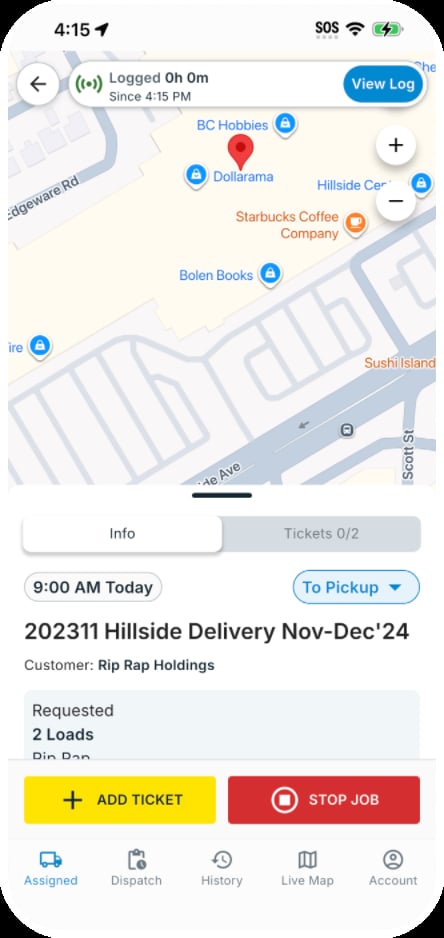
6
End the load
When the job has a set load count or quantity, Tread auto-ends it when the truck leaves the drop-off geofence. The driver can also press Stop Job, confirm the prompt, then review and tap Submit.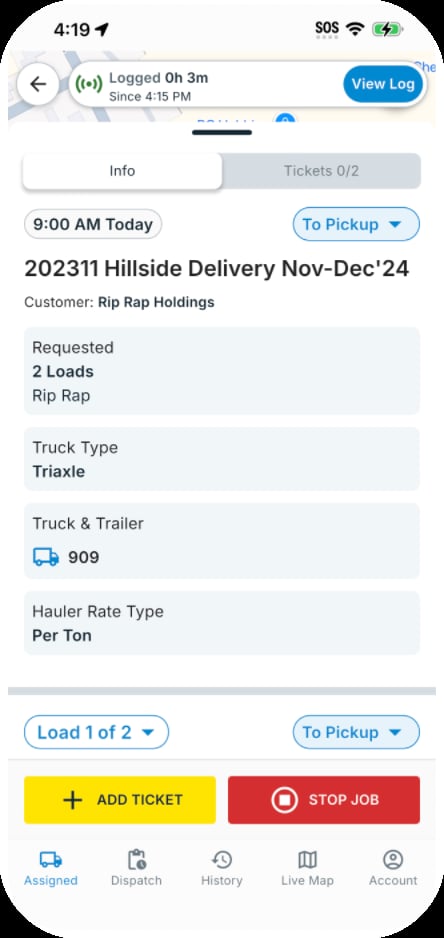
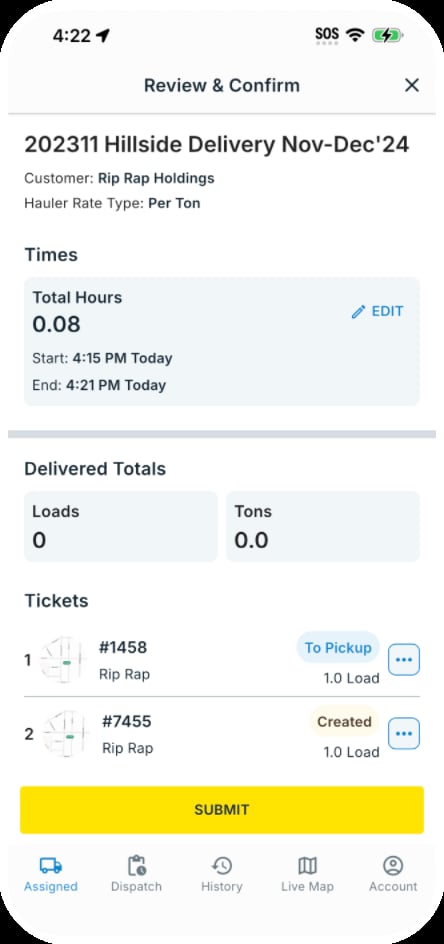
7
Sign and close out
At end of shift the driver can sign a load. Foremen or customers can sign per job or per load. See Driver E-Signatures.
Onboard your fleet
Driver adoption is a change-management problem, not a technology problem. Train in person and track adoption in Tread.1
Train one crew at a time
Walk drivers through the app in person. Avoid email-only rollouts.
2
Keep tickets and signatures in the app
Tickets and signatures come from the app. No paper backup.
3
Coach weekly
Review missing tickets and signature gaps in Tread each week. Coach the drivers who lag.
4
Expand at 90% adoption
Once the first crew captures 90% of its tickets in the app, roll out to the next.