

Walkthrough
1
Open Freight Rates
In Settings, the Rates group holds every pricing screen: Freight Rates, Material Rates, Add-Ons, Broker Fees, Fuel Surcharge Index, Fuel Surcharge Schedule, and Tax Rate Schedules. Open Freight Rates, then pick Vendor, Customer, or Internal Drivers to choose whose rates you are setting.
2
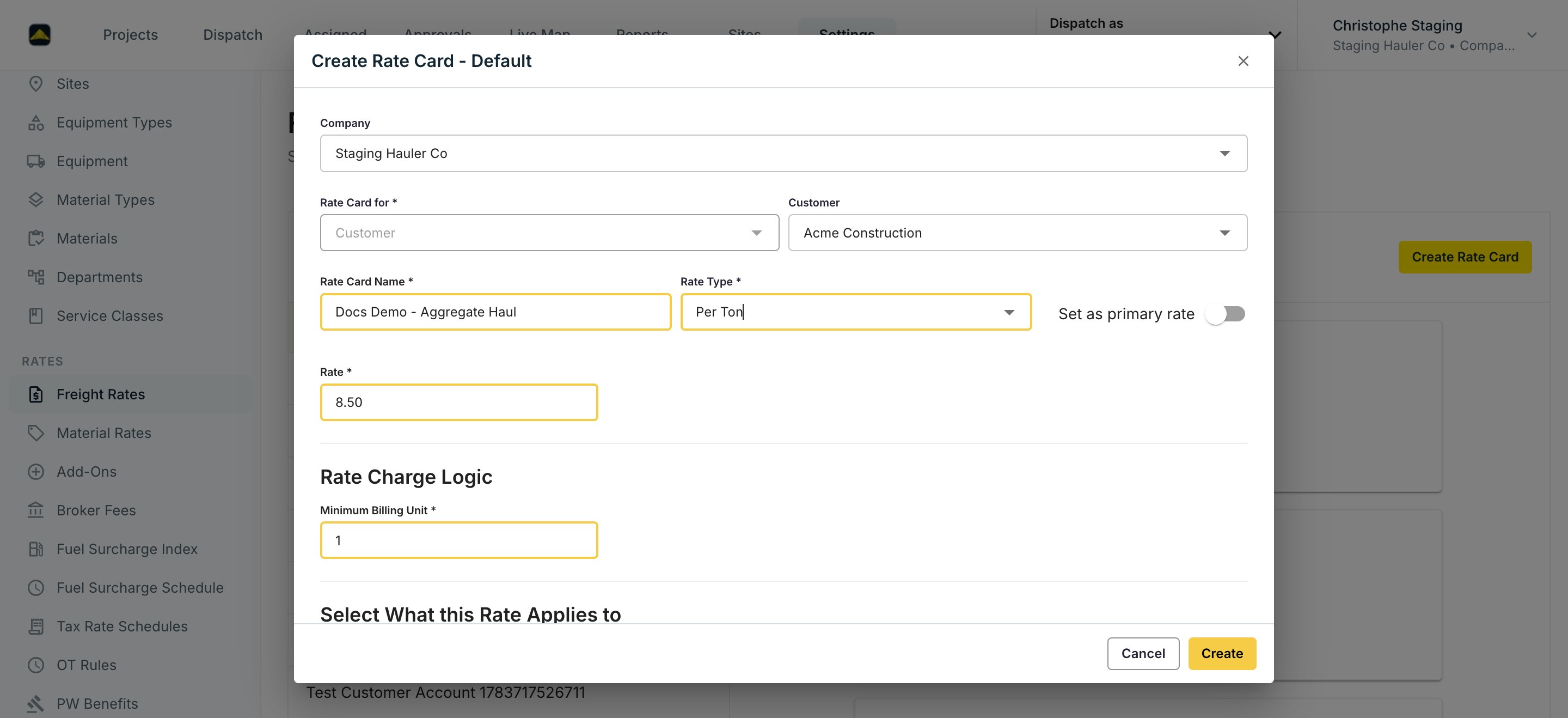
Create a rate card
Click Create Rate Card.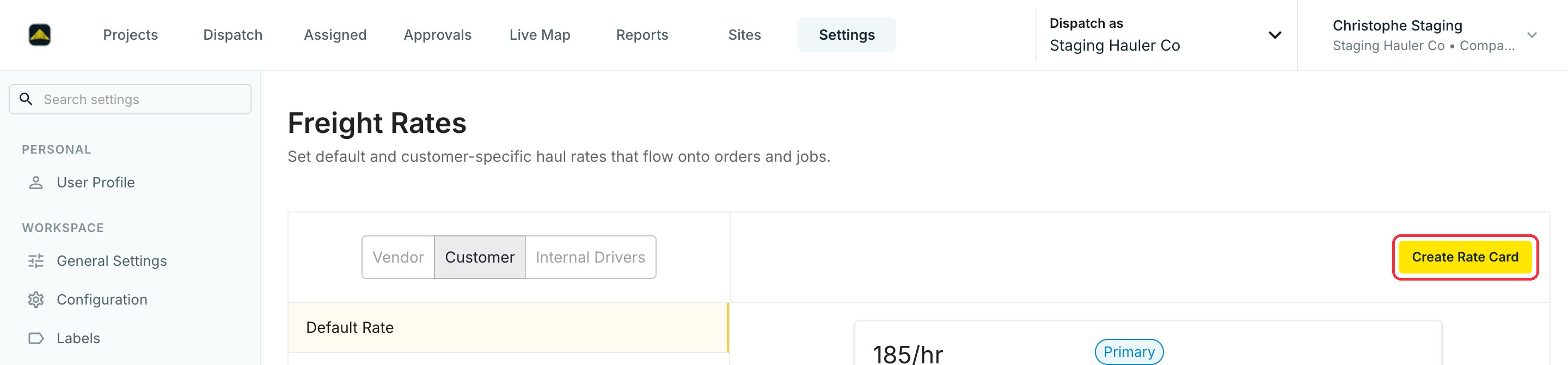
3
Configure add-ons
Add-ons are charges on top of the base rate — standby time, tarping fees, equipment surcharges. Under Add-Ons, click Create Add On. Pick a Rate Type (Per Load, Each (Flat Rate), or % of Total), set the Cost Rate (what you pay) and Invoice Rate (what you charge), and choose the Add On Types that control where it applies: Job, Invoicing, Settlement, Driver Pay, or Shift.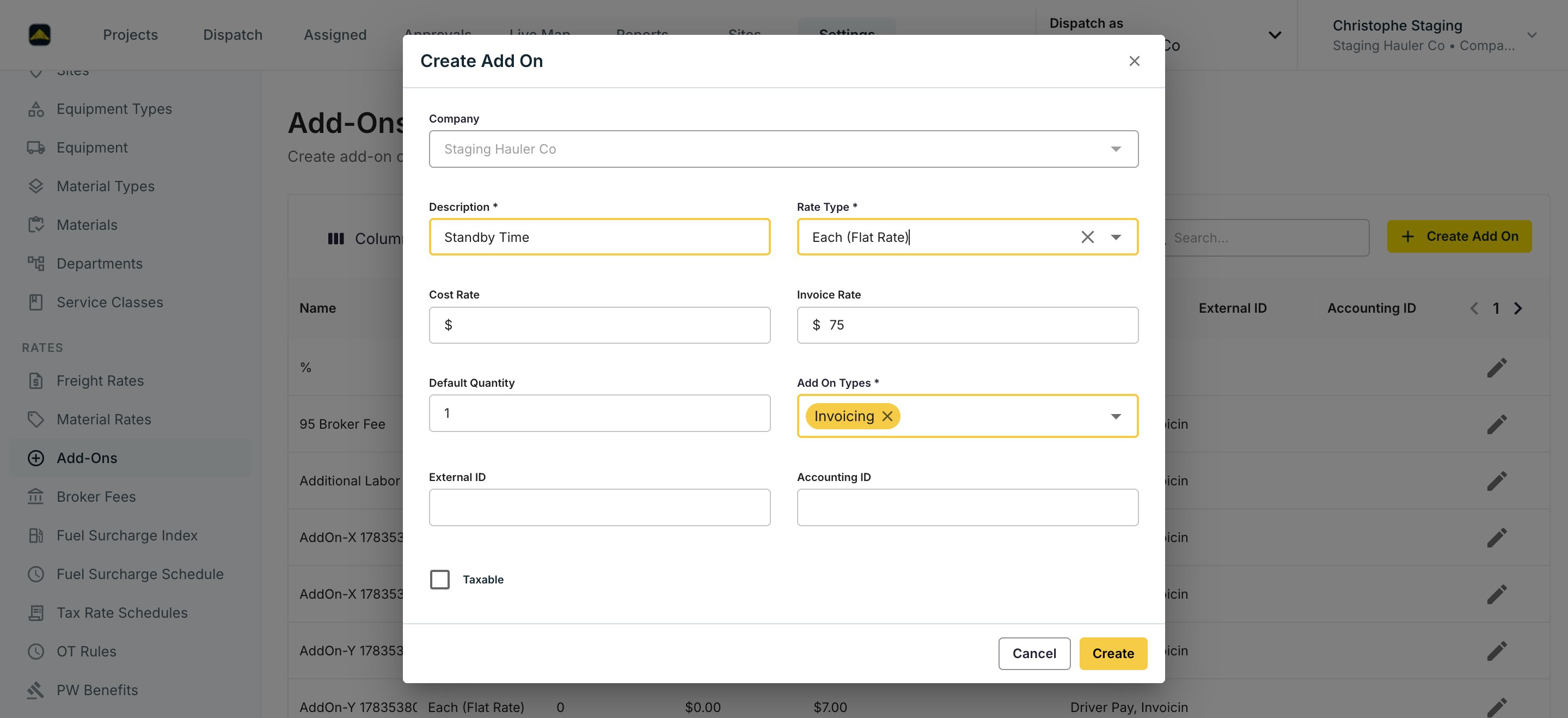
4
Set up fuel surcharge
Create a Fuel Surcharge Index, then a Fuel Surcharge Schedule that maps each fuel price to a surcharge amount. Link the schedule to billing with an add-on whose Rate Type is Fuel Surcharge. See Fuel Surcharges for the full walkthrough.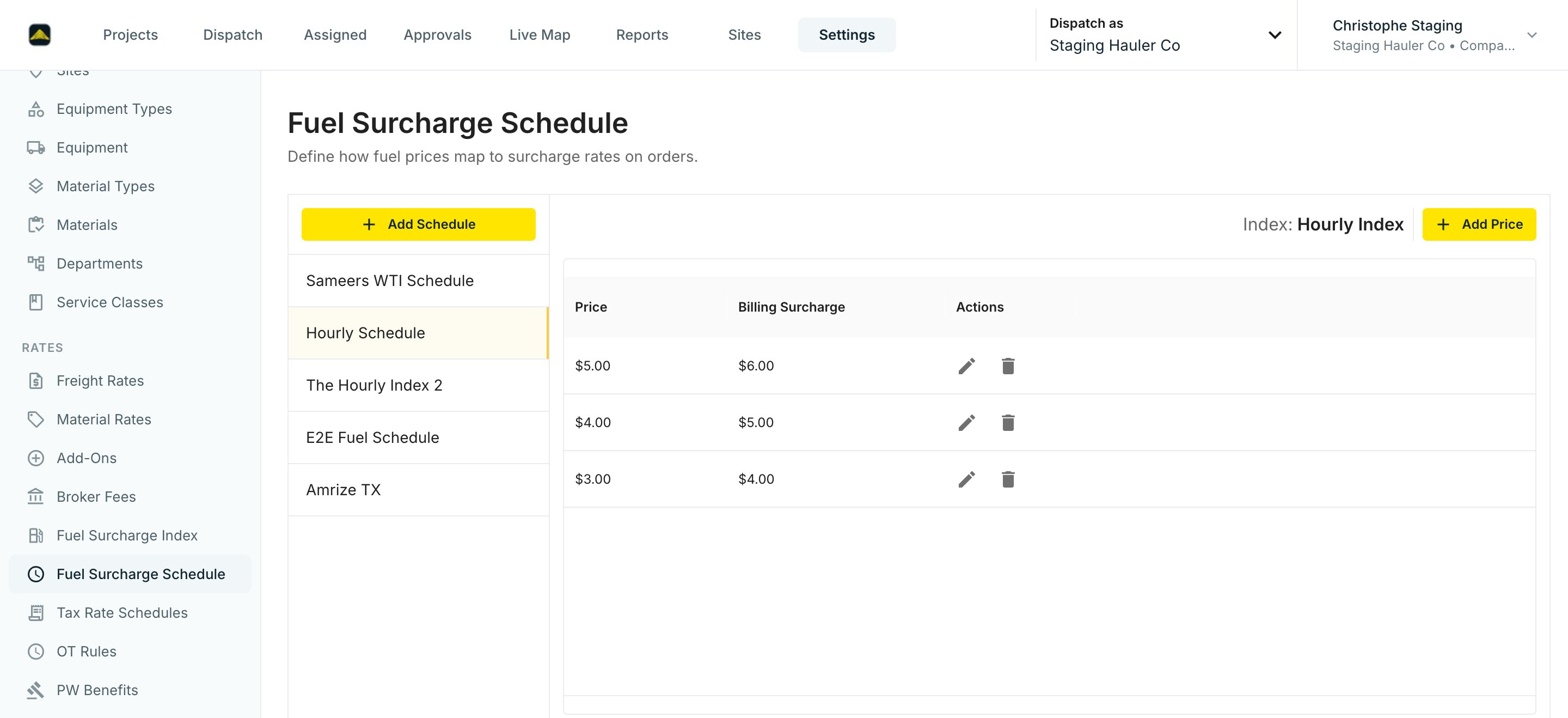
5
Let rates land on dispatches
When a job is rated, Tread applies the highest-precedence matching rate — see the table below. Override on the Order (star a rate card) or on a single job when a specific dispatch prices differently.
Rate Precedence
When a load is rated, Tread checks for a matching rate in a fixed order. The first match wins. Everything below it is ignored.
Legacy Site Rates were migrated into project rates with a Pickup Site condition — same matching behavior, managed on the Project.
Watch it
Common pitfalls
% of Total and Fuel Surcharge add-ons recalculate with the invoice. These charges are computed from the invoice’s freight subtotal, so they update when invoice line items change. That is expected behavior, not a bug.
Related
- Rates, Add-Ons & Fuel Surcharges — the data model.
- Project Rates — per-lane pricing rules on the Project.
- Fuel Surcharges — the full fuel surcharge setup walkthrough.
- Create a Project, Order, and Dispatch — where rates get applied.
- Generate Settlements & Driver Pay — the billing run that uses them.
- Prevailing Wage — government-job rate handling.