

What you’ll do
Connect the two data feeds that matter during onboarding: telematics for live truck positions, and Paver Tracker if you pave. Accounting integrations come after billing is live.Before you start
- A login for your telematics (ELD) provider’s account.
- Equipment loaded so vehicles can match Equipment records.
- Sites loaded so geofences line up with arrival events.
- If you pave: the job IDs your Paver Tracker uses, for project External IDs.
Walkthrough
1
Open Catena Telematics
Go to Settings → Integrations and click Manage on Catena Telematics. Tread connects to dozens of ELD providers through Catena.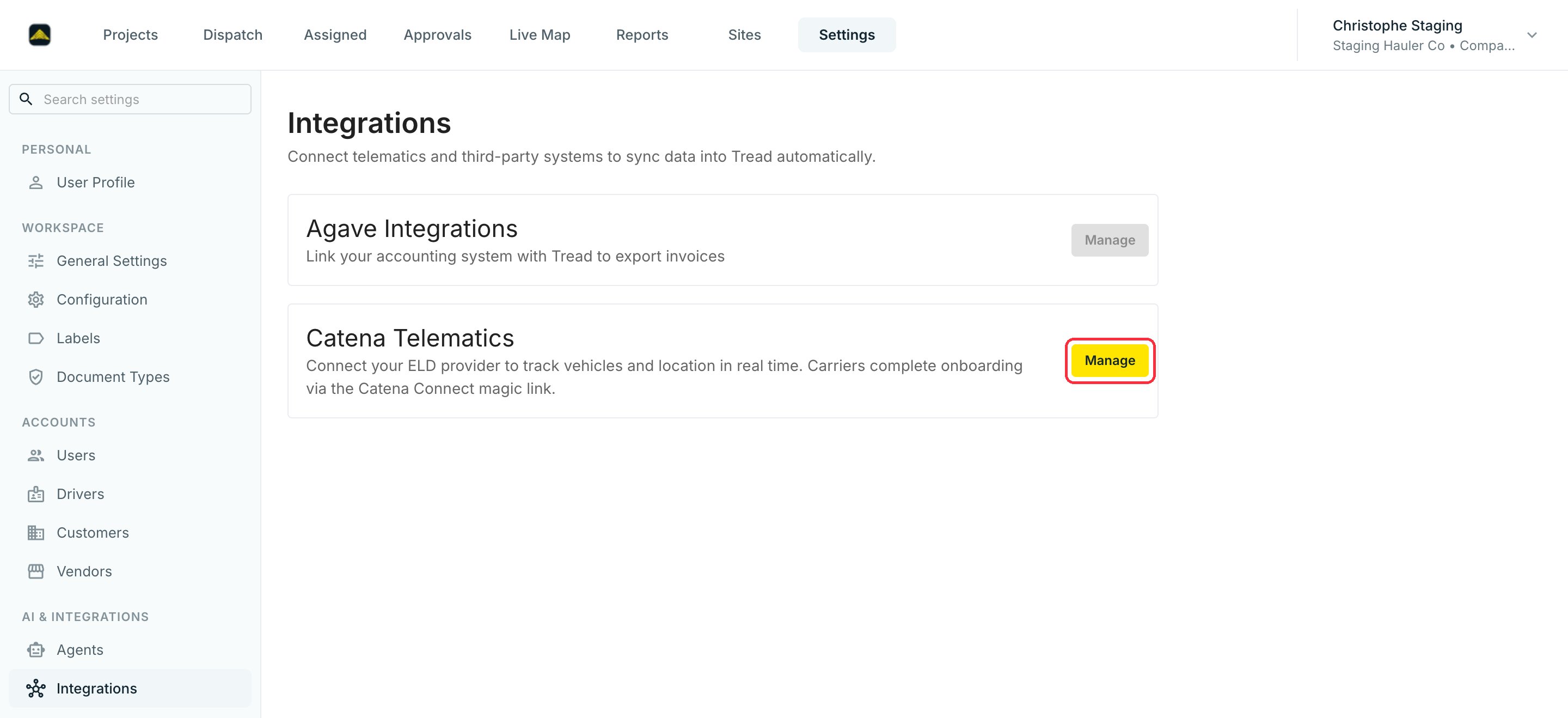
2
Connect your provider
Click Connect provider. A popup guides you through it: pick your ELD from the list, sign in to your telematics account, and grant Tread access to your vehicle data. Once authorized, your vehicles appear on the Live Map automatically. A carrier can also complete the connection through a Catena Connect magic link.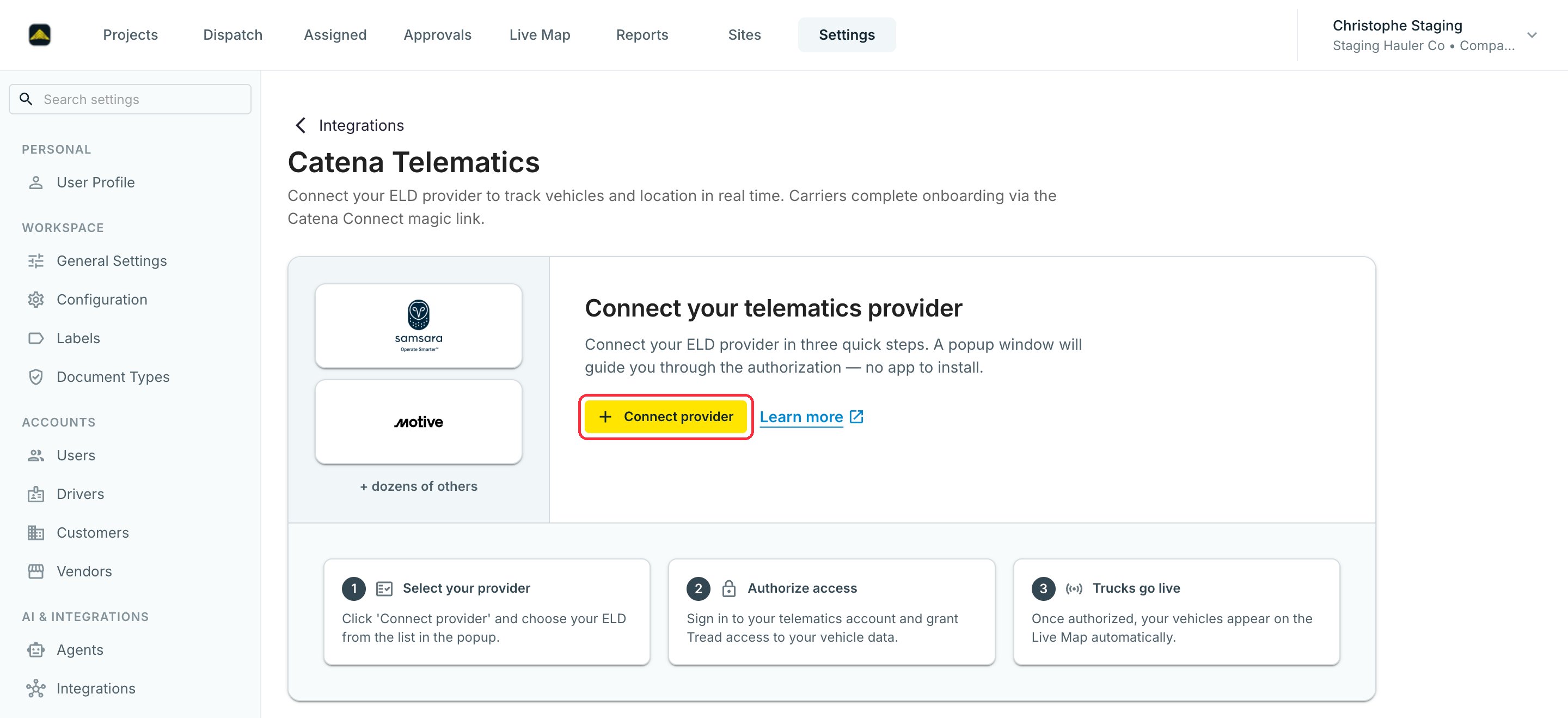
3
Match vehicles to Equipment
Match each connected vehicle to an Equipment record so live positions land on the right truck. See Telematics for the matching walkthrough.
4
Ask Tread to connect Paver Tracker
If you pave, access Paver Tracker, paste your credentials.If you pave: Paver Tracker is not self-serve — contact Tread to configure the connection and the paver list. Then set each paving project’s External ID to the Paver Tracker job ID, and turn on Sync sites from telematics (PaverTracker) on each order that should follow a paver. See Paver Tracker and Paving & Moving Geofences.