

Who can use it
Manage Users appears on the Account tab only if your role includes user management. If you don’t see it, ask your Admin to make the change or update your role. From this screen you can edit any user on your account, not just yourself.Edit a user
1
Open the Account tab
Open the Tread app — or go to link.tread.io/app to install it. Tap Account in the bottom menu.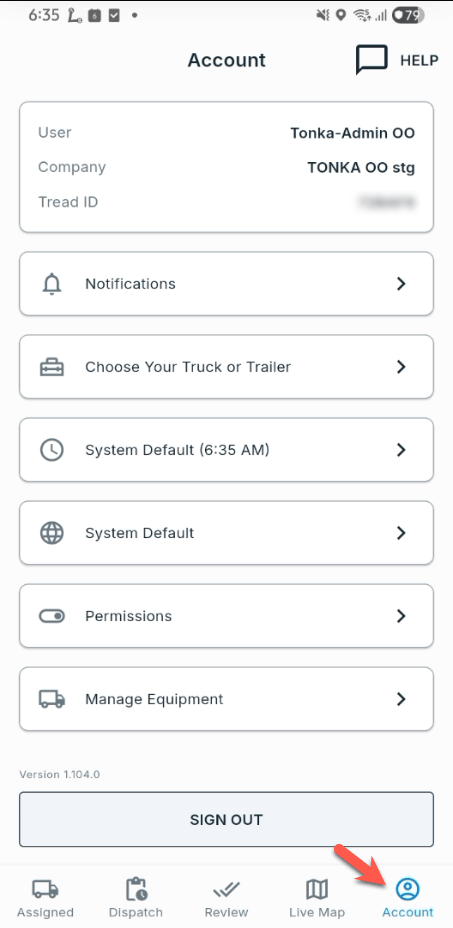
2
Tap Manage Users
Scroll down the Account screen and tap Manage Users.
3
Tap EDIT next to the user
The Users screen lists every user on your account with their roles. Use Search to find someone, then tap EDIT on their row.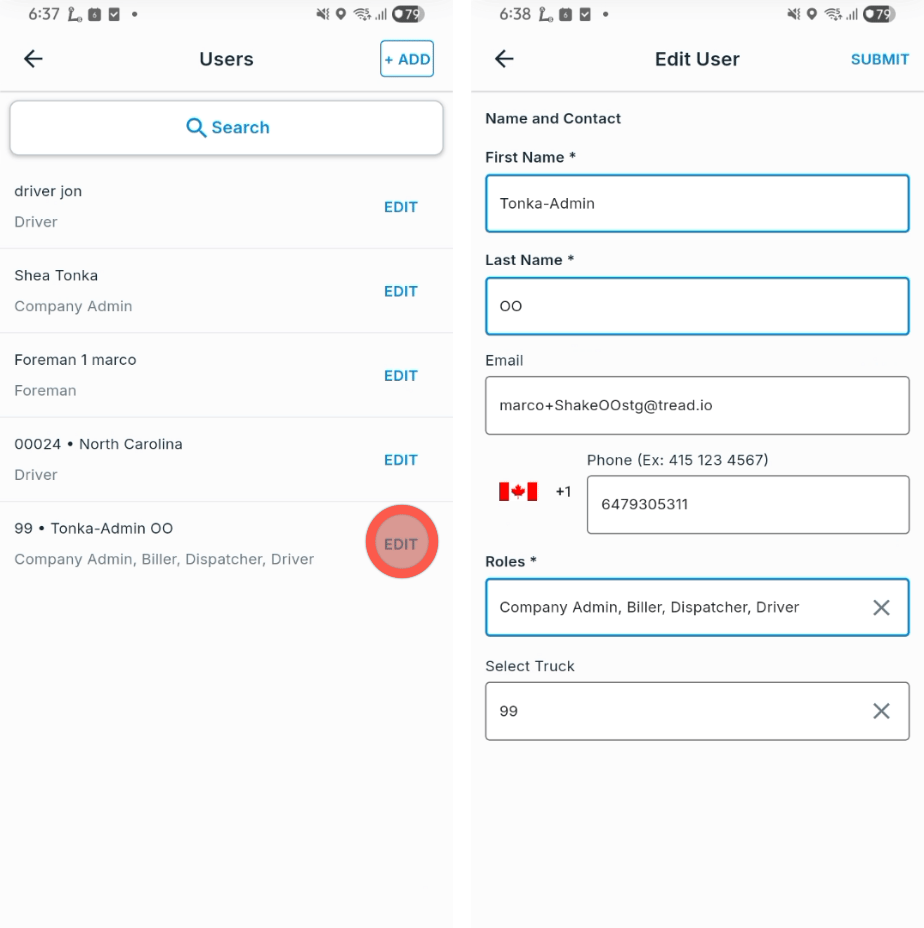
4
Update the fields
You can change the user’s First Name, Last Name, Email, Phone, and Roles. If the roles include Driver (the user who receives a dispatch and performs it), a Select Truck field also appears to set the user’s truck.
5
Tap SUBMIT
Tap SUBMIT at the top right. Changes save immediately.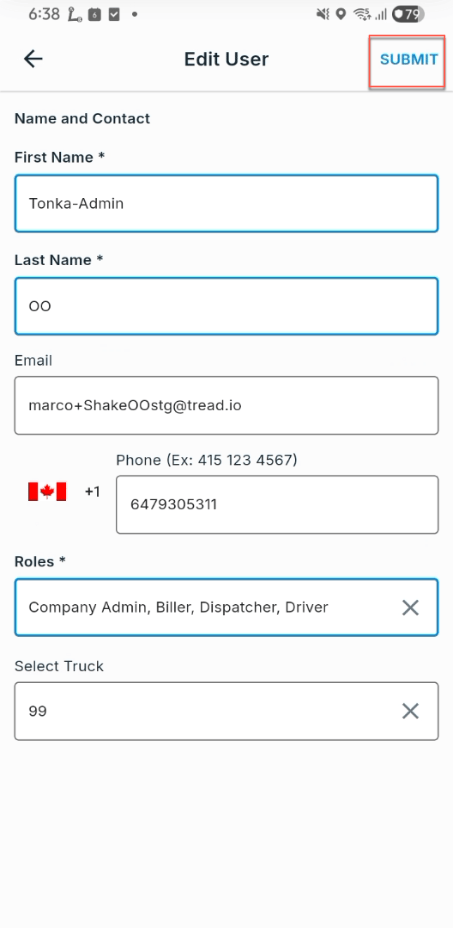
Related
- Roles and permissions — what each role can see and do.
- Driver lifecycle — how Driver records work.
- Mobile Troubleshooting — sign-in codes and common app issues.