

What it is
A Phase is a Name and a Code you attach to work — your customer’s cost code, bid item, or task number. Phases are optional. An Order with no phases works normally.How Tread models it
- Phase — a Name and a Code. Defined on the Project, then copied to every Order under it.
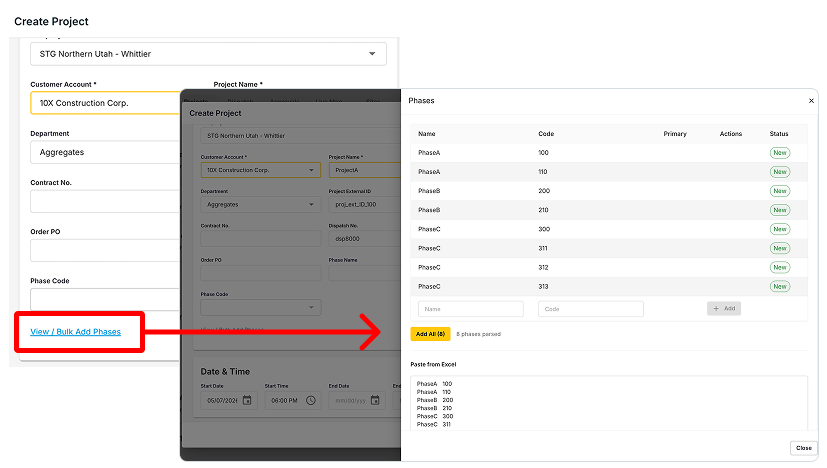
- Setup — on the Project, click View / Bulk Add Phases. Add phases one at a time, or paste two spreadsheet columns: Name first, then Code.
- Primary Phase — one phase per Order is Primary. New Jobs and Loads start with it.
- Per Job and per Load — change the phase on a single Job or Load. One truck-day can carry more than one code.
- In the driver app — drivers pick a phase when they edit a load. Foremen must pick one whenever the Order has phases. With only one phase, Tread fills it in for them.
- On hours — if your account tracks hours by phase, split a shift’s hours across phases when you approve driver time.
- Downstream — the code follows the Load onto its Ticket, then into exports and OmniReports.
- Permissions — changing the phase on a Job or a Load is permission-controlled. See Roles & Permissions.
Common pitfalls
Phase codes tag work for reporting and cost coding. Settlements do not split by phase code.
Related
- Orders & Projects — where phases are defined
- Create a Project — project setup, step by step
- Foreman — the foreman workflow
- Exports & Reports — pulling phase codes out of Tread
- Importer APIs — syncing phases from another system