Scan to download the Tread app
Download the app
Available on App Store and Google Play. Go to link.tread.io/app from any phone.
One-page driver guide
A printable reference card for the cab. Ask your CSM for the latest version.
Step 1 — Download and sign in
Download the Tread app
Download the Tread app
Search for Tread on the App Store (iPhone) or Google Play (Android), or go to link.tread.io/app from any phone browser.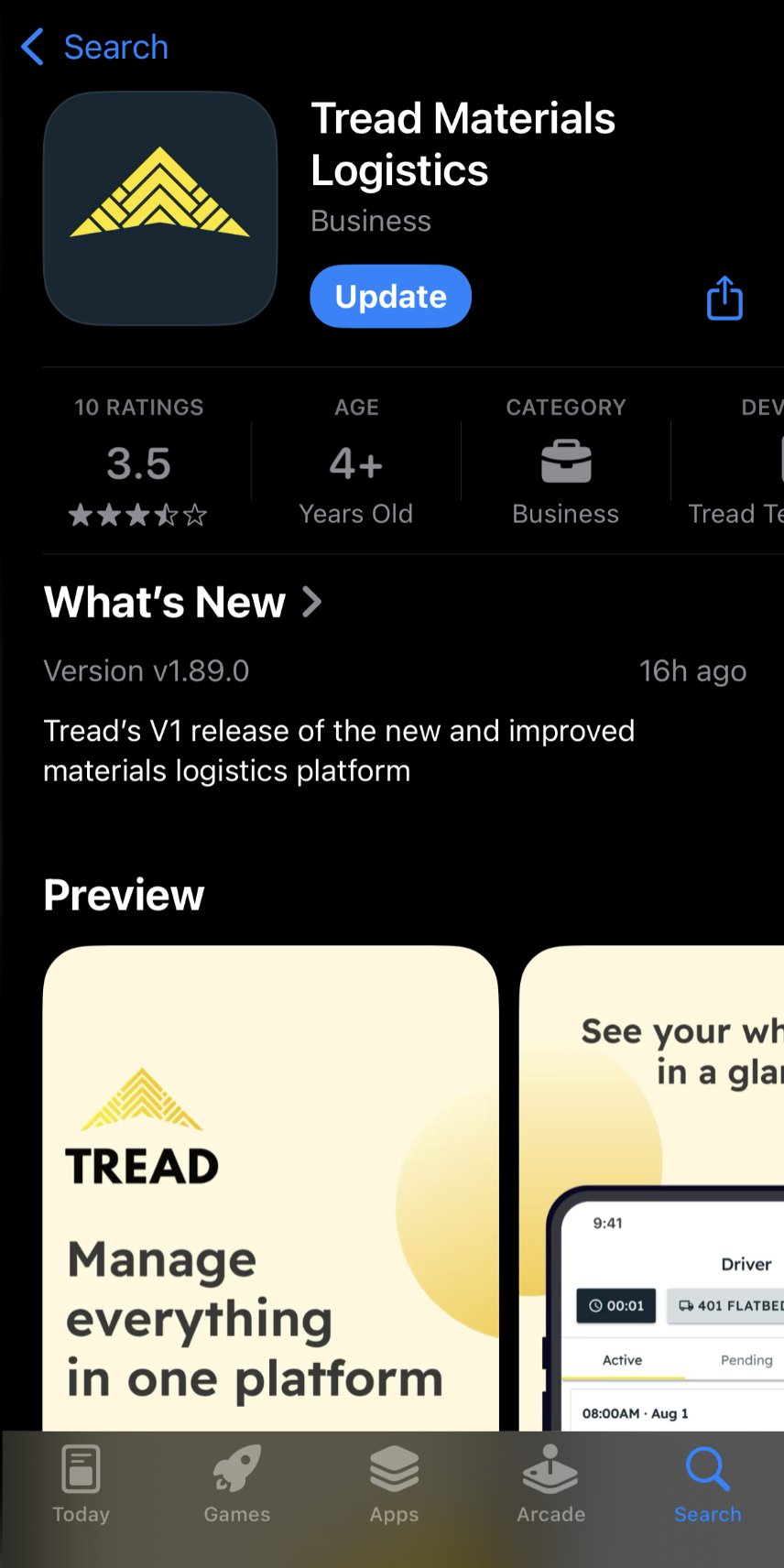
Enter your phone number
Enter your phone number
Open the app and enter your mobile number. No password required — Tread uses phone number verification only.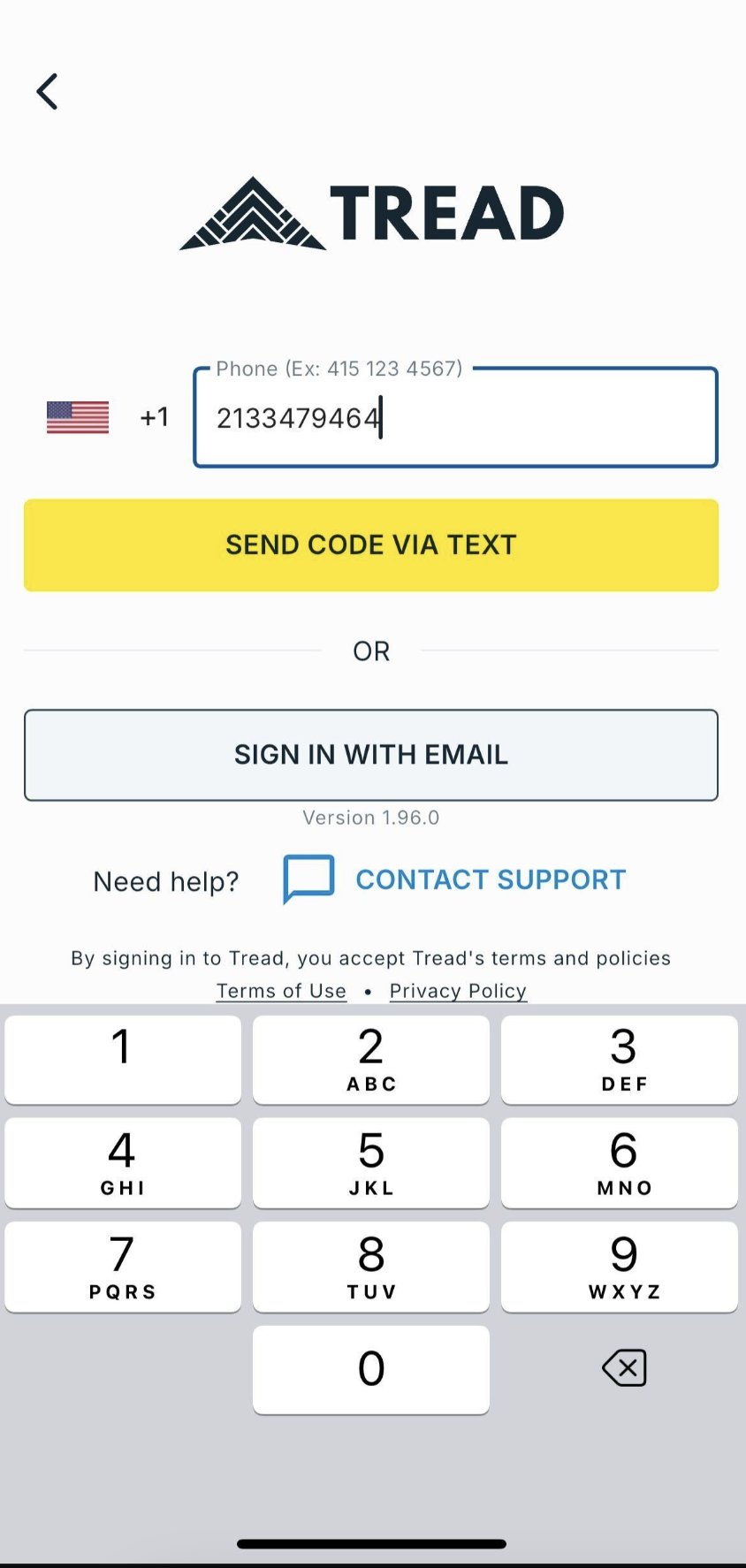
Enter the SMS code
Enter the SMS code
A 6-digit code will be sent by text message. Enter it in the app to complete sign-in.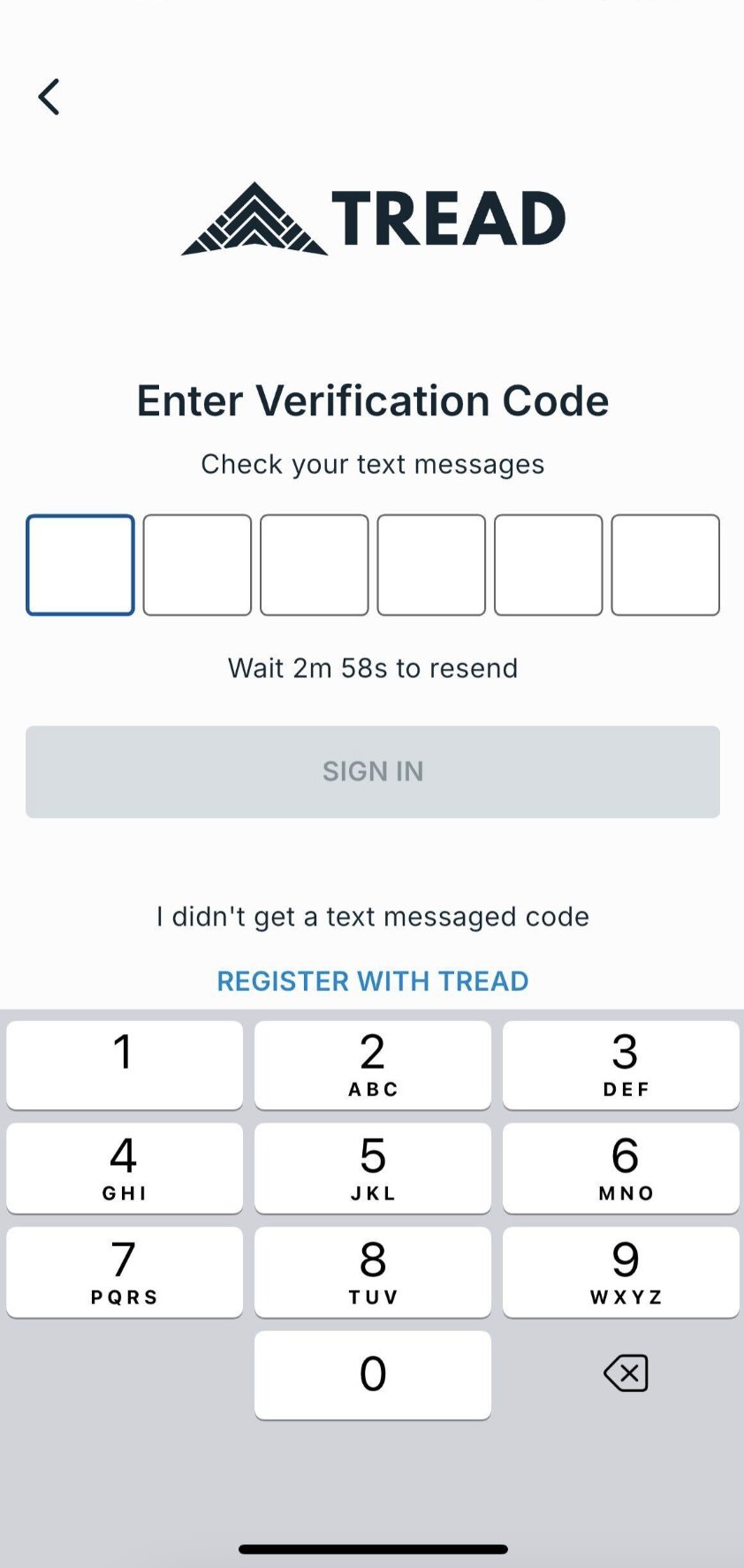
Step 2 — Enable location permissions
Tread tracks driver location only while a job is active. No tracking occurs outside of active jobs.- iOS
- Android
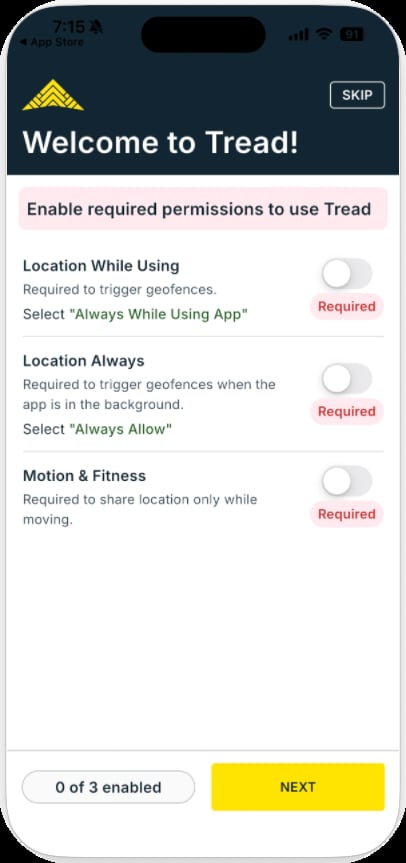
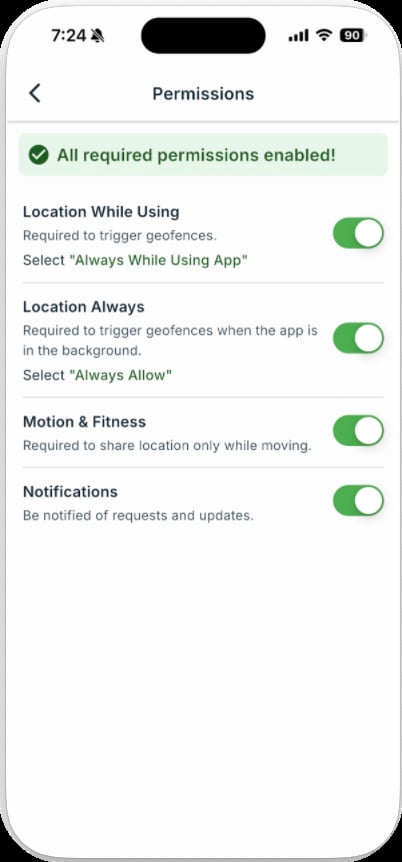
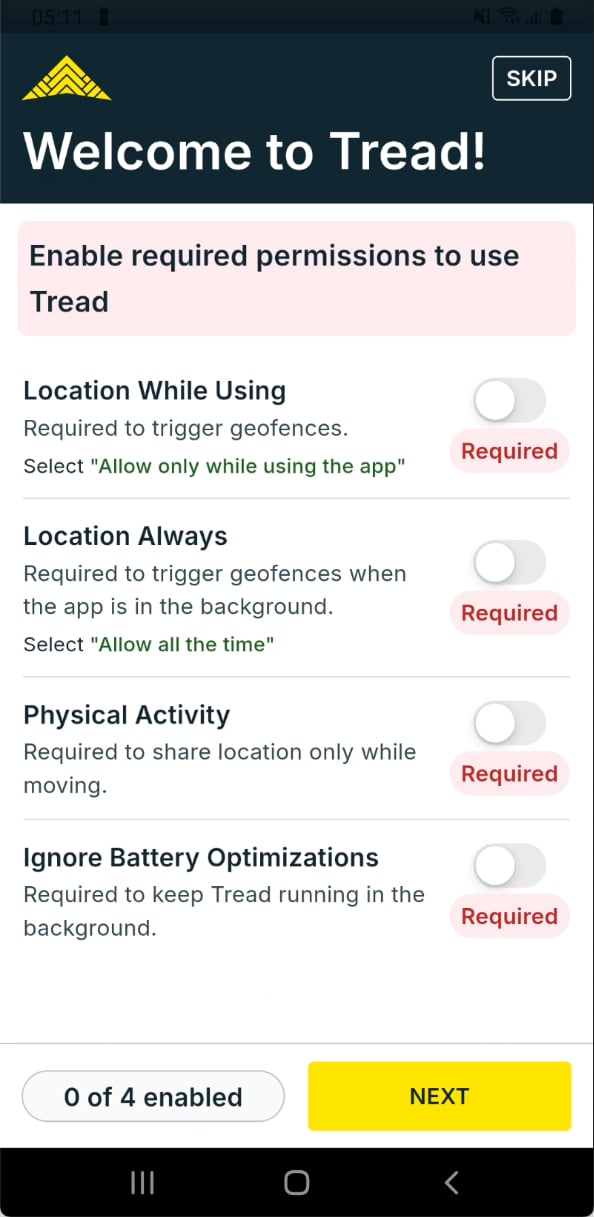
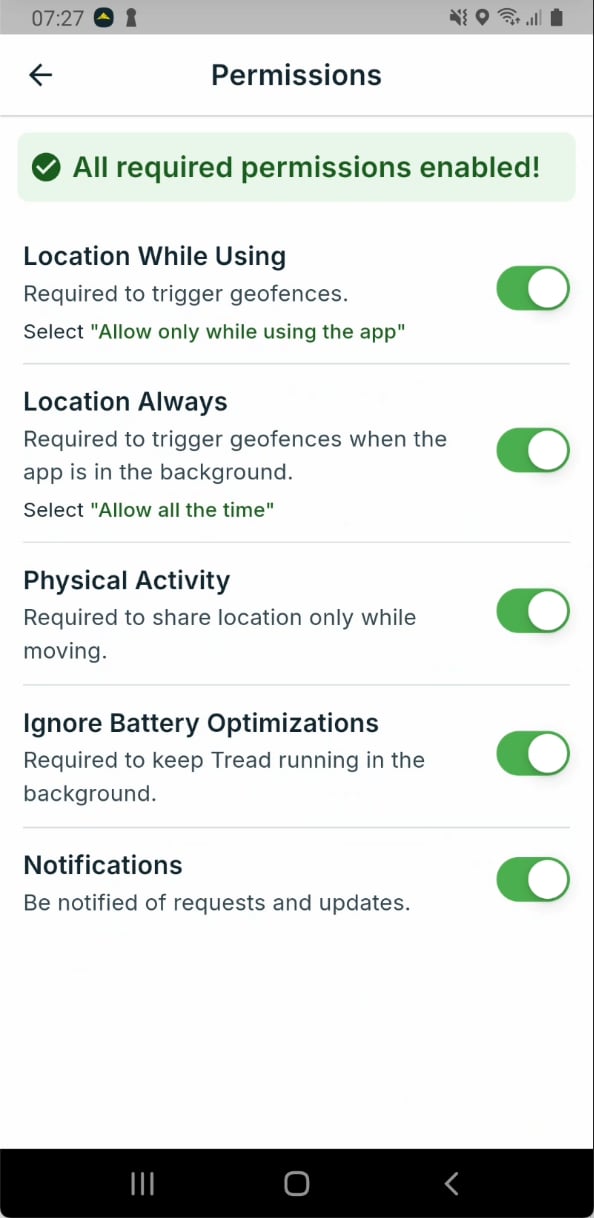
Drivers must allow location access for job tracking to work.
Step 3 — Run the job
Accept and start
Accept and start
- Tap Assigned to see new job requests.
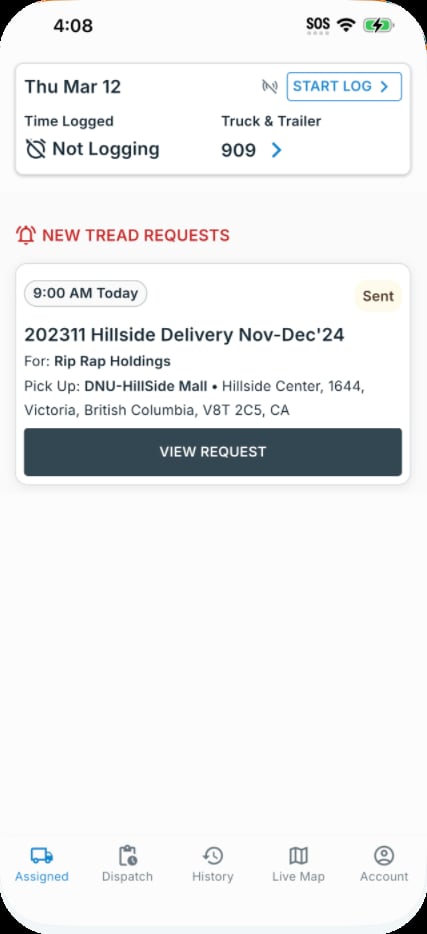
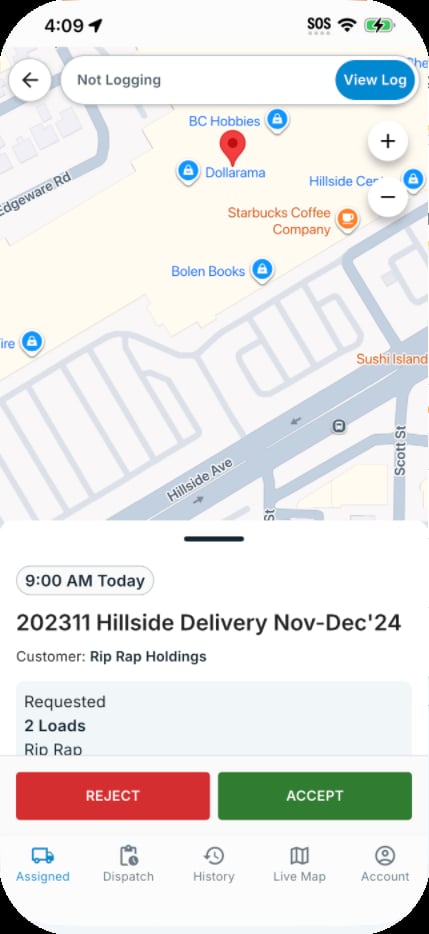
- Tap Accept to confirm you are taking the job.
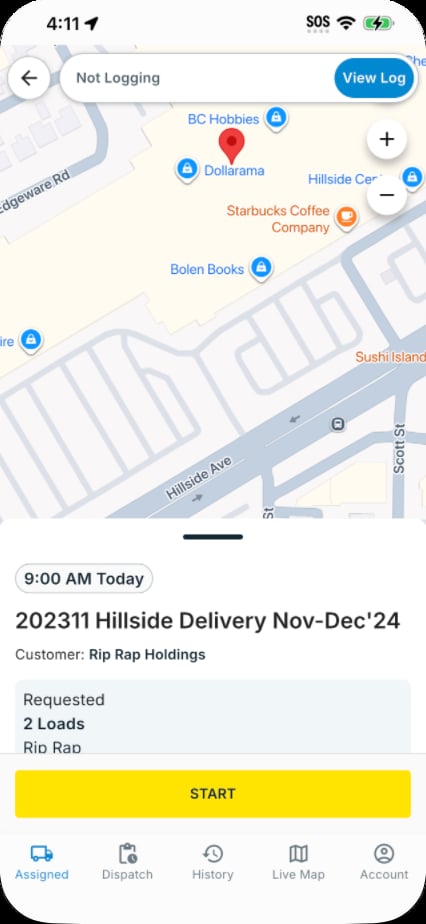
- Tap Start Job when ready. Location tracking begins and the dispatcher can see you on the map.
Add a scale ticket
Add a scale ticket
- After loading, tap Add Ticket on the active job screen.
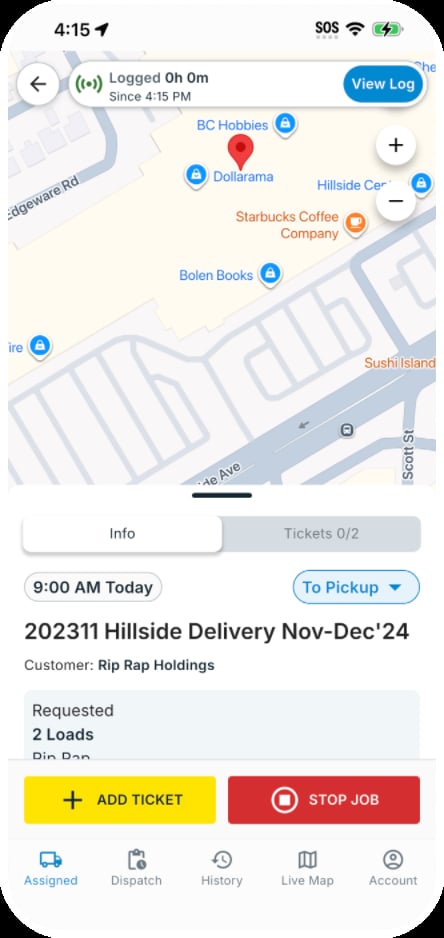
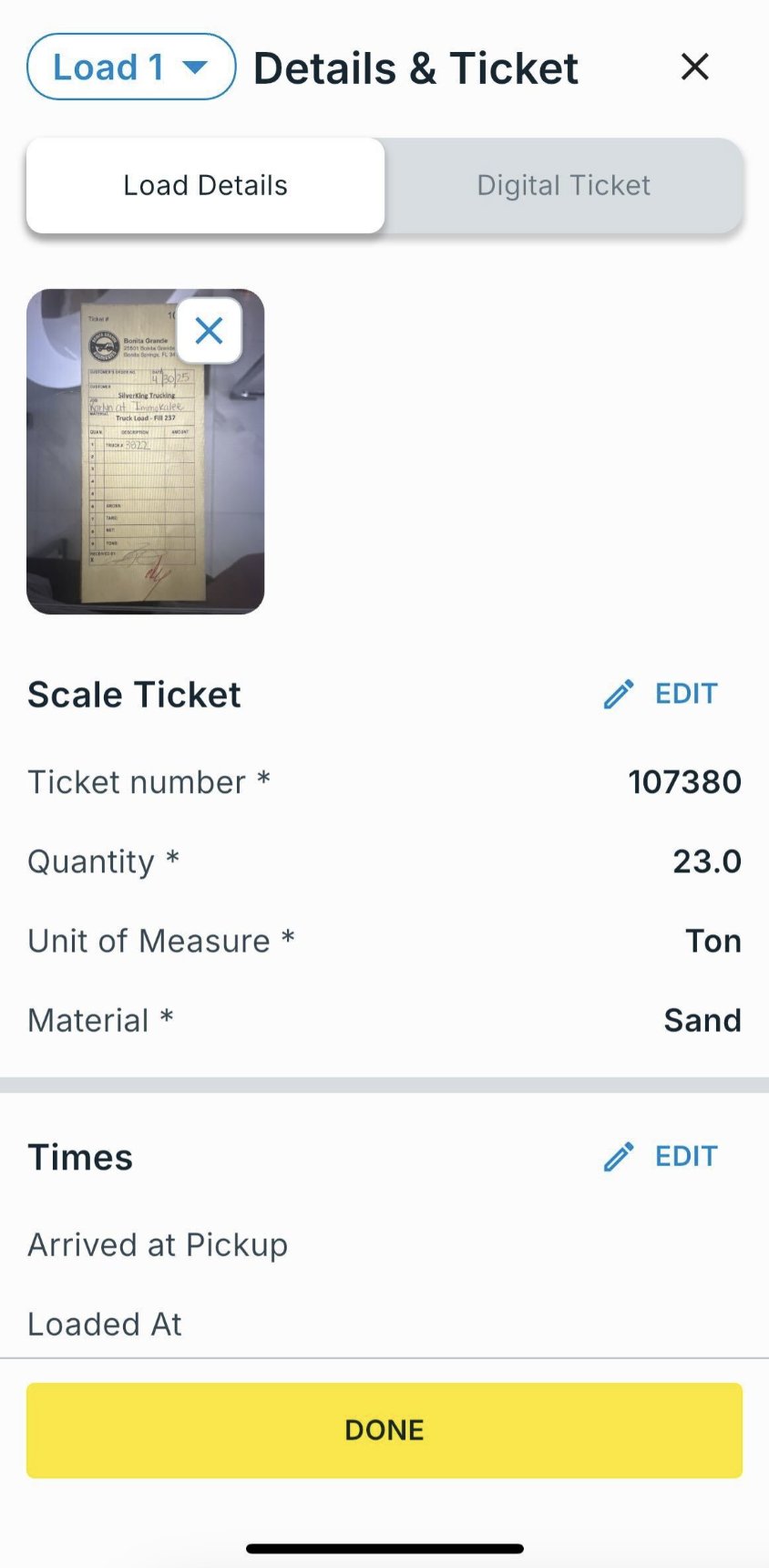
- Take a photo of the scale ticket. Tread reads it automatically and fills in the ticket number and net weight — check the fields and correct them if needed.
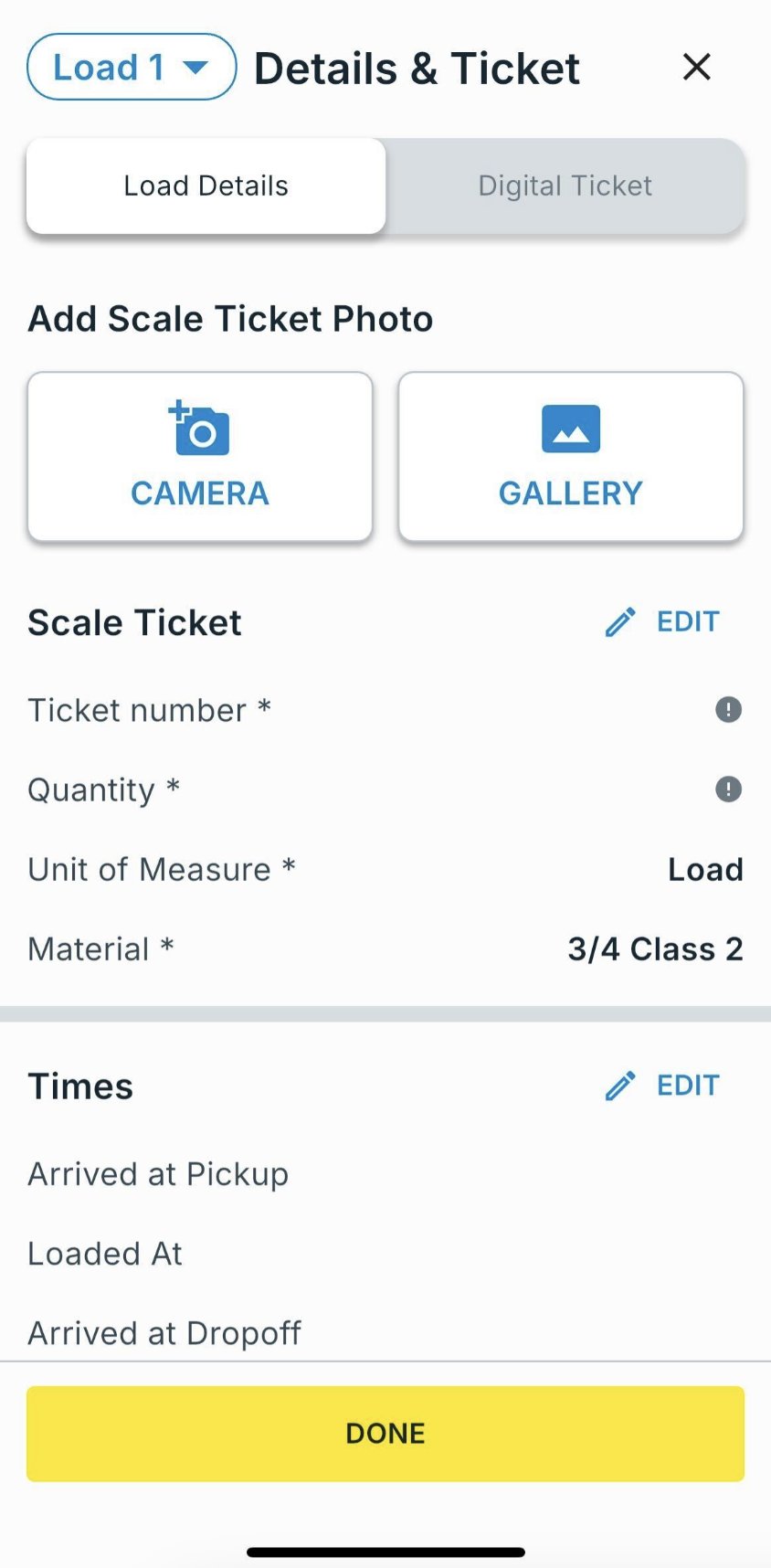
- Tap Save. The ticket appears immediately in the dispatcher’s view.
Stop the job
Stop the job
- Tap the red Stop Job button when your last delivery is complete.
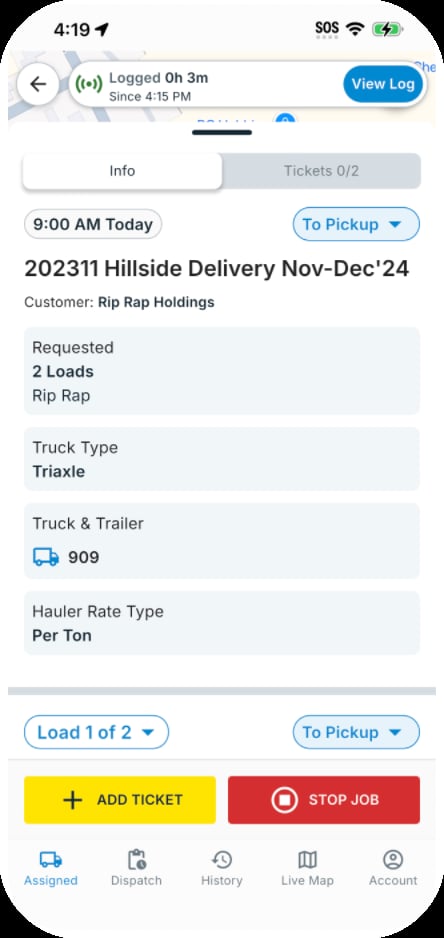
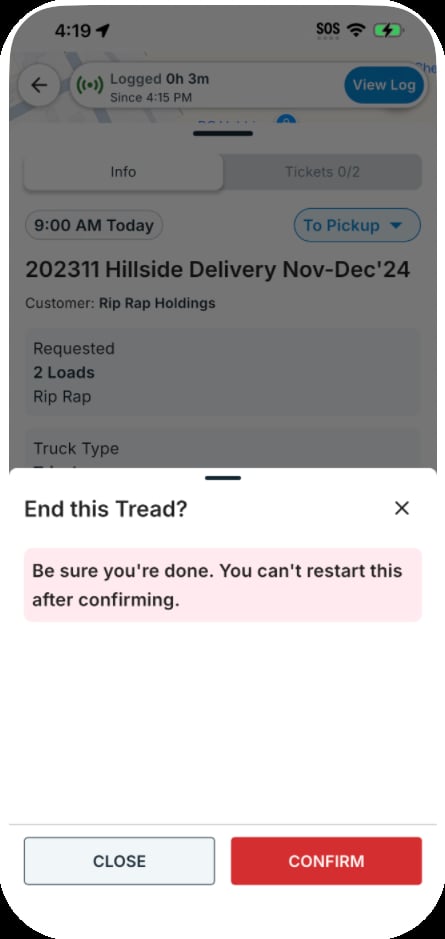
- Confirm the end-of-job prompt.
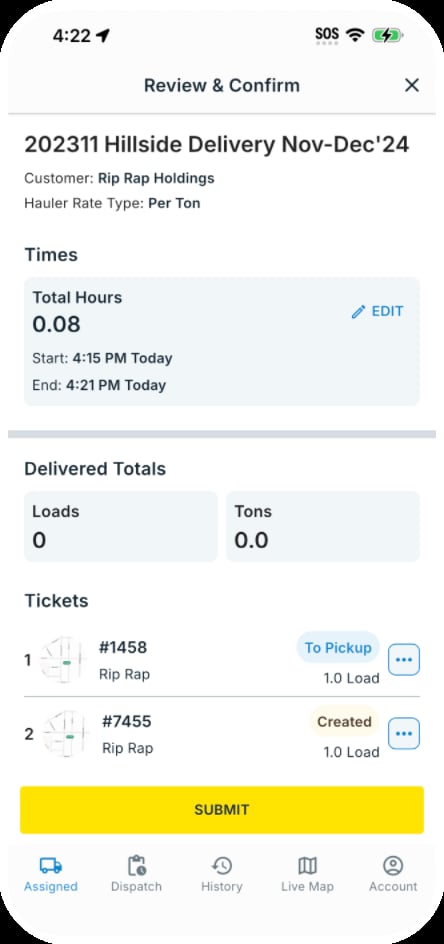
- Review your timesheet if applicable and tap Submit.