- Mobile
- Web
1
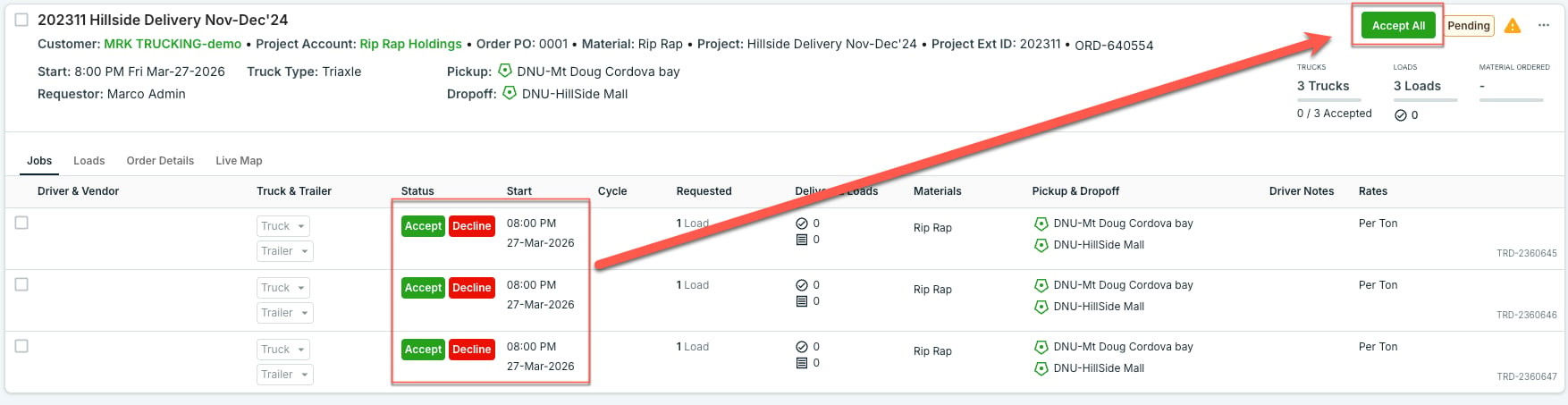
Accept jobs from your customer
30 Second Video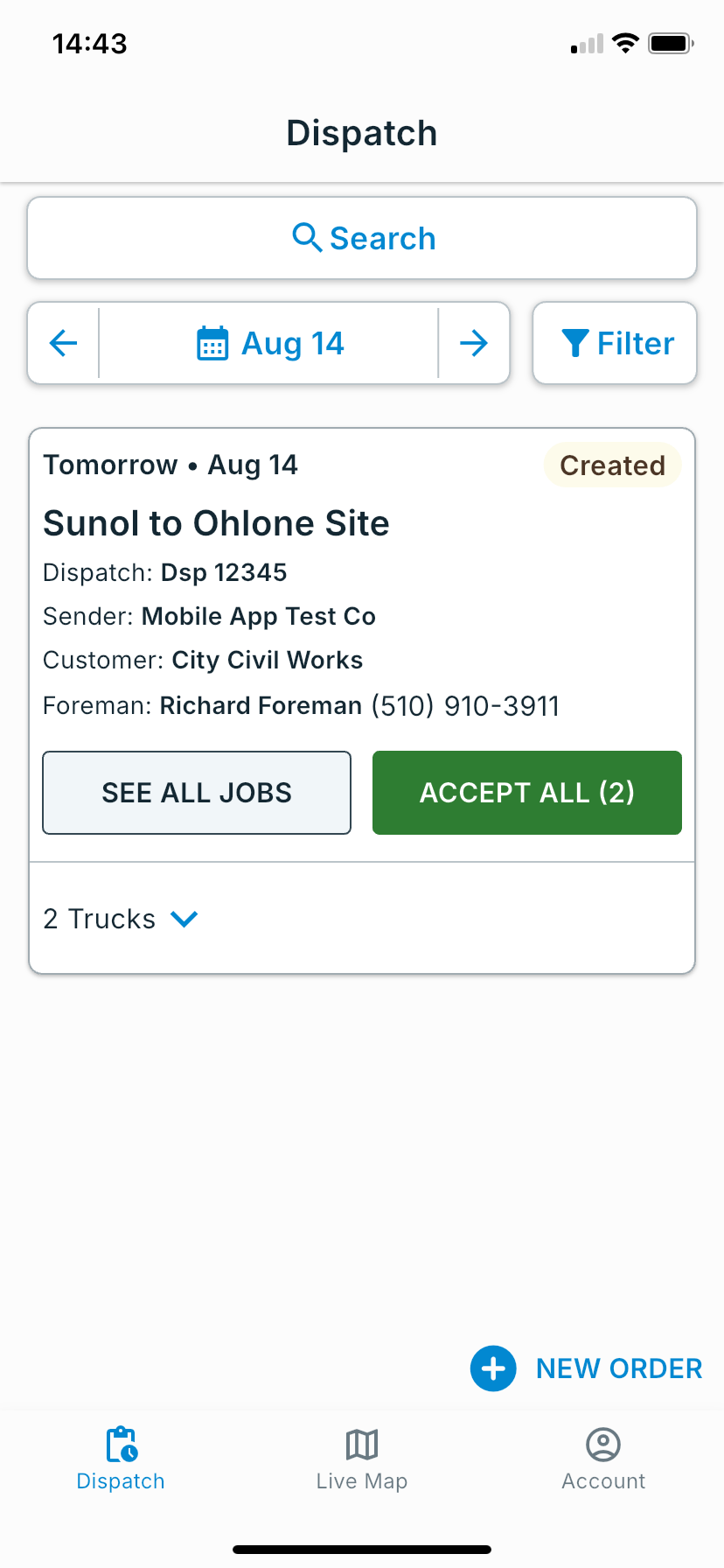
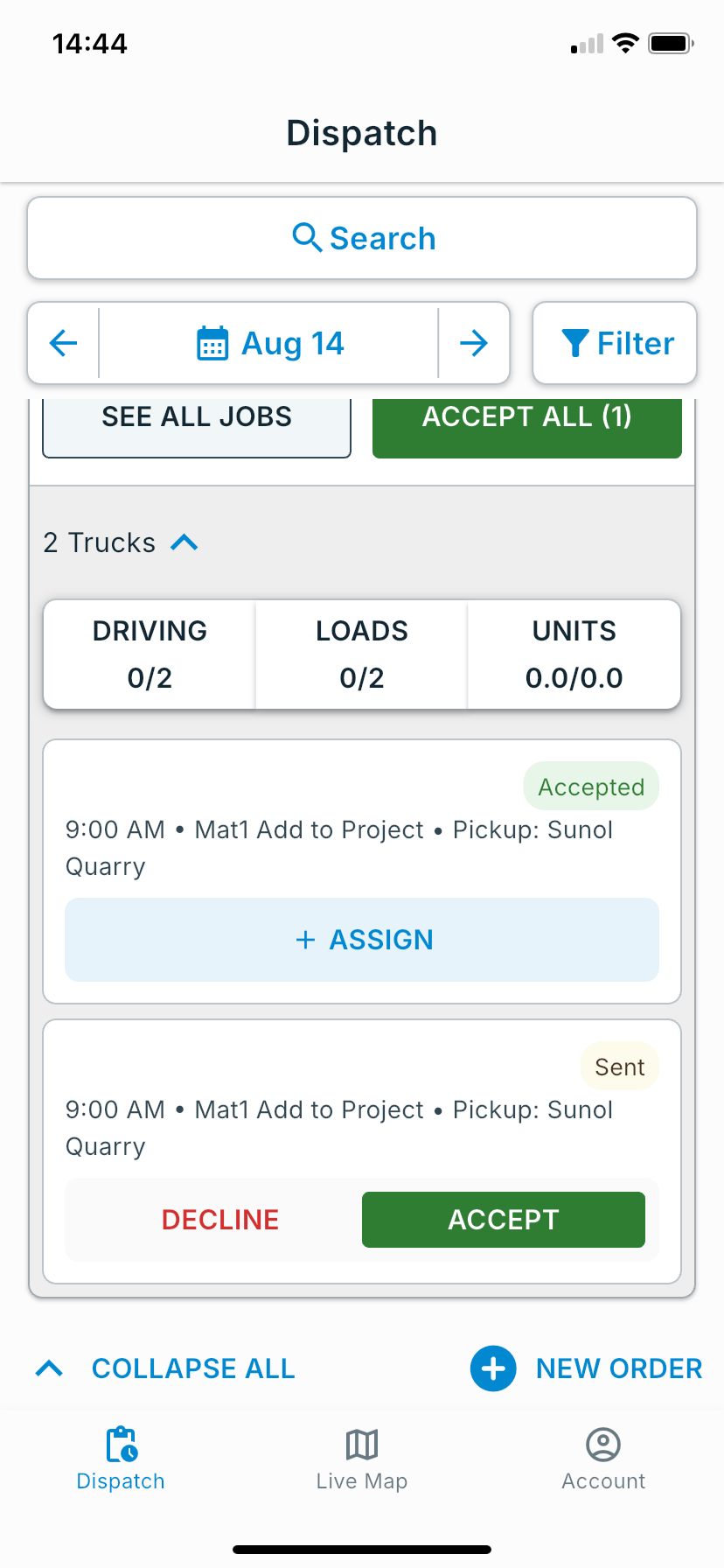
Tap Accept All to take every pending job at once, or tap the ▼ arrow next to a job to expand it and accept individually.
2
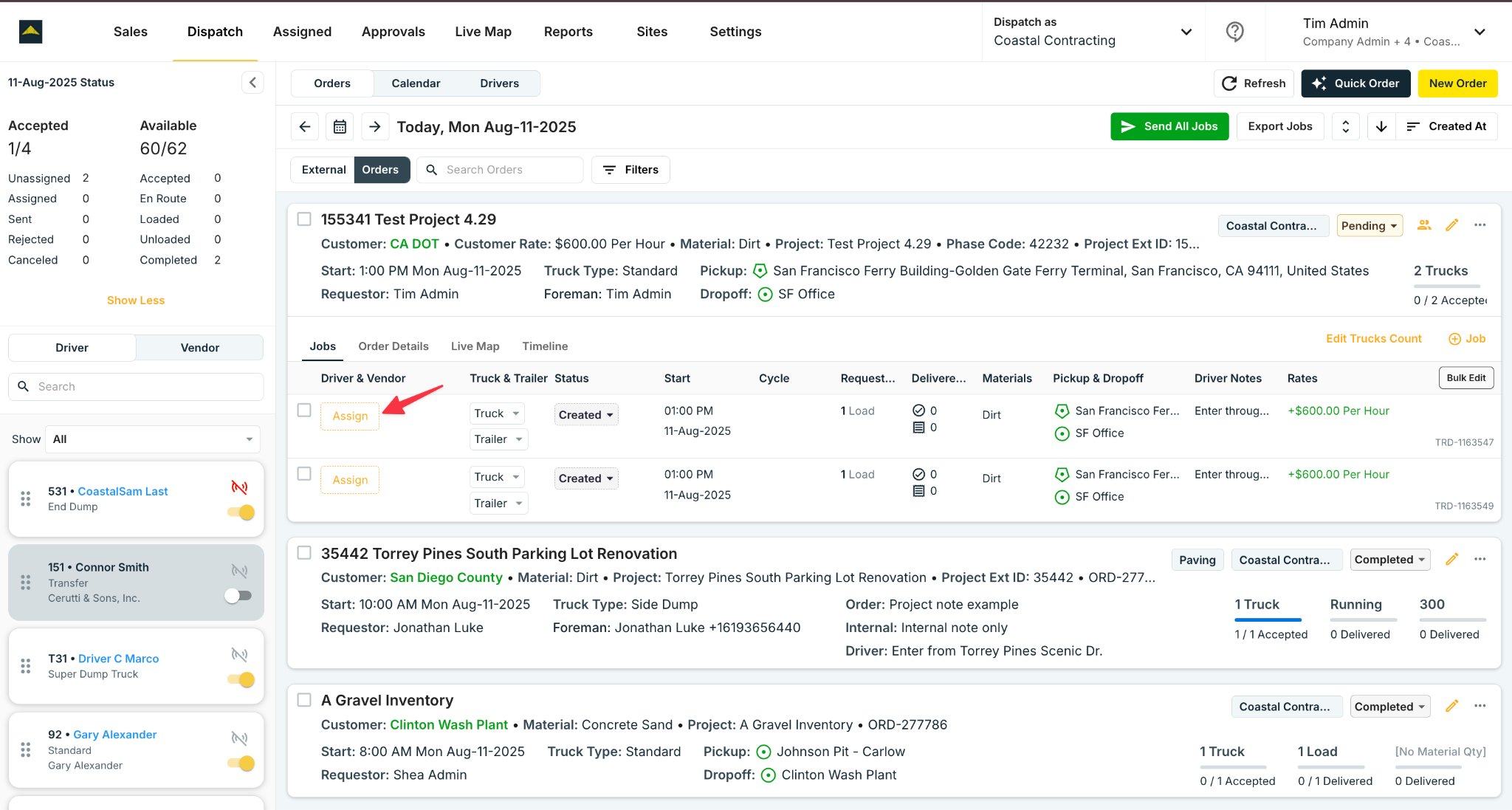
Open the assignment view
Tap the ▼ arrow next to the truck count to expand the assignment section, then tap + Assign to open the driver picker.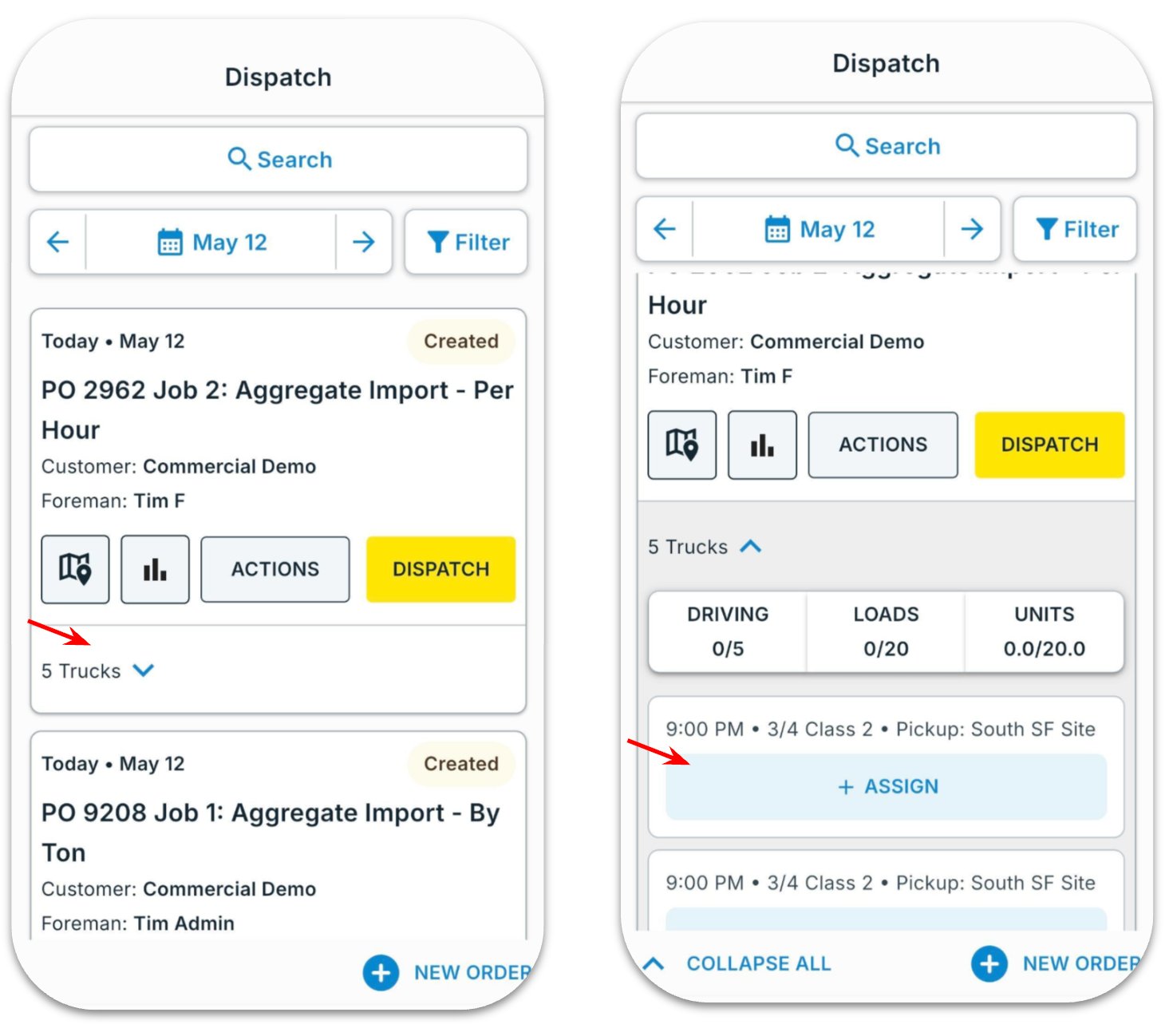
3
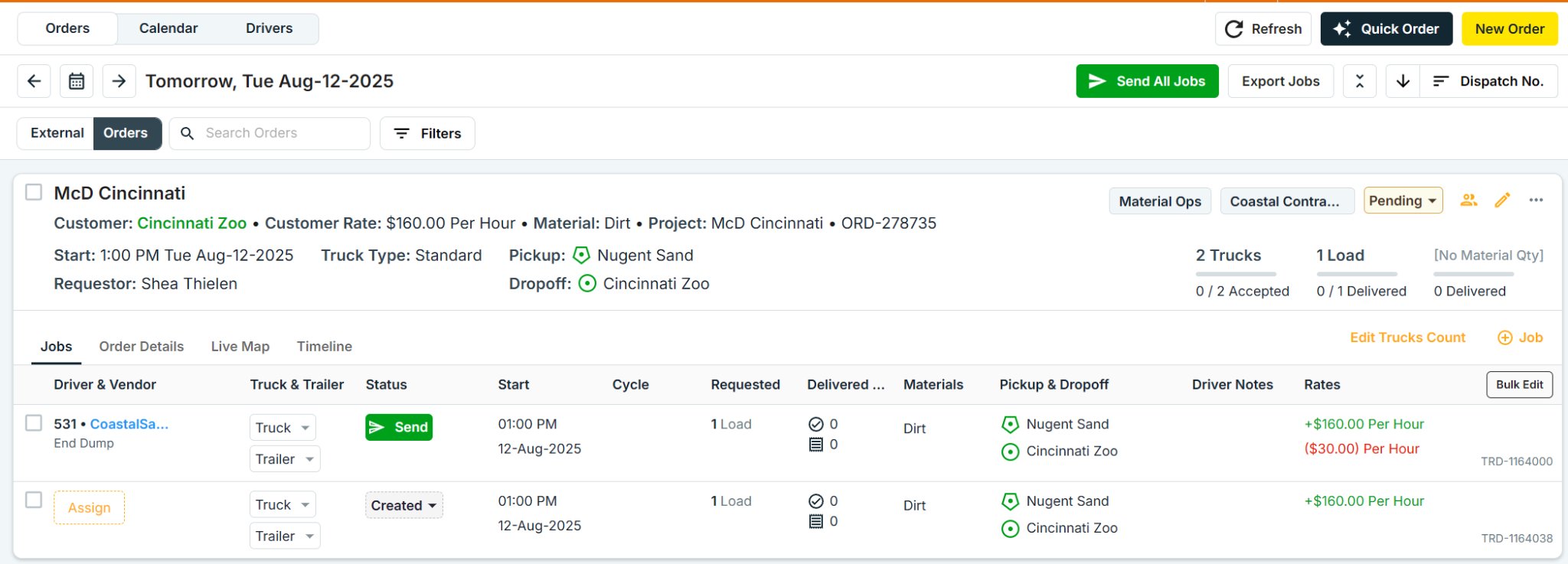
Pick a driver and send
Search by name or truck number, tap the driver you want to assign, and tap Send. The driver gets a push notification immediately.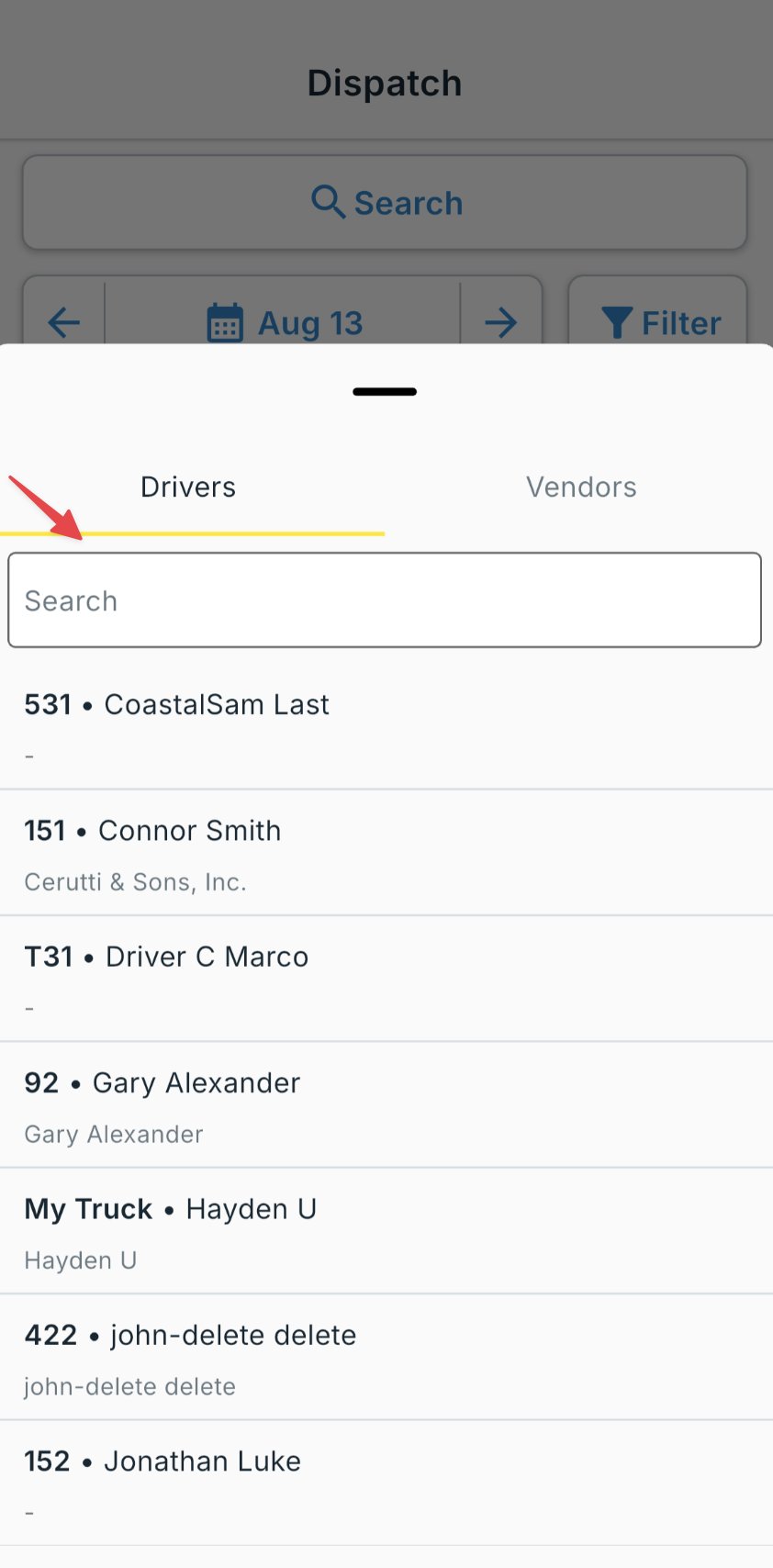
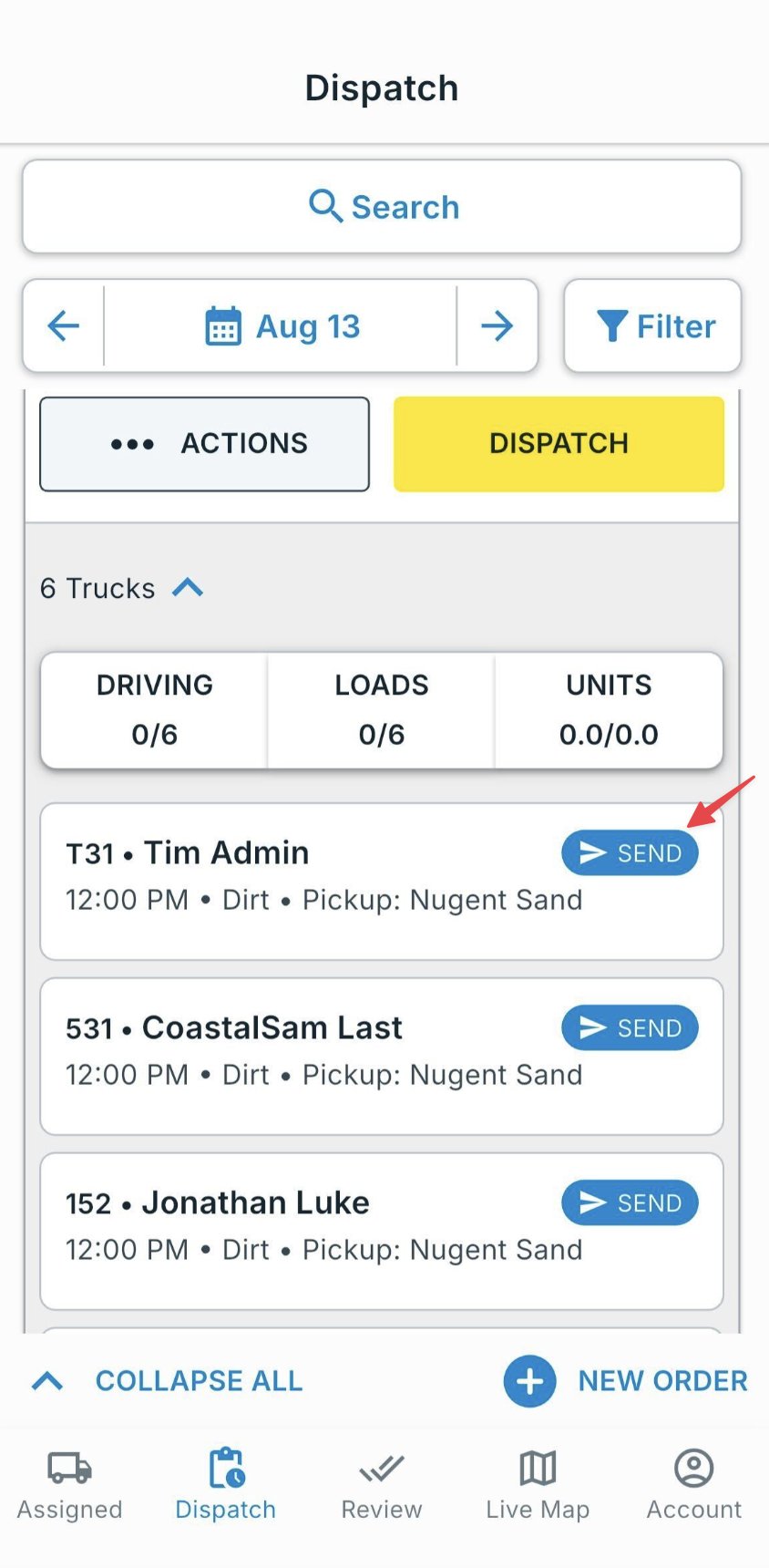
You will see the driver’s location on the map as soon as they start the job.