

When to use this
Turn on Ticket Chaser for projects where drivers regularly finish a load without uploading its ticket. Scale tickets and dirt/quantity tickets are the common case. It replaces a dispatcher calling or texting the driver by hand to chase down a missing ticket.How it works
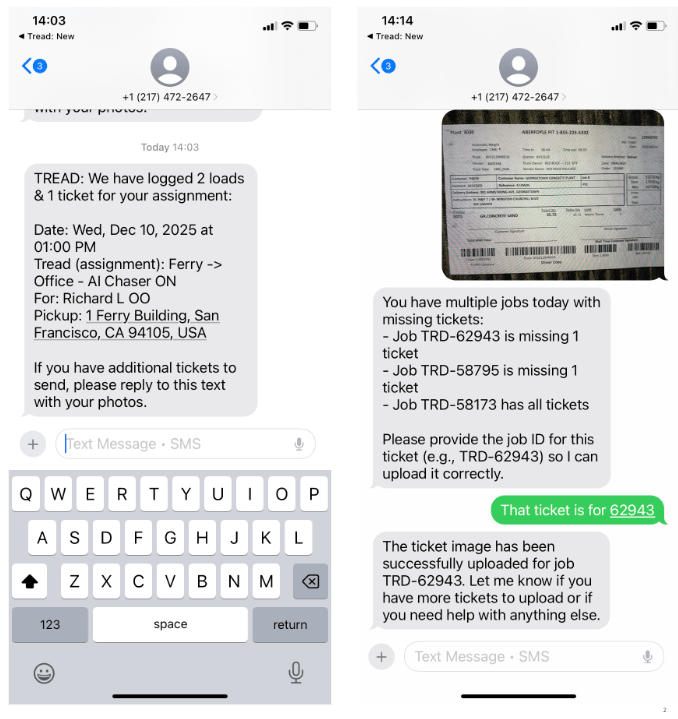
When a load is missing an expected ticket, Ticket Chaser texts the driver, referencing the job by its Job ID (for example,TRD-62943). The driver replies with the job ID and a photo of the ticket, and Ticket Chaser uploads it to the correct load, and with no dispatcher in the loop.
Turn it on
Ticket Chaser is enabled for per account by Tread, then switched on per project.1
Request access
Go to Settings → Agents. If Ticket Chaser isn’t live yet, this shows AI Agentic Ticket Chasing with a Contact Tread for More Information button. Click it to start the enablement request with Tread.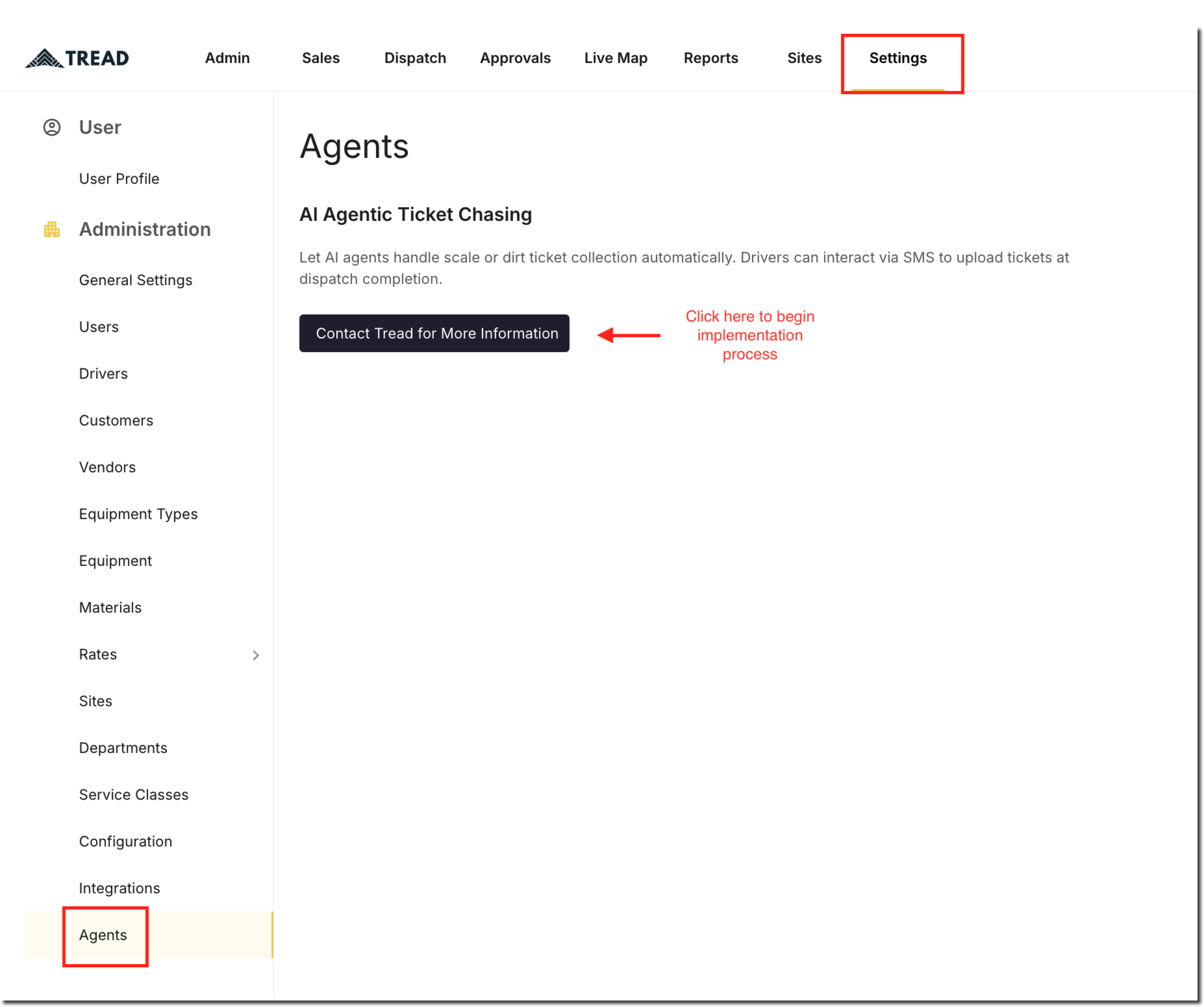
2
Turn on the Ticket Chaser toggle per project
Once Tread enables Ticket Chaser for your account, each project’s order defaults shows a Ticket Chaser field with a Text drivers for missing tickets checkbox, next to the Trucks section. Check it to chase missing tickets on that project’s orders. Enabling the agent for your account doesn’t chase tickets on its own.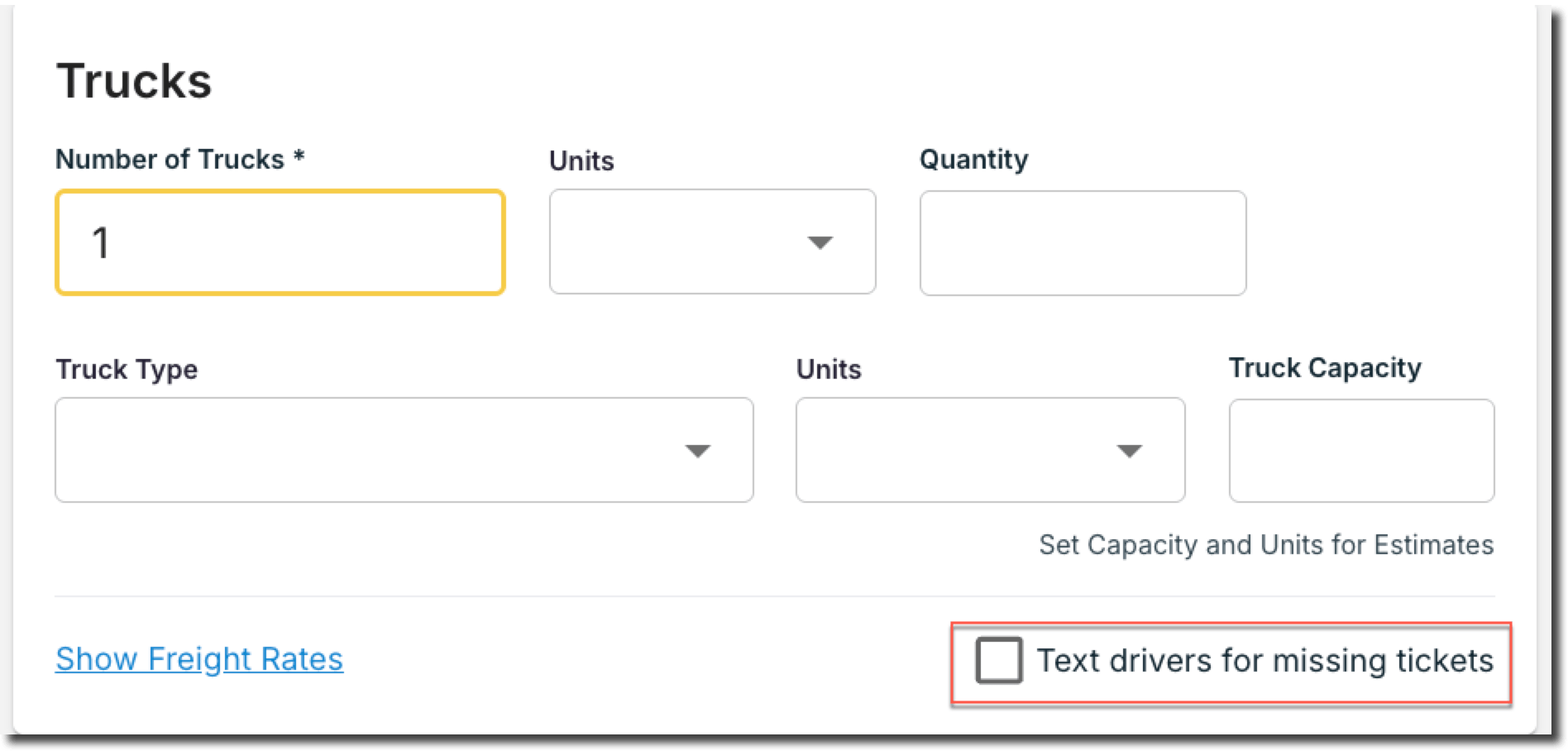
3
Find the Driver Agent phone number
Once ticket chasing is live, Settings → Agents lists the phone number(s) drivers text to upload tickets. See Agent Configurations for the full Settings → Agents walkthrough, including AI Ticket Scanning and AI Reviews.
Common pitfalls
Related
- Agent Configurations — Settings → Agents, including AI Ticket Scanning and AI Reviews
- Digital Tickets
- Tickets & Timesheets