

AI Ticket Scanning
Reads each uploaded ticket photo and fills in the ticket details.
AI Reviews
Approves tickets that match their order and flags the rest for a person.
AI Ticket Chaser
Texts a driver when a load finishes without its ticket.
Ask Tread
Ask questions about your data, or ask for a change, in plain English.
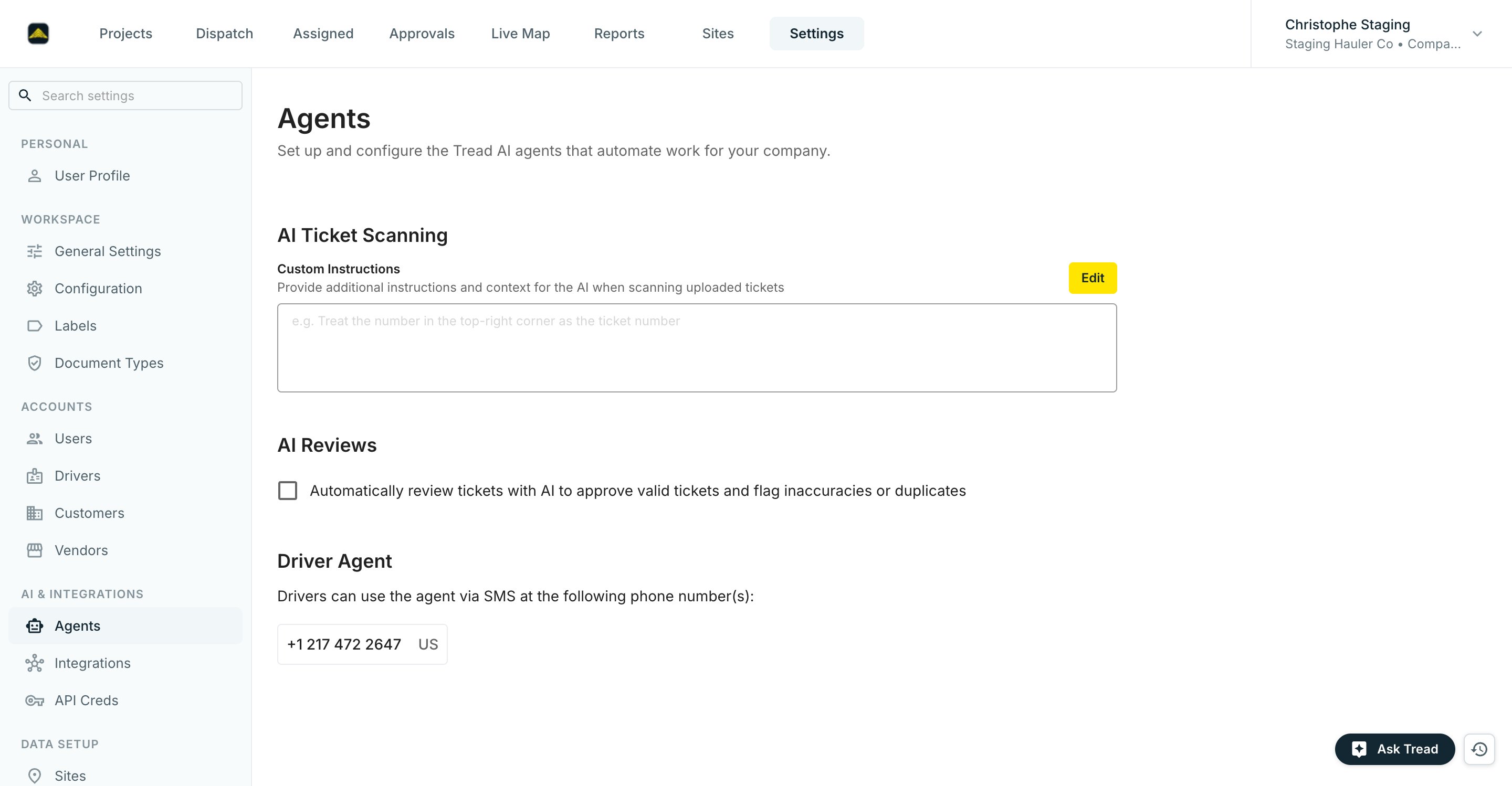
AI Ticket Scanning
AI Ticket Scanning reads each ticket photo that drivers or staff upload, and fills in the ticket details. It’s always on. Most companies leave it as is. If your tickets have an unusual layout, add Custom Instructions under AI Ticket Scanning, for example “Treat the number in the top-right corner as the ticket number.” Instructions apply to every ticket your company scans from then on.AI Reviews
AI Reviews checks each finished load’s ticket against its order. It approves tickets that look right and flags errors or duplicates, so a person only looks at the tickets that need it. It only reviews loads that have a ticket. AI Reviews is off until you turn it on. Check Automatically review tickets with AI to approve valid tickets and flag inaccuracies or duplicates. Add Custom Instructions for rules specific to your company, such as “Always flag tickets where the quantity exceeds 30 tons.” Each reviewed ticket shows one of three statuses: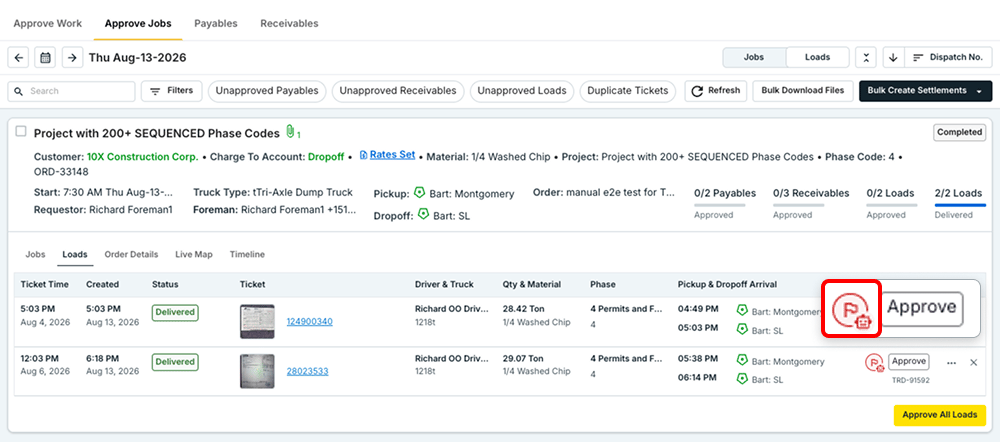
AI Ticket Chaser
When a load finishes without its ticket, the Driver Agent texts the driver and uploads the photo they send back. Contact Tread to set it up, then turn on Ticket Chaser on each project that needs it. See AI Ticket Chaser.Ask Tread
Ask Tread is rolling out to select customers.
Related
- Agent Configurations — set up the AI agents during onboarding
- AI Ticket Chaser — how drivers get texted for missing tickets
- Approving Loads & Tickets — where reviewed tickets show up