

What you dispatch
A Project represents the construction project, (a multi-day scope of work) and can be viewed as a template for daily work; an Order is the daily trucking or material request you actually dispatch. You assign and send the jobs (TRDs or truck dispatches) under an order. If you haven’t created the work yet, start with Create a Project, Order & Dispatch.The dispatch view
The Dispatch view (on web, and the Dispatch tab on mobile) is your command center for the day. Each order card shows its status, truck count, and the per-job rows you act on — assign a driver, send the job, and track its status.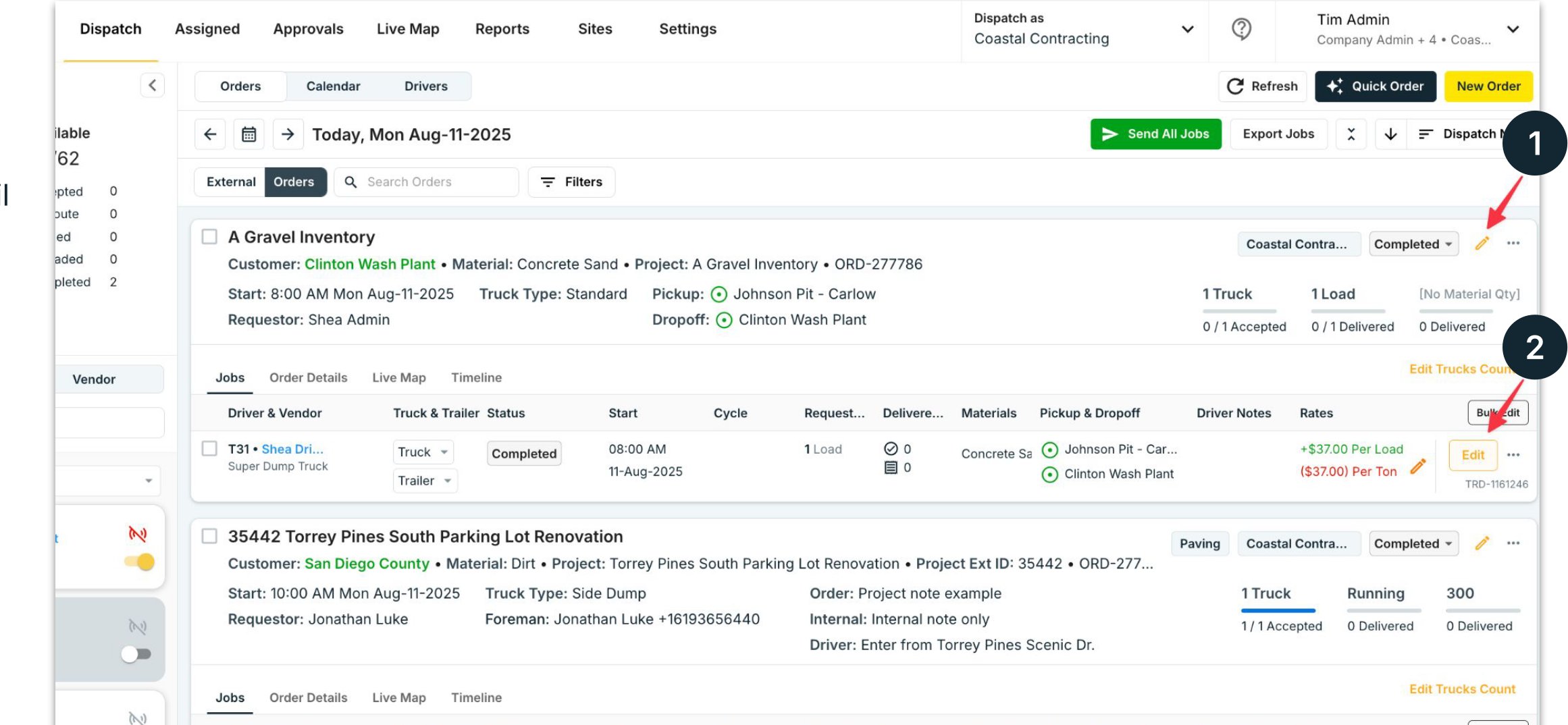
Assign to your own driver — or a vendor
When you assign a job, you choose who hauls it. In the Assign panel you toggle between Driver and Vendor. Pick the wrong one and the driver never sees the load, or the wrong company gets billed, so confirm the relationship first. Full detail in Dispatching to Drivers and Vendors.Before you dispatch — checklist
1
Work exists
A project and at least one order for the day. See Create a Project, Order & Dispatch.
2
Trucks & drivers are set up
Drivers added (and invited so they have the app), trucks created, default trucks paired to drivers. See Set Up Trucks & Drivers.
3
Connections are confirmed (if using vendors or shared drivers)
For a Vendor, the connection is accepted. For a Shared Driver, the partner has shared the driver to you.
Next
- Dispatch a Job (Web & Mobile) — the step-by-step assign → send → monitor flow, and what your driver sees
- Dispatching to Drivers and Vendors — internal, shared, and vendor drivers, in depth
- Track Drivers & Collect Tickets — what happens after the load is sent
- Tread Dispatch Guide (single-page version) — this guide as one shareable HTML page