Add your trucks, drivers, dispatchers, and admins before the first job goes out.
Same setup, two surfaces. Complete these steps on mobile or web — whichever is easier for your team.
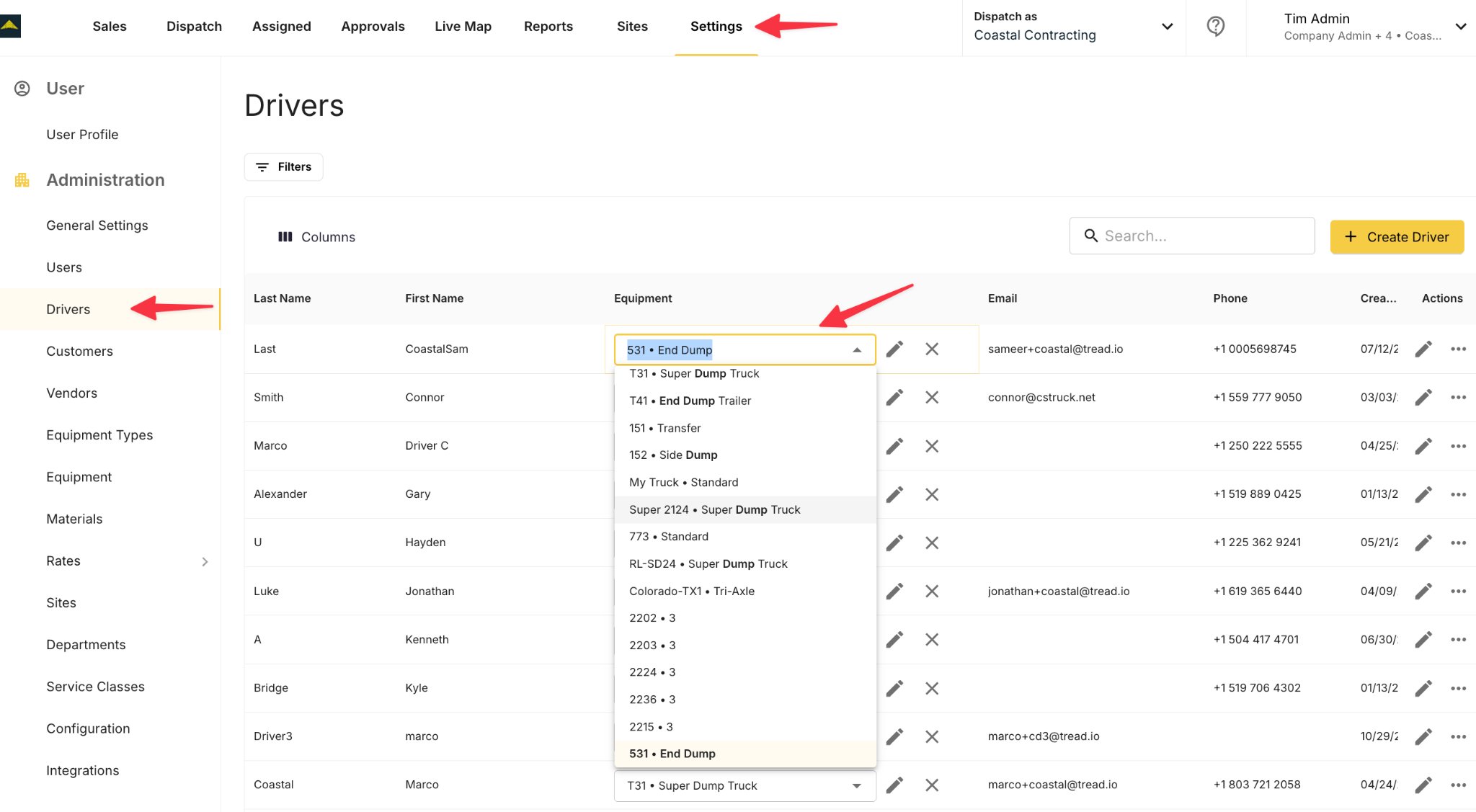
Assign a default truck to each driver. The truck name shows up alongside the driver every time you dispatch — fewer clicks, fewer mistakes.
Mobile
Web
1
Download and sign in
Download the Tread app from the App Store or Google Play, or go to link.tread.io/app. Sign in using your mobile phone number and the SMS verification code.
2
Add your trucks
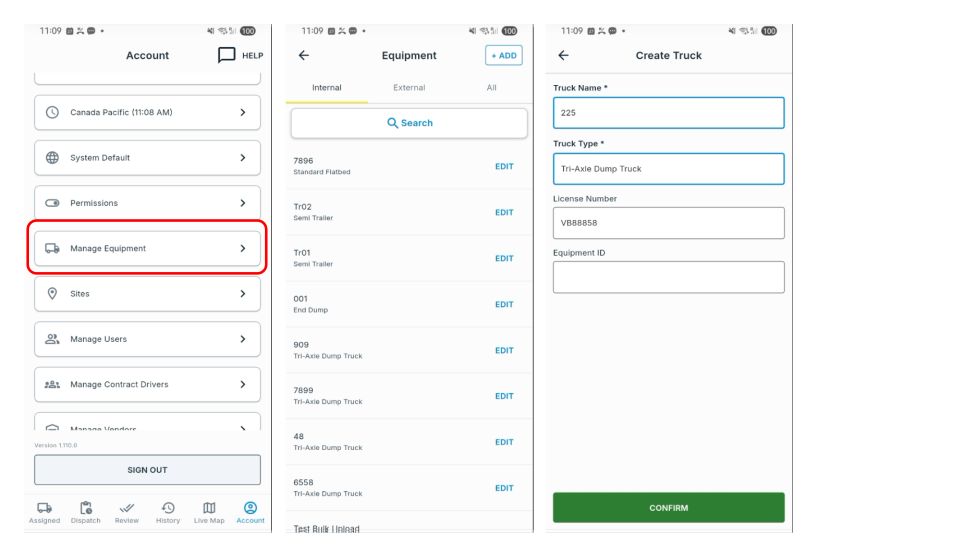
Tap Account → Manage Equipment → + Add. Enter the truck name and type, then tap Save. Repeat for each truck in your fleet.
3
Add your drivers
Video Guide • 30 seconds Video Guide • 30 seconds
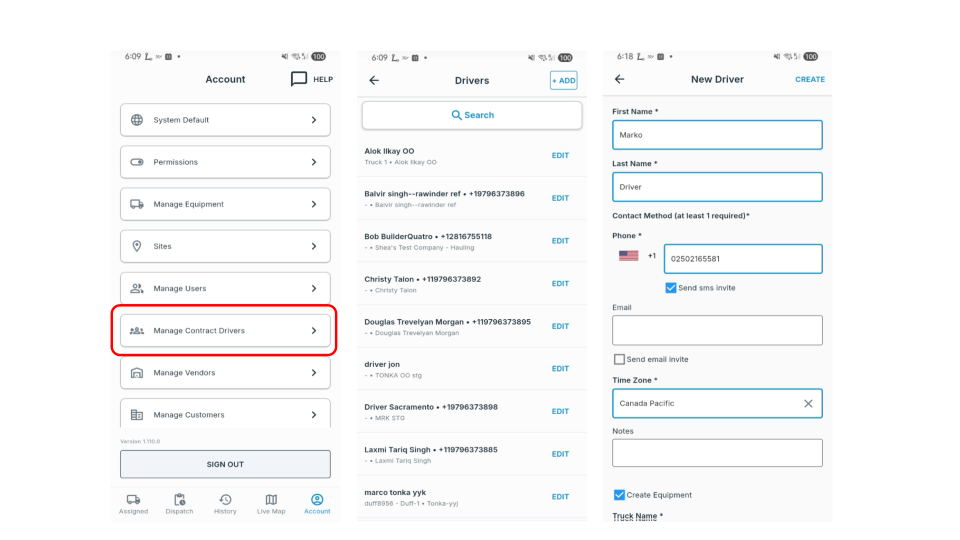
Tap Account → Manage Contract Drivers → + Add. Enter the driver’s name and phone number. Toggle on Send SMS invite to send the driver a download link, then tap Save.
The SMS invite sends a download link directly to the driver’s phone. If you skip this step, you can send the invite from the driver’s profile later.
4
Add dispatchers and admins
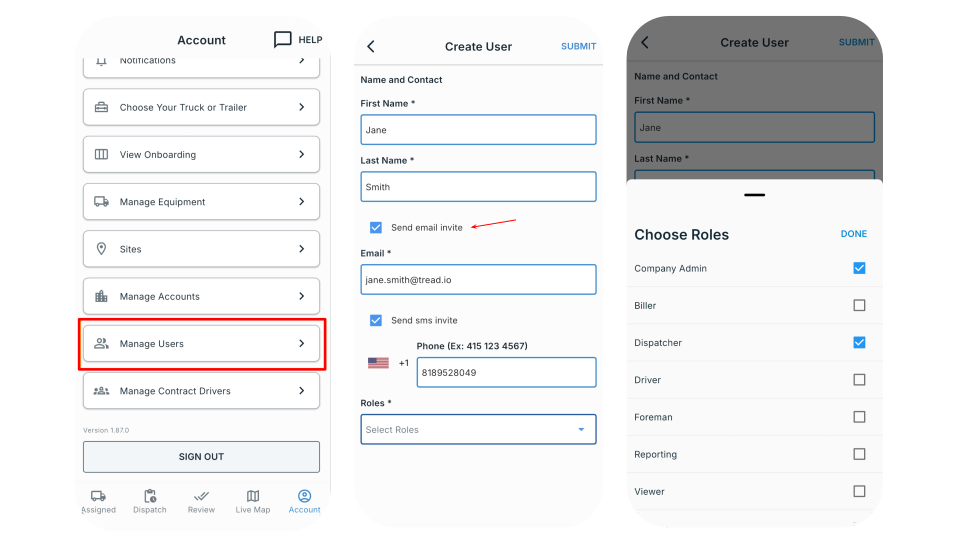
Tap Account → Manage Users → + Add. Enter the user’s name, email, and phone. Select the appropriate role — Dispatcher or Admin — and tap Save.
Admins can access all account settings including billing. Assign the Admin role only to team members who need that level of access.
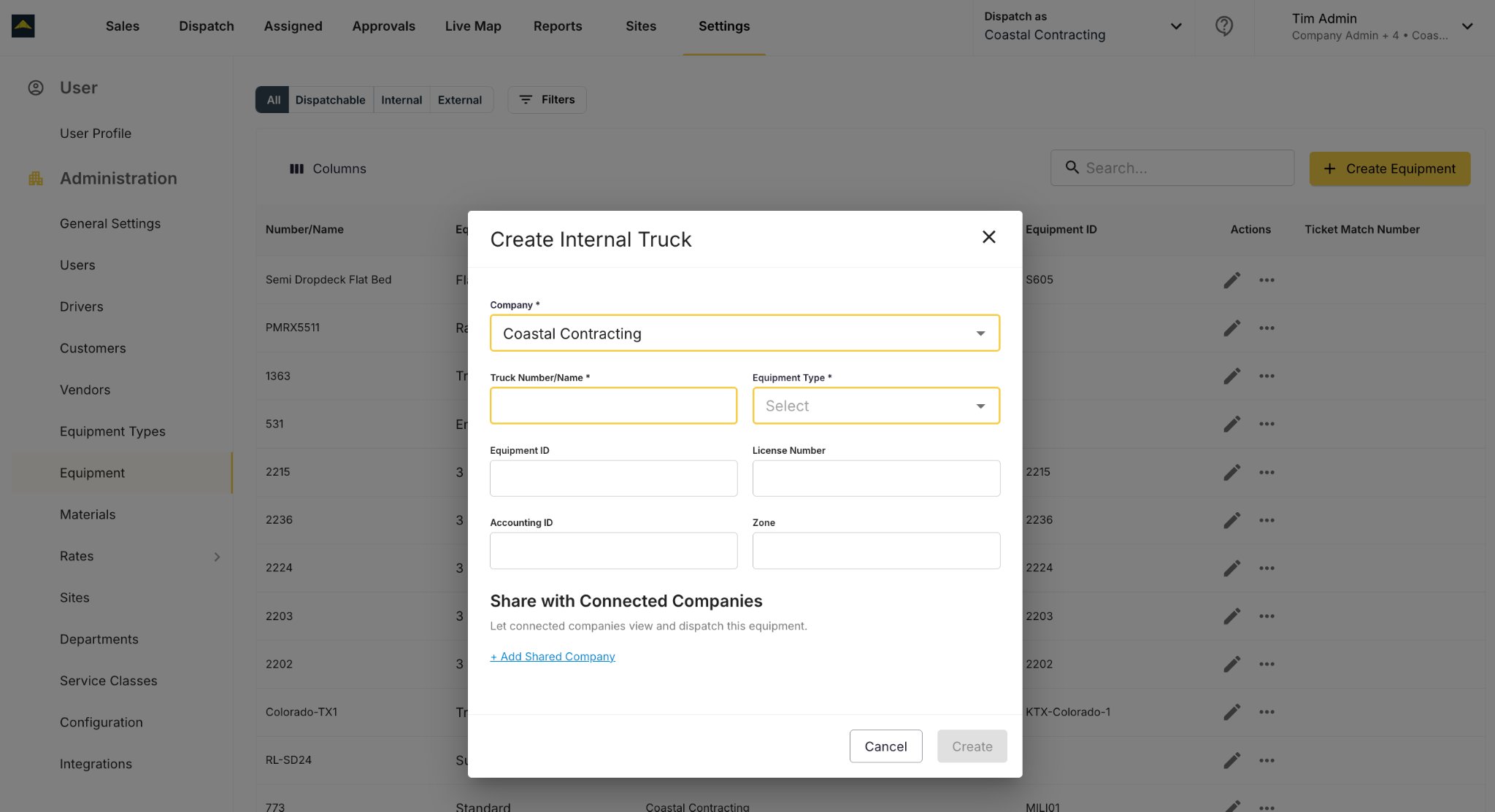
Open Settings → Equipment → Create Equipment. Enter the truck name and type, then click Save. Repeat for each truck in your fleet.
3
Add and invite your drivers
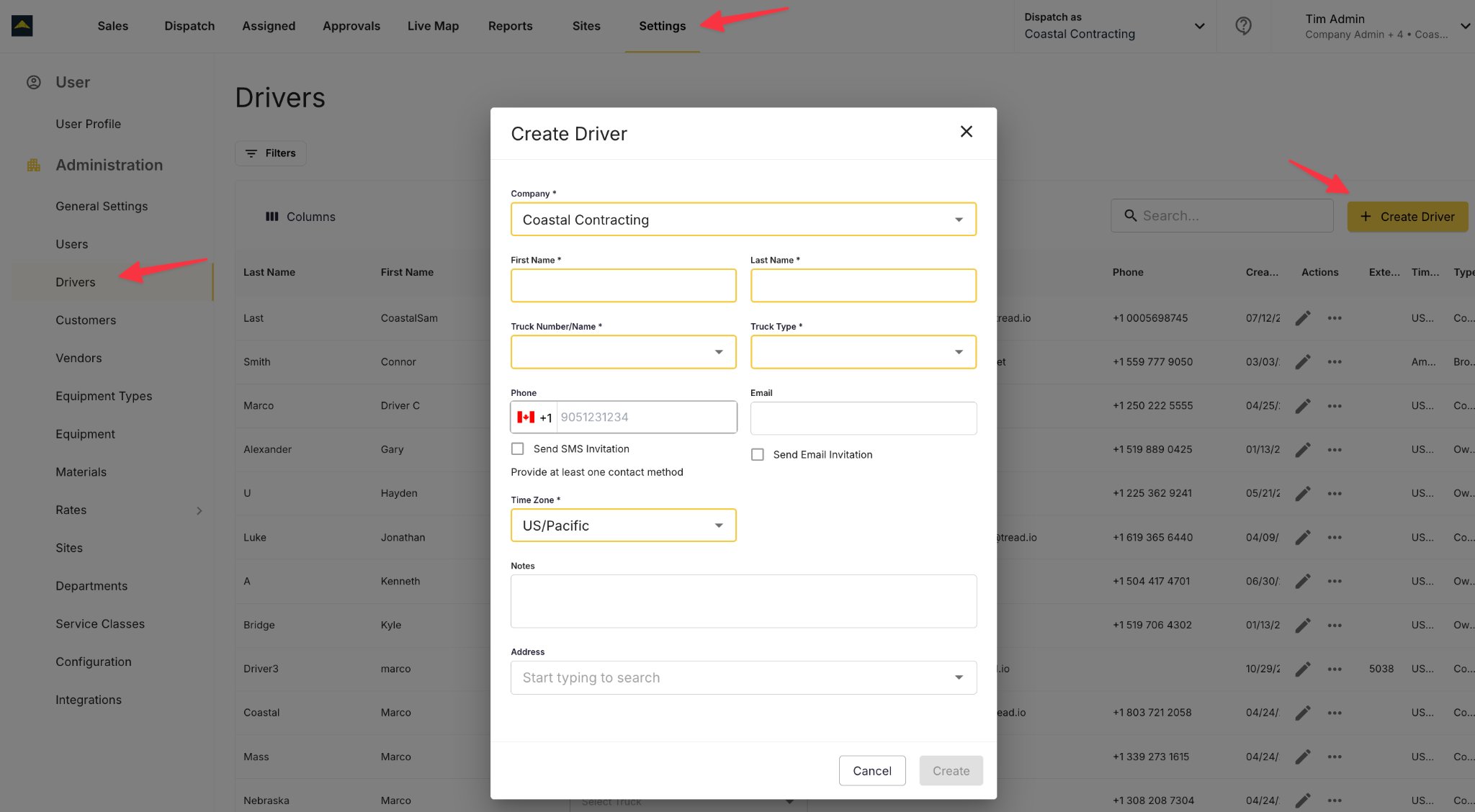
Go to Settings → Drivers → Create Driver. Fill in the driver’s name and phone number. Check Send SMS invite so the driver receives a download link for the Tread app. Click Save.
If you leave the SMS invite unchecked, you can send the invite later from the driver’s profile. The driver won’t be able to log in until they’ve received and used the invite link.
4
Assign default trucks to drivers
In Settings → Drivers, click a driver’s name to open their profile. Set the Equipment field to their default truck and click Save. The selected truck will pre-fill on every new assignment for this driver.
5
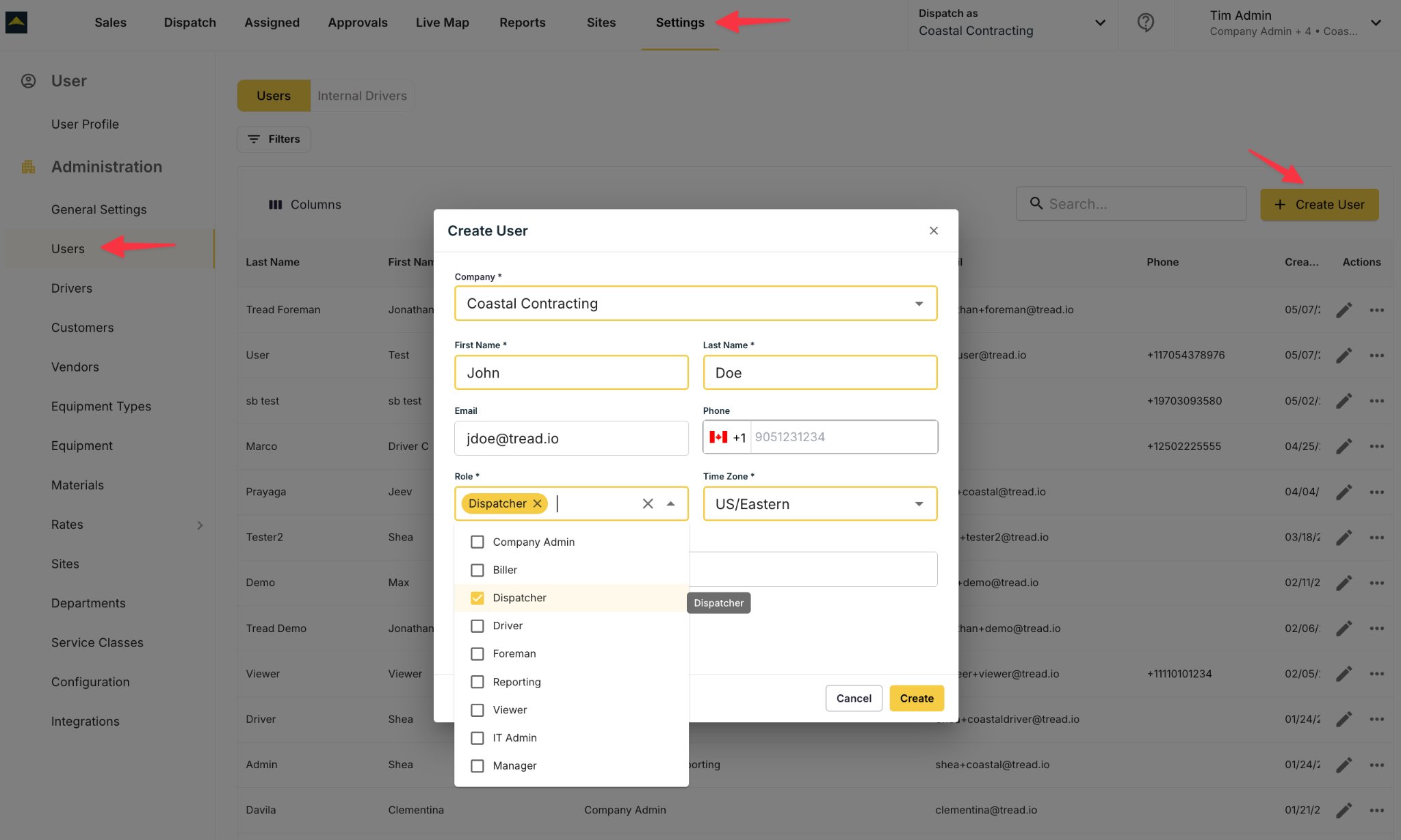
Add dispatchers and admins
Go to Settings → Users → Create User. Enter the user’s name, email, and phone. Select Dispatcher (can create and send jobs) or Admin (full account access) and click Save.
“Phone number already in use” when adding a driver. This means the number is already on a driver record under a different company account — often the driver’s own previous employer, or another vendor they’ve worked with. There’s no self-serve way to move the record yourself. Contact support with the driver’s name, phone number, and both company names, and they’ll reassign it.
Assistant
Responses are generated using AI and may contain mistakes.