

Messages is turned on per company. If you don’t see Messages on the web or in the app, contact Tread support.
Where conversations live
The Messages tab lists every conversation, filtered by All, Jobs, Orders, and Broadcasts.
Message Drivers on the web
Messages in the top menu lists every conversation. A badge shows your unread count. On Dispatch, the Unread messages filter shows only orders with unread replies.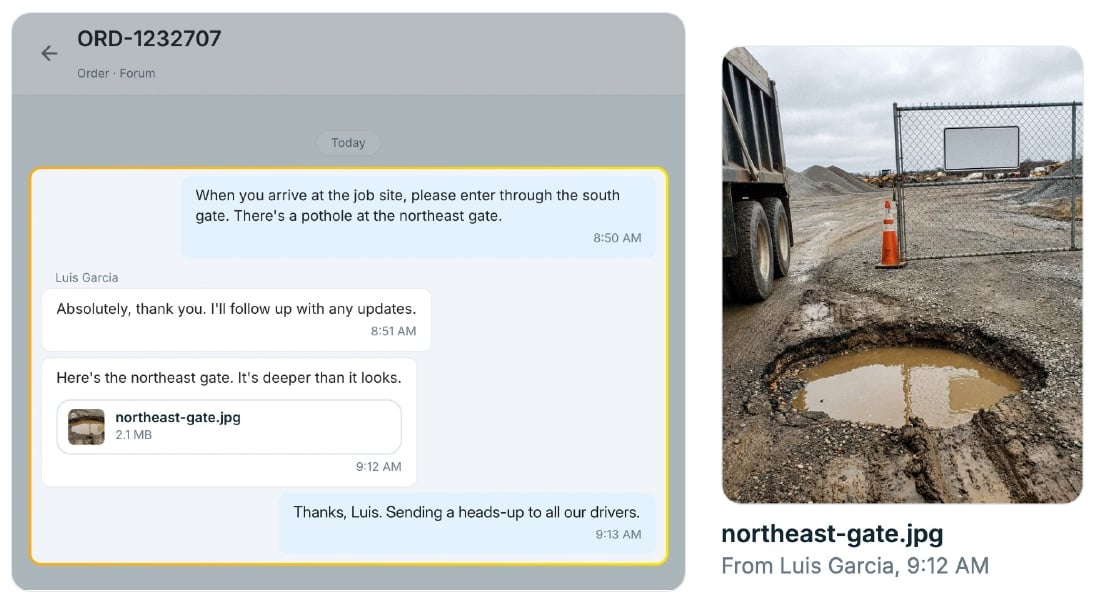
1
Message one Driver
On Dispatch, click the actions menu (⋯) on the job row, then click Message driver. Click Start conversation, or Open conversation if one already exists. The conversation is about that job only.
2
Message every Driver on an order
Click the actions menu (⋯) on the order card, then click Message all drivers. Or expand the order and open its Messaging tab. Order thread holds one conversation for every Driver on the order. Job DMs lists the one-to-one conversations on the order’s jobs.
3
Message all your Drivers
In Messages, click New message. Under Conversation type, pick Direct for one Driver or Broadcast for many. For a broadcast, pick Recipients or Select all drivers, choose Replies, then click Review broadcast.
Message Drivers from Dispatch in the app
1
Open the order's conversations
On the Dispatch tab, tap the chat icon (Message Drivers) on the order card. You can also tap Message Drivers in the order’s Actions sheet. Both open the order on its Messages tab.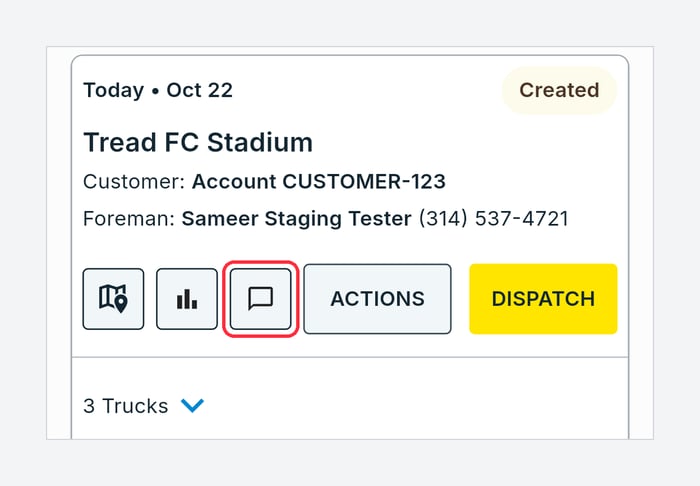
2
Pick the order thread or a job DM
Tap Order thread to message every Driver on the order at once. If no thread exists yet, tap Open order conversation. Tap Jobs DMs to message one Driver about their dispatch.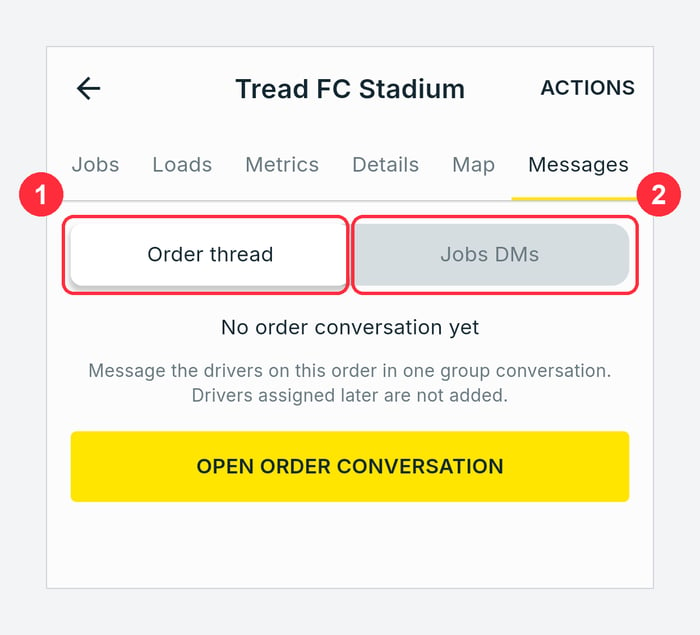
3
Watch for unread counts
The chat icon turns red and shows a count when a Driver replies. The Dispatch and Messages tabs show a badge with the total unread.
Text All Drivers in the Actions sheet still sends an SMS. See Text Drivers. Message Drivers sends an in-app message.
Send a broadcast
A broadcast sends one message to many Drivers at once.1
Start a new broadcast
On the Messages tab, tap New message, then New broadcast.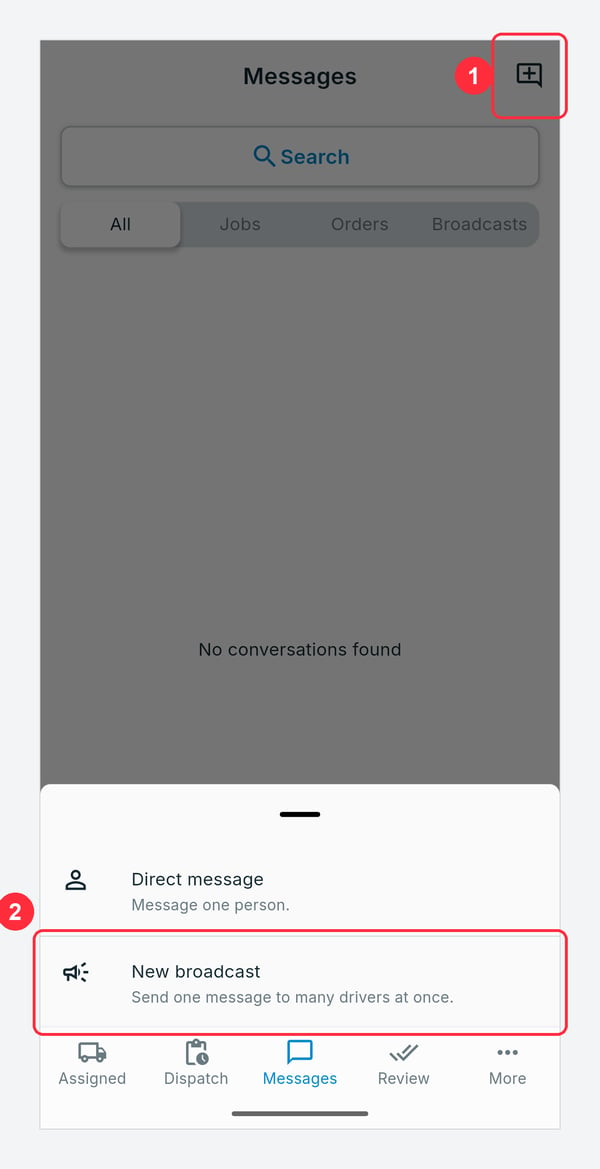
2
Choose recipients and replies
Tap Choose recipients, or Select all drivers. Under Replies, pick one:
- Forum — everyone can reply.
- One-way — no replies.
- Private replies — replies go privately to you.
3
Review and send
Review broadcast shows the recipient count and the reply setting. Check it before you send.
What Drivers see
- Messages on the active job. The active job has Info, Tickets, and Messages tabs. Dispatch starts the conversation. Until then the tab shows No messages from dispatch yet.
- Push notifications. Tapping a message notification opens that conversation.
- Private replies. On a broadcast with private replies, Drivers tap Reply privately. Dispatch sees which broadcast the reply answers.
- Replies off. On a one-way conversation, Drivers see Replies are off for this conversation instead of a reply box.
- No signal. Messages sent without service show Waiting for connection and send when the phone reconnects. See Offline Mode.