

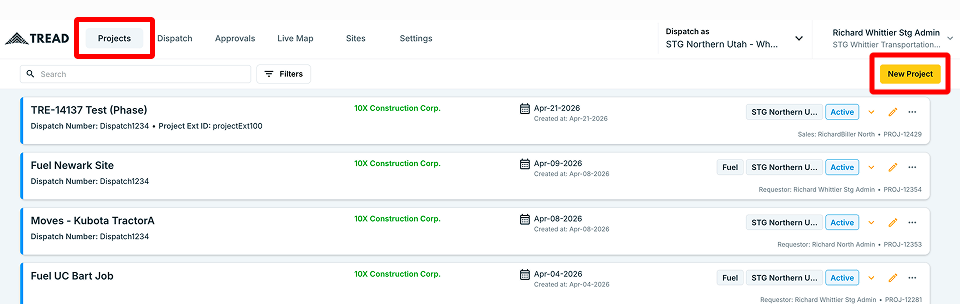
To get started, navigate to the Projects tab in the top left corner of your screen, then click New Project.
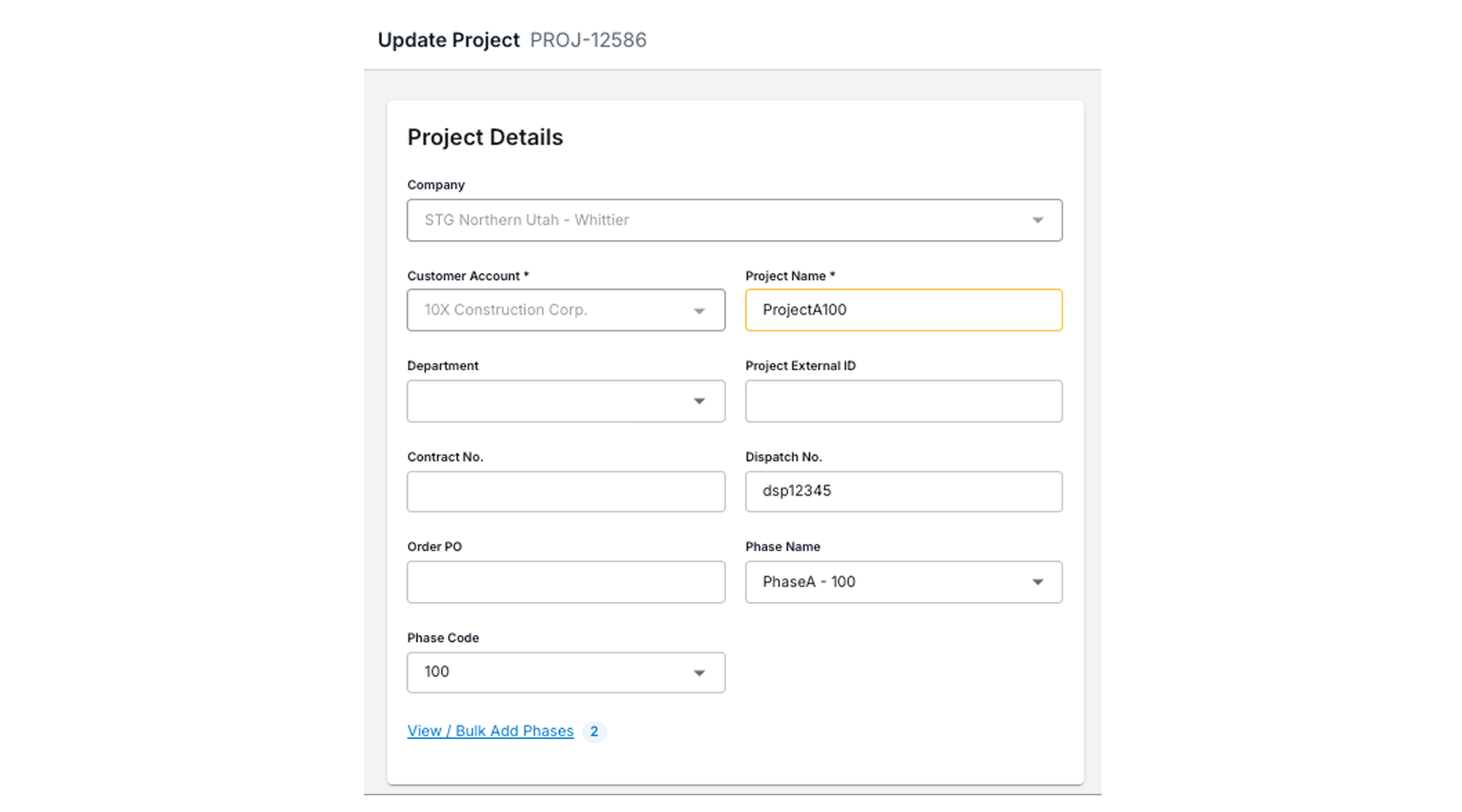
Step 1: Project Details
Fill in the following fields to set up the basics of your project:- Customer — Select an existing customer account or create a new one directly from this screen.
- Project Name — Give your project a clear name (e.g. Taylor Stadium).
- Department — Assign a department if applicable (e.g., Hauling).
- Project External ID — Optional reference ID for your own tracking (e.g. a Job ID from an external system)
- Dispatch Number / Order PO — Add these if required for your workflow.
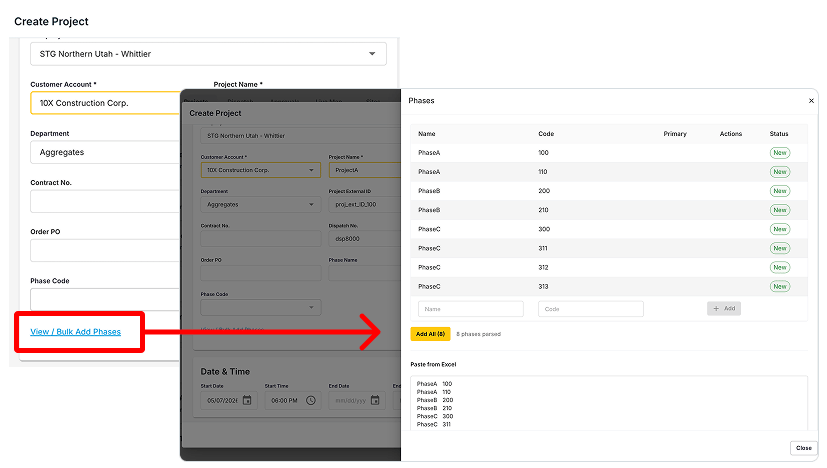
Phase Codes
If your project has phases:- Click “View / Bulk Add Phases” to enter phase codes
- You can enter them one by one, or copy and paste from a spreadsheet
Step 2: Dates
Set a Start Date and Start Time for the project. If you don’t yet know the end date, you can leave that field blank and fill it in later.
Step 3: Pickup and Drop-Off Sites
If you know your pickup and drop-off locations, you can add them here. These will default to every order created under this project, saving you from entering them each time.Default Sites
Make certain sites easily visible in the order form by using default sites.- Select a site, then click the + button
- Open the sites menu, you’ll see a “Default Sites” list
- Note: Pick Up and Drop Off have their own Default Sites lists
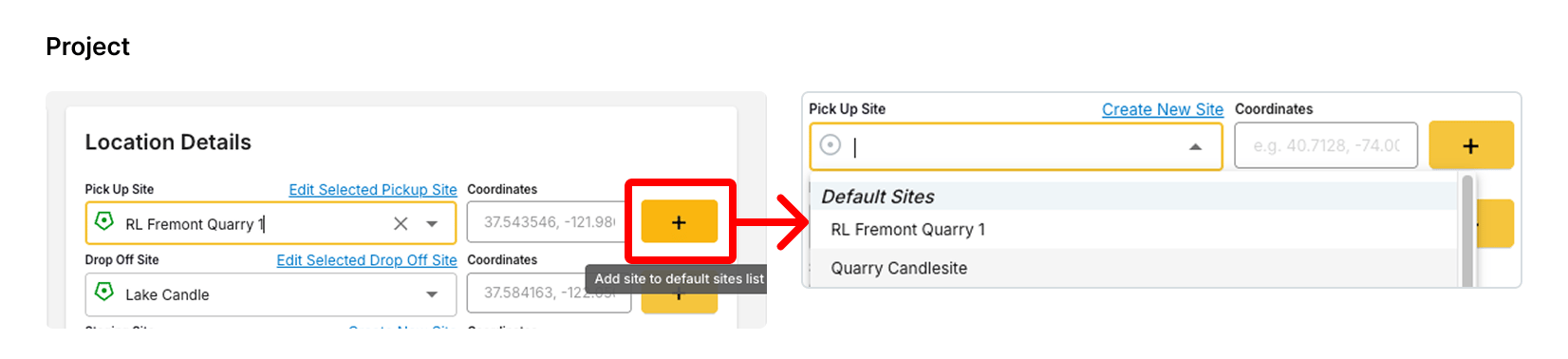
Example: In this project I set 2 Pick Up sites because we load materials from both sites
What the site icons mean
The map draws a marker for every site so you can confirm the route at a glance. The marker’s outline tells you whether a site is set for the order or only suggested.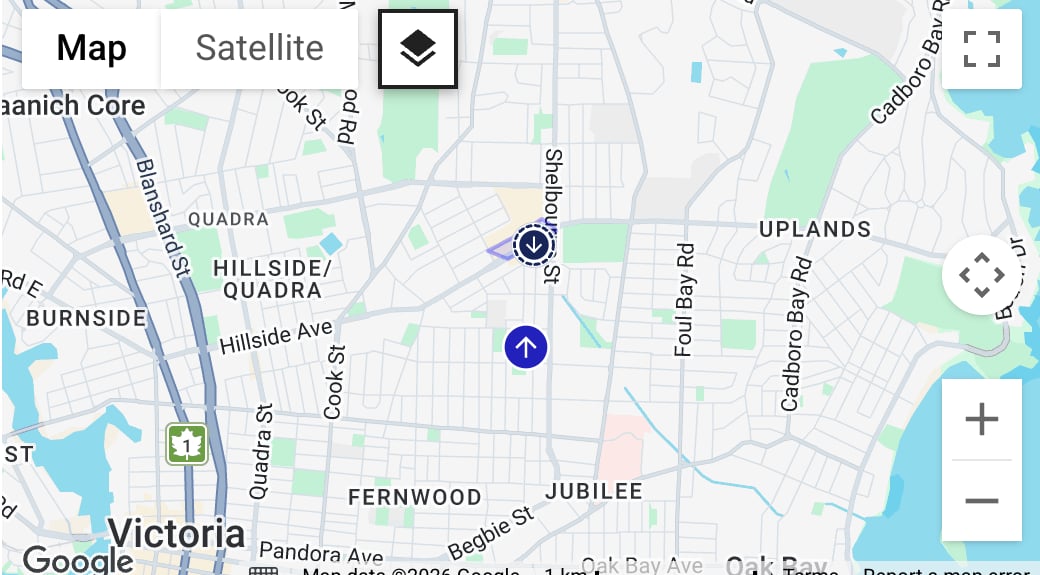
Step 4: Materials & Material Rates
Add the material(s) you will be hauling on this project, and associated rates. Set up once, and every order under the project prices its material automatically — no re-entry each day. For each material:- Material — pick from your materials list (e.g., Gravel).
- Total Quantity and Unit — the amount ordered for the whole project (e.g., 1,000 tons).
Material Rates: buy and sell prices per site
If you track material costs, click + Add Material Rate to price the material. Each rate row holds a Site, a Buy Price (what you pay), a Sell Price (what you charge the customer), and a Unit. The same material can carry a different price at each site — add one rate row per site with + Add Material Rate: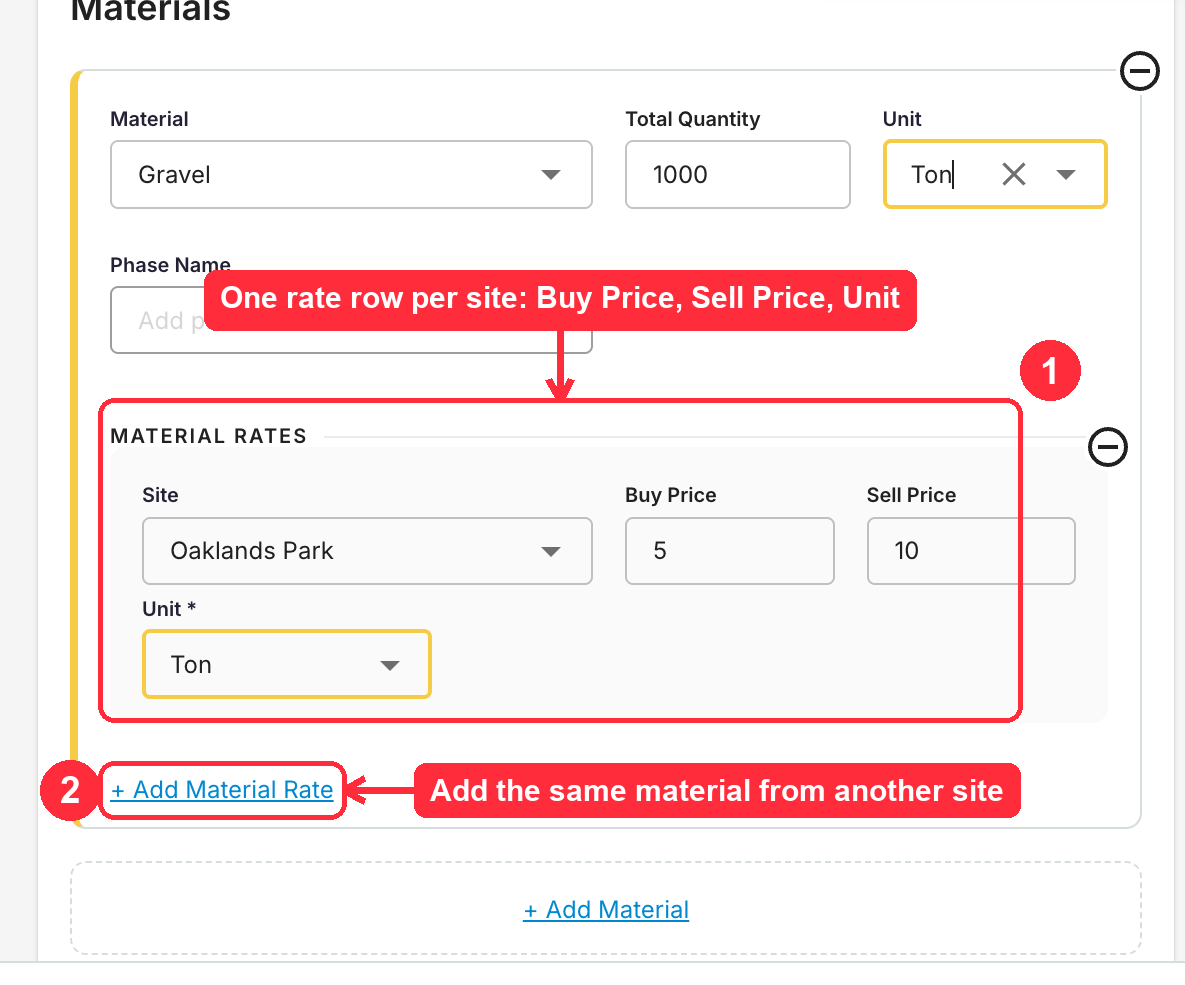
Step 5: Order Defaults
These settings will pre-fill on every order created under this project:- Charge to Account — Specify the account your drivers should charge to on-site. You can set this to match your customer account or leave it blank.
- Quantity per Day — Enter the expected tonnage or loads per day (e.g., 100 tons/day).
- Trucks per Order — Set how many trucks you expect per order (e.g., 5 trucks).
- Quantity per Truck — Set how much each truck will carry (e.g., 20 tons).
- Units — Switch between per ton or per load depending on your workflow. If set to per load, you can choose between a specific requested amount or running (which allows drivers to keep making trips without a set limit).
- Truck Type — Select a specific truck type if required (e.g., Tri-Axle Dump Truck). This helps Tread estimate how many loads are needed to reach the daily ordered quantity and also presets values on tickets.
- Truck Work Duration — Optionally define how long each truck should work.
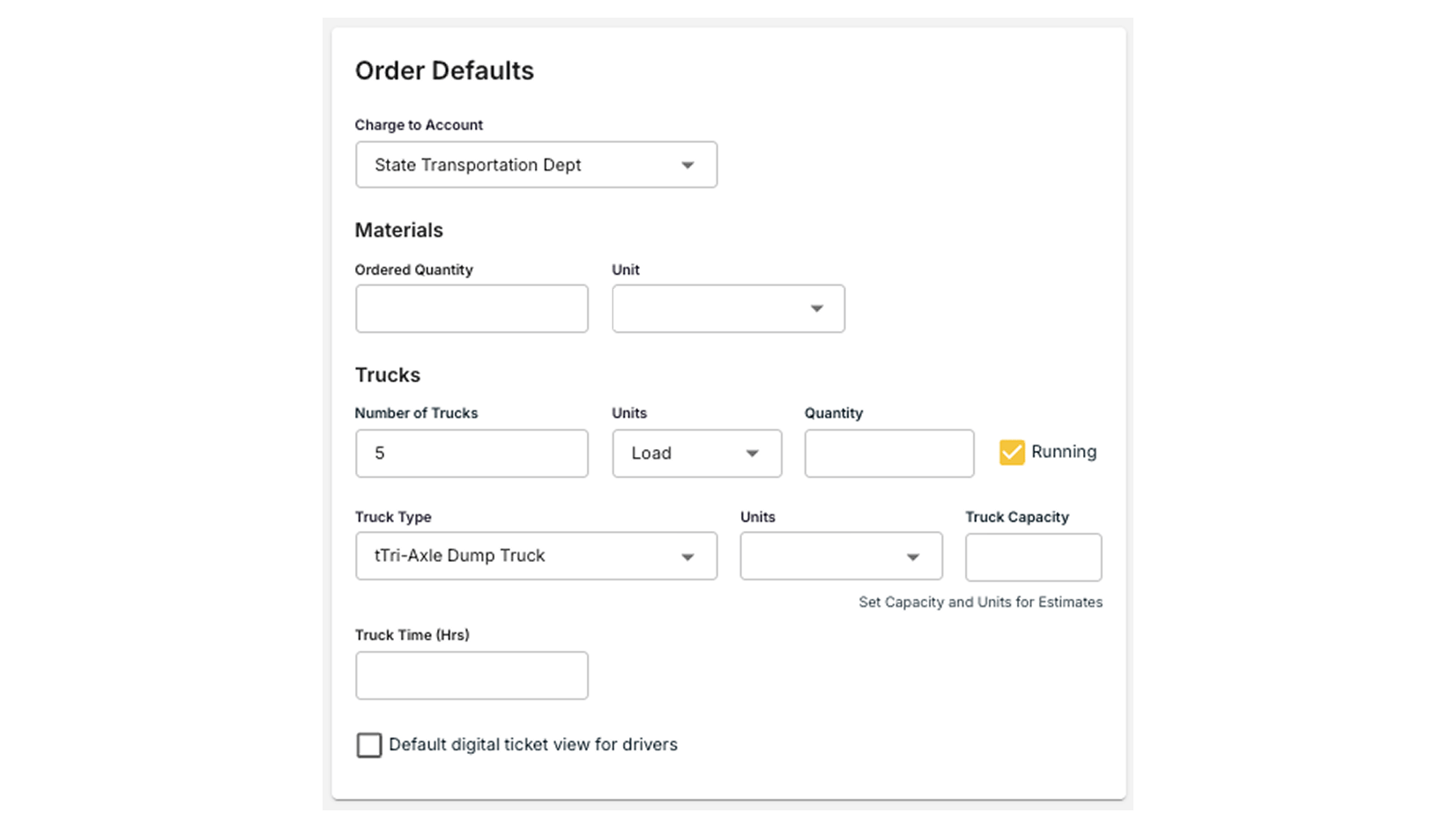
Example: Each order for this project will default an order for 5 Tri-axles doing a Running (i.e. continuous) haul between sites.
Step 6: Freight Rates and Tax
Set rates and add ons for freight. For more info please refer to this documentation.- Customer Rate — The rate you CHARGE customers
- Vendor Rate — The rate you PAY vendors (e.g. brokers, haulers, OOs)
- Driver Rate — The rate you PAY internal drivers (i.e. company drivers)
Tax
You can apply a tax rate to the receivables invoice and choose which items it applies to.- Enter your tax rate (e.g., 8%).
- Select whether the tax applies to freight and fuel surcharge rates, material rates, and/or add-ons.
Step 7: Contacts
Default contacts on the order. For example set the Foreman in charge of the project.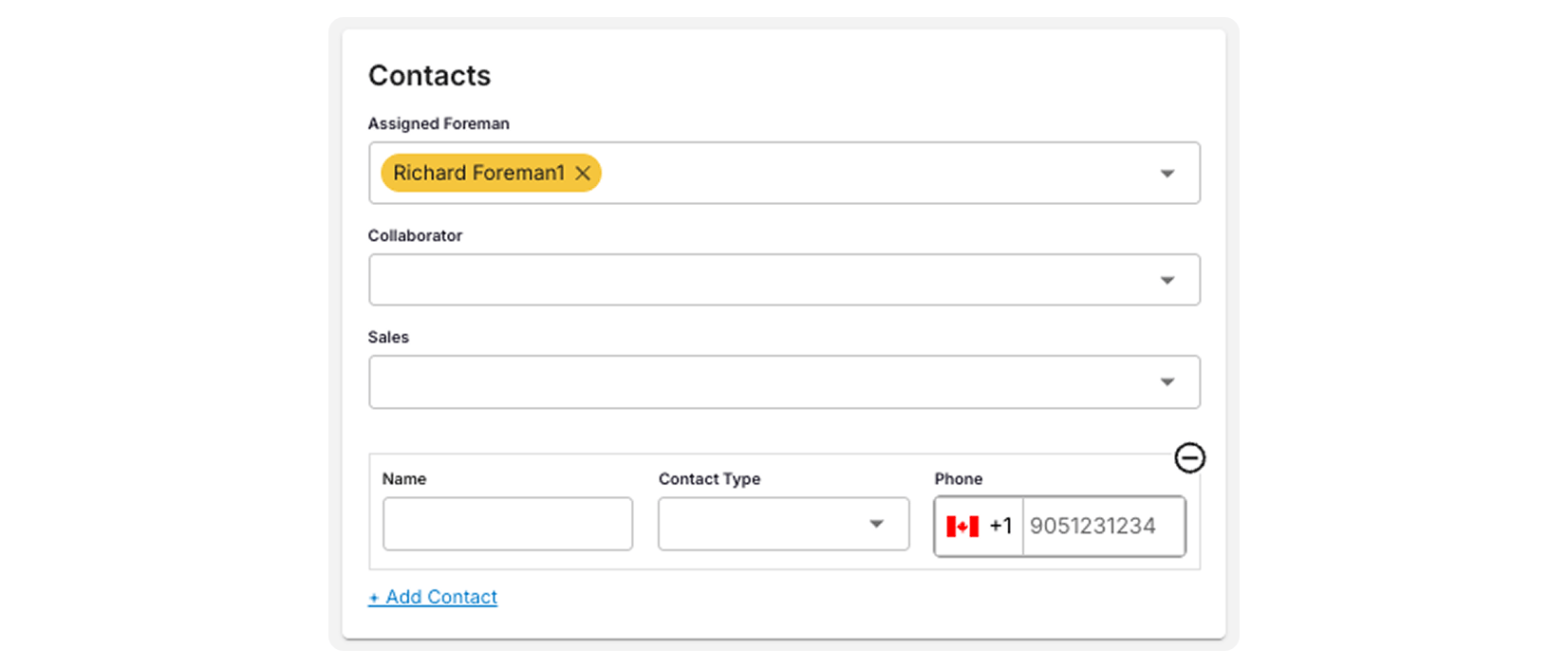
Step 8: Attachments & Notes
You can attach any relevant files to the project and add notes that will appear directly on the order. Project files appear on every order in the project, and drivers see them in the driver app. To attach a file to one order only, see Attach Files to an Order for Drivers.Notes
- Project - Visible in this Project and itsOrders
- Order - Visible in the order
- Driver - Drivers see these notes in the Driver App
- Internal - Visible in this Project and its Orders
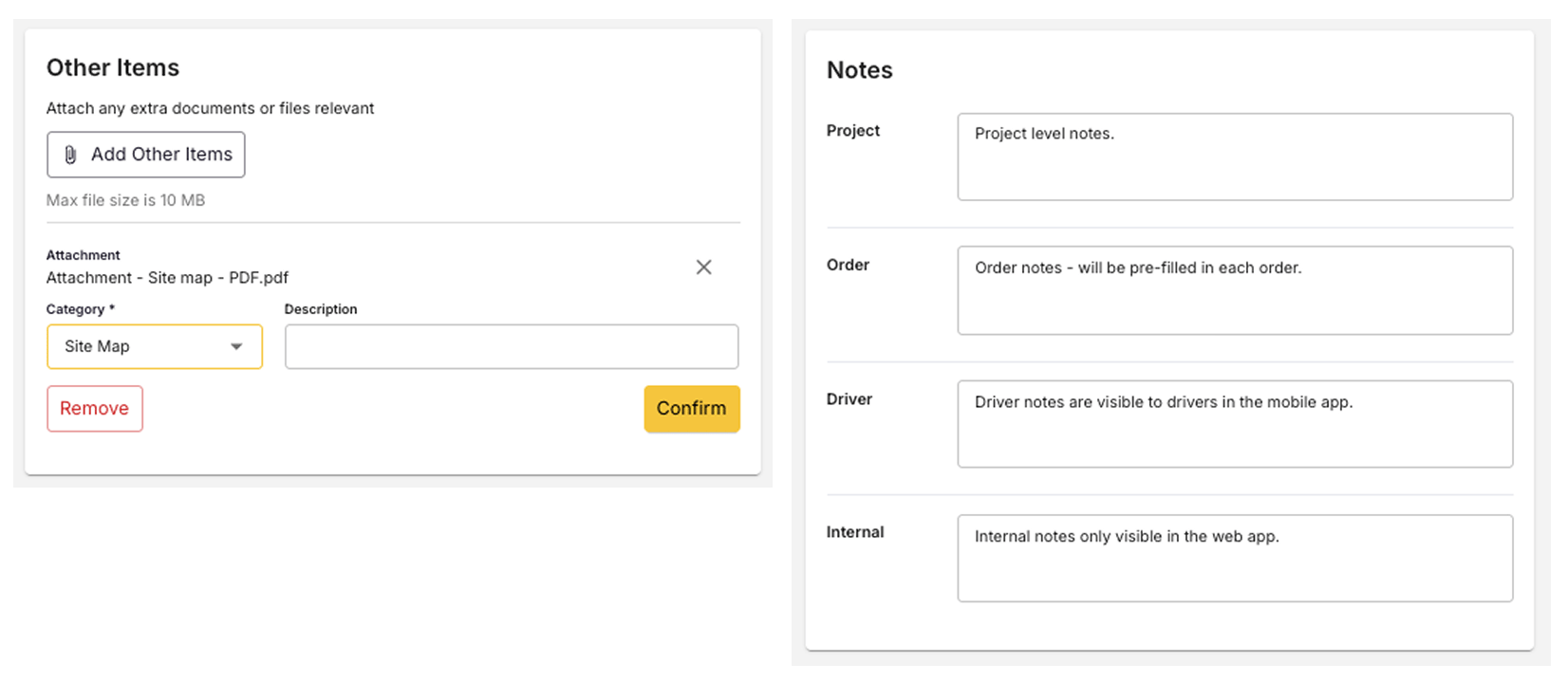
Example: (Left) A site map is attached to the project.