

Permissions
Only users with the right role can connect vendors via Tread ID:- Admin or Dispatch Manager: Can create, edit, and connect vendors using a Tread ID.
- Dispatcher: Can assign jobs to connected vendors but cannot create new vendor connections.
Before you start
- The vendor must already have an active Tread account.
- Ask the vendor to share their Tread ID from their account settings.
Connect the vendor
- In the web app, go to Settings → Vendors.
- Click +Connect
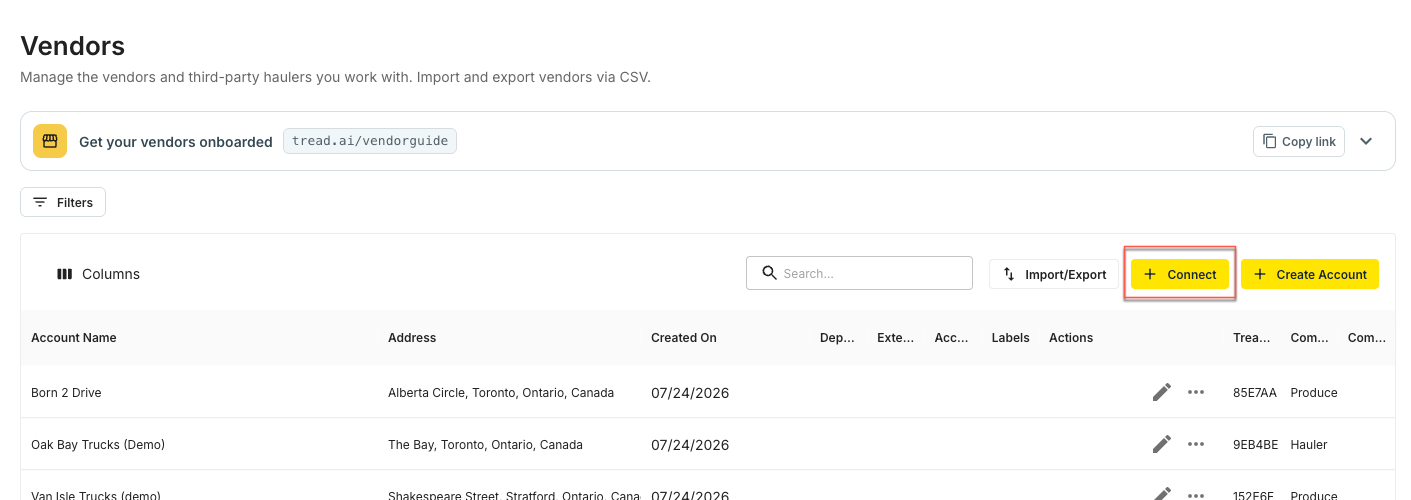
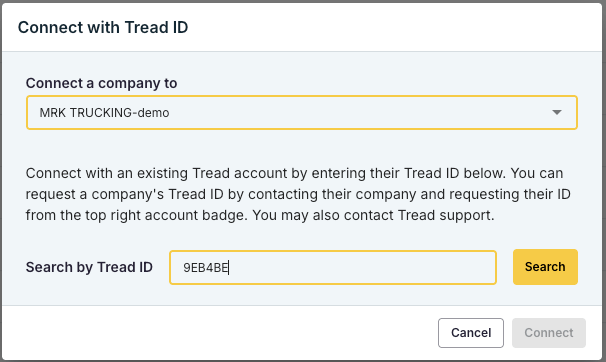
- Enter the vendor’s Tread ID in the connection field, click on Search.
- Confirm the vendor’s company name and details that populate from their Tread account, select Vendor.
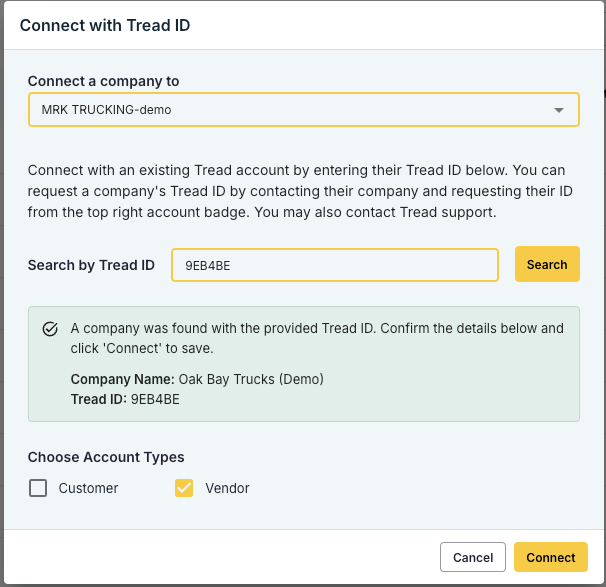
- Click Connect.
Verify the connection
- Open a job and click Assign → Vendor.
- The newly connected vendor should appear in the list of available vendors.
- After you send the job, the vendor receives the assignment in their own Tread account and can sub-dispatch to their drivers.
Troubleshooting
- Tread ID not found: Confirm the ID is spelled correctly and that the vendor’s account is active.
- Vendor already exists: You may already have a manual vendor record with the same name. Merge or archive the duplicate before connecting via Tread ID.
- Vendor doesn’t see jobs: Confirm the vendor has accepted the connection request (if prompted) and that their users have permission to view incoming dispatches.