Attach the route to the order and every driver on it opens the same file on their phone. No texting PDFs, no calls asking which gate to use.

Attach the file

Files live under Other Items on the order form. An order is one day of work inside a project.
1

Open the order and click Edit

2

Scroll to Other Items and click Add Other Items

Tread accepts PDF, PNG, and JPG files up to 10 MB.
3

Pick the file

The file uploads as soon as you select it.
4

Set the Category and Description, then click Confirm

Category is required. Pick from Inspection Report, Site Map, Scale Ticket (External), Scale Ticket (Internal), Timesheet, or Other. A route map goes under Site Map.Description is free text and optional. Drivers see it next to the file name, so use it — “Route” or “North gate entry” tells a driver what they are opening.
5

Click Submit

Submit saves the order. The attachment is now available to drivers.

What the driver sees

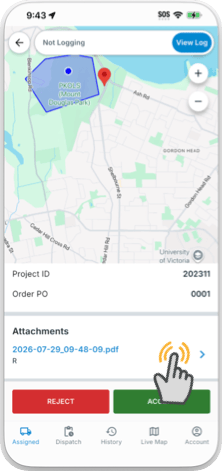
The driver opens the dispatch in the driver app and scrolls to Attachments. Tapping a row opens the file.
2026 07 29 12 43 10
Attachments on the order, on its project, and on the driver’s own job all appear in that one list.

Common pitfalls

Confirm is not save. Confirm only stages the category and description in the form. Nothing is stored until you click Submit on the order. The Confirm button stays disabled until you pick a category.
Every driver on the order sees every attachment. There is no per-file visibility setting. Never attach a rate sheet or anything with pricing — keep pricing in the rate card record. See Rates, Add-Ons & Fuel Surcharges and Common Setup Mistakes.
Attaching the same route every day? Put it on the project instead of the order. Project files show on every order in that project, read-only, and drivers see them in the same Attachments list. See Step 8 of Create a Project.