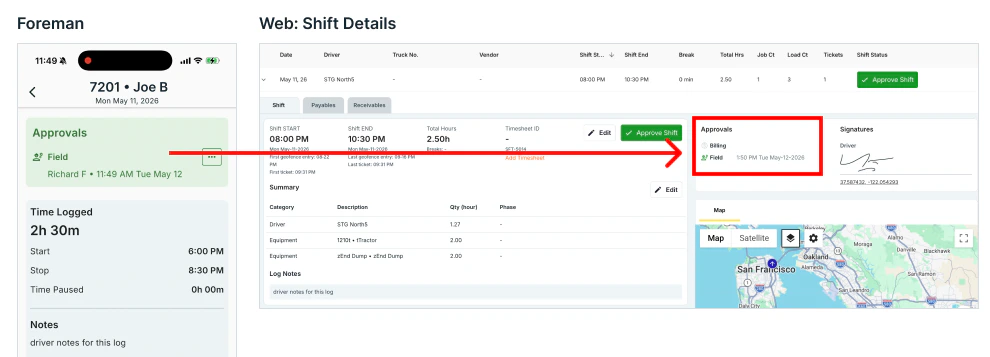
Example case
- ForemanA is assigned 3 drivers for a given day
- ForemanA approves hours for each driver
- Back office can see Foreman approval of the hours
Approve Hours
- Navigate to the “Review” tab. Foreman will see a set Logs for drivers assigned to their orders on a given date.
- Each log shows the Driver, Hours Logged, Approval status, Loads Requested and Tickets added
- Tap on a row to see more details
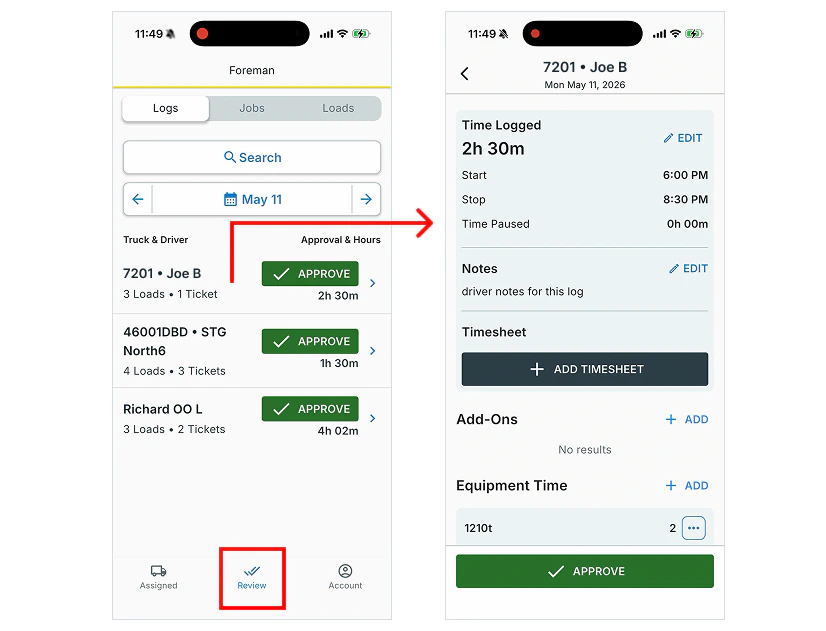
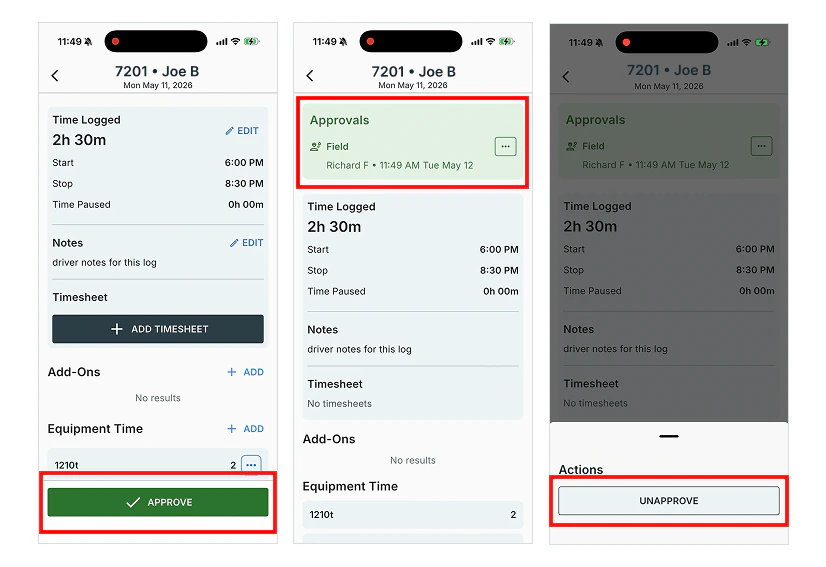
- Foreman can approve a log by tapping the “APPROVE” button
- Tap EDIT next to “Time Logged” to edit the Start Time, End Time or Total Hours
- After approving, the Foreman’s approval is shown as “Field” approval
- Tap the ••• button to Unapprove the log
Back Office View
Company Admins and Billers can review the Time Logs (Shifts) and see Foreman approval.- Go to Approvals / Approve Work
- Open a driver’s log
- The foreman’s approval is the “Field” approval