

What this solves
When pricing varies by truck, material, or site, billers end up re-keying rates on every ticket. Project Rates ends that. You define the pricing rules once on the Project. Tread then applies the right customer, vendor, and driver rate to each order and job automatically. Each rate holds three values:| Value | What it is |
|---|---|
| Customer rate | What the customer is charged |
| Vendor rate | What the vendor or carrier is paid |
| Driver rate | What your internal driver earns — can inherit the vendor rate |
How matching works
Conditions narrow when a rate applies. There are four, combinable in any mix: Pickup Site, Dropoff Site, Equipment Type, and Material. A rate with no conditions is the project-wide default. Matching runs per job, once equipment is assigned. Change the truck, pickup, dropoff, or material and the rate re-evaluates. The pick order:- Manual override — never replaced by automatic matching.
- Starred rate — forces one rate onto every job on the order.
- Most specific match — three conditions beat two, two beat one.
- Project default — the no-condition rate.
- Company rate cards — account-specific first, then defaults.
Walkthrough
Open the Freight Rates panel
Open a project. Rates appear as accordion rows — collapsed shows a summary with condition chips.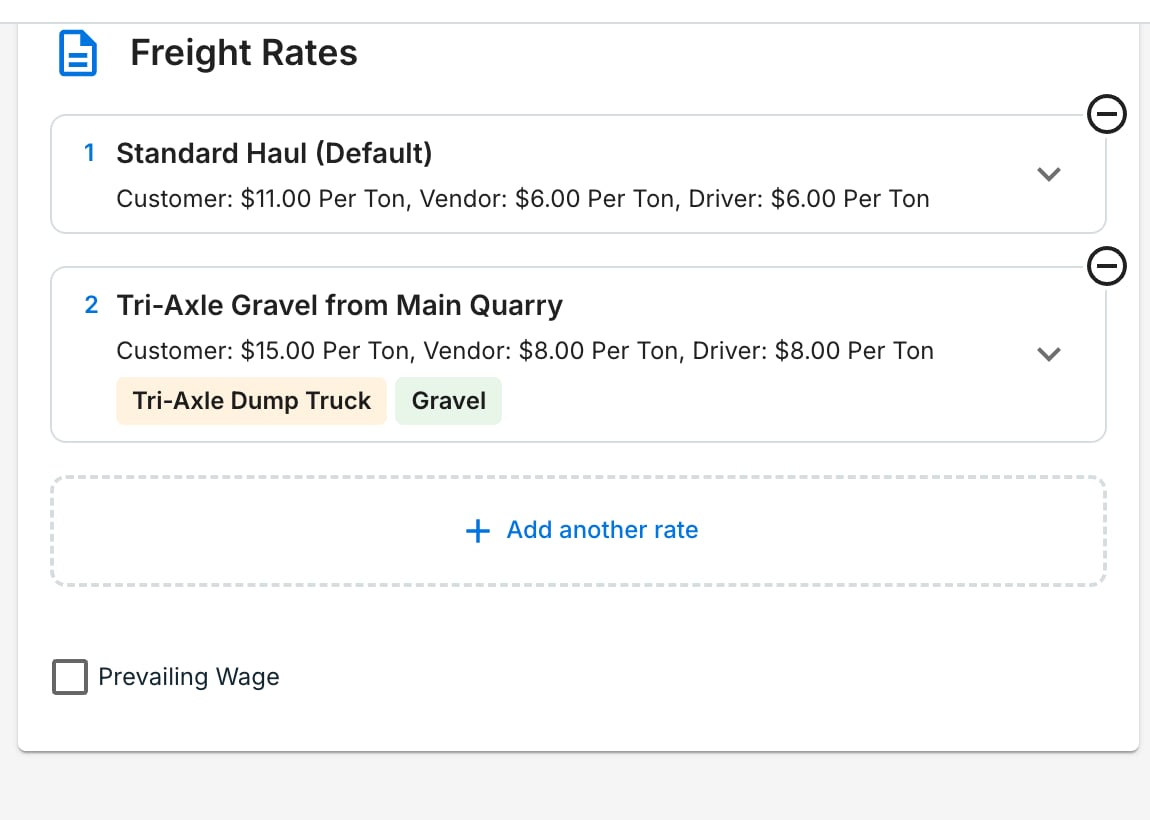
Add a rate
Click Add another rate. Name it clearly (e.g., Tri-Axle Gravel from Main Quarry). Enter the customer, vendor, and driver values, then add conditions. Duplicate a rate to clone and tweak. There is no limit on rate count.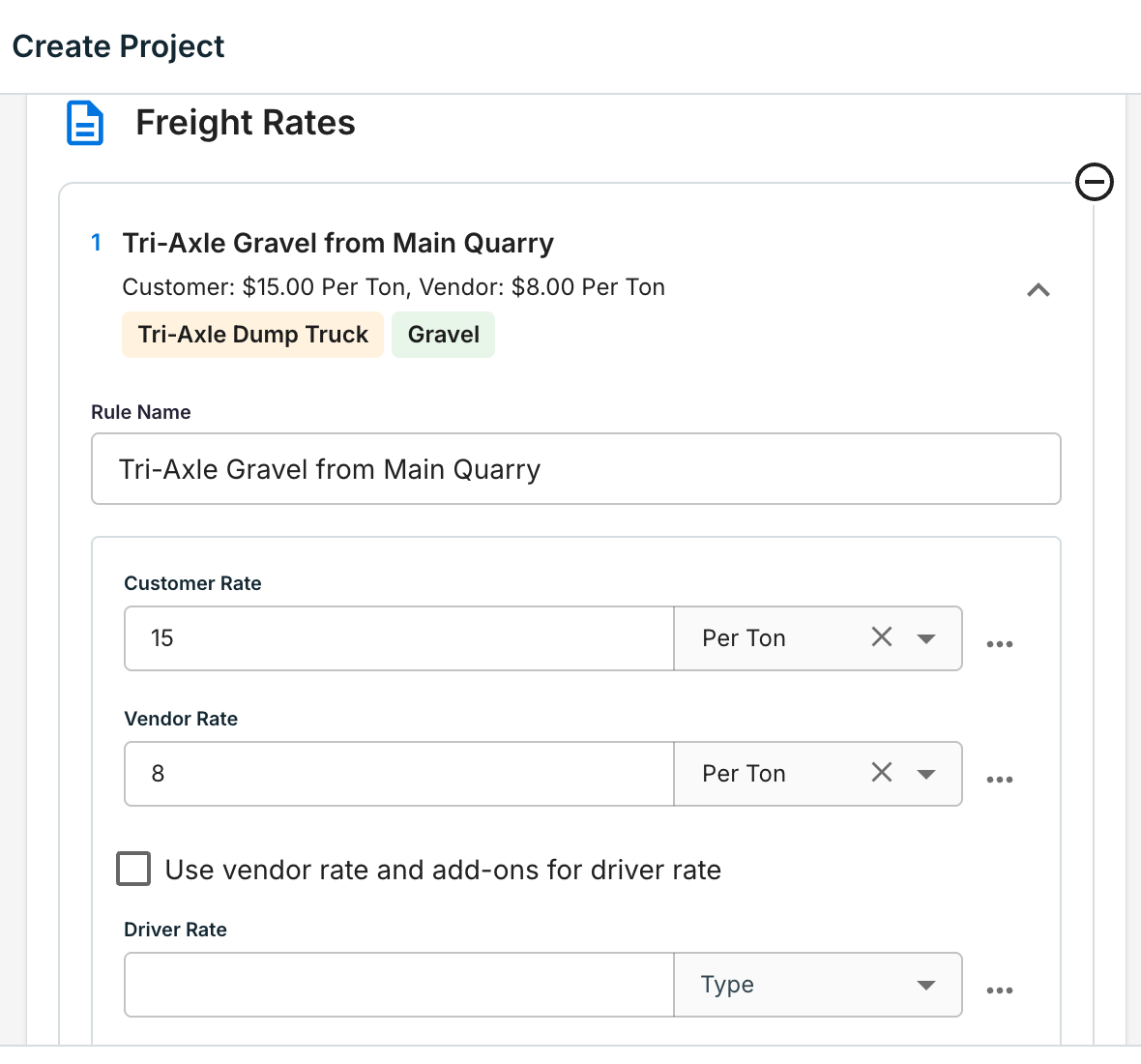
Attach add-ons or a rate card
Use the … menu on a rate row to attach add-ons (fuel surcharge, standby) or pull in an account rate card as a starting point. Update a rate card once and every project using it picks up the change.
Check the order
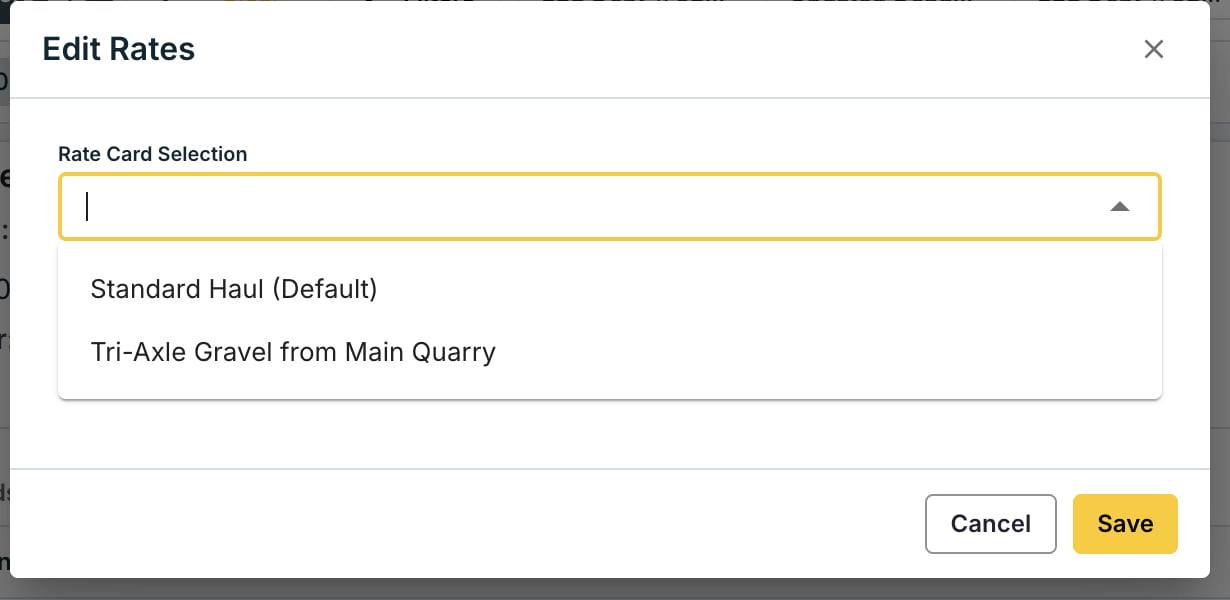
Every order form shows the project’s rates. The Rates Synced With Project chip confirms the order reads live project rules. Star one rate to force it onto every job — useful for flat-rate hauls. Orders without a project can hold their own order-level rates.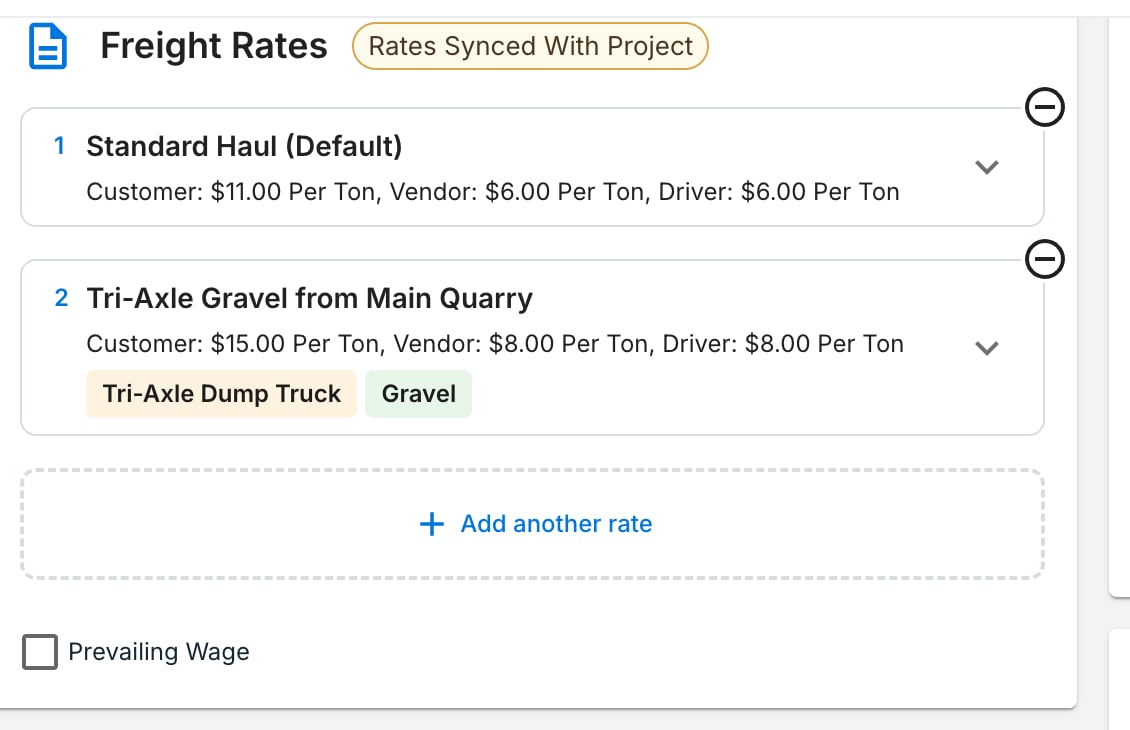
Editing and stamping
While an order is active, rate edits sync both ways between project and order. When an order completes, its rates are stamped — snapshotted and disconnected — so later project edits never change finished billing.| Edit at… | Updates… |
|---|---|
| Project | All open orders on that project |
| Order (active) | The project + other open orders |
| Order (completed) | That order only — already stamped |
Rate history
Every rate change is logged. Click Rates History on a project card (or in the project form header) to see a timeline: who changed what, when, and the exact values. Use it to answer “why did this rate change?” without a support ticket.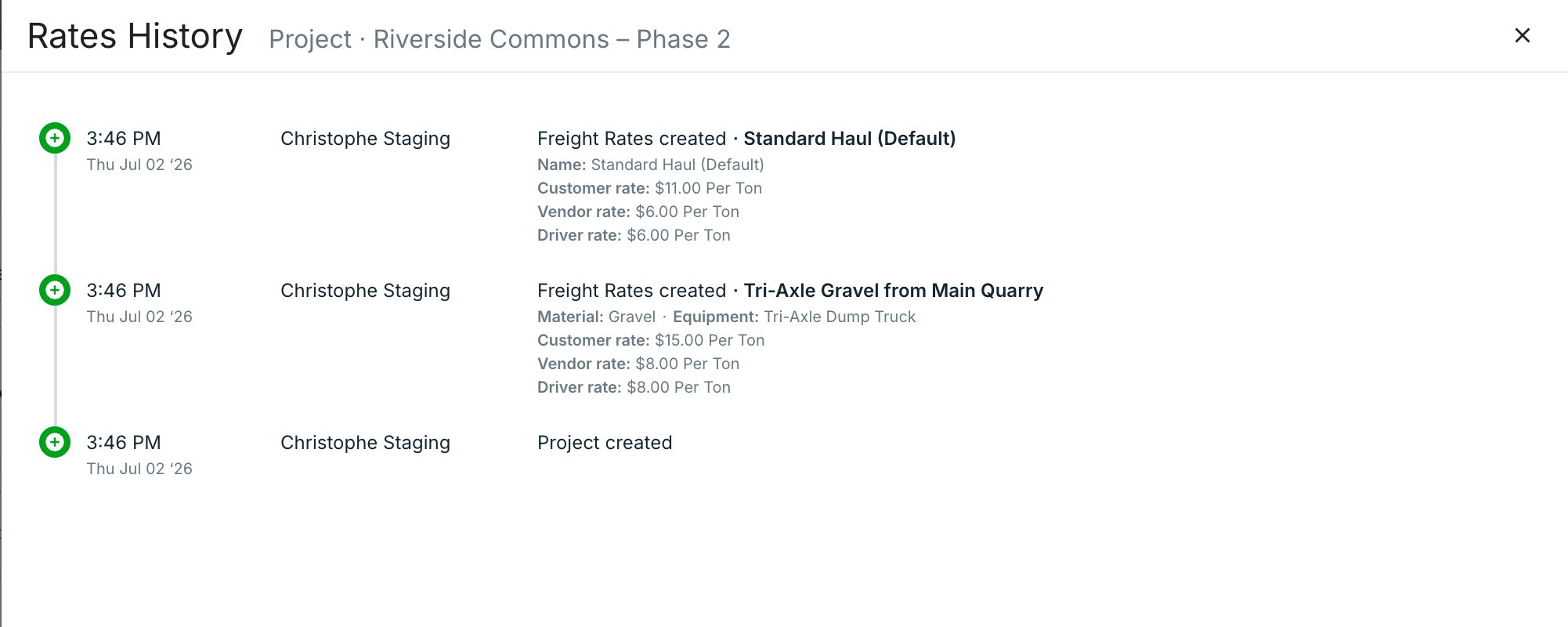
Migrating from Site Rates
Existing Site Rates were migrated automatically — no re-entry. They now appear as rates with a Pickup Site condition and match the same way as before. Layer in more conditions when ready.Watch it
Common pitfalls
FAQ
What happens if no project rate matches a job?
What happens if no project rate matches a job?
Tread falls back to your company rate cards — account-specific first, then defaults. Keep one no-condition rate on the project to guarantee a match.
Can I edit rates on an order without touching the project?
Can I edit rates on an order without touching the project?
Not while the order is active — edits sync both ways. After completion, rates are stamped and stop syncing. Job and invoice edits never sync back.
Why doesn't my completed order show my latest project edits?
Why doesn't my completed order show my latest project edits?
Completed orders hold a snapshot from when the work finished. Reopening the order keeps the stamped rates.
Can drivers see or edit rates on mobile?
Can drivers see or edit rates on mobile?
Rates on mobile are editable, not view-only. Drivers’ visibility stays gated by Roles & Permissions. Bulk edits from the order screen act as manual overrides.
Related
- Manage Rates, Add-Ons & Fees — company-level rate cards, add-ons, and fuel surcharge
- Rates, Add-Ons & Fuel Surcharges — how Tread models pricing
- Orders & Projects — how Projects, Orders, and Jobs fit together
- Settlements & Driver Pay — where matched rates land