Departments
Filter Dispatch, Projects, Live Map, and Approvals by division. Only Orders are filtered, so drivers and trucks you share across divisions stay visible to everyone.1
Create a Department
Go to Settings → Departments → Create Department.
2
Set it on the Project
Pick the Department on the Project form. New Orders on the Project use the same Department.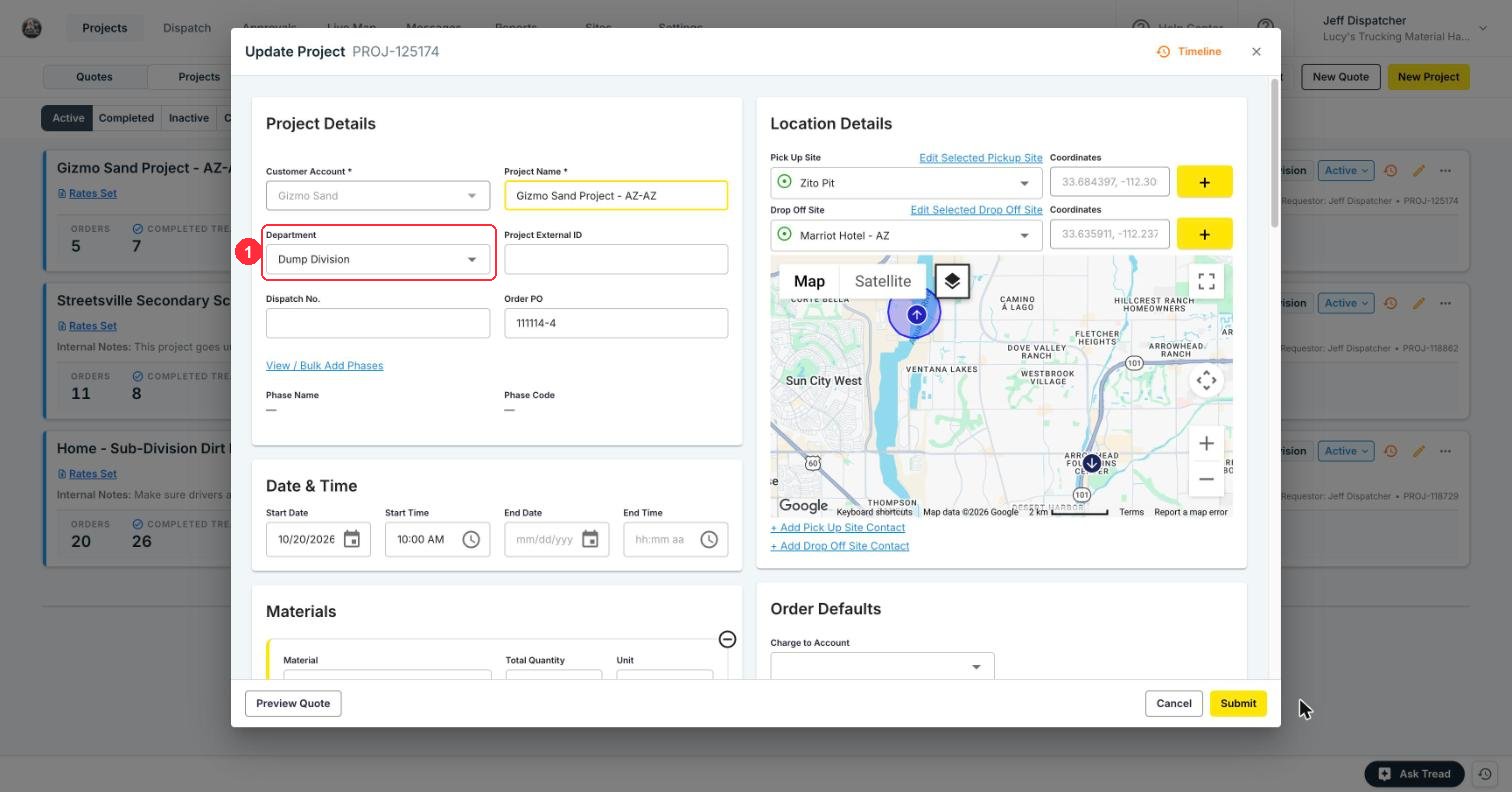
3
Filter by it
On Projects, use Filters → Departments.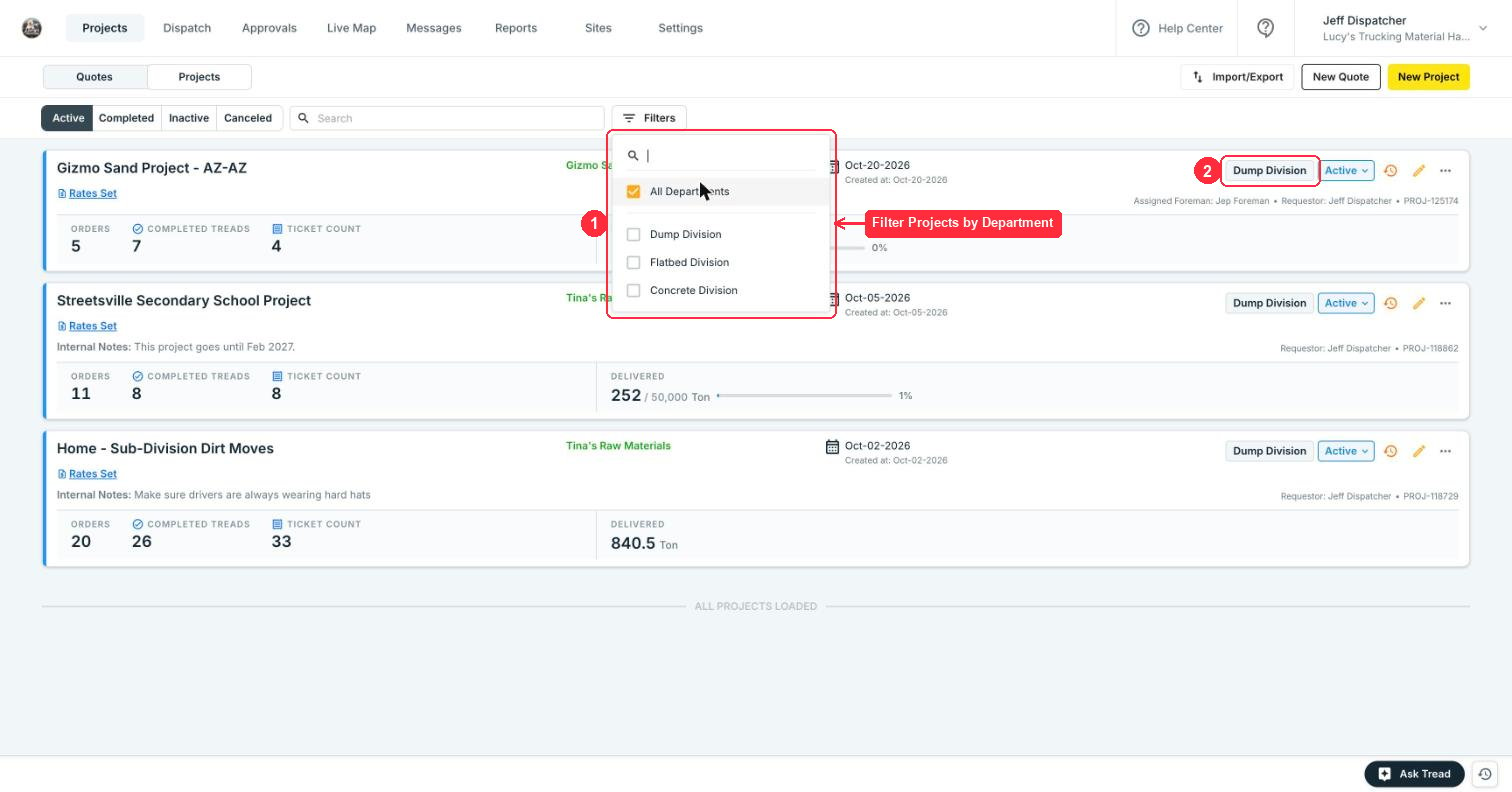
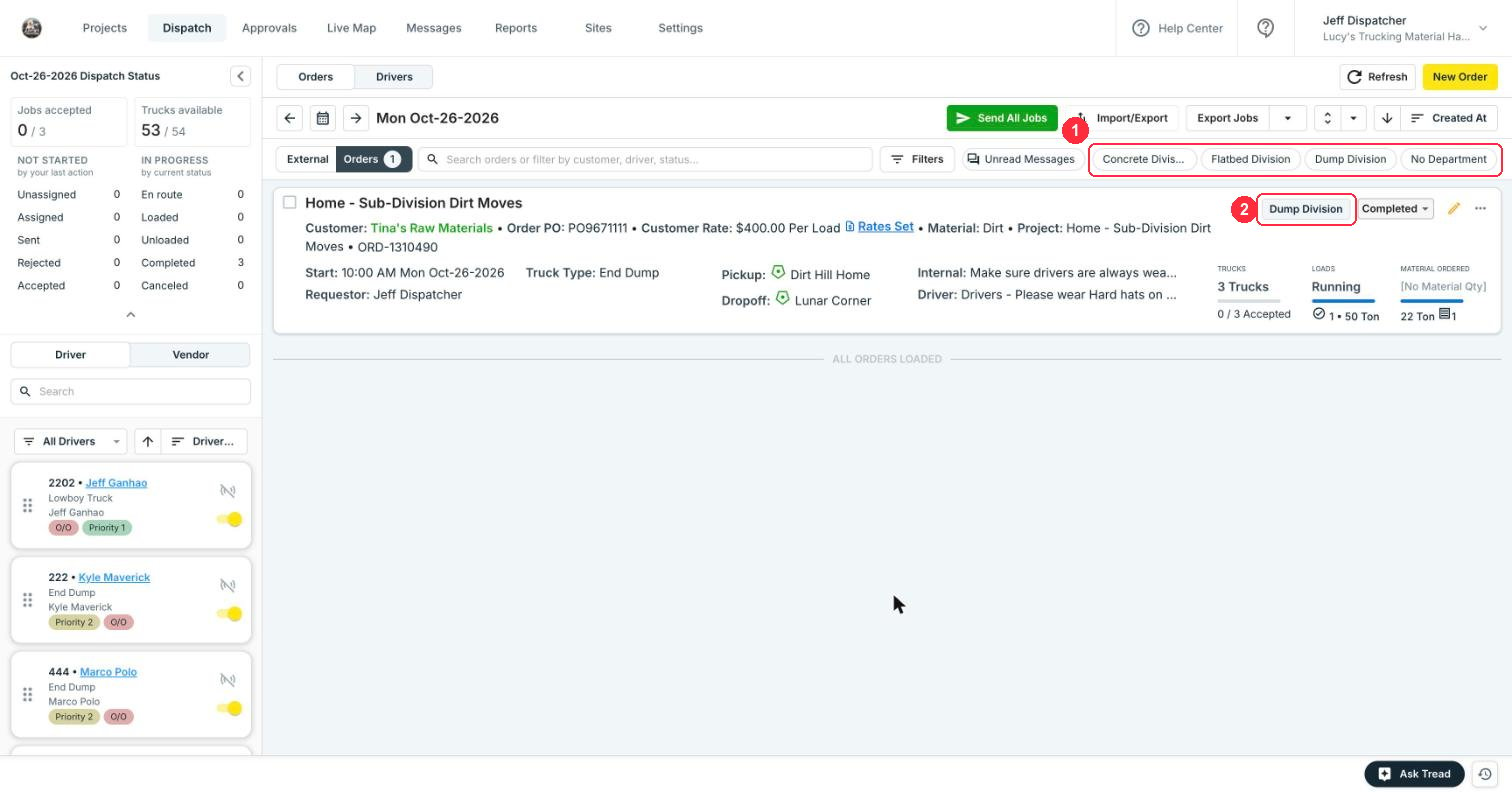
No quick-filter row on Dispatch? Use Filters → Departments instead.
Labels
Color-coded tags that show on driver cards on Dispatch. See Custom Labels for details.1
Create a Label
Go to Settings → Labels → Create Label. Pick a name and a color.
2
Apply it
Pick Labels on the Driver form. The same field is on Users, Equipment, Customers, and Vendors.
3
See it on Dispatch
Each driver card shows its Labels.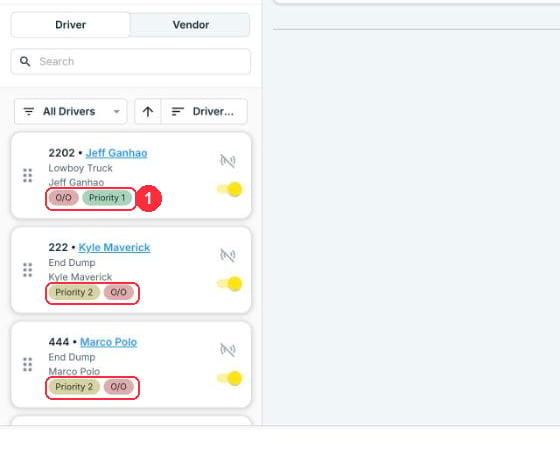
Service Classes
Tag a Project or Order with its type of service, like Hot Shot or Expedited.1
Create a Service Class
Go to Settings → Service Classes → Create Service Class. Pick a name and a color.
2
Turn on the field
Go to Settings → Configuration and check Show Service Class (1). Check Require Service Class (2) to make it required on Orders.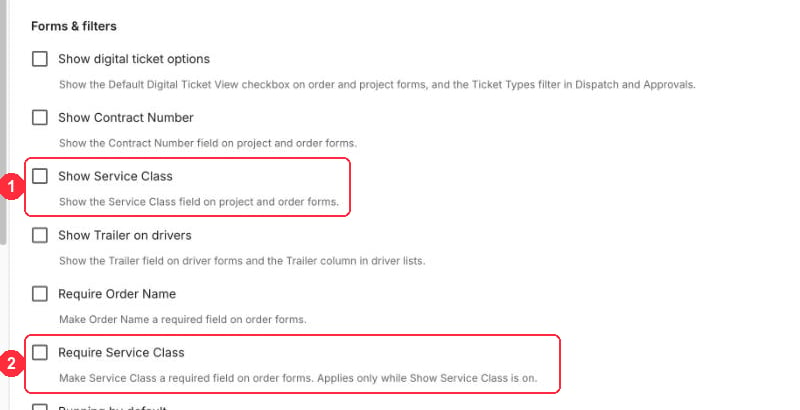
3
Set it on Projects and Orders
On the Project form, pick it under Order Defaults. On the Order form, it’s under Order Customer Details (1).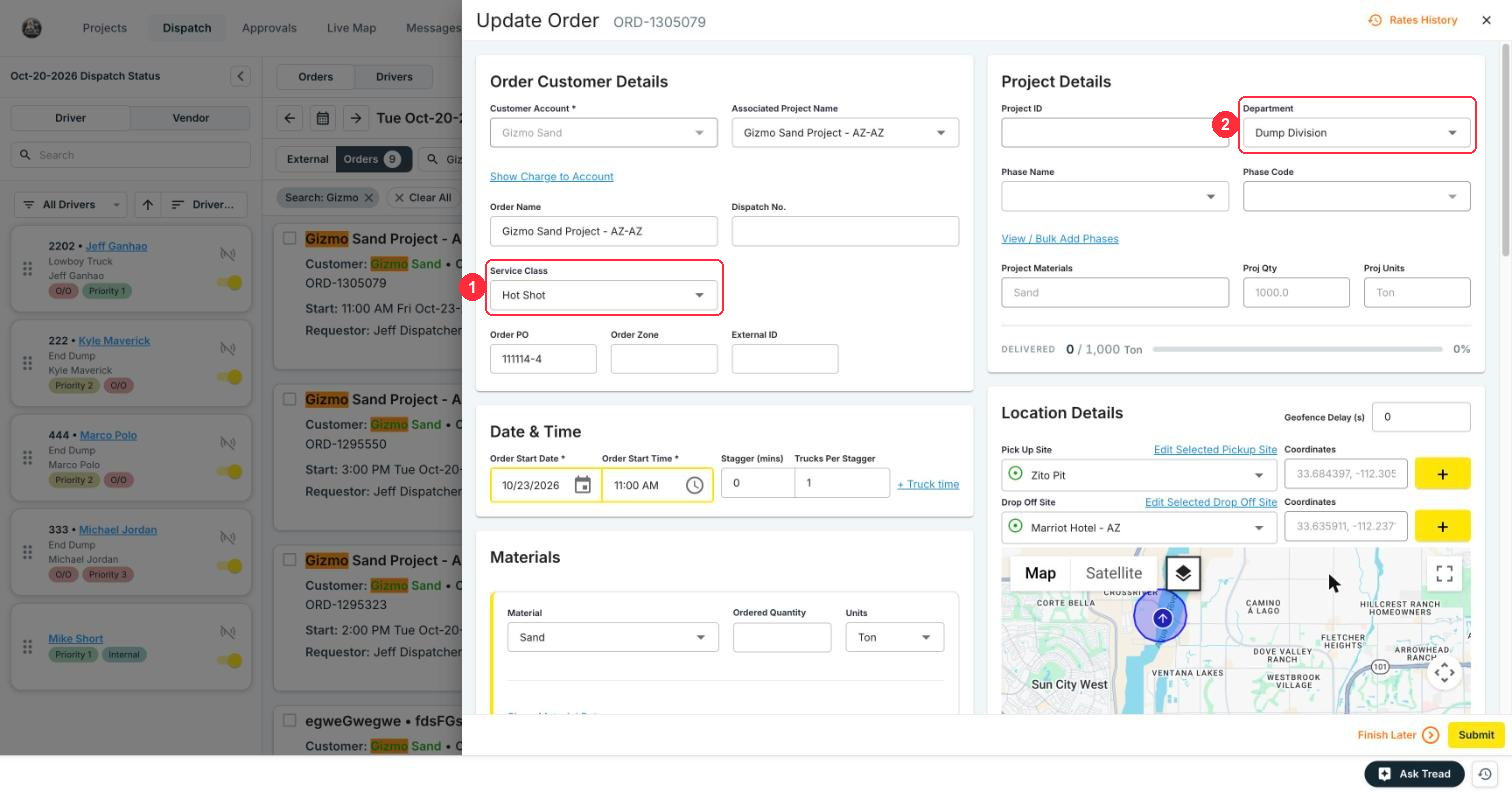
4
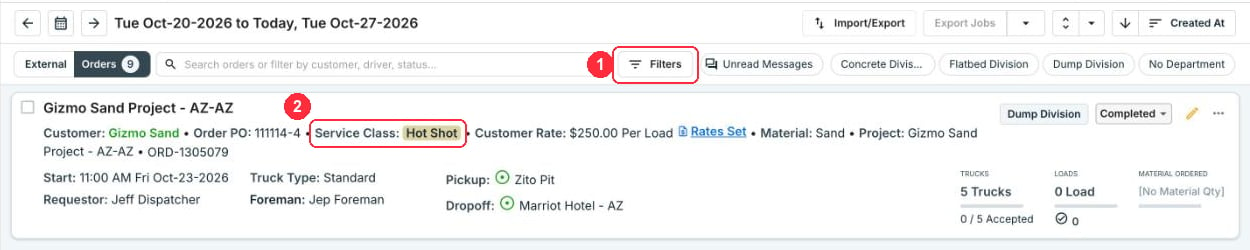
Filter Dispatch by it
Use Filters → Service Classes (1). Each Order shows its Service Class (2).