

What you’ll do
Prepare and upload nine master data sets in order. Each set unlocks the next.Before you start
- Confirm your company hierarchy first. All master data lives at the parent level.
- Export source data from your accounting and HR systems (drivers, customers, vendors, materials).
- Decide which records carry an Ext. ID — Tread’s external identifier used to match rows back to your accounting system. Each Ext. ID must be unique within Tread and is reusable only across integrations.
Bulk import with CSV
You don’t have to type records in one at a time. Every master data grid in Settings — Users, Drivers, Customers, Vendors, Equipment Types, Equipment, Material Types, Materials, and Sites — has an Import/Export button that loads a whole data set from a CSV file.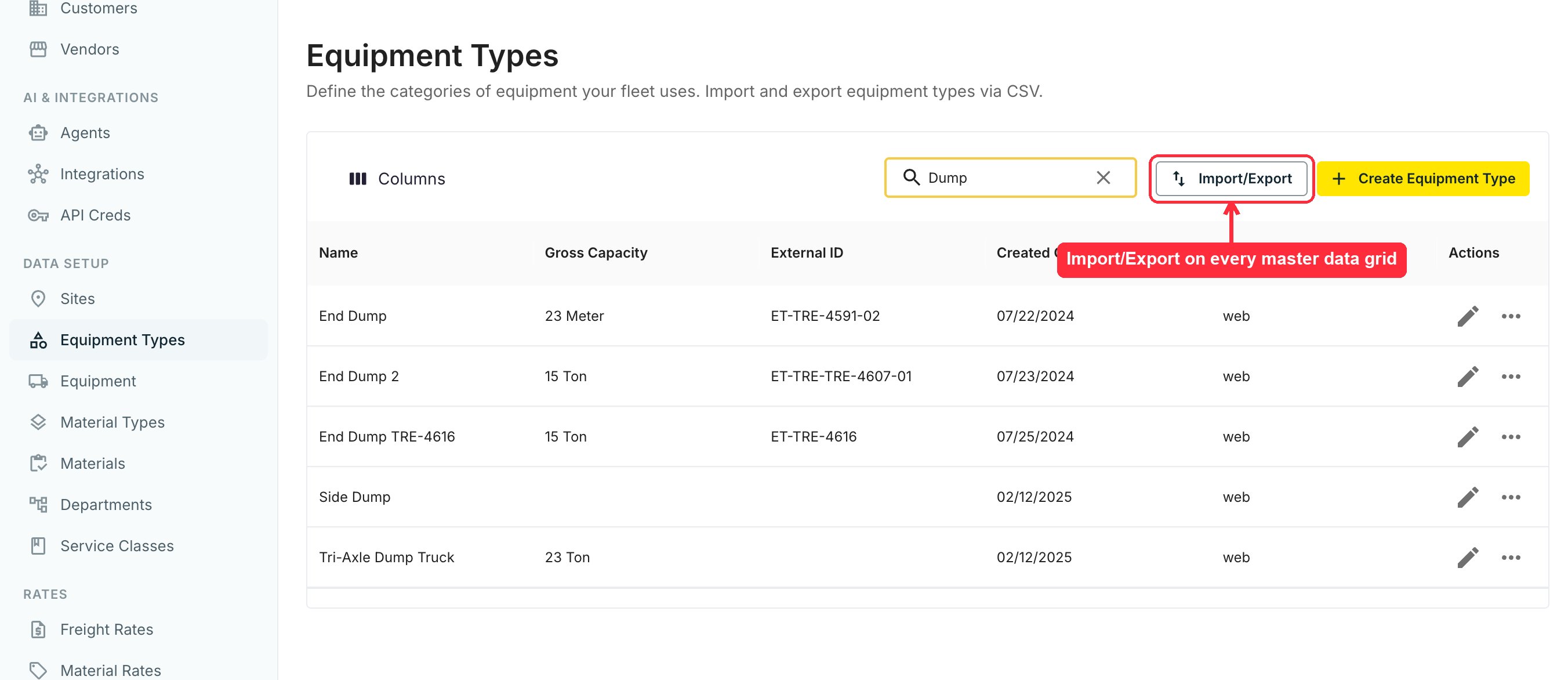
1
Download the template
Download Template gives you a blank CSV with every column and example values. Open Column Reference in the same dialog to see which columns are required and what values each accepts.
2
Fill it from your source export
One row per record, straight from your accounting or HR export. Include the Ext. ID column so each row matches back to your accounting system.
3
Upload and fix any failed rows
Upload CSV (max 5MB) creates new records — or updates existing ones when the row carries the record’s ID. Tread validates every row and reports failures with the reason per row. Download the failed rows, correct them, and re-upload just those.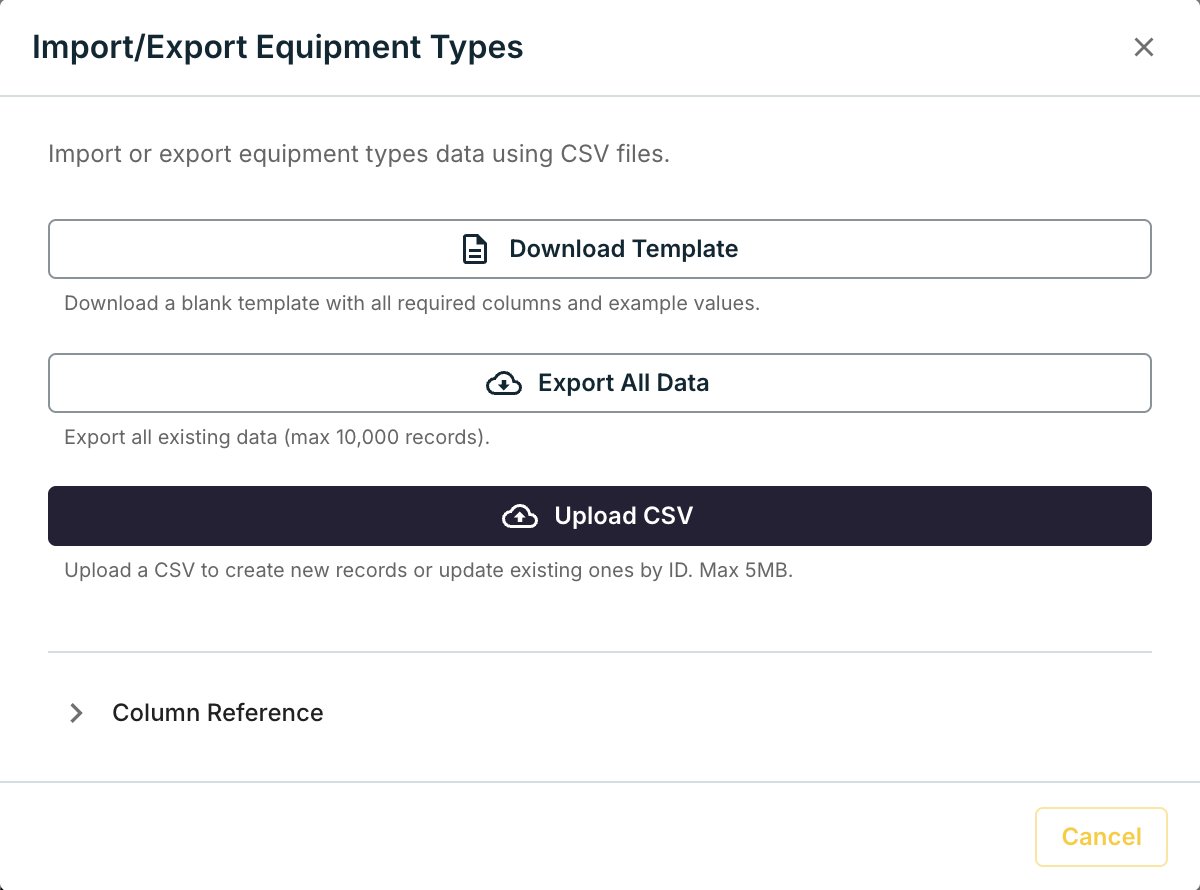
Historical operational data — past orders, projects, and tickets — imports through Tread’s import API, not CSV upload. Your Tread contact runs these during onboarding. Developer teams can integrate directly; see the API reference.
Walkthrough
Upload in this order. Skipping ahead breaks references.1
Users
Add the people who log into Tread. See Users.
2
Drivers
Add the drivers who receive dispatches. See Drivers.
3
Customers
Add who you bill. See Customers.
4
Vendors
Add the third-party haulers you dispatch to. See Vendors.
5
Equipment Types
Set up types before equipment — capacity and unit of measure (UoM) live here. See Equipment Types.
6
Equipment
Add the trucks and trailers. See Equipment.
7
Materials
Pull from accounting. See Materials.
8
Sites
Add job sites and yards with lat/long and geofences. See Sites.
9
Departments, Labels & Service Classes
Optional categorization for reporting and dispatch flow. See Departments, Labels & Service Classes.