

What you’ll do
Add the optional tags that organize how data is filtered, dispatched, and coded. All three are optional — set up only what you’ll actually use.Where each one applies
Before you start
- A list of departments your business reports against (e.g., Aggregates, Asphalt, Hauling).
- A list of dispatch labels you already use on whiteboards or sticky notes (e.g., “Standby,” “Priority,” “Inbound”).
- A list of service classes from your accounting or job-cost system if you code work by job type.
Walkthrough
1
Add Departments
Settings → Departments → Create Department. Departments group orders and projects, accounts, and Sites for reporting and filtering — the Dispatch board can filter by department. Use them if your finance team already reports by division.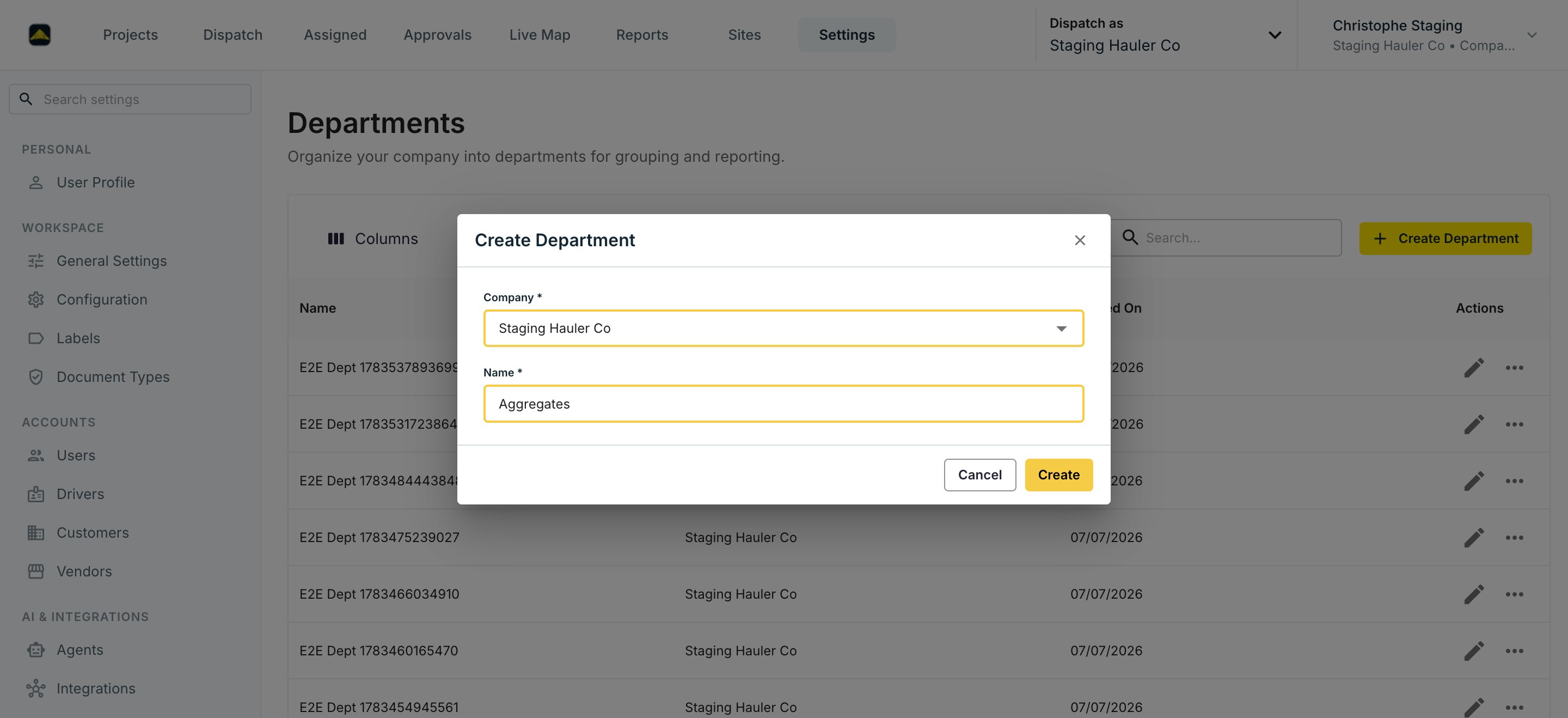
2
Add Labels
Settings → Labels → Create Label. Labels are color-coded tags for Users, Drivers, Customers, Vendors, and Equipment. Pick a name and a color — the preview shows the chip drivers and dispatchers will see. Mirror the tags you already use on whiteboards.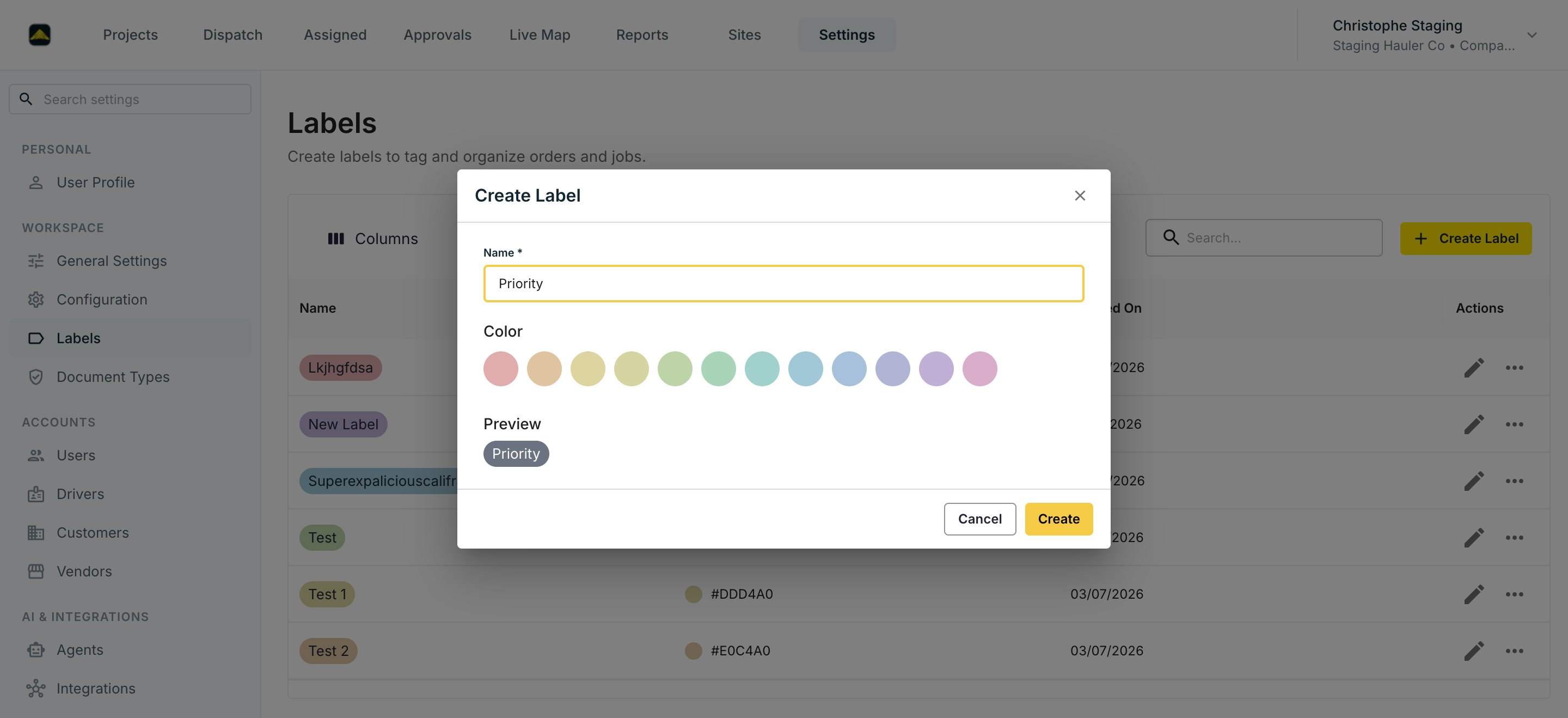
3
Add Service Classes
Settings → Service Classes → Create Service Class. Service classes define the types of hauling service you offer (e.g., Hauling, Plant, Standby) and are used for rating and billing — a rate card can be narrowed to a specific Service Class.
4
Skip what you don't need
None of these are required. Add only what your team will use day to day. You can come back later.