

What it is
A pooled order is an order created while Share order totals is on. On a pooled order, the driver app shows the order’s total and what all trucks have delivered. It replaces the job’s own quantity. It works for Internal Drivers and Shared Drivers alike.The setting only applies to orders created after you turn it on. Each order keeps the value it had when it was created, so turning the setting on does not change existing orders.
Set it up
1
Turn on Share order totals
Go to Settings → Configuration (1) and check Share order totals (2) under Display → Dispatch. Only users who can edit company settings see this section.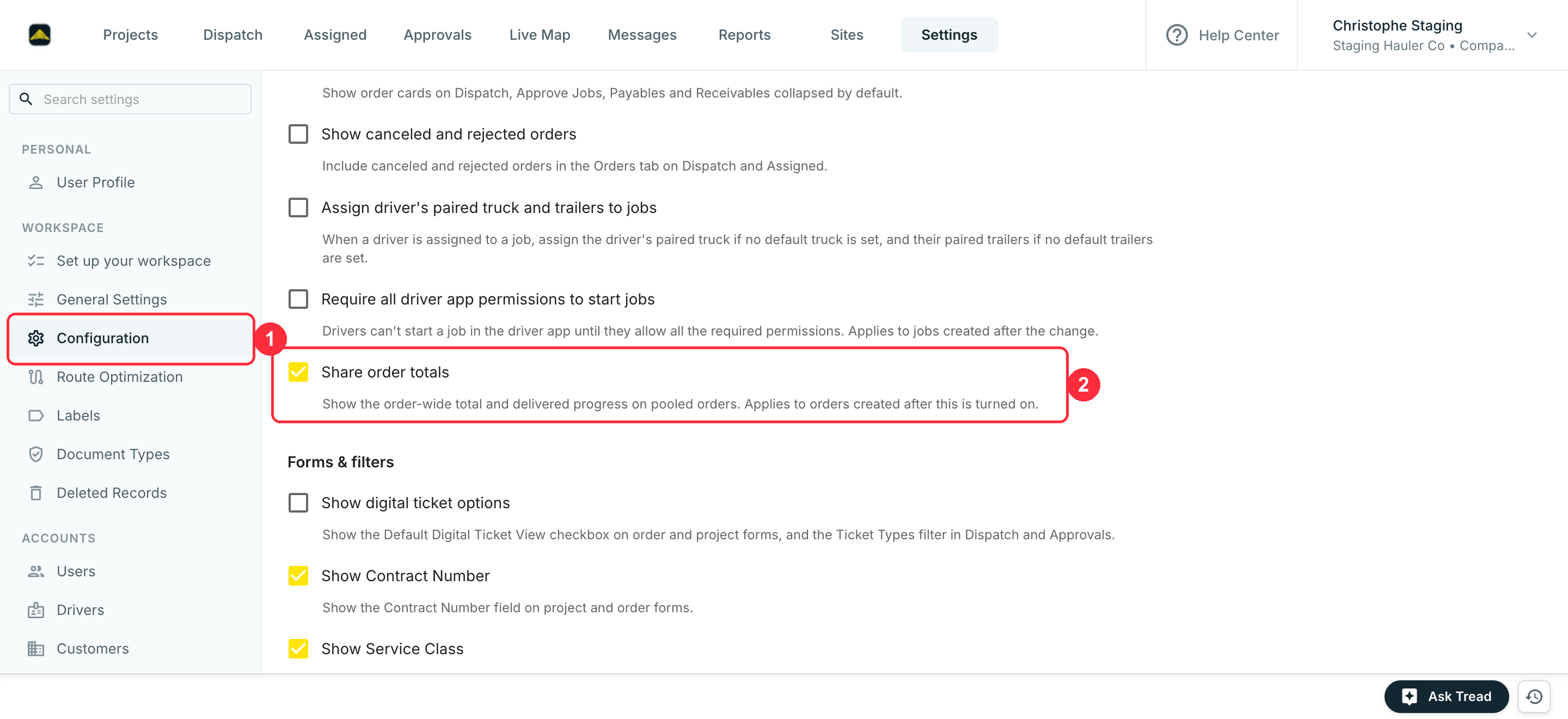
2
Create the order with an ordered quantity
Under Materials, enter the Ordered Quantity and Units, for example 1,000 Ton of one material. This is the total that drivers see.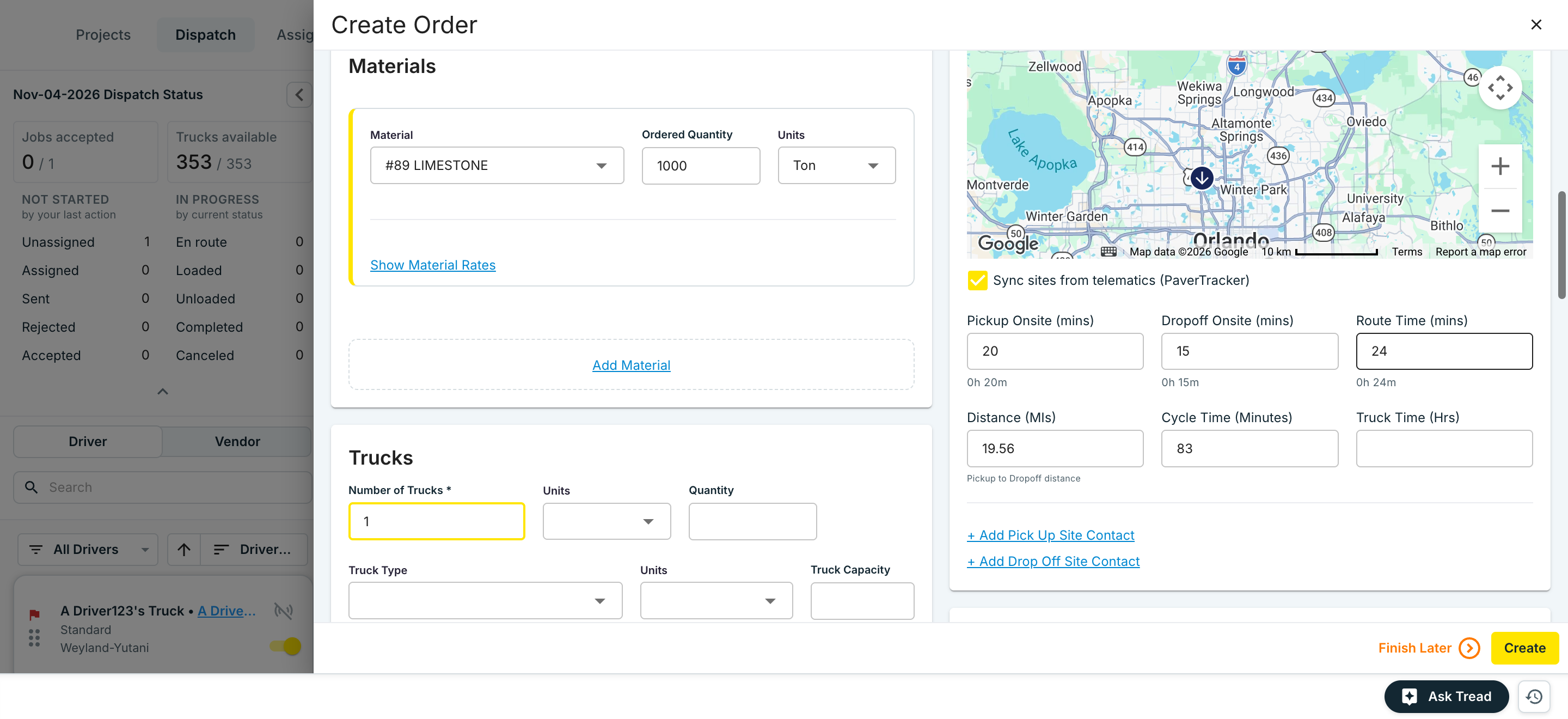 To pool several materials, click Add Material and give each one its own ordered quantity. Drivers see one progress bar per material.
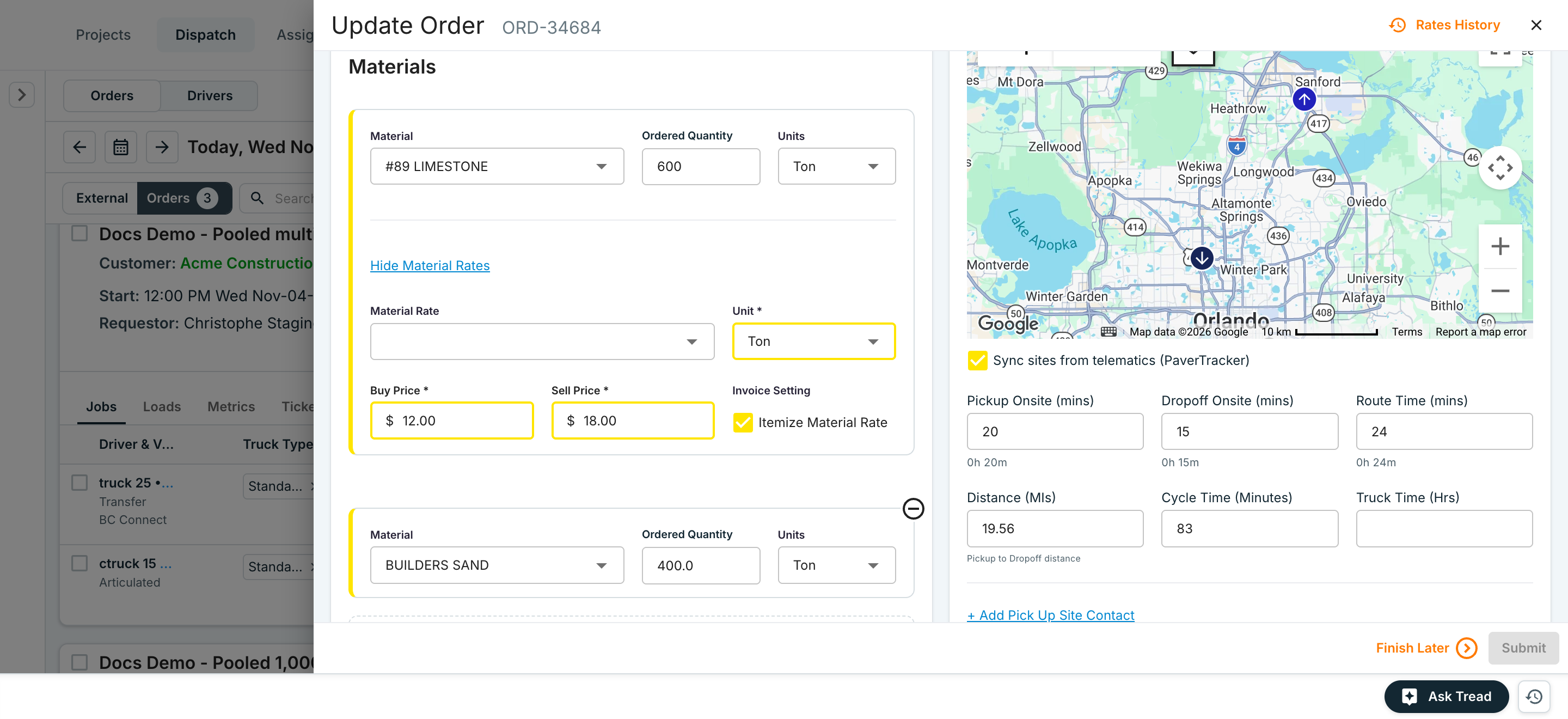
To pool several materials, click Add Material and give each one its own ordered quantity. Drivers see one progress bar per material.3
Dispatch the jobs
Assign jobs to Internal Drivers, Shared Drivers, or both, and send them. Set each job’s quantity to Running (see Job quantities below).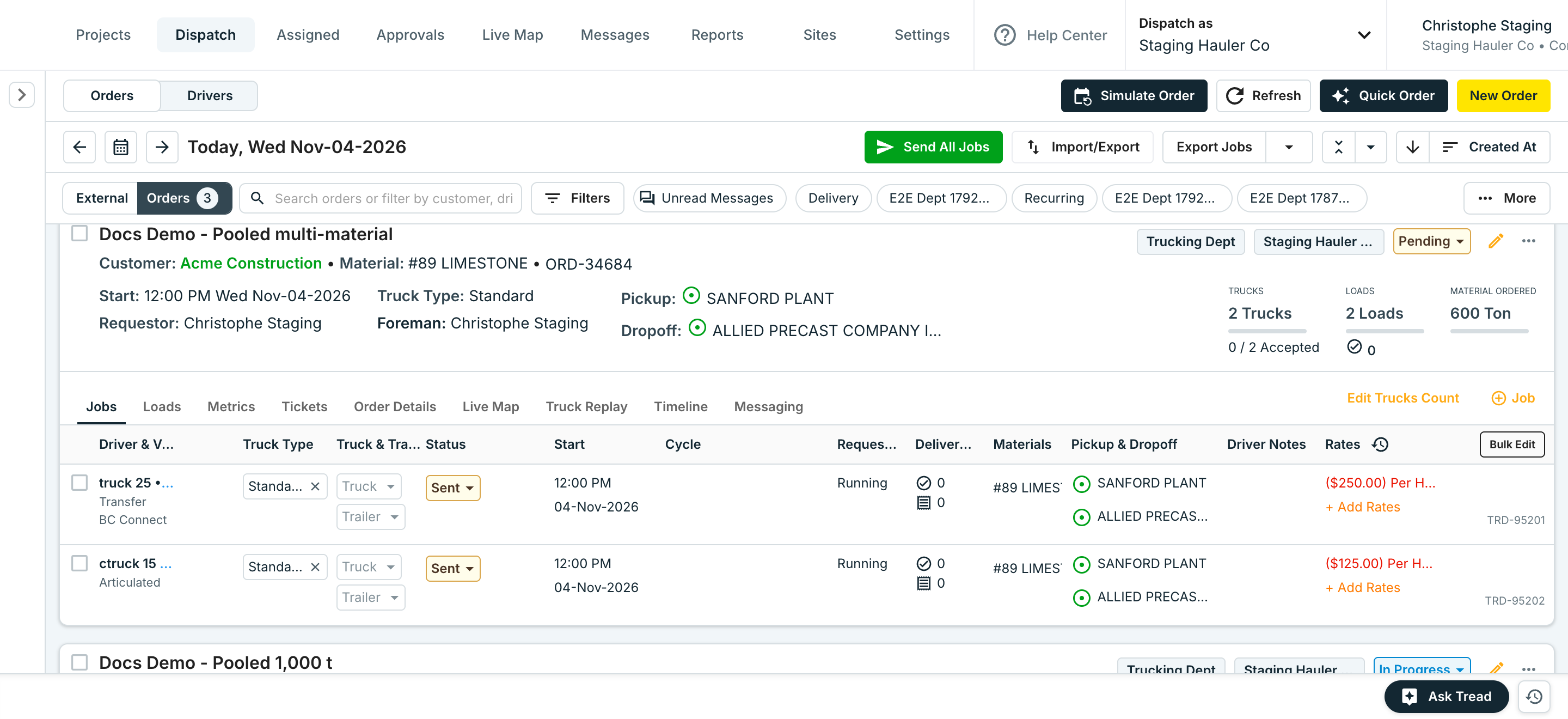
What drivers see
1
Assigned list
Every job on a pooled order reads Requested: Pooled Order - Tap for more, whatever the job quantity. A regular order still shows its loads and material.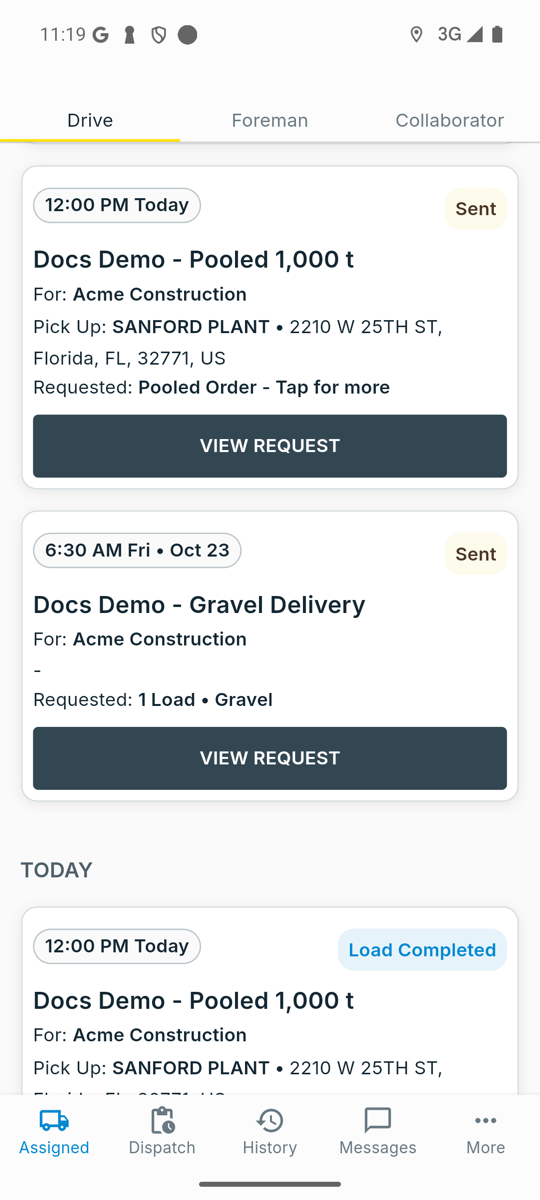
2
Active job
After the driver accepts and starts the job, the Order progress · all trucks card replaces the Requested box. It shows the delivered amount, the percentage, and what is left.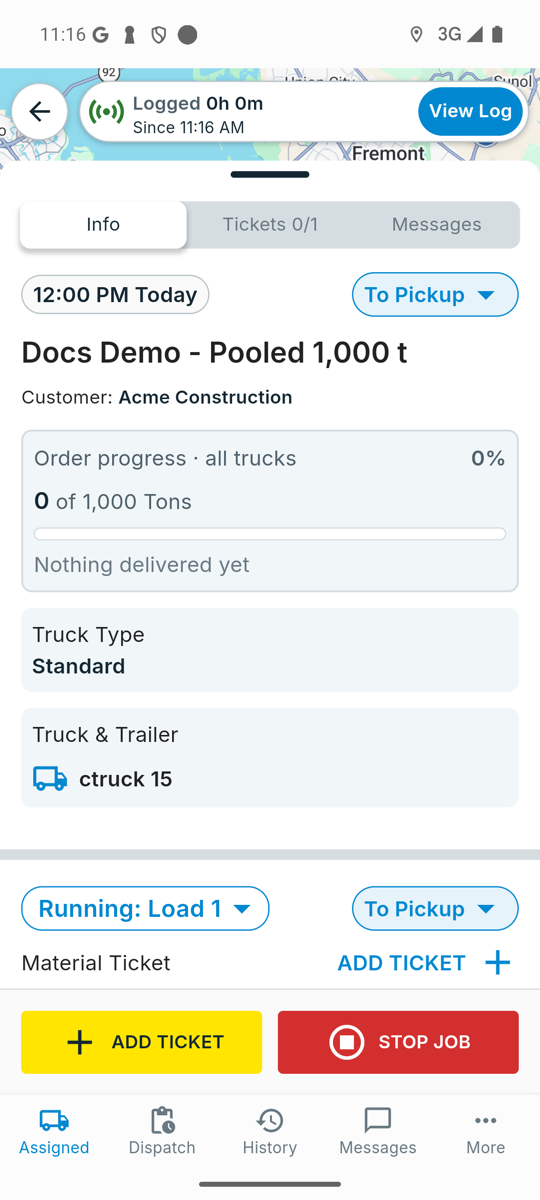
3
Progress updates live
Each completed load from any truck on the order updates the card for every driver.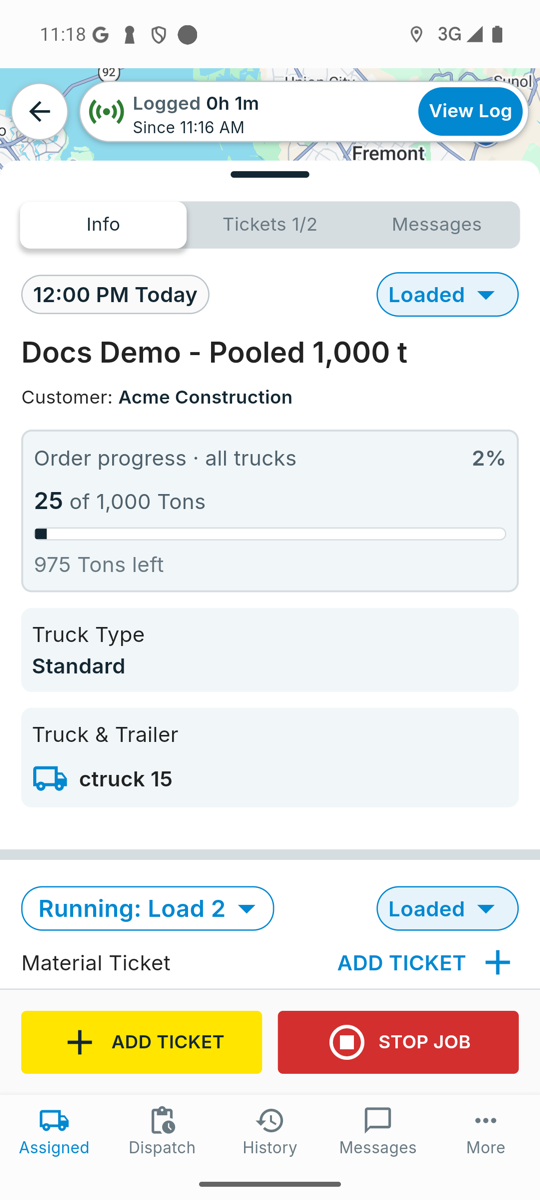
4
Multiple materials
On an order with several materials, the card shows one bar per material. The material on this driver’s job is listed first.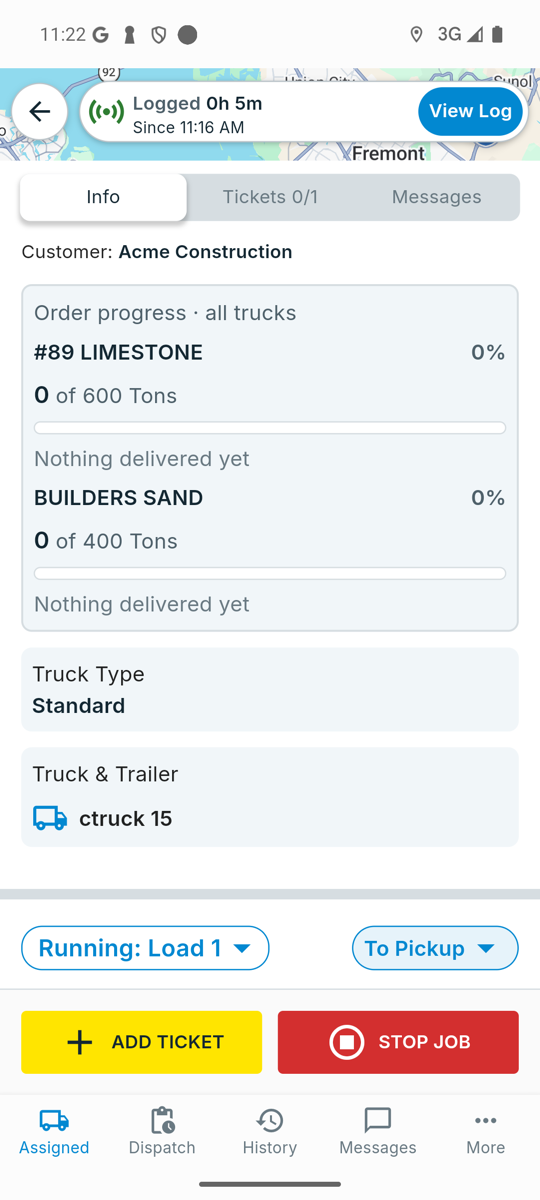
Job quantities on a pooled order
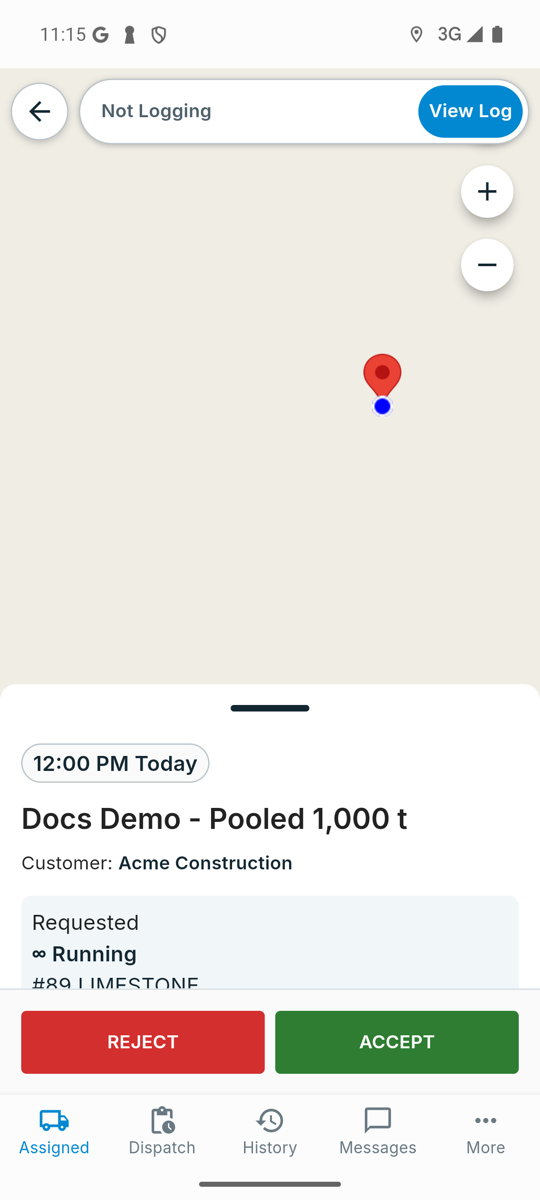
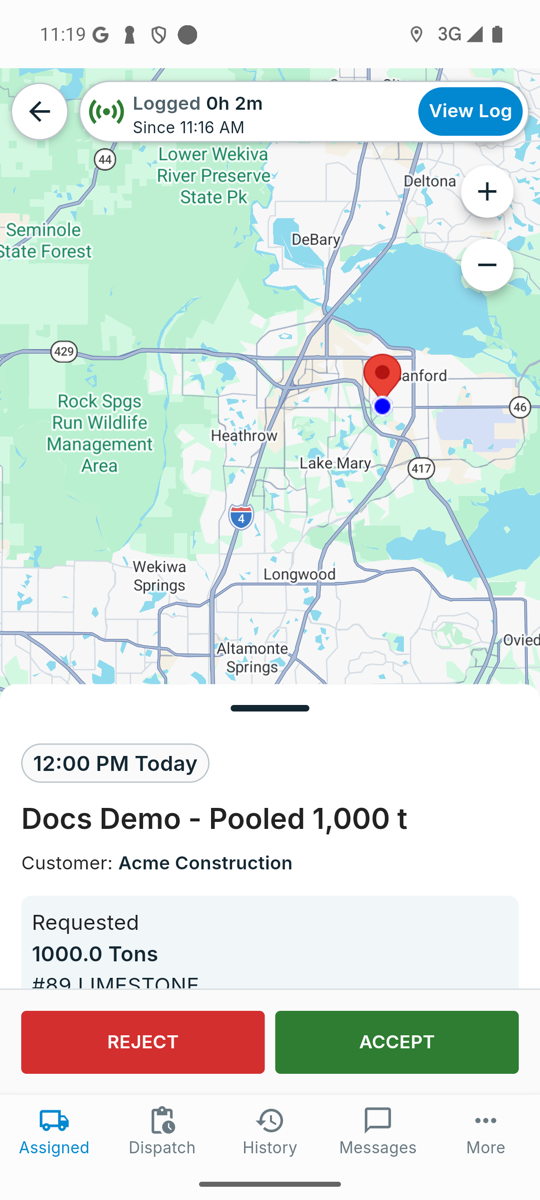
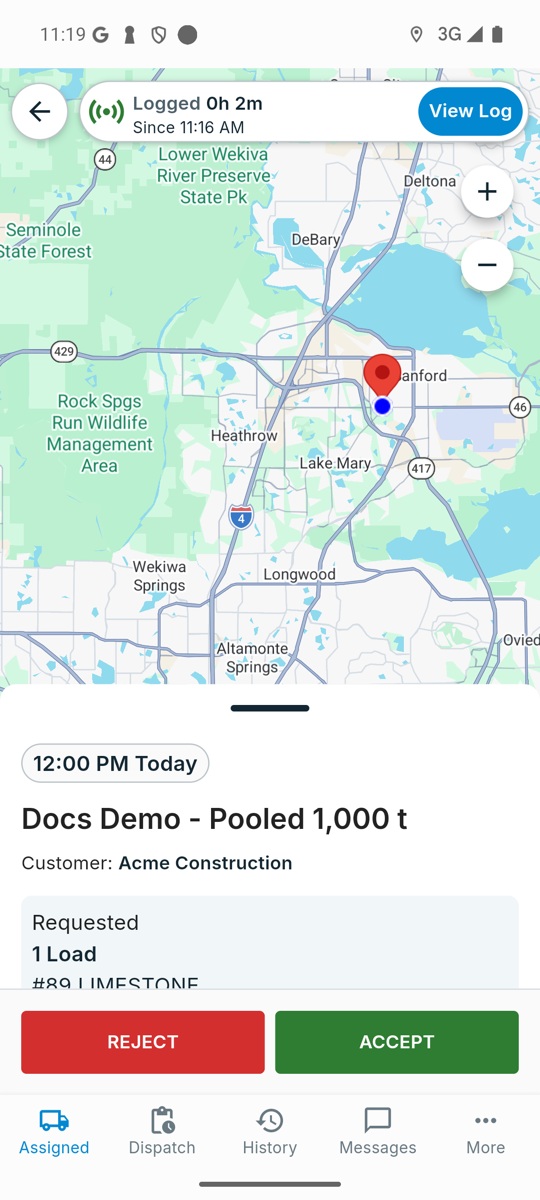
The driver’s request details, shown before they accept, still show the job’s own quantity. Pick the job quantity with that in mind.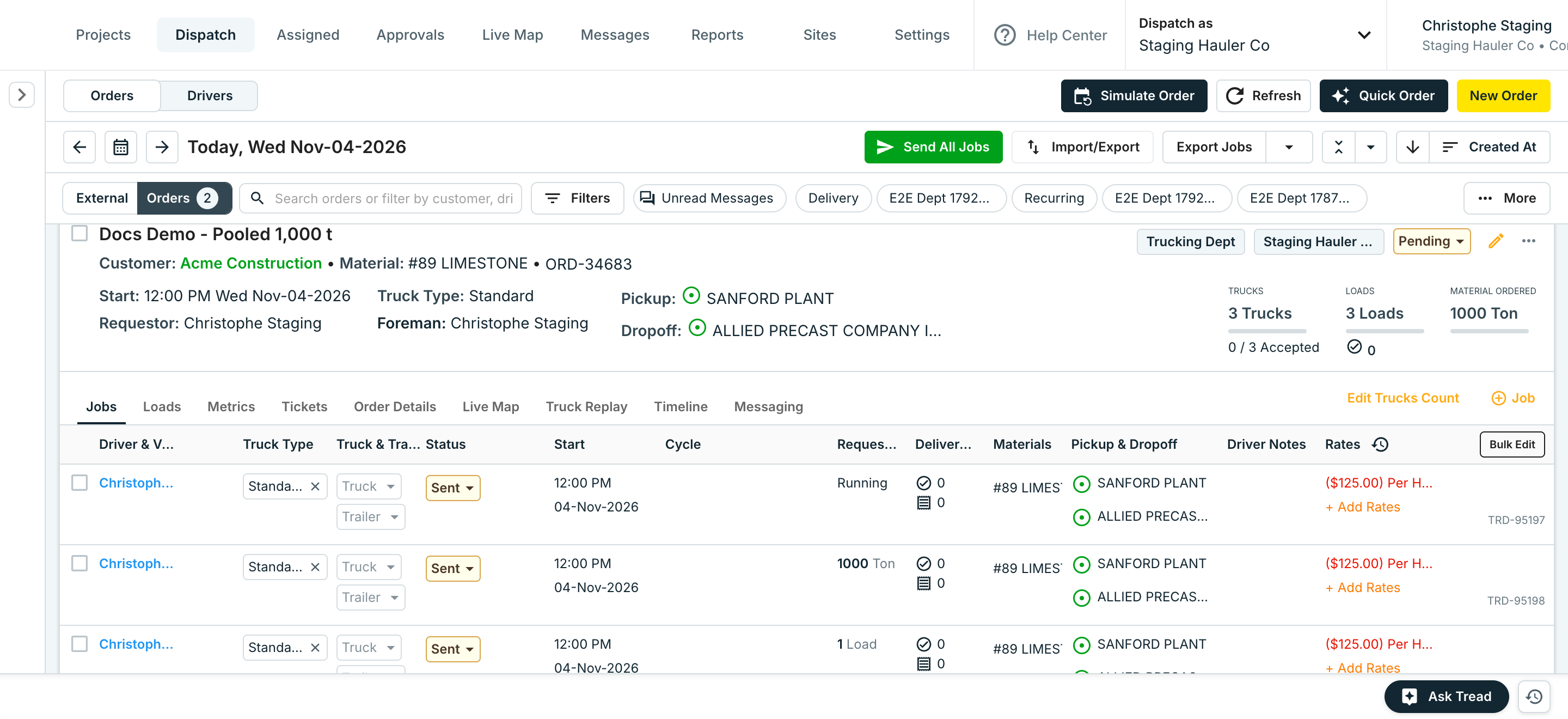
- Running
- Same as the order
- 1 Load
Common pitfalls
Related
- Platform Configurations — other company-wide settings
- Dispatching to Drivers and Vendors — Internal Drivers, Shared Drivers, and Vendors
- Drivers: Accept & Start Jobs — how drivers accept and start a job
- Driver App — the full driver app walkthrough