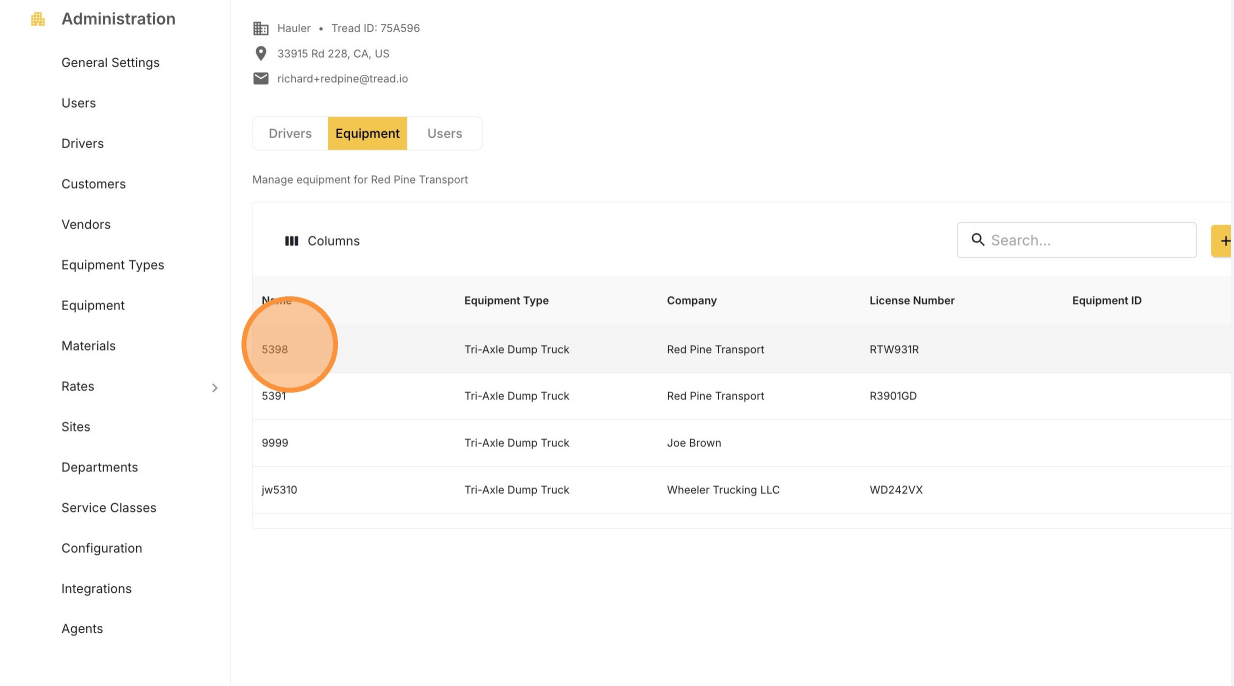
Add a truck to a vendor’s account when the vendor has new equipment, or when you need dispatch access to a truck they already run.

Add the truck

1

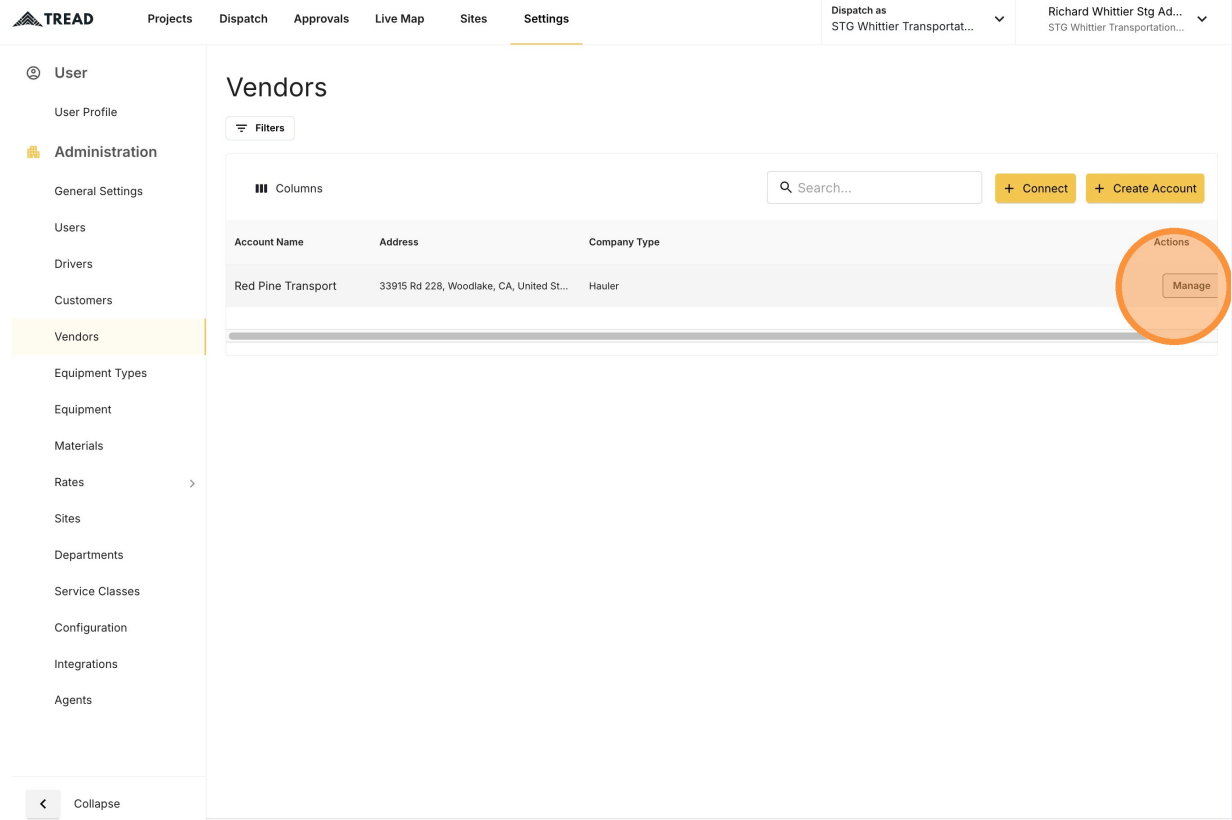
Open Settings → Vendors
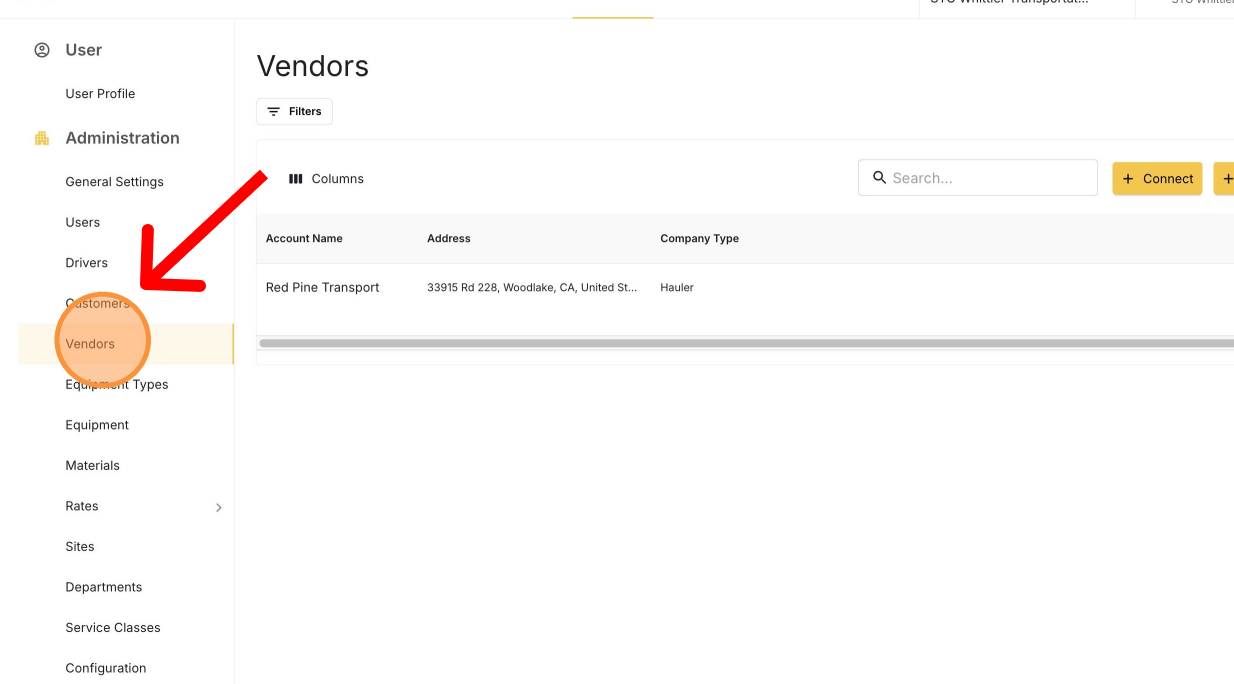
The Vendors page under Settings
2

Click MANAGE on the vendor

The MANAGE button on a vendor row
No MANAGE button? Email support@tread.io with the vendors you need to manage, or ask in the in-app chat.
3

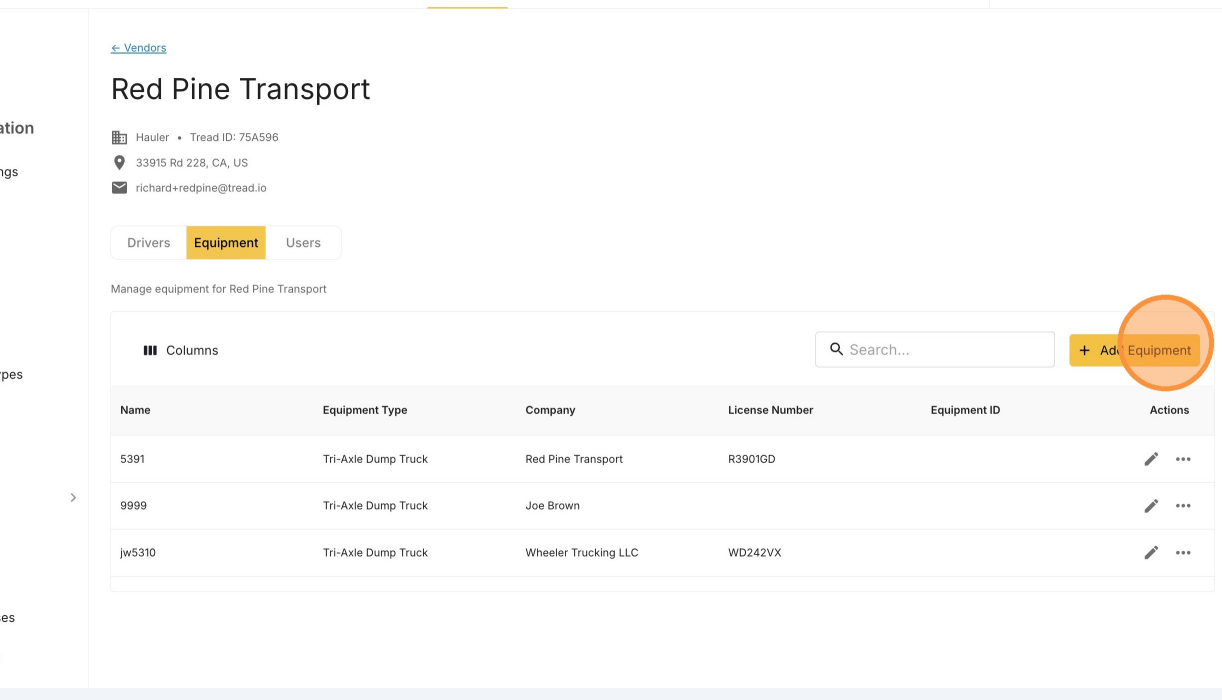
Open the Equipment tab

The Equipment tab lists every truck on the vendor’s account.
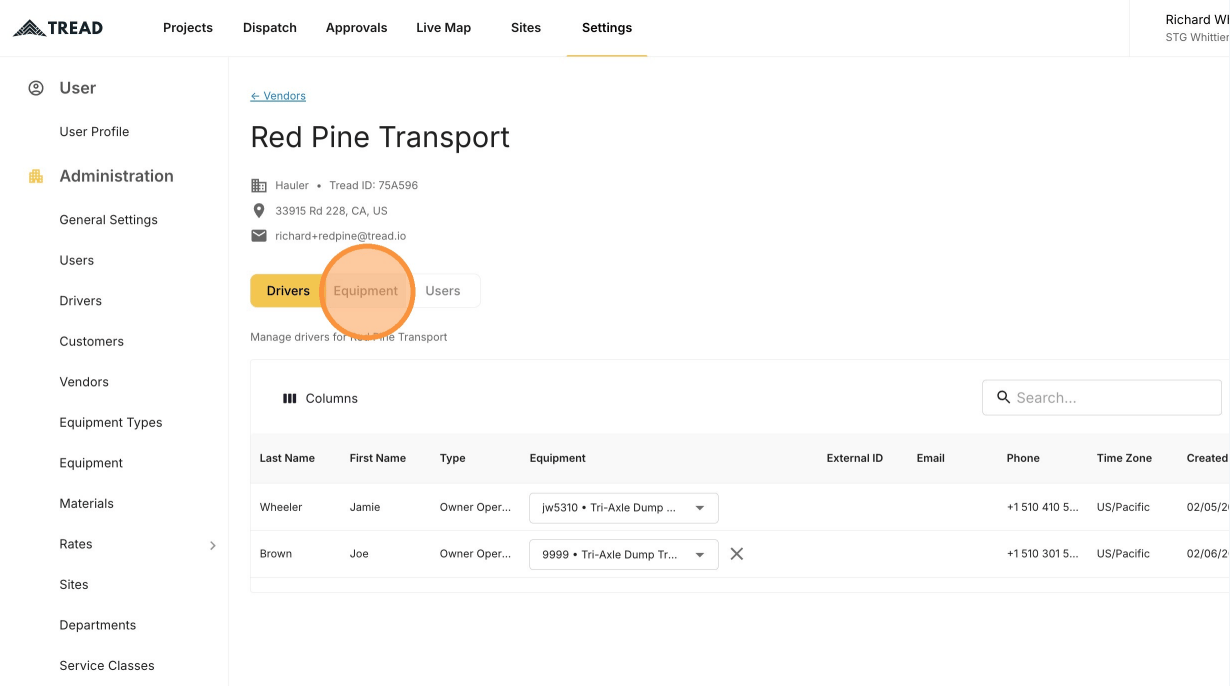
The Equipment tab on a vendor's management page
4

Click Add Equipment

The Add Equipment button above the vendor's equipment table
5

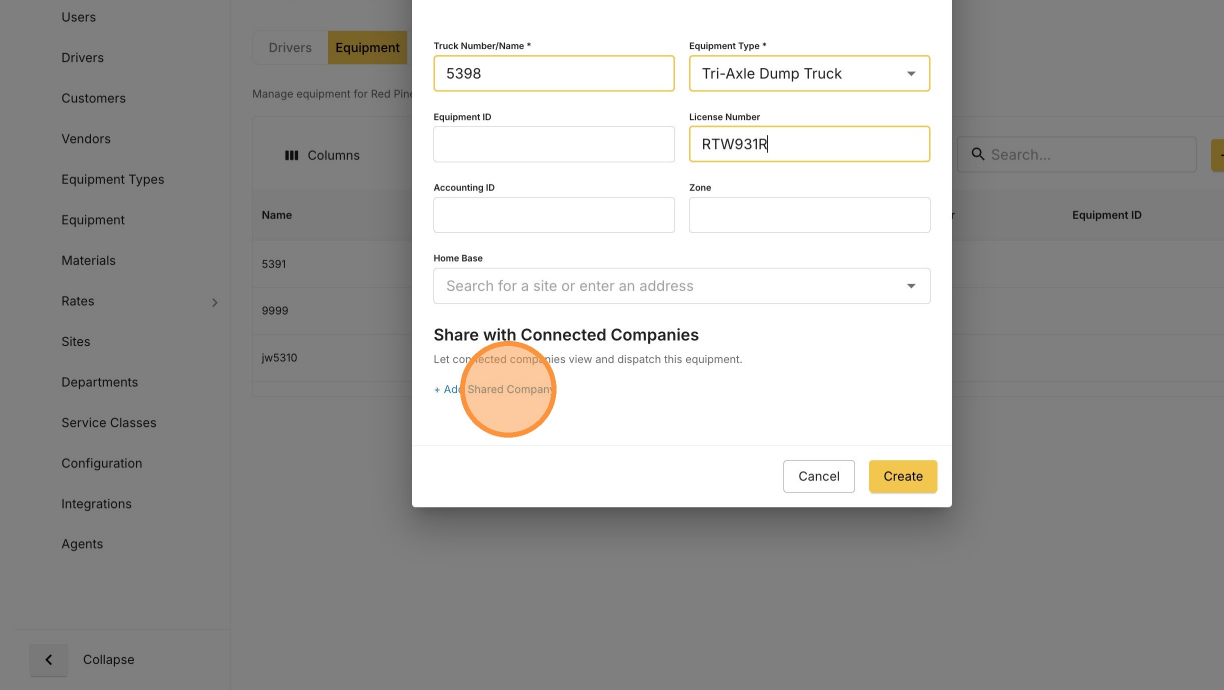
Enter the truck number and equipment type
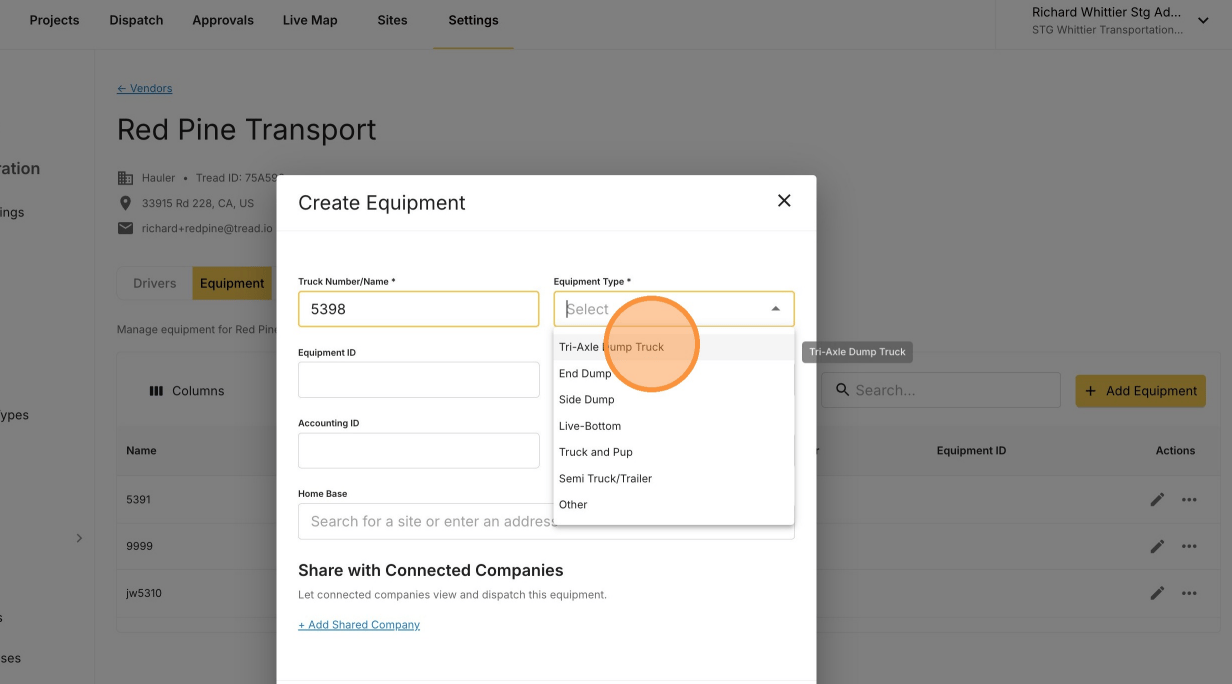
The new equipment form with truck number and equipment type fields

Share the truck to your company

Share the truck to your company, or you won’t be able to dispatch it.
1

Click + Add Shared Company

The Add Shared Company control on the equipment form
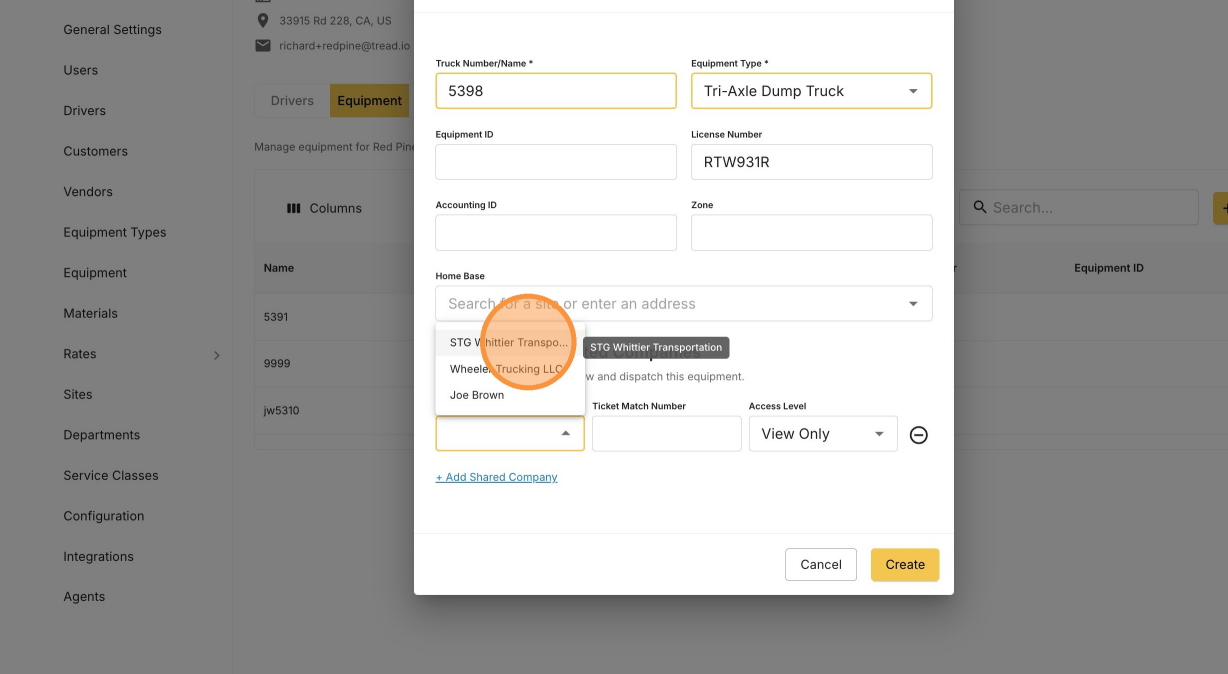
2

Select your company

Selecting your own company in the shared company picker
3

Set the access level to Dispatchable
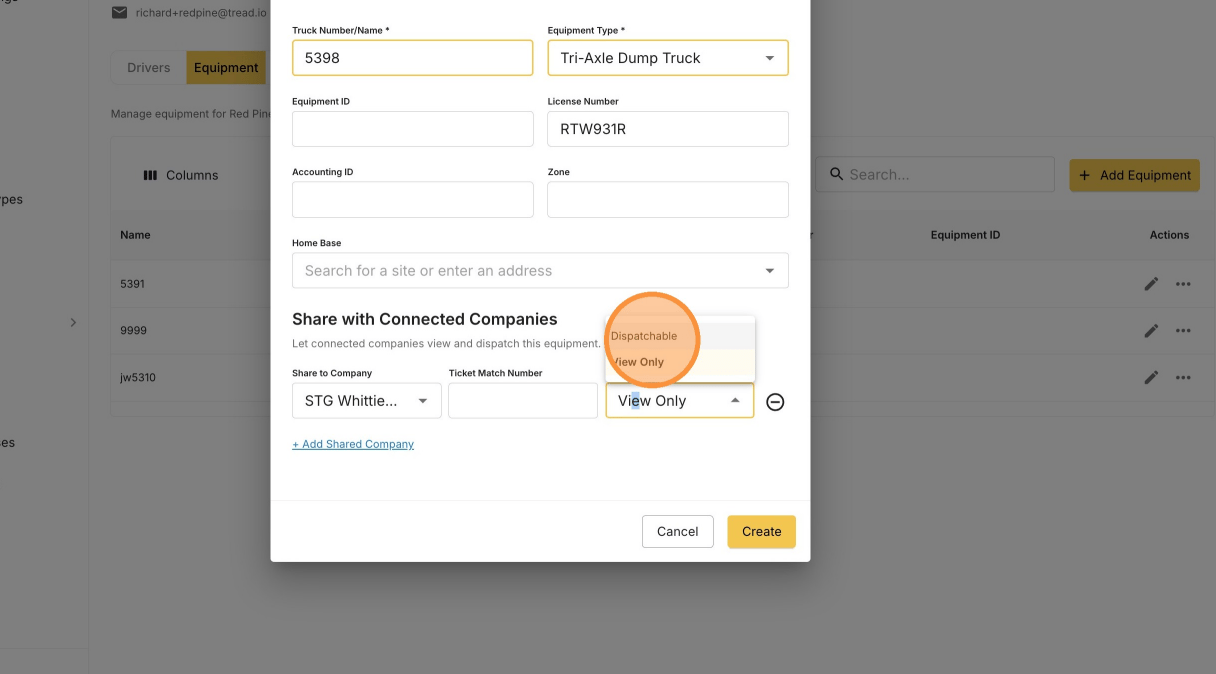
Setting the share access level to Dispatchable
4

Click Create
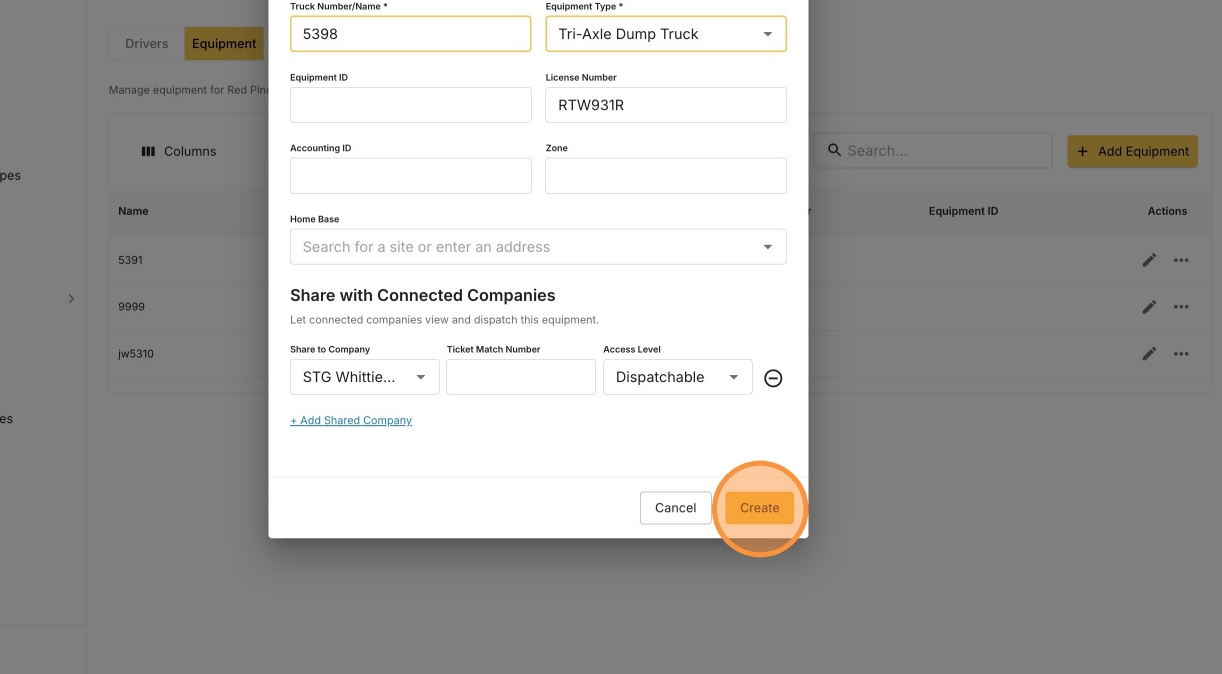
The Create button on the equipment form
The new truck appears in the vendor’s equipment table.
The newly added truck listed in the vendor's equipment table

Assign the truck to the vendor’s driver

1

Open Settings → Drivers

This is your own driver list, including drivers shared to you.
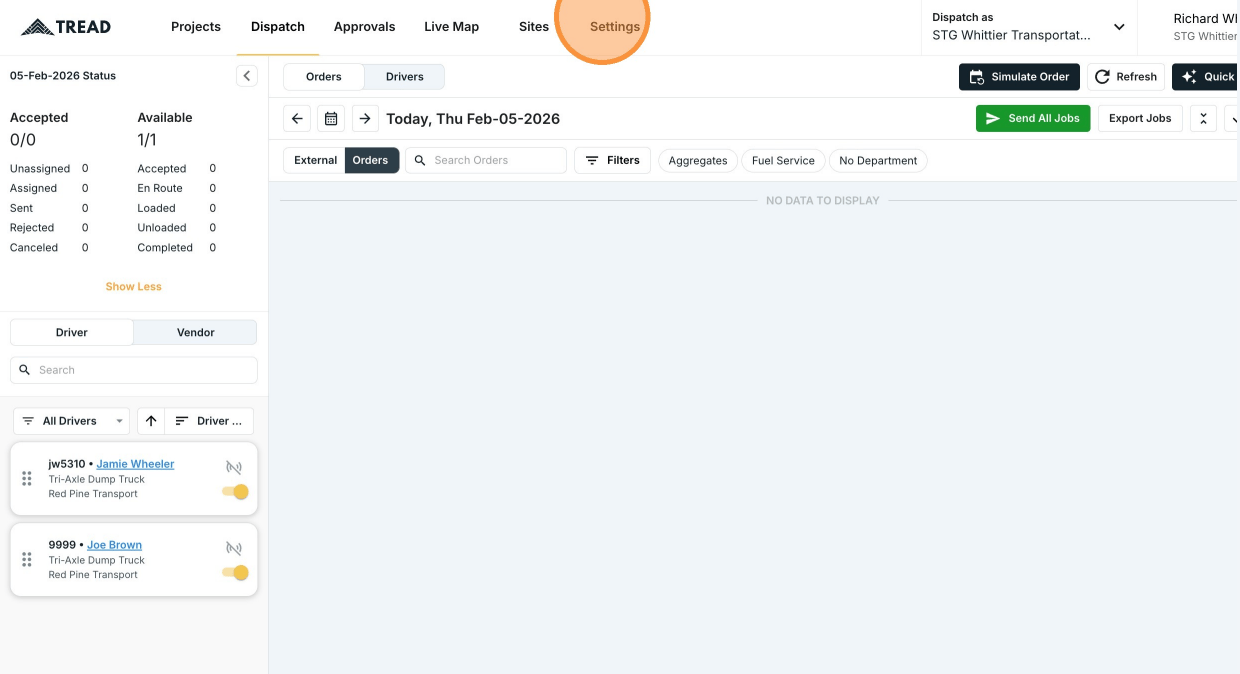
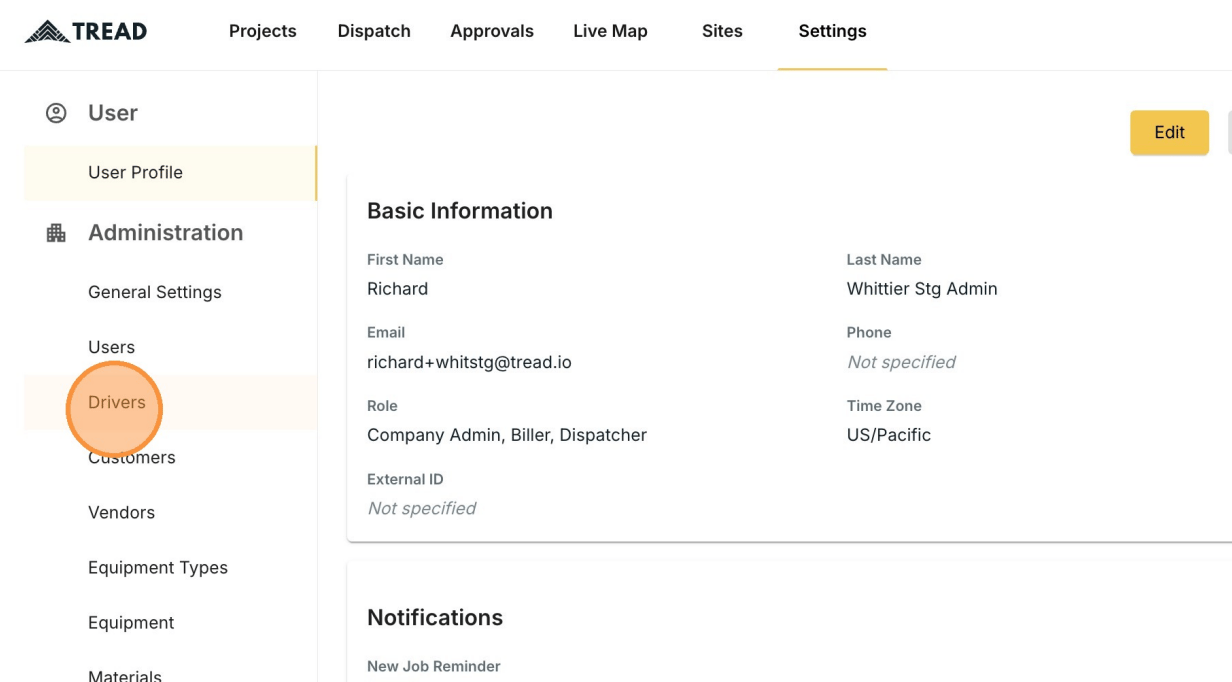
Opening Settings
The Drivers list under Settings
2

Pick the truck in the Select Truck field

Choose the driver’s row, then set the truck you just added.
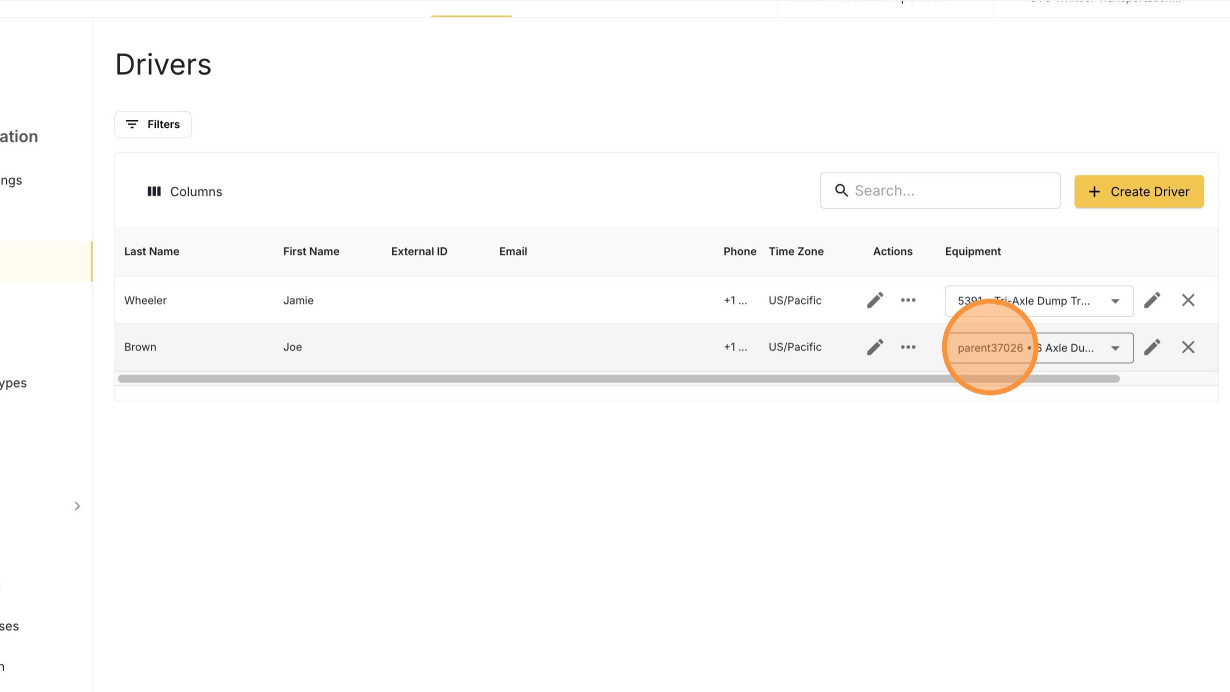
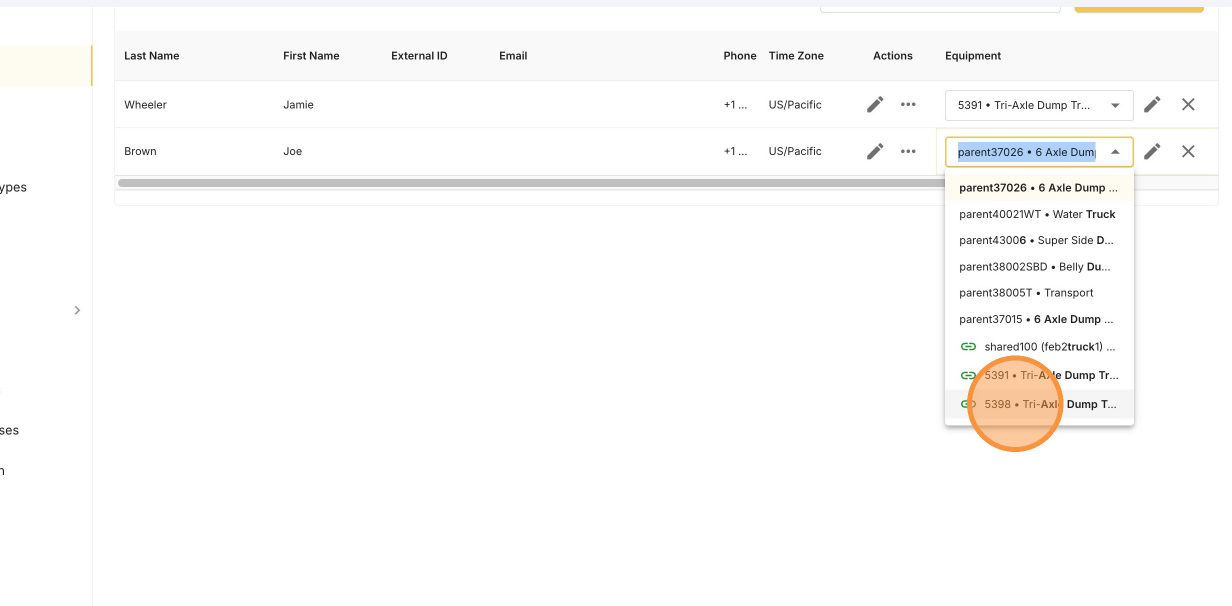
The Select Truck field on a driver row
The truck selected for the driver
3

Confirm on the Dispatch board

The driver now shows with their assigned truck.
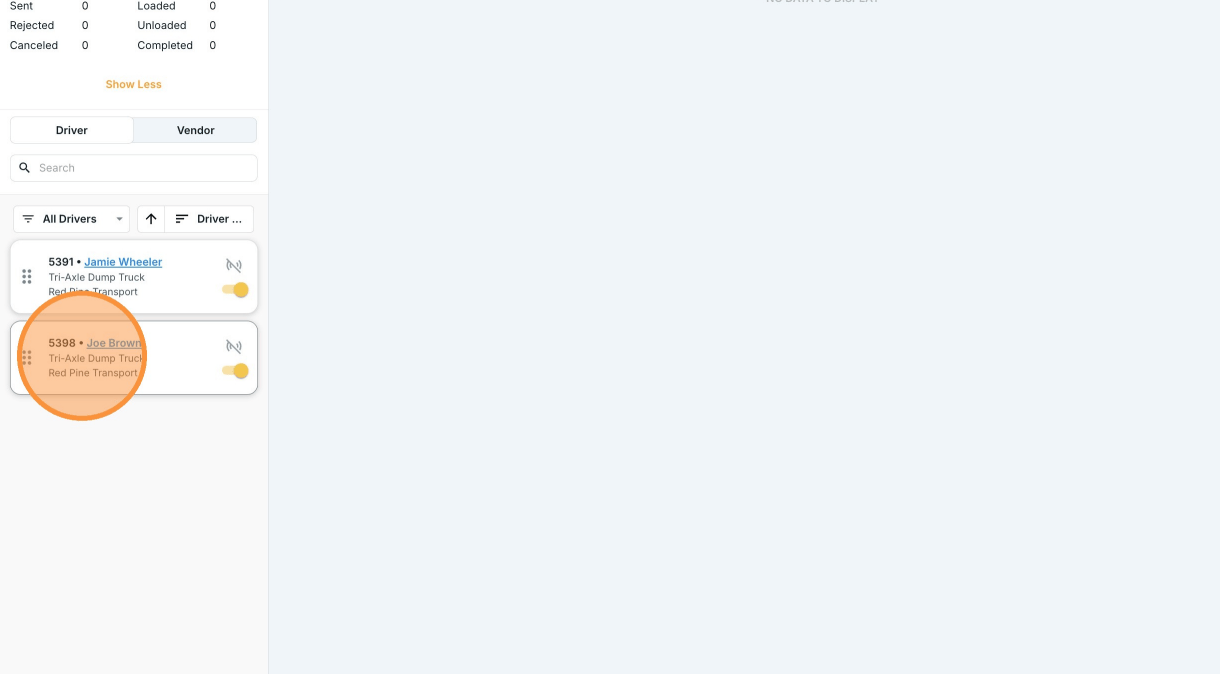
The Dispatch board showing the driver assigned to the new truck